Lookalike Campaigns in AiSDR: Setup and Messaging
Last updated: September 30, 2026
A Lookalike Campaign targets companies that resemble your best-performing Lookalike campaigns target companies that resemble the customers you already win. In AiSDR you build them with Live AI — you describe the audience in plain English, and AiSDR turns it into a structured search.
🚩 Lookalike isn't a separate database — it's how you phrase your prompt. The words "at companies similar to [yourcustomer.com]" are what trigger lookalike behavior. Leave that phrase out and you get an ordinary audience search instead.
🛠 Step-by-Step: Setting Up a Lookalike Campaign
Go to Campaign Builder
In the Target audience field, describe both:
-Who you want to reach (role, seniority, department), and
-What kind of company they should work at.
Phrase it as "at companies similar to [yourcustomer.com], [yourcustomer.com], [yourcustomer.com] " to trigger the lookalike behavior.
Specify a location
We recommend adding at least 3 company domains from the same industry and of a similar company size. This gives the AI more examples to analyze your criteria and find similar companies.
✍🏻 Prompt Examples for Lookalike search in Live AI
Copy these as starting points and swap in your own seed URLs and roles:
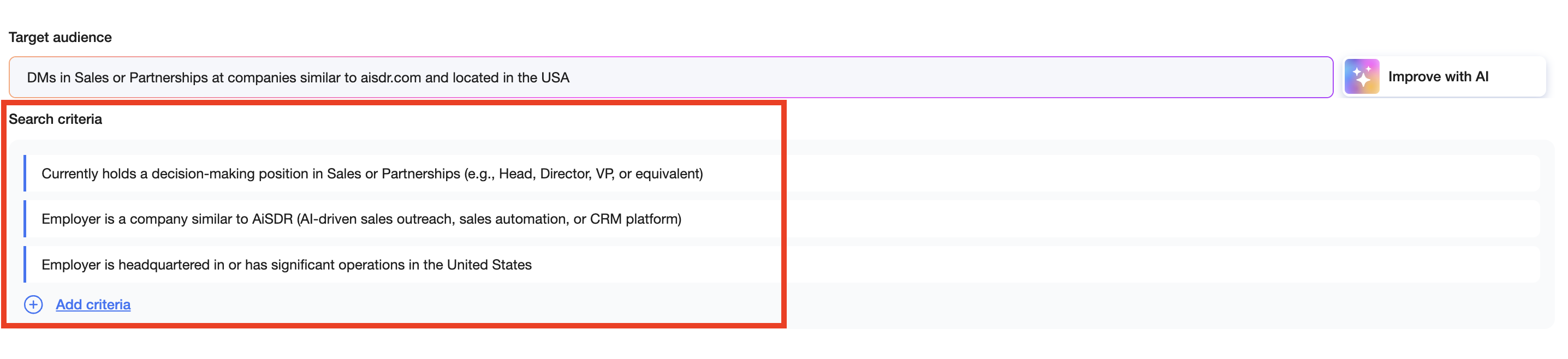
DMs in Sales or Partnerships at companies similar to aisdr.com and located in the USA
VPs of Marketing at SaaS companies similar to hubspot.com with 50–500 employees
Founders and CEOs at early-stage startups similar to linear.app, headquartered in the UK or EU
Heads of People or Talent at fast-growing tech companies similar to notion.so, US-only
RevOps and Sales Ops leaders at B2B SaaS companies similar to gong.io and clari.com
Directors of Demand Gen at agencies similar to refinelabs.com, North America
CTOs and VPs of Engineering at fintech companies similar to ramp.com or brex.com
Customer Success leaders at PLG SaaS companies similar to figma.com and miro.com
After writing a description of your audience, press Enter to review the Search Criteria Live AI creates.
Live AI splits your prompt into individual Search criteria rows (e.g., "Currently holds a decision-making position in Sales," "Employer is a company similar to AiSDR," "Employer is headquartered in the United States"). Edit or remove any row, or click Add criteria to add more.
Final Step:
🔎 Run the Search
Select the number of leads you'd like to pull per search and start it.
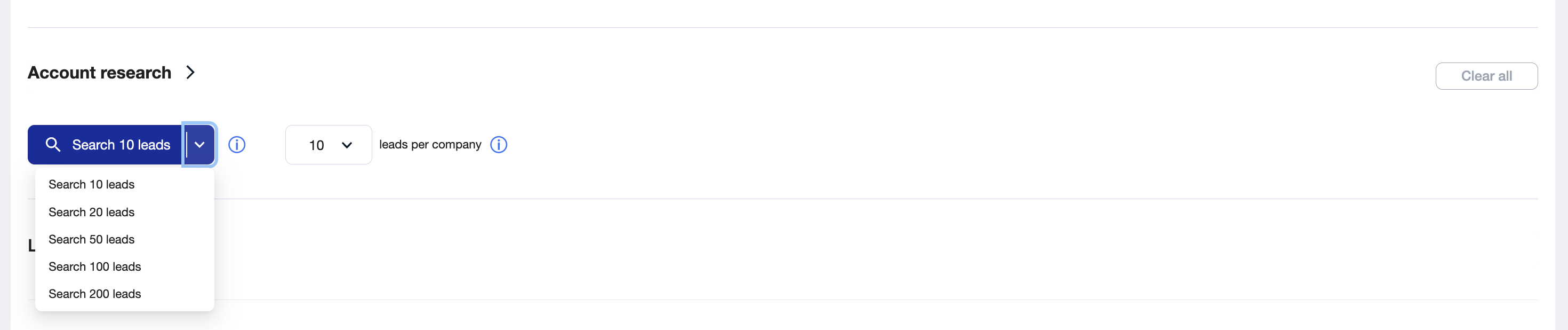
Start with 10 leads as a test batch. If the results look right, scale up; if not, tweak the Target audience prompt and rerun before pulling a larger list.
Toggle "Add fresh leads daily"
Set Yes if you want Live AI to keep adding new matching leads daily, or No for a one-time pull.
Continue with the standard flow
Move on to Suppression lists → Basic CRM sync → Choose your messaging → Sequence → ... → Create.
📩 What Messaging Works Best in a Lookalike Campaign?
Once you've dialed in the filters and identified the right leads using the Lookalike Search, the next key to success is getting your messaging right.
To truly maximize your outreach performance, your message needs to resonate with the audience - and the best way to do that is by showing them proof that looks just like them.
🎯 Best Practice: Use Relevant Case Studies
Why It Works: If you're targeting leads that resemble your most successful customers, referencing those very customers in your messaging creates instant relevance and credibility.
Example: If your Lookalike search is based on marketing agencies, highlight a successful result you've delivered to another marketing agency.
This technique has consistently delivered strong reply rates across AiSDR campaigns. It creates a natural alignment between your offer and the lead’s world.
🛠 How to Create Messaging that Uses Your Case Studies?
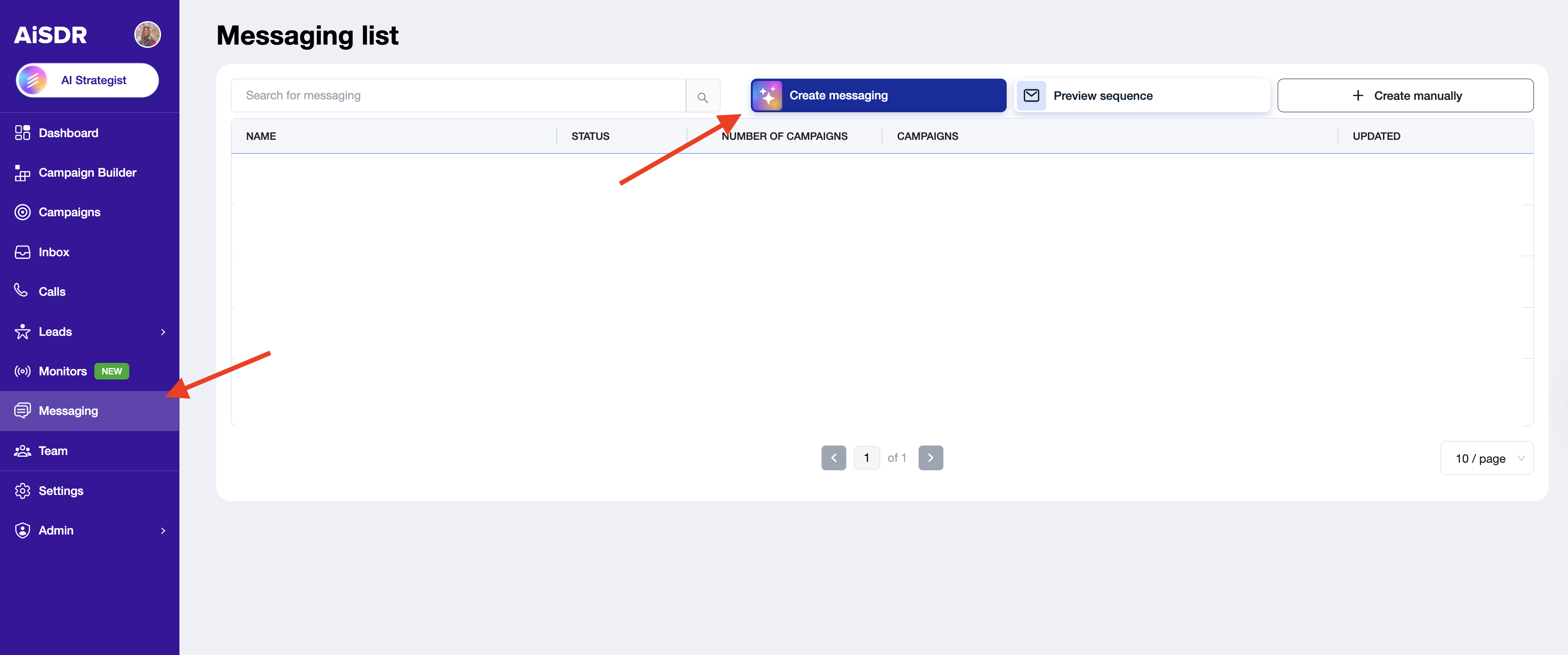
Go to Messaging → Create messaging. AiSDR will walk you through 3 steps.
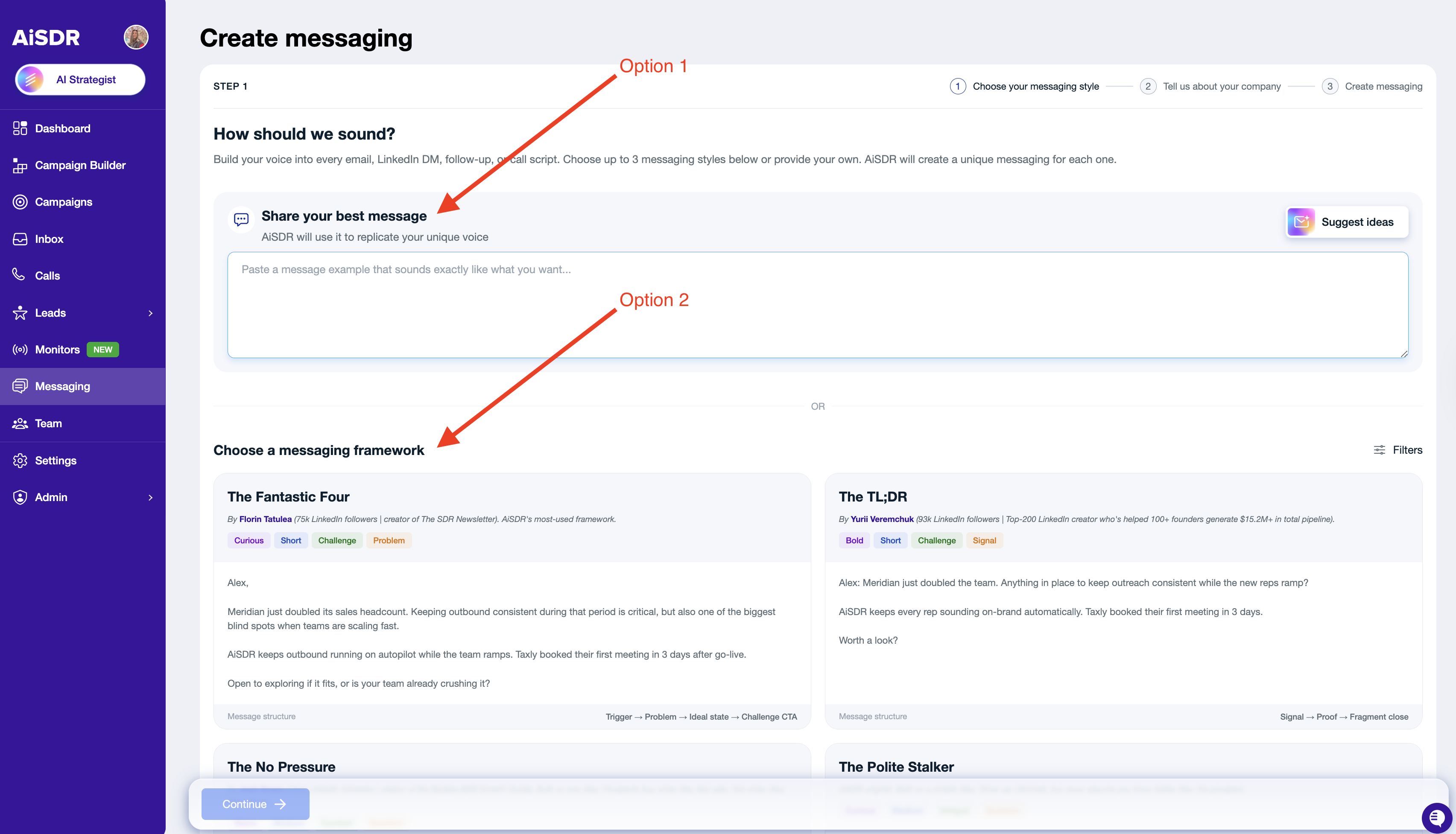
Step 1 — Choose your messaging style ("How should we sound?")
You have two ways to set the voice:
Share your best message — paste a real message that sounds exactly the way you want AiSDR to write. This is where structure is learned. Use Suggest ideas if you need a starting point.
Quick tip: incorporate a case study into your example message, so AiSDR sees how you'd weave it into the message structure (where the proof sentence lands, how it phrases results).
OR pick a messaging framework — choose from prebuilt structures. The No Pressure and The Polite Stalker are good starts for case-study-oriented messaging.
Click Continue.
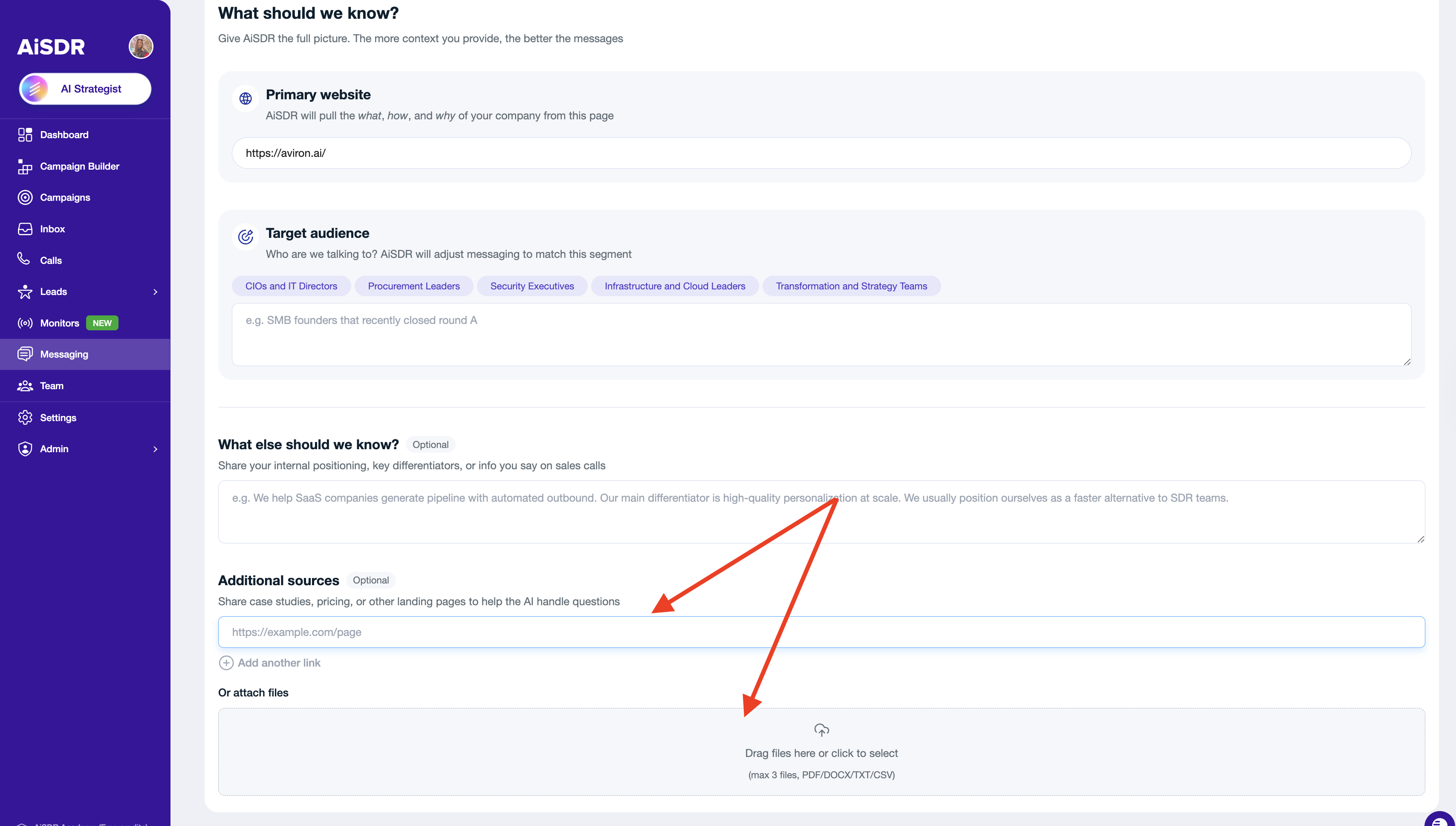
Step 2 — Tell us about your company ("What should we know?")
Primary website (required) — AiSDR pulls the what, how, and why of your company from this page. This doesn’t have to be only your homepage — it can also be a service- or feature-specific page to make the scraped information more precise and relevant.
Target audience — click a segment chip (e.g., Procurement Leaders, Security Executives) OR describe who they are in 1–2 sentences (role, responsibilities, what they care about).
What else should we know? (optional) — internal positioning, key differentiators, the exact lines you say on sales calls.
⚠ IMPORTANT: Additional sources — add URLs to published case studies, so AiSDR can pull facts when leads ask questions or when a case study is referenced in messaging.
OR Attach files — drag in detailed case-study docs, one-pagers, or sales decks. This is the right place for detailed case-study documents (named client, exact metric, pain solved, outcome) — anything you don't want to dump into the small "What else" textbox.
Step 3 — Click "Create messaging"
AiSDR generates one messaging variant per style you picked in Step 1. Review, edit, and save.
👀 Check Case Study Details
After AiSDR generates your messaging, open it to confirm the case studies you added are actually being used. Skipping this step is the #1 reason a "proof" sentence ends up generic or missing in your outreach.
1. Open the messaging
Go to Messaging and click the messaging you just created.
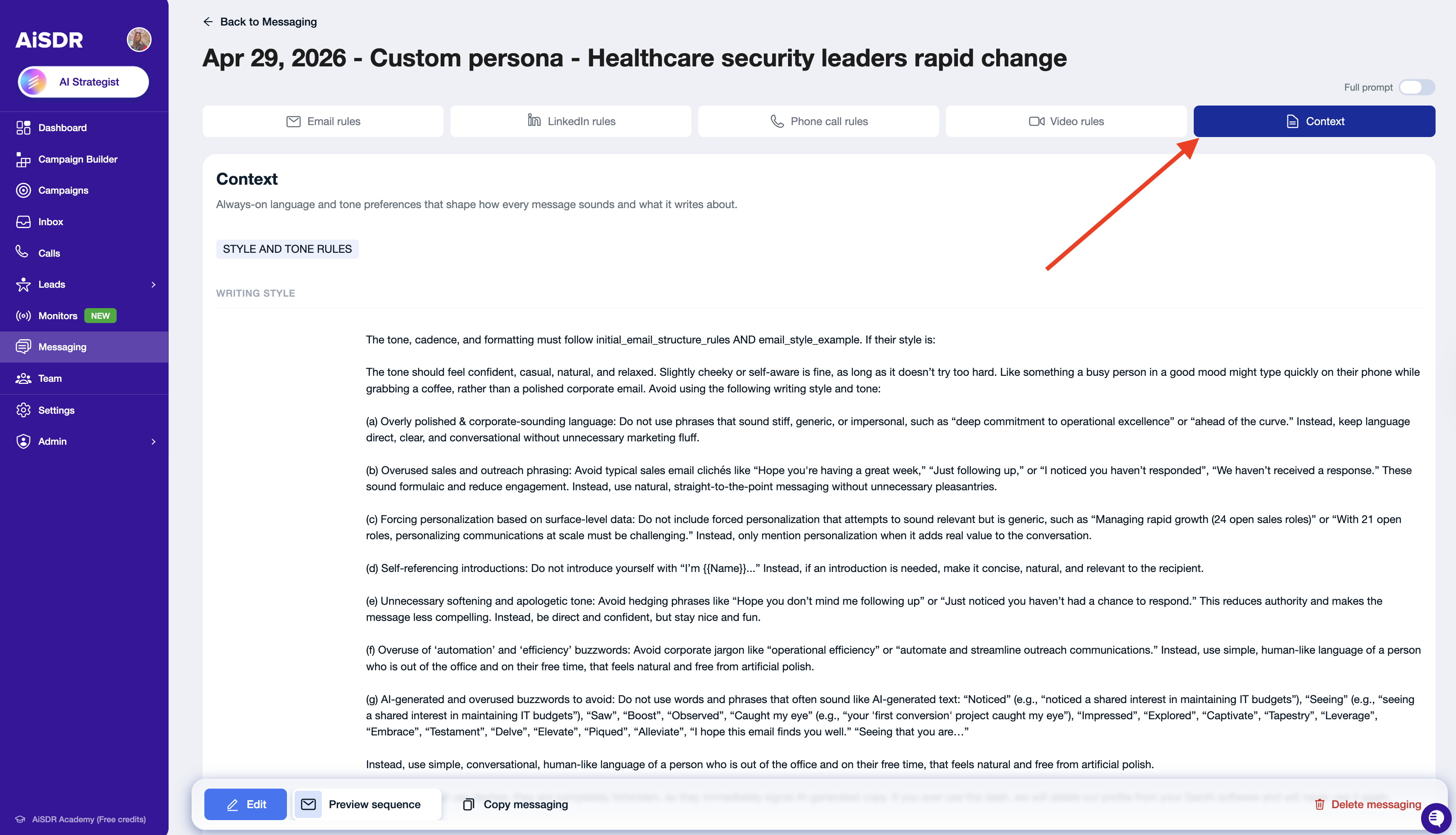
2. Open the Context tab
Click the Context tab in the top navigation (next to Email rules, LinkedIn rules, Phone call rules, Video rules).
3. Scroll to the Case Studies section
You'll find it in the left margin of the Audience Context block, below Target audience, Pain points, and Values. This section should contain the case study details AiSDR pulled from your inputs.
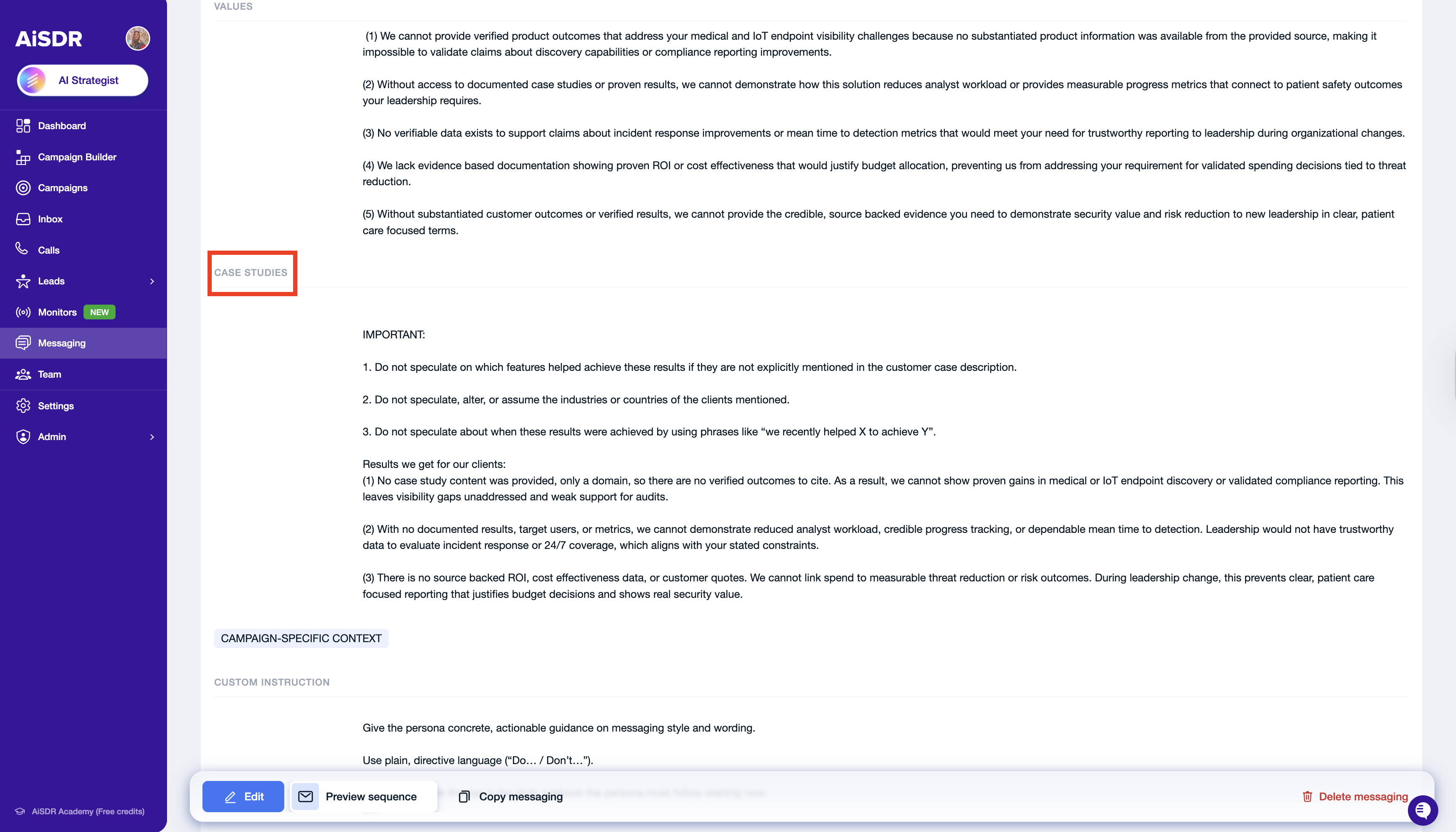
Look for two things:
👍🏻 Named clients and specific metrics (e.g., "Taxly booked their first meeting in 3 days"). If you see your case study spelled out here, AiSDR has it.
👎🏻 Warning phrases in the Case Study section like "no substantiated product information was available from the provided source" or "We cannot provide verified product outcomes…". This means AiSDR couldn't extract usable proof from your inputs, or we weren’t able to scrape them successfully (some pages or files may block scraping access).
In this case, click the “Edit” button at the bottom and manually add a short Case Studies description. Don't forget to Save it.
4. Preview the sequence
Click Preview sequence at the bottom of the page > Generate Sequence
Read the generated emails carefully:
✅ The case study is referenced by name with a real metric — you're good.
⚠ The proof sentence sounds vague ("We've helped companies like yours…").
Fix it using the “Give feedback” option.
Click Give feedback at the bottom of the preview, type a correction (e.g., "always mention the Taxly case study by name with the 3-day metric"), then click Send to make automatic prompt changes.
📄 Persona Feedback: How to easily make adjustments to the messaging