How to Upload and/or Enrich a CSV File with Leads in AiSDR
Last updated: April 9, 2026
With AiSDR, you can import leads via CSV in two ways:
Basic Upload → Simply upload your file and use it as is.
AI-Powered Enrichment → Expand or complete your lead data automatically.
This guide walks you through both options.
📥 Uploading a CSV File (Without Enrichment)
If you already have a clean list of leads, you can upload them directly:
Go to the Campaign Builder tab in your AiSDR dashboard.
Click on Import from CSV to start the upload process.
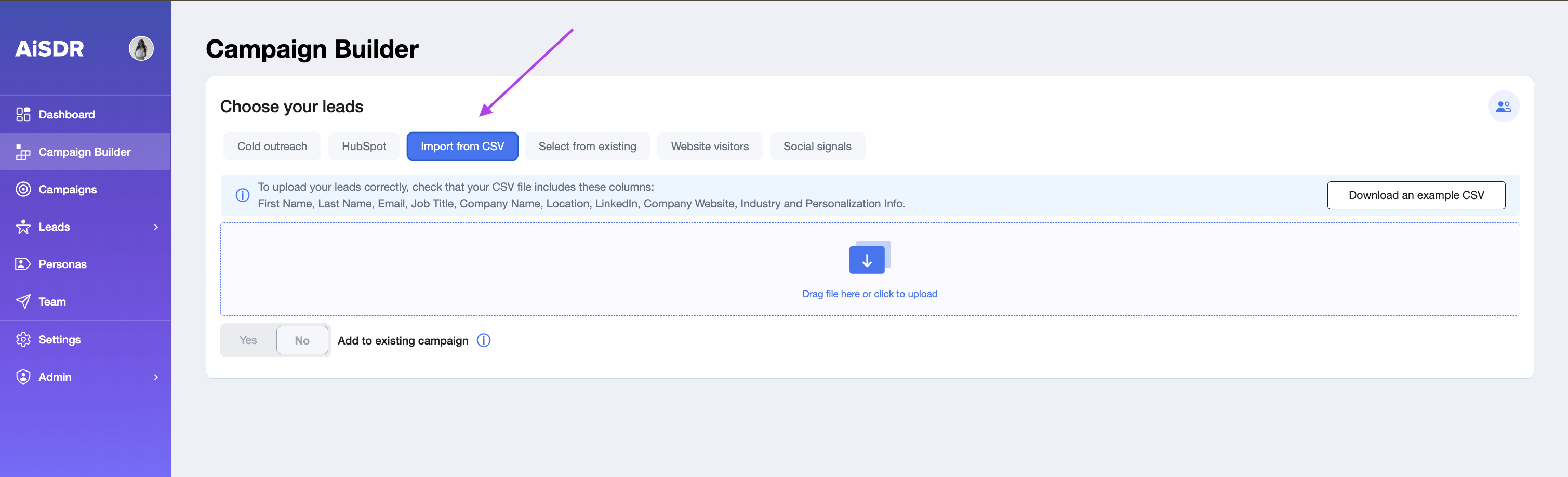
📄 File Format Requirements
Make sure your file meets the following format requirements:
The file must be in CSV format.
There are three mandatory fields for each lead:
✅ First Name
✅ Last Name
✅ Email Address
If your CSV does not include LinkedIn URLs, AiSDR will still process the leads, but the messages may be more generic.
To unlock maximum personalization (company context, latest updates, etc), always include or enrich LinkedIn URLs along with your leads.
All other fields are optional, but recommended for better targeting and personalization. These include:
Job Title
Company Name
Location
LinkedIn URL
Company Website
Industry
Personalization Info
✨ AI-Powered CSV Enrichment
With AiSDR, it is now possible to enrich the missing info in your CSV using the AI-powered CSV processing.
With this upgrade, you can:
For company lists → search and add leads based on the filters you set.
For lead lists → choose what to enrich: Email, LinkedIn, or both.
Once enriched, you can launch campaigns with these leads using the usual AiSDR flow.
🔎 Two Types of Enrichment
Company Enrichment
Use when you only have company websites.
AiSDR finds the right leads for you.
Lead Enrichment
Use when you already have lead names and company websites.
AiSDR fills in missing emails and/or LinkedIn URLs.
🏢 How to Use Company Enrichment
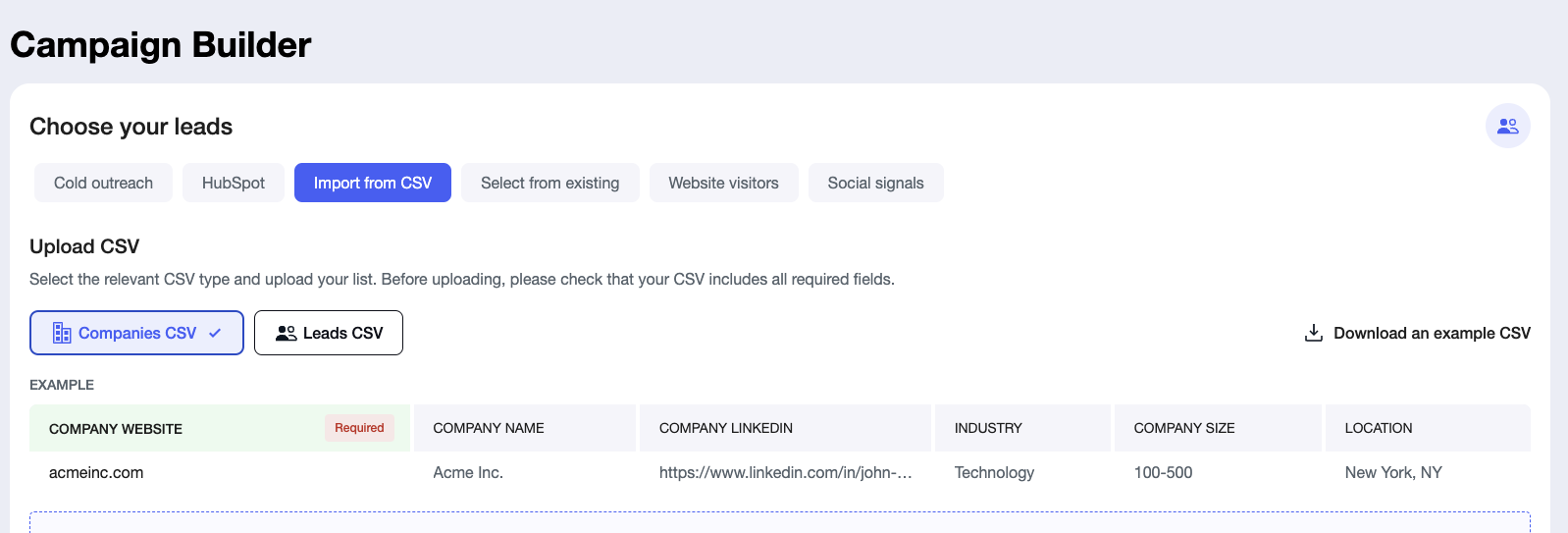
Go to Campaign Builder → Import from CSV → select Companies CSV.
Upload a file containing company websites.
Note: AiSDR can’t enrich based on company names—it requires websites.
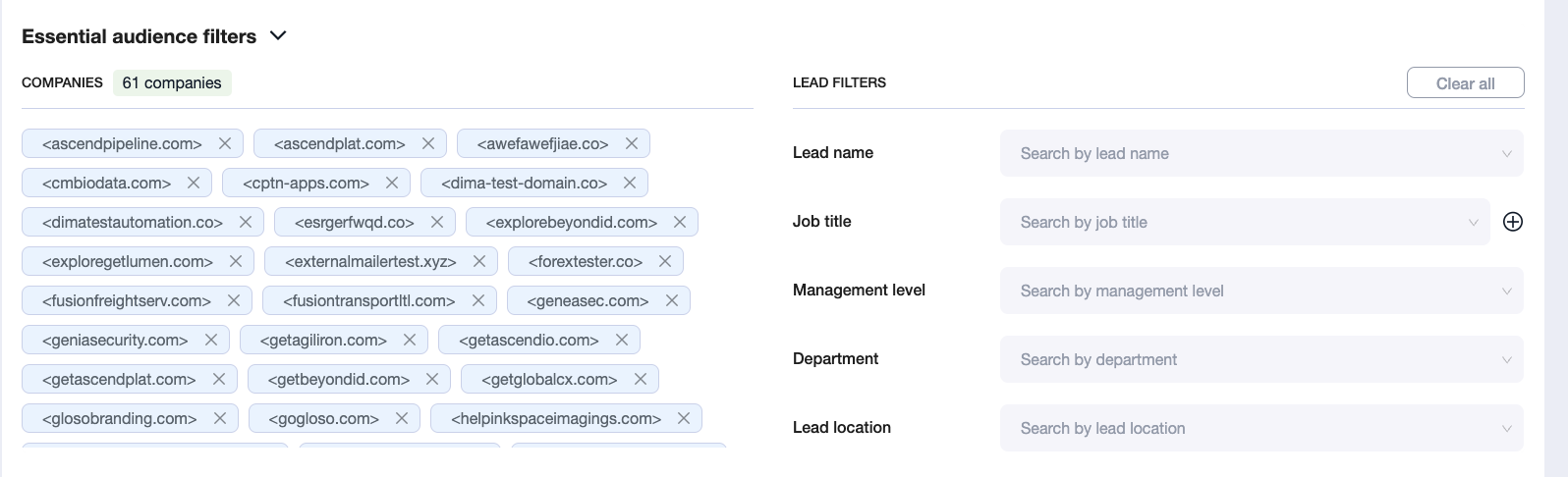
Apply your lead search filters.
Start with a small batch (~10 leads per company) to validate relevance and processing speed. Use the dropdown next to "Search X leads" to set a lower count per run.
Click Search 200 leads.
Repeat searches until all companies are processed, or stop once you have enough leads. Scale up the leads per company count gradually as needed.
Performance Tip: Processing large numbers of leads per company (e.g., 100+ leads for multiple companies) can slow down the enrichment process significantly. Starting with smaller batches helps control credit usage and allows you to quality‑check results before running larger searches.
👤 How to Use Lead Enrichment
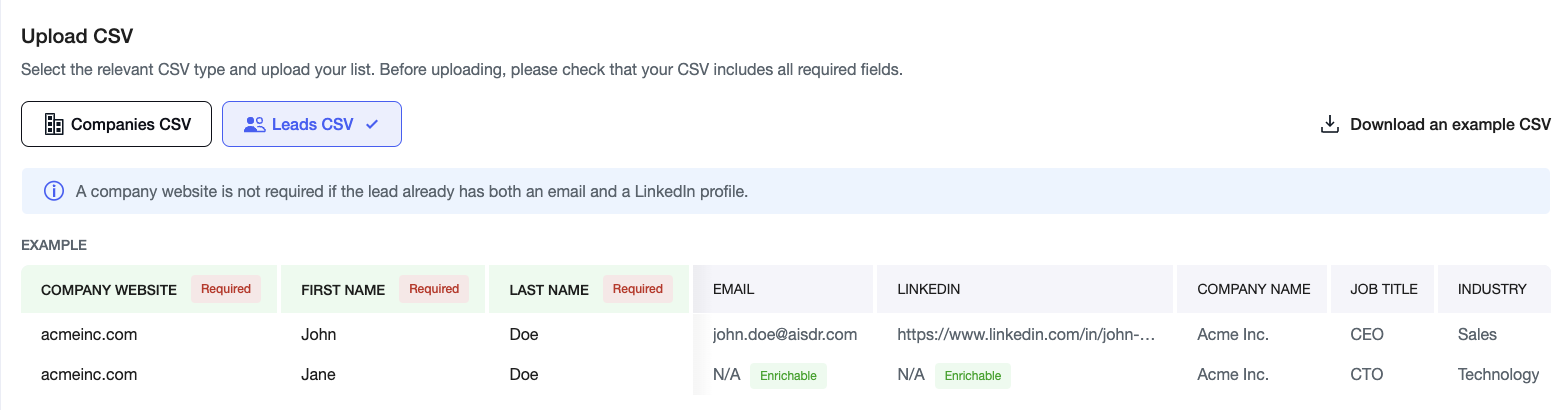
Go to Campaign Builder → Import from CSV → select Leads CSV.
Upload a file that includes First Name, Last Name and Company Website
Choose what data you want to enrich:
Email only
LinkedIn only
Both
Select the leads for enrichment.
Click Enrich leads.
Continue building your campaign as usual.
Credits Reminder: CSV enrichment uses credits. 1 email/LinkedIn enriched = 1 credit.
⚠ Common Issues & How to Fix Them
What does "Looks like you're missing some fields. First name, last name, and email are required for each lead" mean?
Your CSV contains one or more rows where at least one of the three mandatory fields (First Name, Last Name, Email) is blank. AiSDR will highlight the affected rows in red. You have two options: delete the row if you don't have the data, or click the edit icon next to the lead and fill in the missing field manually. If only the last name is missing, enter any placeholder (e.g., "N/A") — AiSDR does not use the last name in outreach messaging.
Can I upload the same CSV to multiple campaigns?
Yes. A CSV file is not locked to a single campaign. That said, avoid contacting the same leads across multiple campaigns — receiving outreach from the same sender through overlapping sequences damages your sender reputation and will likely get you marked as spam.
What happens to leads I've already contacted if I re-upload the same CSV?
AiSDR will notify you that one or more leads already exist in another campaign. Since a lead can only belong to one campaign at a time, you will need to choose which campaign to keep them in. The duplicate leads will not be added to the new campaign until you resolve the conflict.
What happens if enrichment can't find an email for a lead?
It depends on your campaign type. If you are running a LinkedIn-only campaign, the lead will still be added to your list and contacted via LinkedIn. If you are running an email campaign, the lead will be skipped entirely and will not enter the sequence.
How long does enrichment take?
Processing times depend on the size of your list and the number of leads per company, but large batches can take several hours to complete. Do not expect instant results.