How to Adjust Your Messaging
Last updated: September 24, 2026
Every email, follow-up, and LinkedIn message your prospects receive is based on what’s written in the Messaging
There are two main ways to adjust your messaging in AiSDR:
Option 1 – Quick adjustments: simple, two-click edits you can make directly from your campaign preview. We always recommend starting with the option 1 as it's the easiest way to adjust your messaging.
Option 2 – Advanced adjustments: deeper control inside the messaging editor, perfect if you want to fine-tune tone, structure, or specific message parts.
Which option is right for you?
Use Feedback for
Small improvements such as:
Adjusting tone or wording
Shortening or simplifying sentences
Changing greetings or closing lines
Adjusting CTAs
Adding or restricting specific references
These types of adjustments help refine messaging while keeping the overall structure of the outreach intact.
Use Custom Instructions for
Company-Level Rules
If you have multiple rules related to your company messaging, it is better to add them to the Custom Instructions section within the persona.
For example:
company tone guidelines
preferred or restricted phrases
messaging style rules
audience-specific language
industry terminology
Adding these rules to Custom Instructions ensures they are applied consistently across all generated messages.
Option 1 (default): Feedback
The Give Feedback feature in AiSDR allows you to adjust and refine messaging quickly, without having to modify the messaging prompt manually.
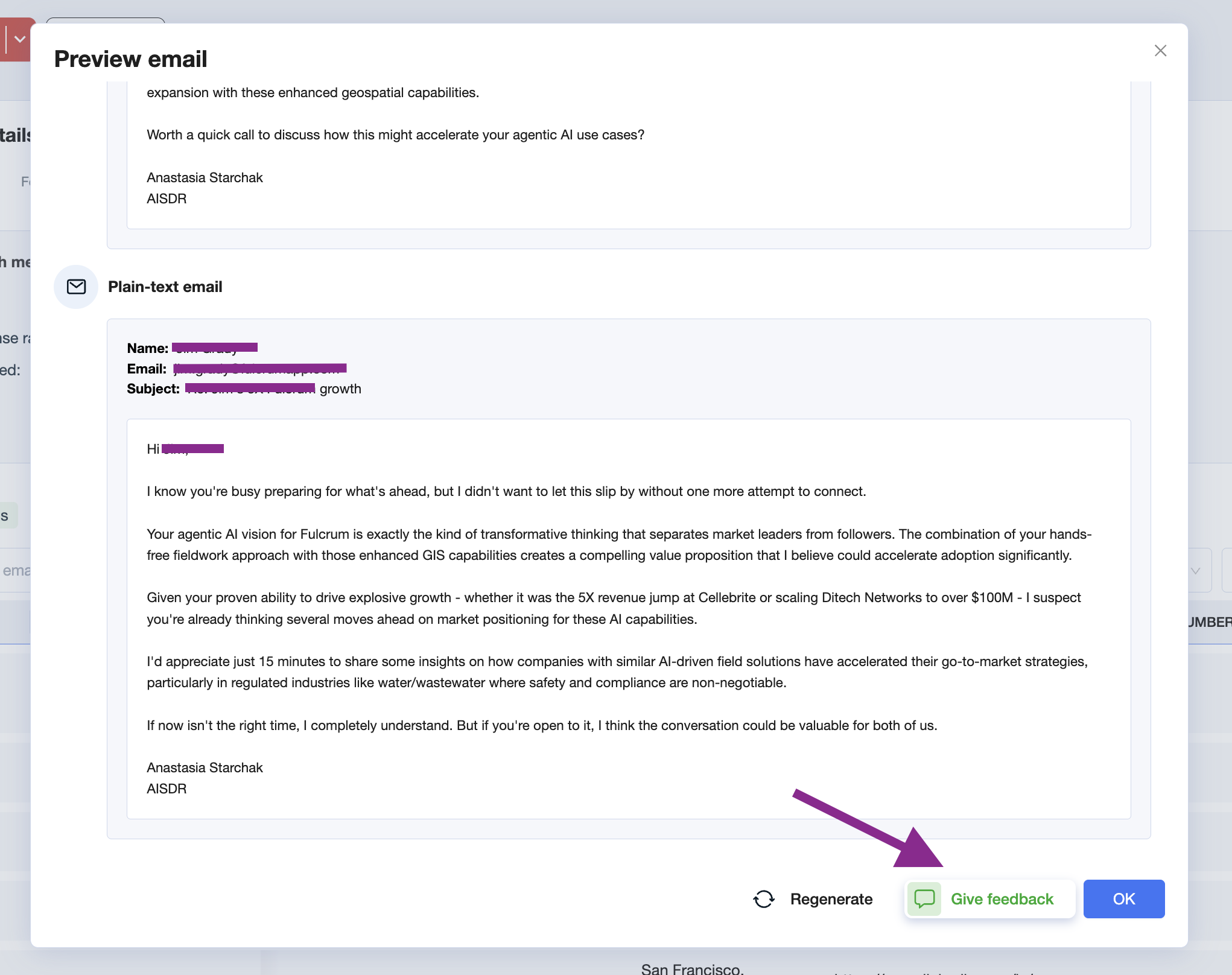
You can find it under the Preview Sequence option:

How it works:
Once test generation is ready, scroll to the bottom of the screen.
Click the Give feedback button.
Provide Clear Feedback
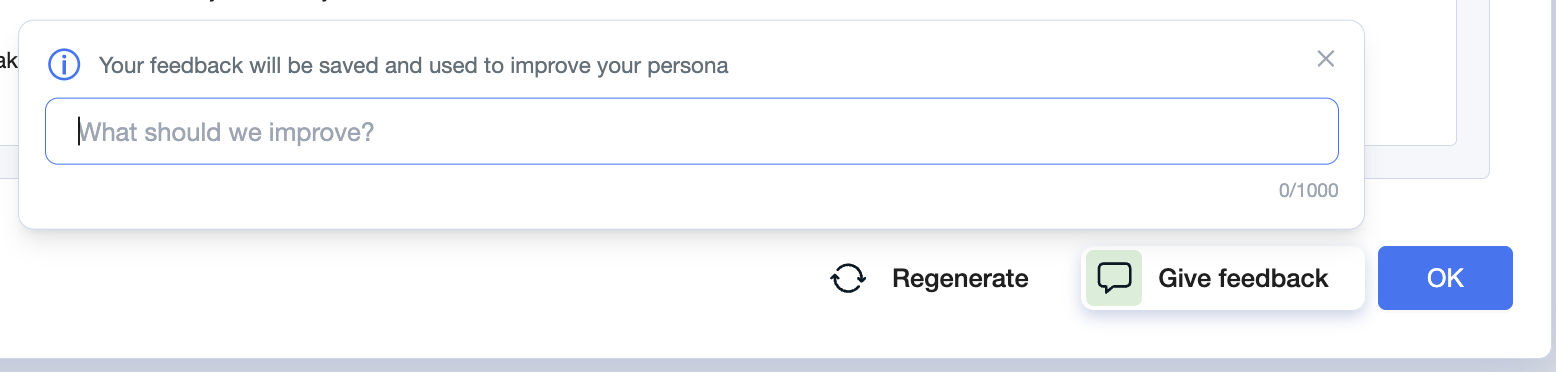
Select the specific step(s) in the sequence where adjustments are needed.
Enter instructions in plain language (e.g., “Make the tone more formal” or “Shorten the intro sentence”).
Ensure your instructions are concise and clear so AiSDR can reflect the changes properly.
Examples of Helpful Feedback
Good feedback
“Avoid using the phrase I came across your profile.”
“Make the message shorter — maximum two short paragraphs.”
“Use a more direct tone and remove overly salesy wording.”
“Change the call-to-action to a simple question instead of asking for a meeting.”
“Do not reference acquisitions or funding announcements.”
Less effective feedback
“Rewrite the entire message.”
“Change the whole strategy of the sequence.”
“Make the emails completely different.”
Persona Feedback works best when it focuses on specific parts of a message rather than rewriting the entire sequence.
Regenerate the Sequence
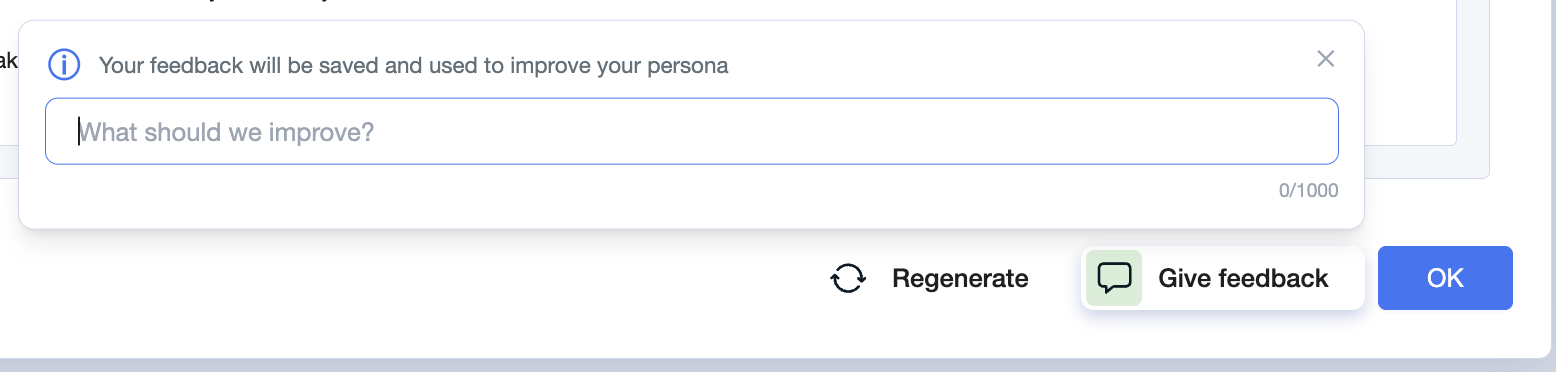
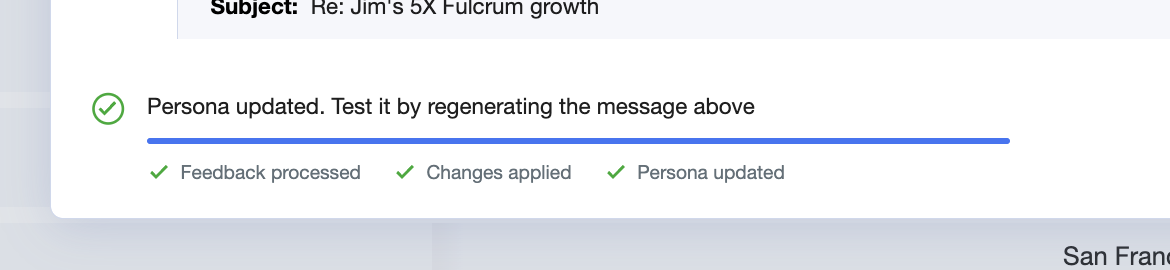
After submitting feedback, AiSDR updates the persona with your changes.
Click Regenerate sequence to preview the new messaging.
Compare the updated version against your expectations.
Undo Changes if Needed
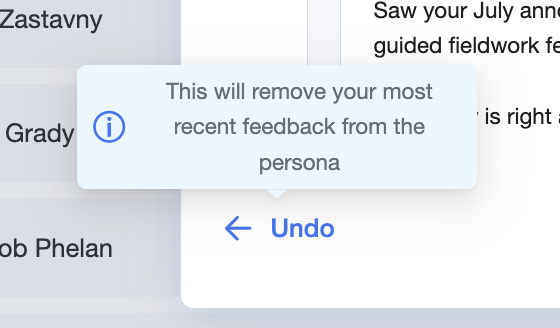
If you prefer the previous version, click Undo.
This reverts the persona back to the earlier state, allowing you to discard unwanted edits.
Giving Feedback on Already Sent Messages
You can also provide feedback for messages that have already been sent to leads.
Go to your active campaign page.
Go to the Overview tab.
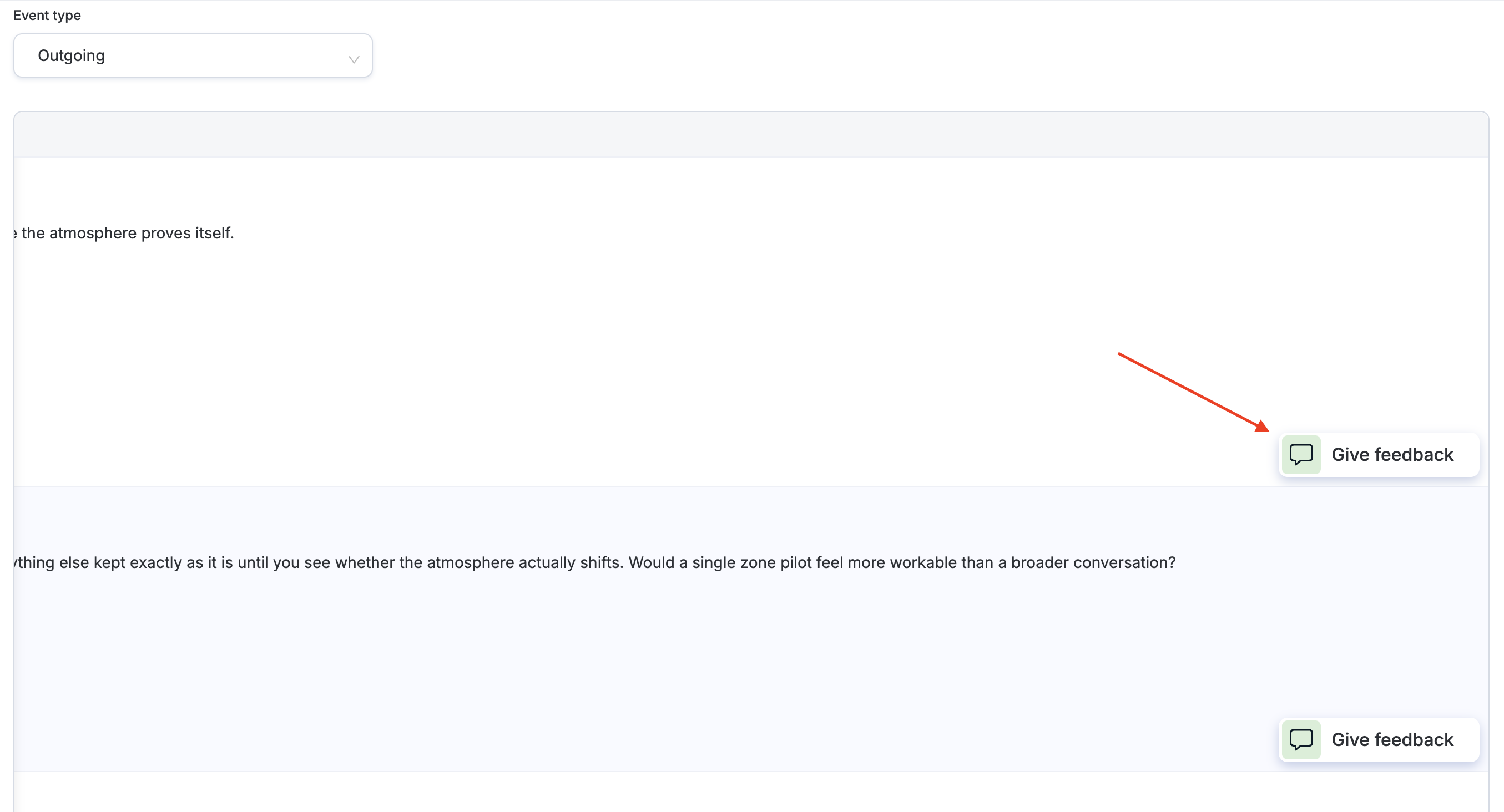
Use the event type filter and select Outgoing to view all sent emails, or LinkedIn Outgoing to review LinkedIn messages.
Click the Give feedback button next to any message to suggest adjustments for future emails or LinkedIn outreach.
Option 2: Advanced Editing Options.
If the first option didn't deliver expected results, or you'd like to dive deep into the prompt itself and make more advanced adjustments, open the messaging you want to update and select the section you'd want to edit, and click Edit.
Sections breakdown
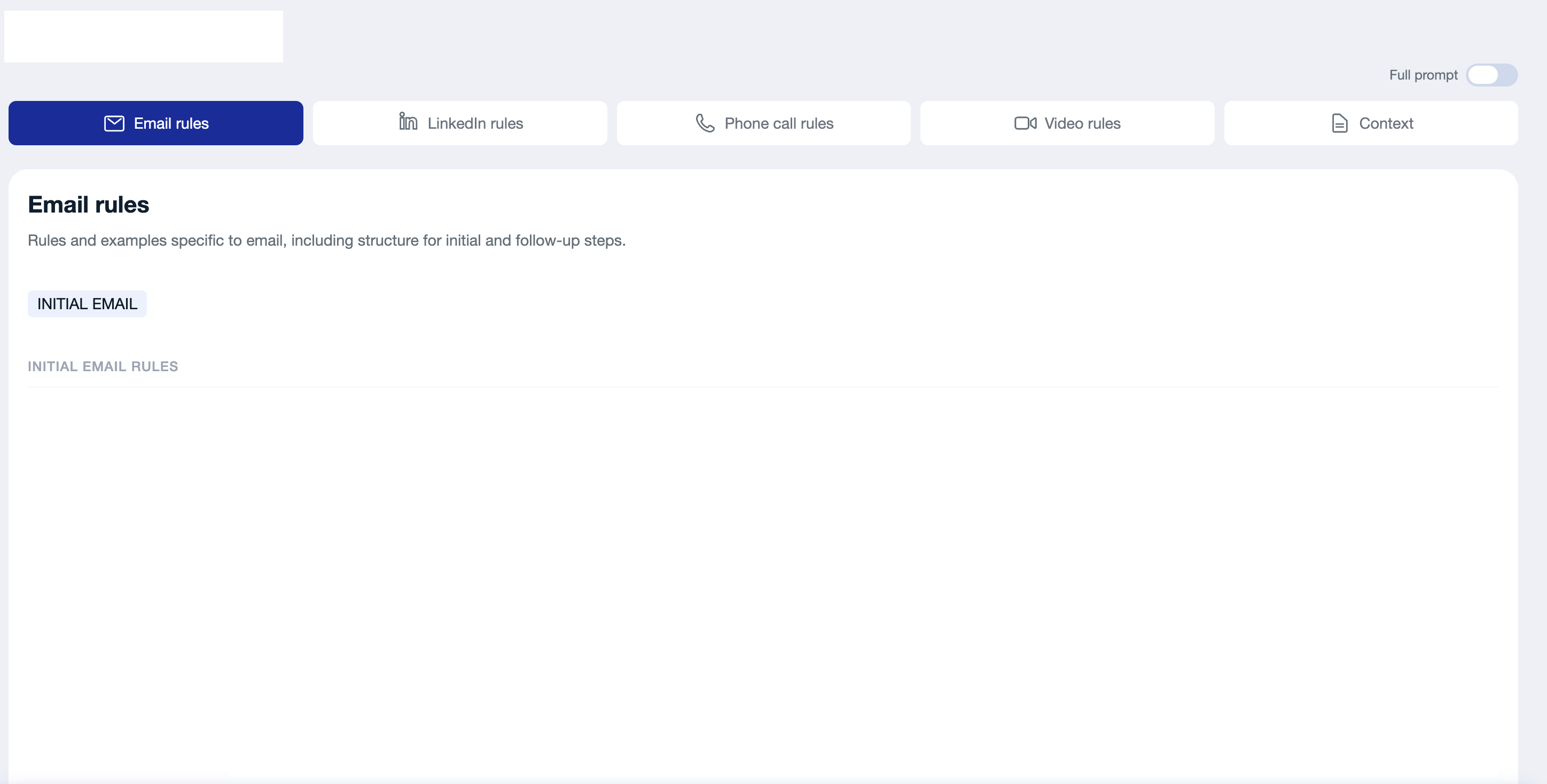
Just select what you'd like to edit from the whole messaging and see the breakdown of all the sub-sections!
Email rules - initial email + follow ups
Initial email rules (Initial email tab) — Sets word limits, tone, structure, and CTA style for cold emails. If your emails don't feel right, start here.
Initial email structure (Initial email tab) — Defines the step-by-step structure: opener, problem statement, value proposition, social proof, and CTA.
Mandatory follow-up email rules (Follow-ups tab) — Controls length, tone, and banned phrases for follow-up emails.
Follow-up email examples (Follow-ups tab) — Concrete example emails the AI mimics for each follow-up step.
Subject line rules (Subject line tab) — Sets length, tone, and banned buzzwords for subject lines.
If you want to change each follow up separately, look at follow-up email examples section and change the example emails.
LinkedIn rules - connection note + messages + voice note
LinkedIn connection note style (Connection request note tab) — Shapes how connection requests are written. Edit this if your notes feel too formal, too vague, or too sales-forward.
LinkedIn message rules (LinkedIn messages tab) — Defines the HOOK–MIRROR–QUESTION structure for first DMs.
LinkedIn follow-up message rules (LinkedIn messages tab) — How follow-up DMs are handled and what value they lead with.
LinkedIn voice message rules (LinkedIn voice note tab) — The structure and tone of voice notes.
Phone call rules - call script structure
Call script structure (Call script structure tab) — How cold calls scripts are structured from opener to CTA.
Video rules
Video rules (Video rules tab) — How video messages are put together and what they cover.
Context - general context for your messaging + language + custom instructions
Writing style (Style and Tone Rules tab) — The main tone guide for all outputs. Start here for any brand voice adjustments.
Mandatory language rule (Style and Tone Rules tab) — Sets the language all outputs are generated in. Update this if you need outreach in a language other than English.
Target audience (Audience context tab) — Tells persona who it's writing for and what kind of companies to focus on.
Pain points (Audience context tab) — The problems your messaging is built around.
Focus areas (Audience context tab) — The themes and priorities persona ties your messaging to.
Product name (Company context tab) — The product name used consistently across all outreach.
Values (Company context tab) — How your product's benefits are framed and communicated.
Case studies (Company context tab) — The success stories persona references. Keep this updated with your latest results.
Custom instruction (Campaign-specific context tab) — Campaign-level rules that apply across all outputs. The place for specific dos and don'ts.
Useful resources (Campaign-specific context tab) — Links that can be referenced in the outreach.
Frequently asked questions (Campaign-specific context tab) — Predefined objections and responses that are used when Ai Smart Replies are turned on.
If you have a few high-priority rules that must always be followed, you can add them to <custom_instruction> — this section takes priority over all others.
⚠ Use it carefully: adding too many or conflicting instructions can cause confusion for the AI and lead to inconsistent results.
Important: Memes and Signatures
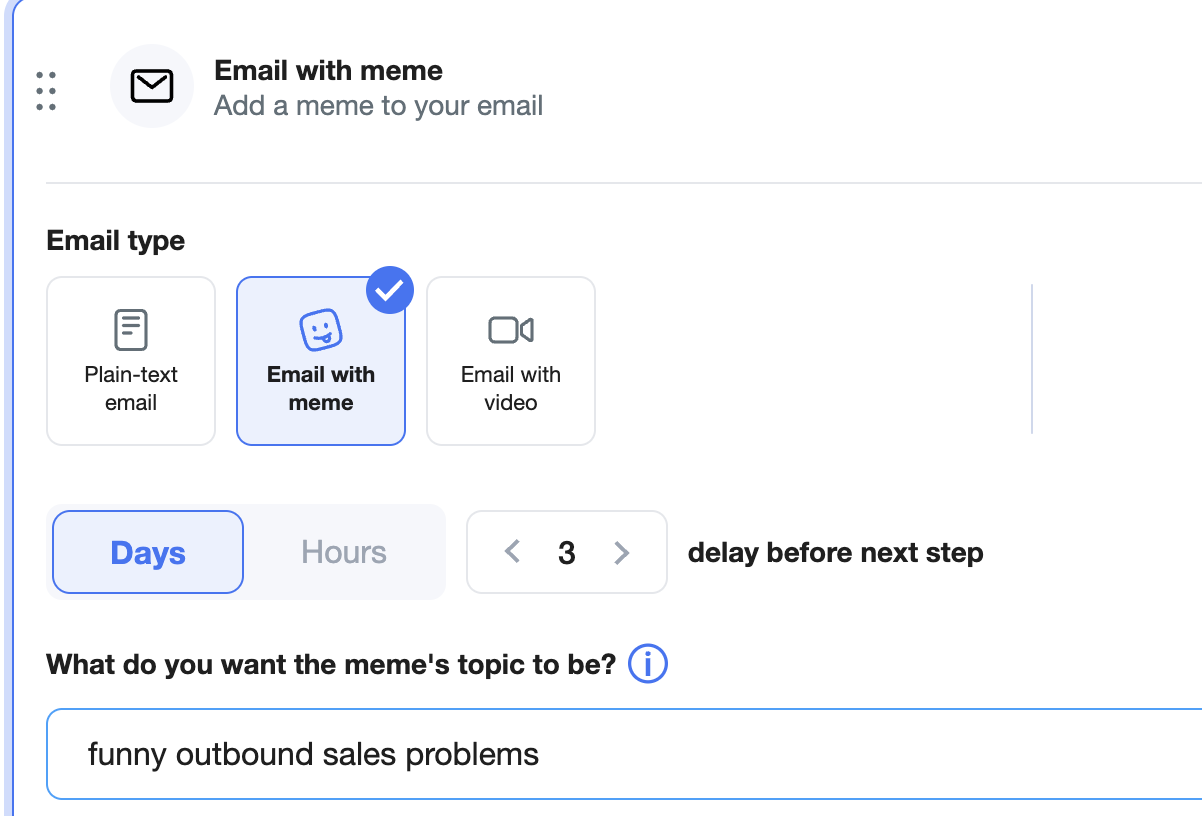
Memes and email signatures should NOT be adjusted through Feedback.
These elements are configured separately in AiSDR.
Instead:
Set up your email signature on the Team > Sender page.
Configure memes by editing the campaign.
See related guides:
📄 Why Does Preview Mode Show Messages with the Wrong Signature?