Step-by-step guide: Creating a Lookalike Campaign in AiSDR
Last updated: December 2, 2025
Creating a Lookalike Campaign allows you to replicate the success of your best-fit customers by targeting companies that resemble them. AiSDR’s Unified Database and Advanced Audience Filters make this powerful targeting easy.
🛠 Step-by-Step: Setting Up a Lookalike Campaign
1. Navigate to the Unified Database
Go to Campaign Builder → Cold Outreach tab.
Open the Lookalike database.
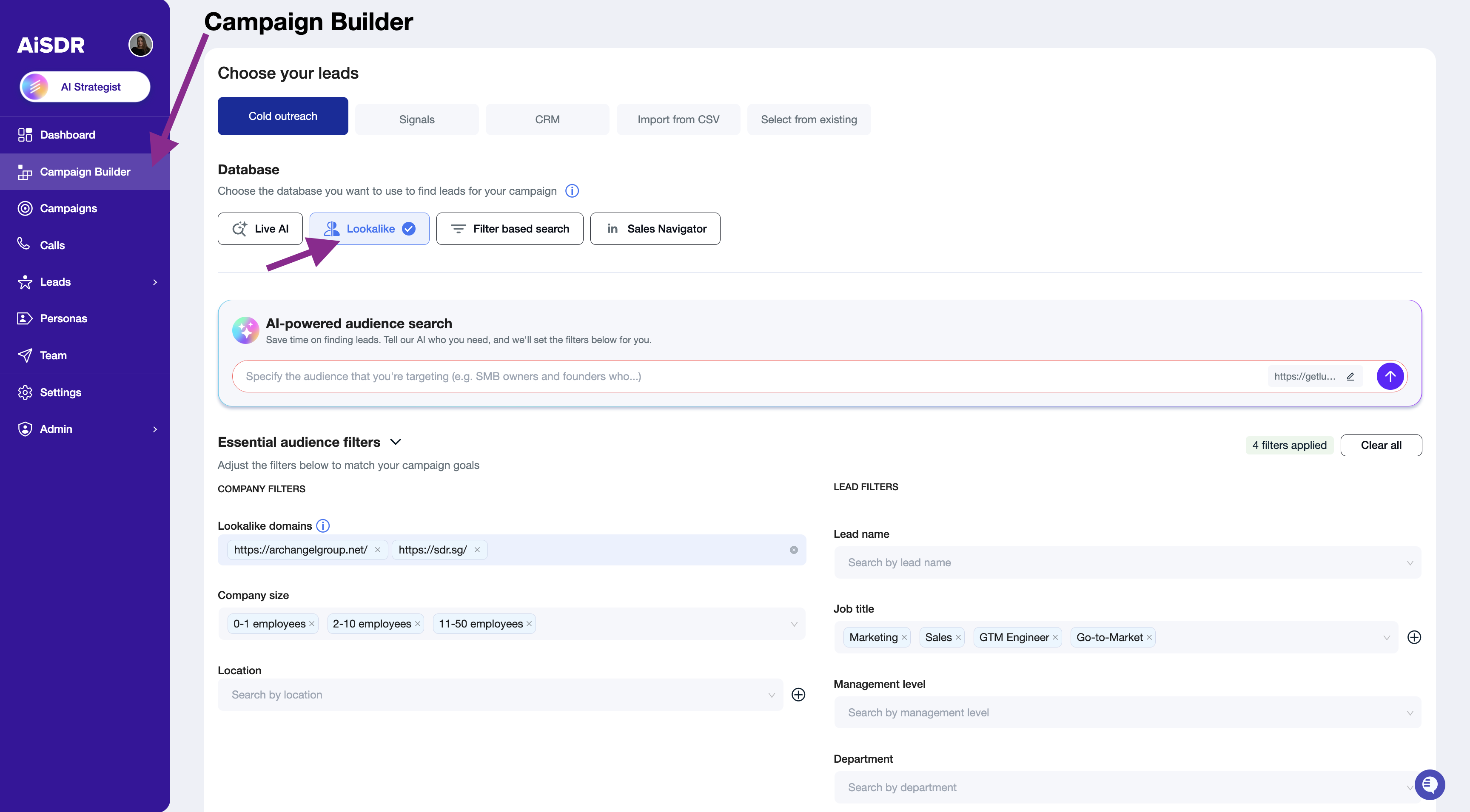
🔍 Configure Your Lookalike Input
➕ Add Up to 3 Customer Websites
Paste the URLs of successful customer websites that you want to model your campaign on.
💡 Make sure the input websites:
Are from the same industry
Offer similar products or services
Target a similar customer profile
🎯 Why this matters:
The lookalike algorithm performs best when input companies are consistent. It uses these examples to find others with shared traits.
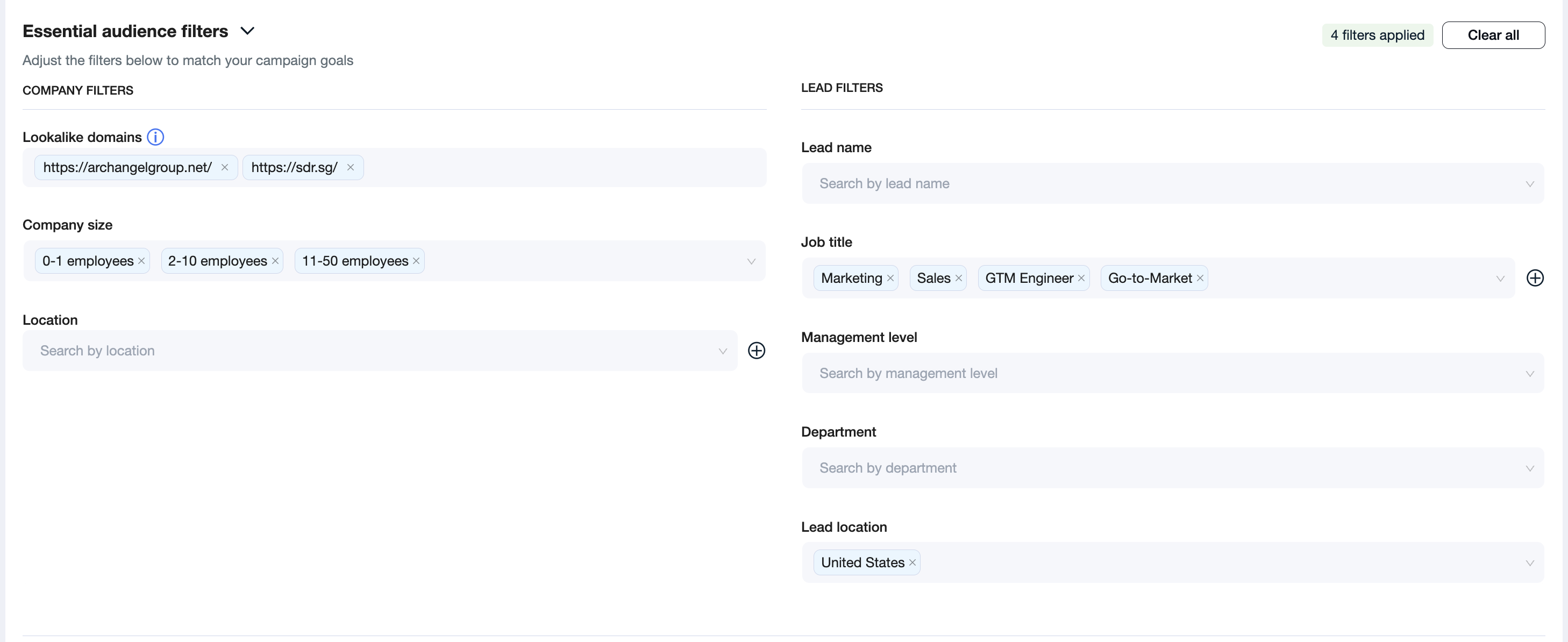
🎛 Apply Additional Filters
🏢 Company Filters
Required: Location (e.g., country or region)
Optional: Company size (e.g., employees or revenue)
👤 Lead Filters
Job Titles (e.g., Marketing Director, CTO)
Management Level (e.g., VP, C-Level)
Lead Location (to match geographic relevance)
⚠ We do not recommend adding industry filters as it may limit the search results.
Example of the well-set-up setup search:
Final Steps:
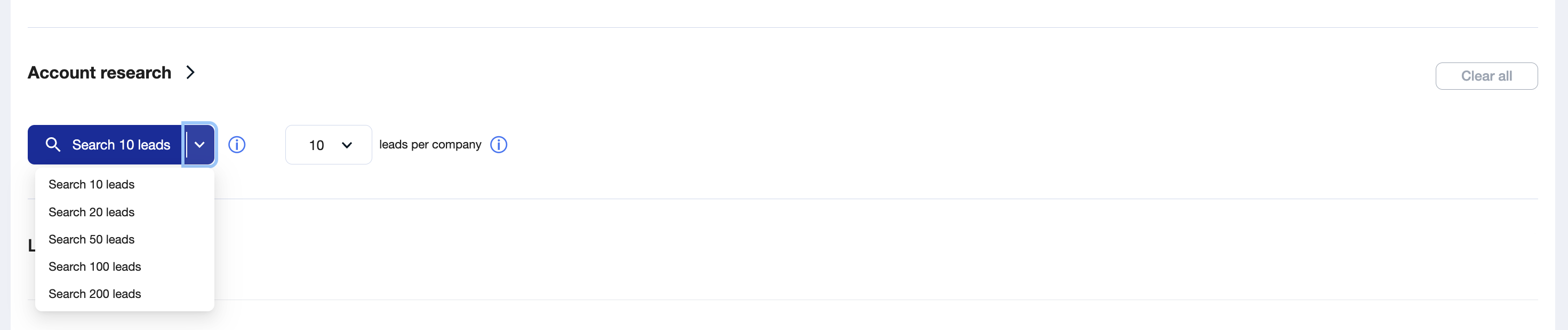
🔎 Run the Search
Scroll down and select the number of leads you'd like to pull per search.
✅ Enrich and Launch
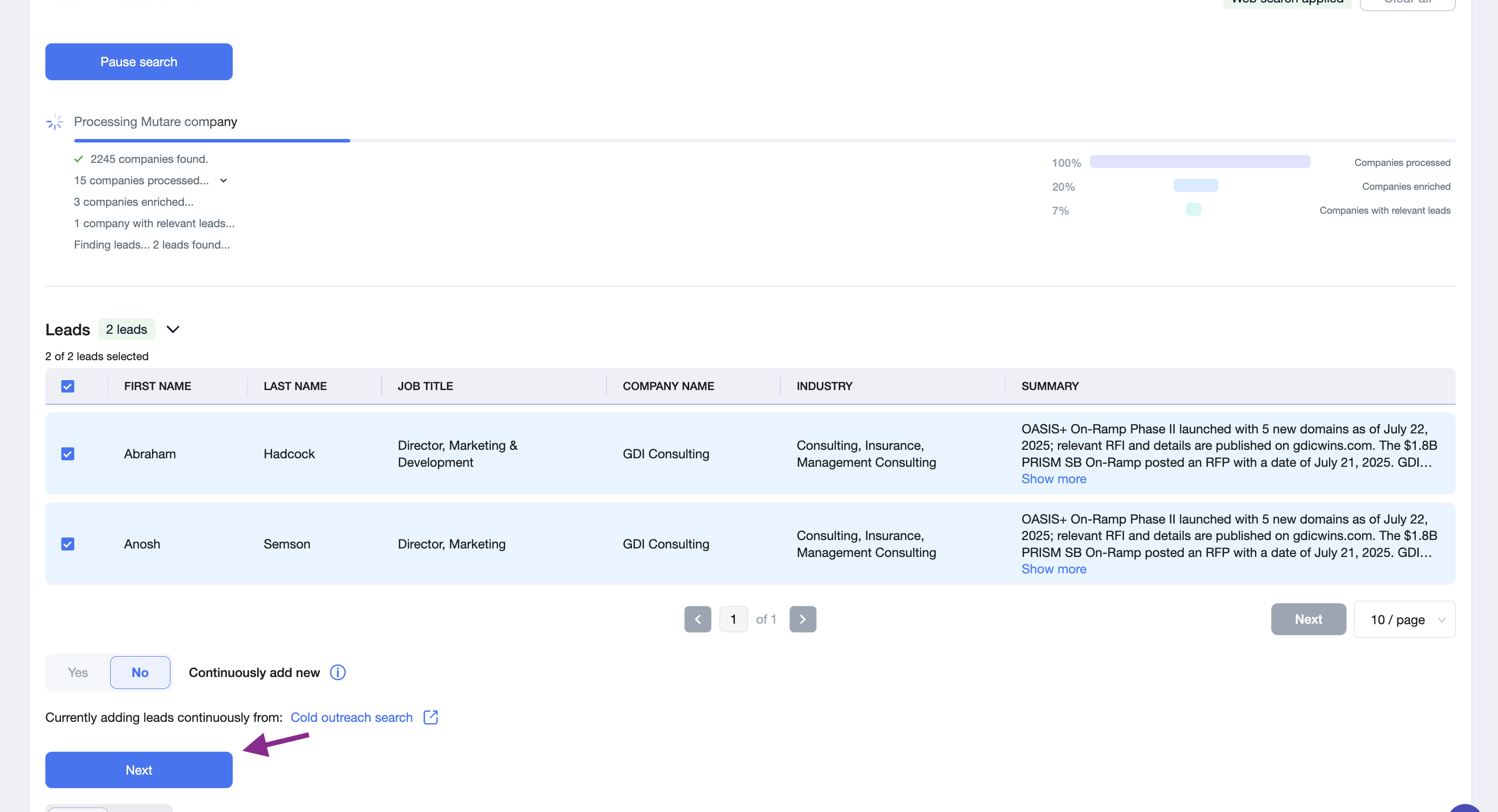
Once the system returns lead results:
Click Next to enrich leads.
Continue with campaign setup as you normally would.
Read more on the next steps here:
📄 Step-by-step guide: How to Set Up a Cold Outreach Campaign in AiSDR