How to Set up a LinkedIn Keywords Campaign?
Last updated: April 2, 2026
Want to find people who write, comment, or react to LinkedIn posts with specific keywords? You can now do this with AiSDR’s Keywords campaign feature.
What Are Keywords Campaigns?
Keywords Campaigns scan LinkedIn activity for the phrases you define. When someone engages with content containing your keywords, AiSDR surfaces them as a lead and automatically initiates personalized outreach on your behalf.
This means you're reaching people who are actively discussing topics relevant to what you sell, at exactly the right moment.
Use Cases
Pain point capture: Reach leads who are voicing a problem your product solves. If you sell cash flow software, keywords like "cash flow challenges" or "late payments hurting us" signal high purchase intent.
Trend-based outreach: Engage with people discussing industry shifts where your solution fits. A security vendor could target "SOC 2 compliance" conversations; an HR tech platform could target "AI in recruiting."
Competitor displacement: Target people who mention frustration with a competing tool. For example, if you sell a sales automation platform, keywords like "replacing Salesloft" or "Outreach is too expensive" surface prospects who are actively evaluating alternatives.
Partnership and integration discovery: Find companies looking to expand their stack. Keywords like "looking for integrations" or "open to partnerships" can surface warm collaboration opportunities.
Step-by-Step Guide
1. Go to Campaign Builder
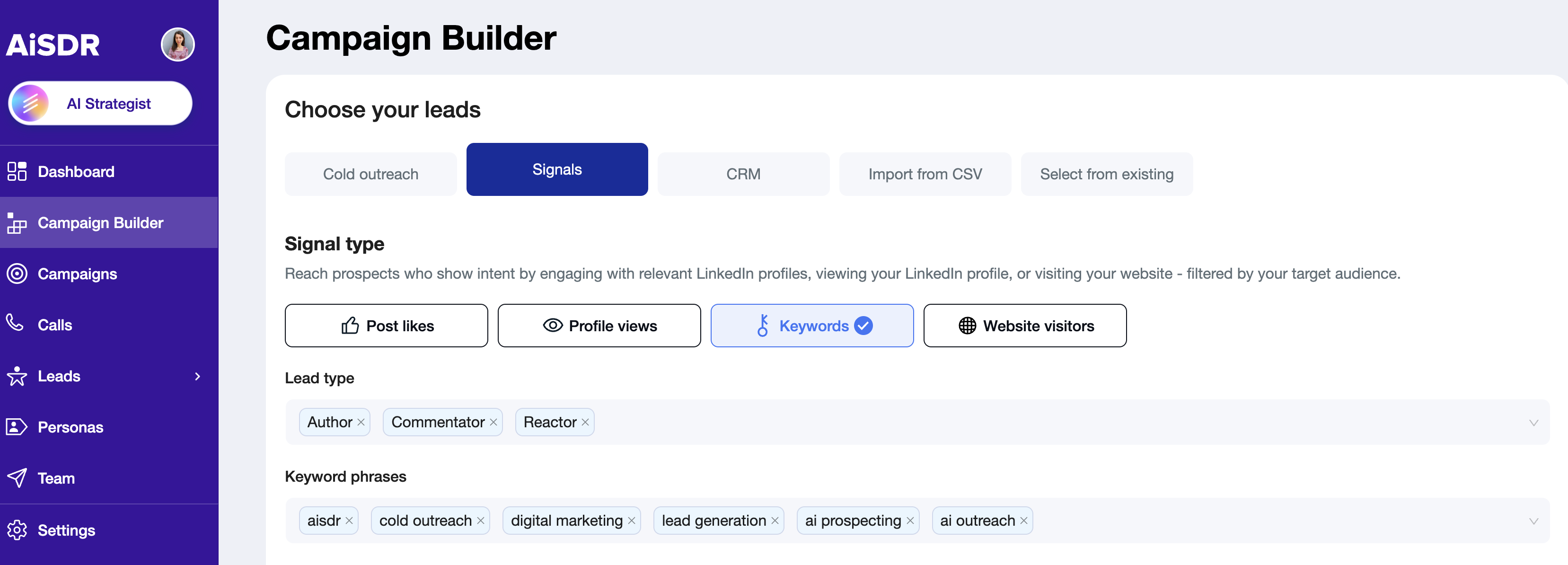
Navigate to Campaign Builder > Signals > Keywords.
2. Choose Lead Type
Select the type of leads you want to target (e.g., those who write, comment, or react on posts containing your chosen keywords).
Author: the person wrote a post with your keyword. Best for reaching thought leaders actively sharing views on your topic.
Commentator: the person left a comment on a post with your keyword. Great for people actively engaged in a conversation about a relevant topic.
Reactor: the person reacted to a post with your keyword. Useful for casting a wider net, since reacting requires less effort than writing a post or leaving a comment.
3. Add Keyword Phrases
Enter your keyword phrases. Try different keyword combinations to discover the most relevant audience for your outreach goals.
Note: You can add up to 6 keywords per campaign.
Not sure which keywords to use?
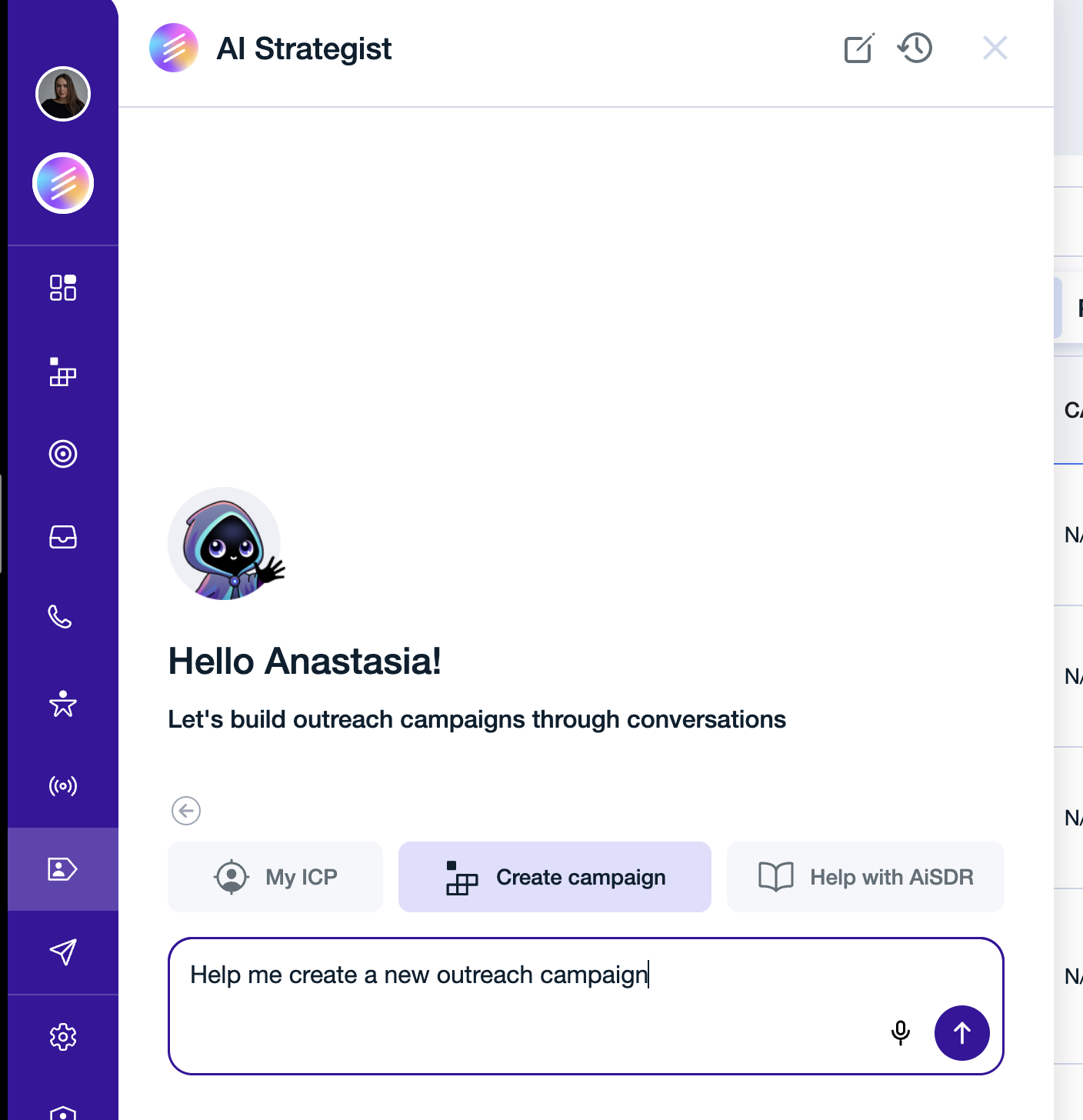
Let our AI Strategist handle it for you! The AI Strategist will automatically create your whole campaign-including the most relevant keywords for your audience.
4. Apply Filters
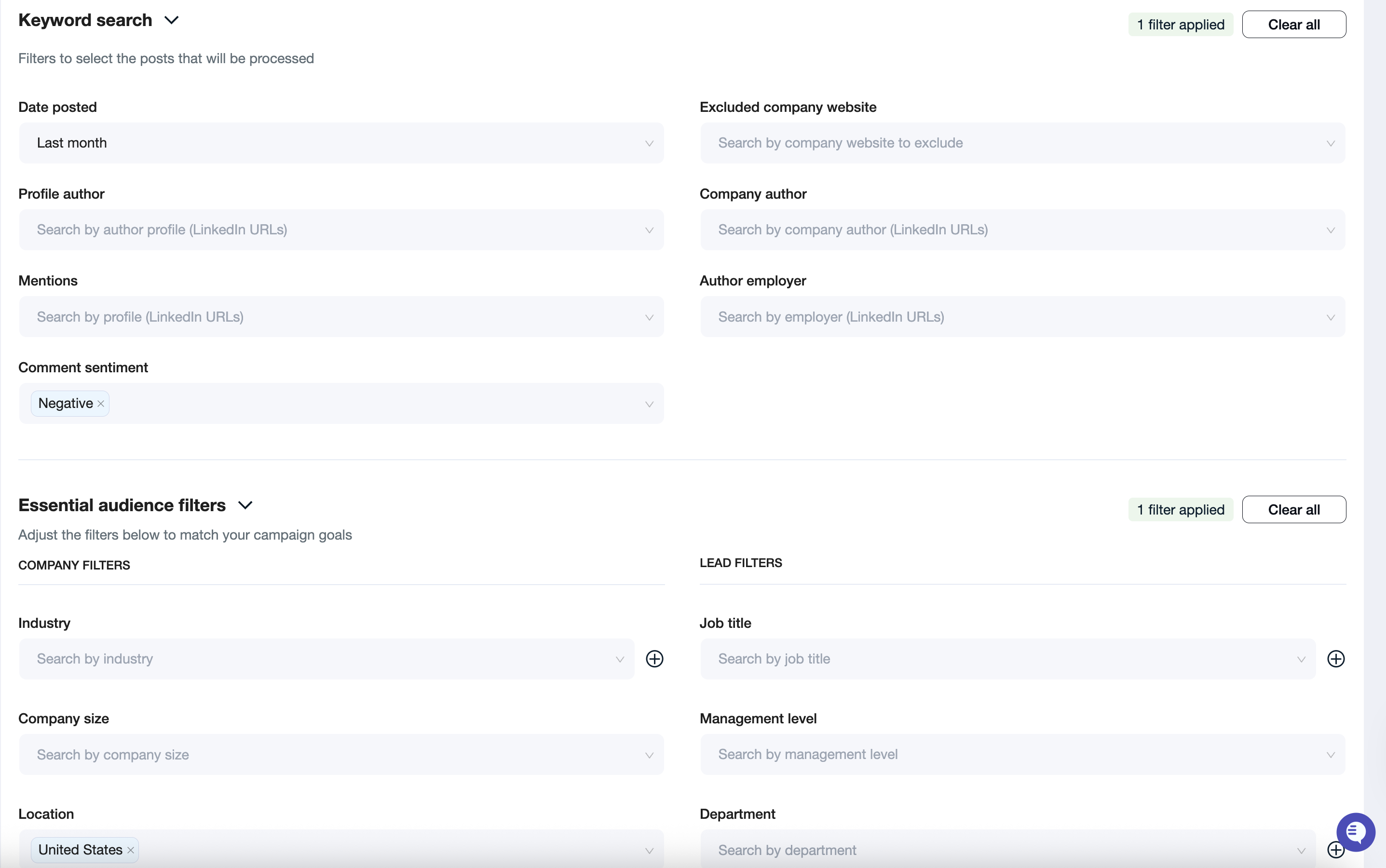
After entering your keywords, you can refine your search by applying filters:
Each filter you add narrows your results. Start with fewer filters to validate volume, then tighten your ICP criteria once you're seeing leads.
Post Filters: Filter posts further by relevance or engagement.
Profile author - Add links to LinkedIn profiles of people whose posts you want to search for keywords
Mentions - Add links to LinkedIn profiles of people whose names you want to find mentioned in other posts.
Comment sentiment - Choose positive or negative sentiment to find mentions of your keywords in comments with that sentiment.
Company author - Add links to LinkedIn company pages whose posts you want to search for keywords in.
Author employer - Add links to LinkedIn company pages where the post author works.
Company & Lead Filters: Narrow your results using company attributes and your ICP (Ideal Customer Profile) settings.
📄 LinkedIn Keywords: Best Practices
📄 Leads are added, what's next? Steps to creating a campaign