Campaign Setup: Step-by-Step Guide After Adding Leads
Last updated: September 24, 2026
You’ve sourced your leads, great job! Now let’s turn them into a high-performing campaign.
Follow these steps end-to-end to avoid the most common launch hiccups.
💁🏻♀️ Confirm You Have Enough Leads
In the Campaign Leads section, check the Leads count for the campaign to see if there are enough to run a full month.
How to estimate how many leads you can fully message in a month?
Leads ≈ Monthly message credits ÷ 3 (intro + ~2 follow-ups).
Example: 1,200 message credits → plan for ~400 leads.
If you add substantially more, some leads won’t receive all touches this month.
If you’re short: toggle Add fresh leads daily to auto-top up daily. Or add more leads manually
👤 Choose the Messaging or Create a New One
Your messaging defines the style your campaign will use. This is how AiSDR knows what tone, structure, and social proof to include in your emails.
If you already have messaging created, simply select one from the list. If not, you can start with the ready-made frameworks provided in AiSDR or create your own.
You can also create custom messaging. Just give AiSDR an example of a strong message for this audience, and it will generate the rest of the outreach style for you.
📄 How to create a Messaging Framework

You can always switch to another messaging before or after the campaign is activated. Once the switch is done, changes will be reflected in future messages automatically.
💪 Check the Name and Set Your Goal
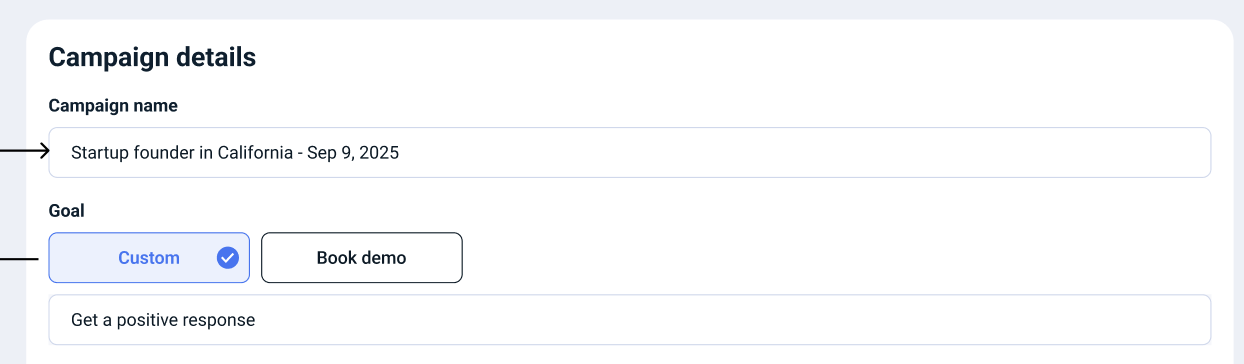
Campaign name: Every campaign is given a name automatically, but it’s worth taking a moment to check if it accurately reflects your audience and targeting, for example, “Startup founders in California – Sep 9, 2025.”
You can edit this if you want something more descriptive or easier to track.
Goal: By default, AiSDR sets this to “Get a positive response.”
You can keep this, or adjust it depending on your setup:
Calendly or HubSpot integrated – Switch the goal to “Book a demo”, add your meeting link, and AiSDR will automatically track bookings, stop outreach once a meeting is scheduled, and notify you when it happens.
Other meeting links – You can still add your link, and AiSDR will send it to prospects. The system won’t automatically track bookings, but conversations will stop if (1) a lead replies and confirms the booking, or (2) you manually mark them as “booked.”
Custom campaigns – If your goal is different (e.g., event invites), edit the goal so it matches. For example: “Get a lead to sign up for a conference via the link {}.”
✨ Best practice: Do not overthink it — leave the campaign goal set to “Get a positive response”. This way, AiSDR keeps the outreach natural and less pushy, which often leads to better replies.
🪜Pick a Sequence (Channels & Steps)
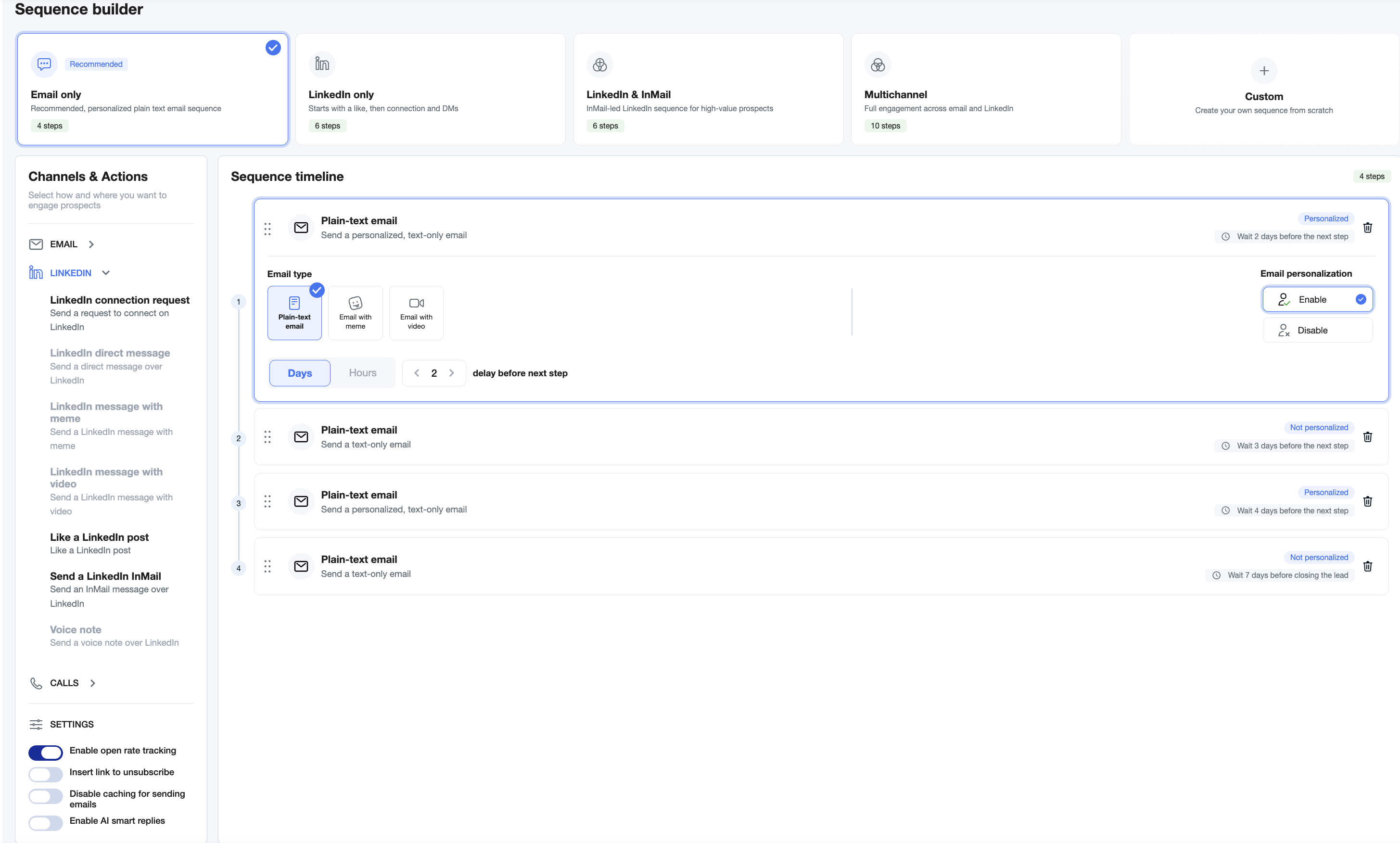
A sequence defines the flow of your outreach — which channels you’ll use, how many touches each prospect receives, and in what order.
AiSDR makes this simple by providing ready-made preset sequences you can use as a starting point. These presets are designed from proven best practices and already combine email, LinkedIn, and calls in an effective rhythm. You can keep a preset as is or adjust it by adding, removing, or reordering steps to fit your own strategy.
AiSDR supports three outreach channels:
Email – fully automated. AiSDR generates and sends personalized emails for you.
LinkedIn – also automated, but with some limitations. Because LinkedIn enforces strict daily outreach limits, each connected LinkedIn profile can only perform a certain number of connection requests or messages per day. AiSDR automatically skips LinkedIn steps when limits are reached so that your campaigns don’t get stuck. If you want to raise those limits, you can connect multiple LinkedIn accounts as senders.
Calls – human-led, powered by AiSDR’s integration with Aircall. While emails and LinkedIn messages go out automatically, calls are handled by humans who receive prepared scripts and context from AiSDR.
For most new users, we recommend starting with one of the preset multi-channel sequences. These balance different touchpoints (for example, an email and a LinkedIn connection on the same day, followed by a call later in the sequence) to maximize response rates. If you prefer, you can also run email-only campaigns, which are simpler to manage and easier to scale.
Keep in mind that outreach works best when touches are consistent, but not overwhelming. That’s why AiSDR presets already include spacing and step limits that follow industry best practices. You can always refine them as you learn more about what resonates with your audience.
Read more about setting up a sequence here:
Additional settings:
AiSDR is set up with smart defaults to give your campaigns the best chance of landing in the inbox.
Open tracking is OFF by default to protect deliverability. Many opens are triggered by bots (especially Google and Outlook), which can inflate your metrics and hurt performance over time.
Unsubscribe links are also OFF by default. While they’re legally required in some jurisdictions, they are often flagged by spam filters. Toggle them on only if your compliance policy requires it.
AI Smart Replies are OFF by default. We recommend enabling them only after your first positive responses come in, so the AI can learn from real conversations and handle follow-ups more accurately.
✨ Tip: For your first launches, keep these defaults as they are. Once you have data from live replies, you can experiment with changes safely.
🛫 Add Your Senders
In AiSDR, a sender is a combination of email account(s) and, if connected, a LinkedIn profile.
As a rule of thumb, connect all mailboxes created by AiSDR to your campaign so you can send the full volume of messages included in your subscription.
Note: With only one sender, you’ll be limited to a single LinkedIn account. Adding more senders increases your daily volume: extra LinkedIn profiles expand your daily connection and messaging limits.
AiSDR automatically balances outreach across connected senders so activity looks natural.
For best results, connect multiple senders when running larger campaigns. This prevents bottlenecks, protects deliverability, and allows you to scale smoothly without hitting platform restrictions.
🌍 Set Schedule & Time Zone
Make sure your campaign is sending messages during your audience’s local business hours, not yours. This small adjustment can have a big impact on open and reply rates.
Once the schedule is set:
Messages will be randomly distributed within your time window
This avoids bulk delivery and helps create a more natural, human-like cadence
As a best practice, create separate campaigns for each region (for example, one for North America and one for Europe). This ensures your outreach lands at the right time in every market and keeps performance data clean and easy to compare.
💌 Preview the Messaging
Click Create preview sequence.
AiSDR researches each prospect and generates:
Email steps (intro + follow-ups)
LinkedIn steps (if included)
A call brief + script (if calls enabled)
If you see anything that can be improved, give your feedback and see changes implemented in real-time:
🚀 Create & Launch
Once everything looks good, it’s time to bring your campaign to life.
Click Test Messaging (if you'd like to preview the messaging before saving a draft) or Save as draft (to save without preview). This creates your campaign, but it won't be active yet — no messages are sent until you start it.

When you're ready, Launch the campaign: you can launch immediately or use Schedule Start to launch at a specific time, for example, after a holiday or at the beginning of a new week. You can also click Archive to archive the campaign in case you don't want to Launch it anymore.
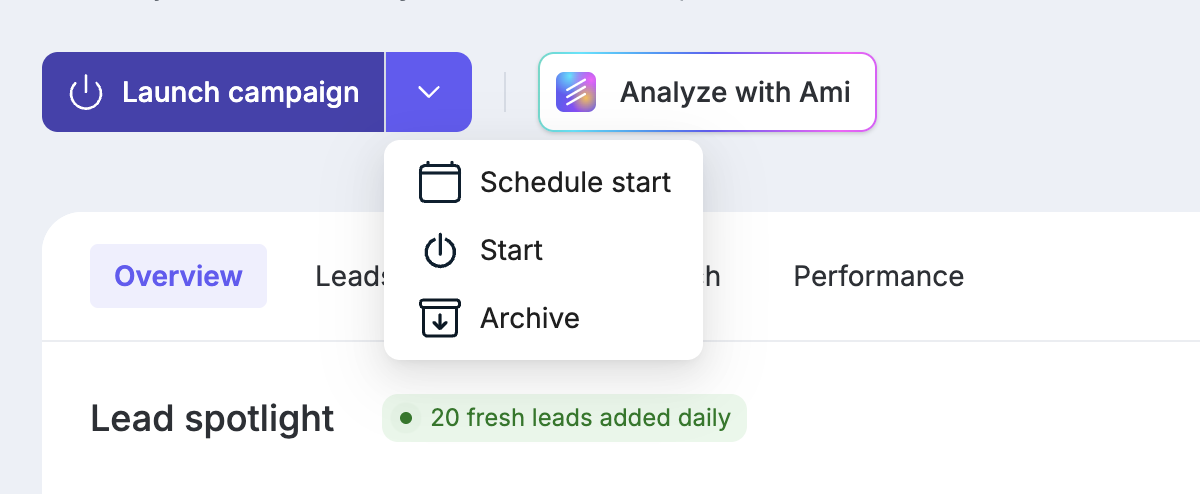
Once started, outreach runs automatically, though not instantly — it might take up to an hour for the first message to be sent.
After launch, keep an eye on campaign performance. Review replies, track how different steps perform, and don’t be afraid to make adjustments along the way.
⚠ Don’t Lose Your Progress
👉 Important: Do not close the browser tab without saving. If you do, your progress will be lost.
If you’d rather watch than read through each step, here’s a full video walkthrough. It covers everything from checking leads and setting your goal to picking a sequence, adding senders, adjusting schedules, and launching your campaign — all in one place.