How to create a Messaging Framework
Last updated: August 27, 2026
Messaging framework in AiSDR is prompt-based profiles that guide the AI to generate outbound messages in a specific style, tone, and structure tailored to your target audience.
We recommend creating different messages for distinct audience segments, as, for example, the pain points and motivations of a CEO will differ from those of a Head of Sales — even if both belong to your ICP.
🎯 Why Messaging Matters
A well-defined persona helps ensure:
Messaging is highly relevant and personalized
Structure and tone match the recipient’s expectations
Use-case examples and value props align with their role and industry
Three ways to create one
You can create a messaging framework:
During campaign setup — fastest path, built into the campaign flow
Through the Persona Questionnaire — most thorough, best for first-time setup
With the AI Strategist — most hands-off, best when you want AiSDR to do the thinking
Pick the one that matches how much time you have and how much you want to steer the output.
🚀 1. Create a messaging during campaign setup
The fastest way to get a framework in place — you build it as you build the campaign.
When you reach the messaging step in the Campaign Builder, you'll see three options:
Write your own example — paste a sample message that captures the tone, structure, and value props you want AiSDR to follow
Generate an AI suggestion — AiSDR drafts a starting framework based on your company info and the campaign audience; you can edit it before saving
Open the Persona Questionnaire — get redirected to the full questionnaire if you'd rather answer guided questions instead of writing or generating
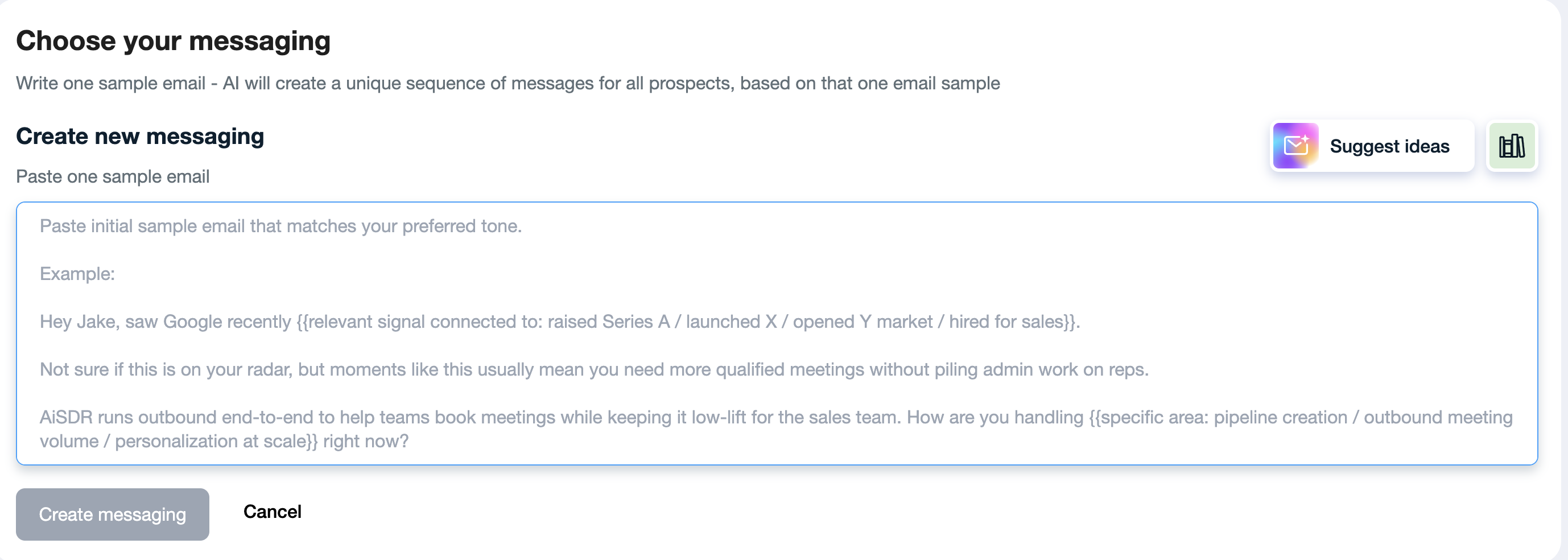
How to set it up:
Open Campaign Builder
Complete the audience step
On the Messaging step, choose one of the three options above
Review and edit the generated framework
Click Create messaging and continue with next steps
✅ Your messaging framework is now attached to this campaign and ready to drive outreach.
💡 Good to know: Frameworks created during campaign setup are saved to your account, so you can reuse them across other campaigns later.
📝 2. Use the Persona Questionnaire
1. Go to the "Messaging" tab
This is where you can manage and create all your outbound personas.
2. Click “Create Messaging”
Use the Create Messaging button in the upper-right corner of the Messaging tab. This will initiate the creation flow.
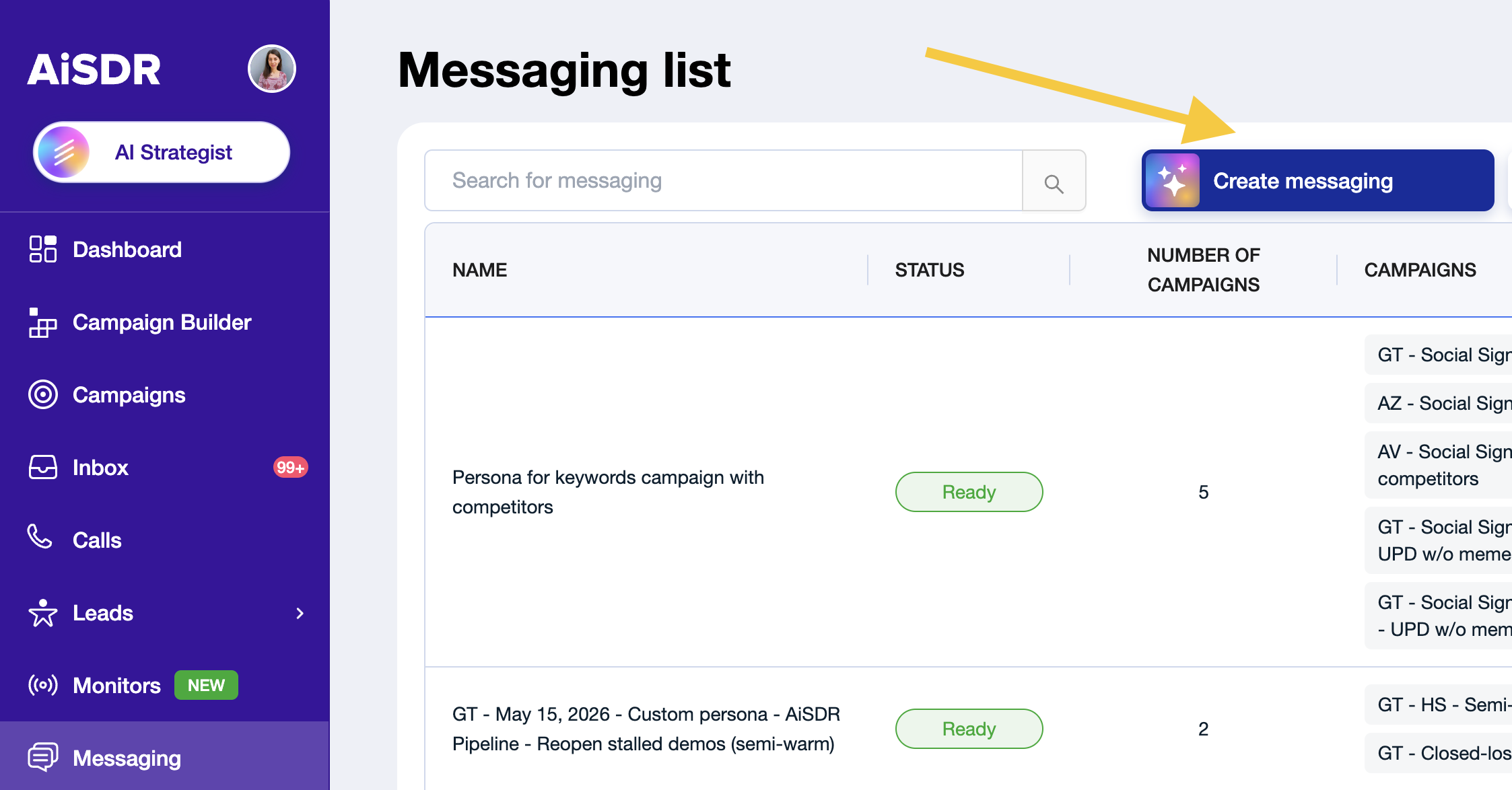
3. Select a Messaging Framework
Select the email template you want the AI to follow. This defines the structural style of your outreach, not the content itself.
You can browse the available templates and filter them by:
Vibe/Tone | Warm, Bold, Curious, Formal |
Length | Short, Medium, Long |
Approach | Challenge, Comfort, Intrigue, Impress |
Extra: Leading Move | Signal, Insight, Problem, Question |
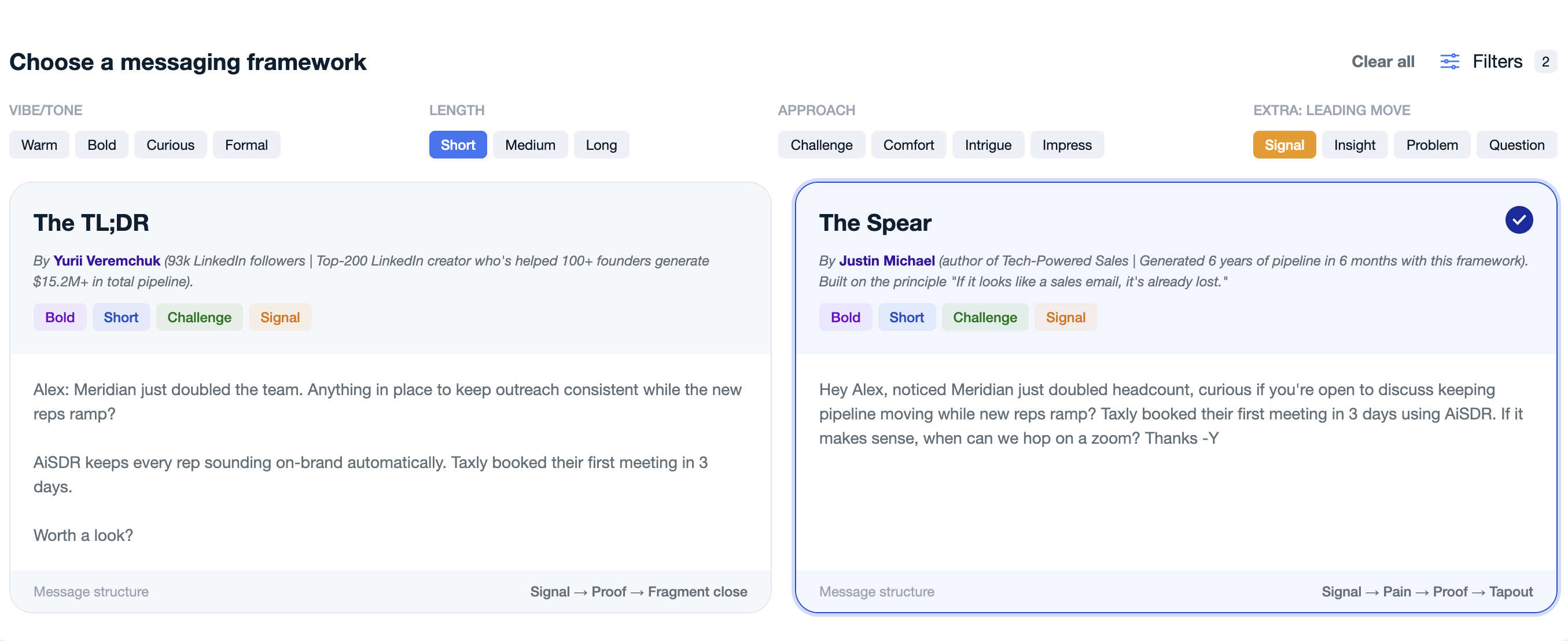
✅ To select a style, simply click on the message preview that you like.
If you have a strong email example of your own, paste it directly. The AI will use it as the structural and tonal reference for the persona.
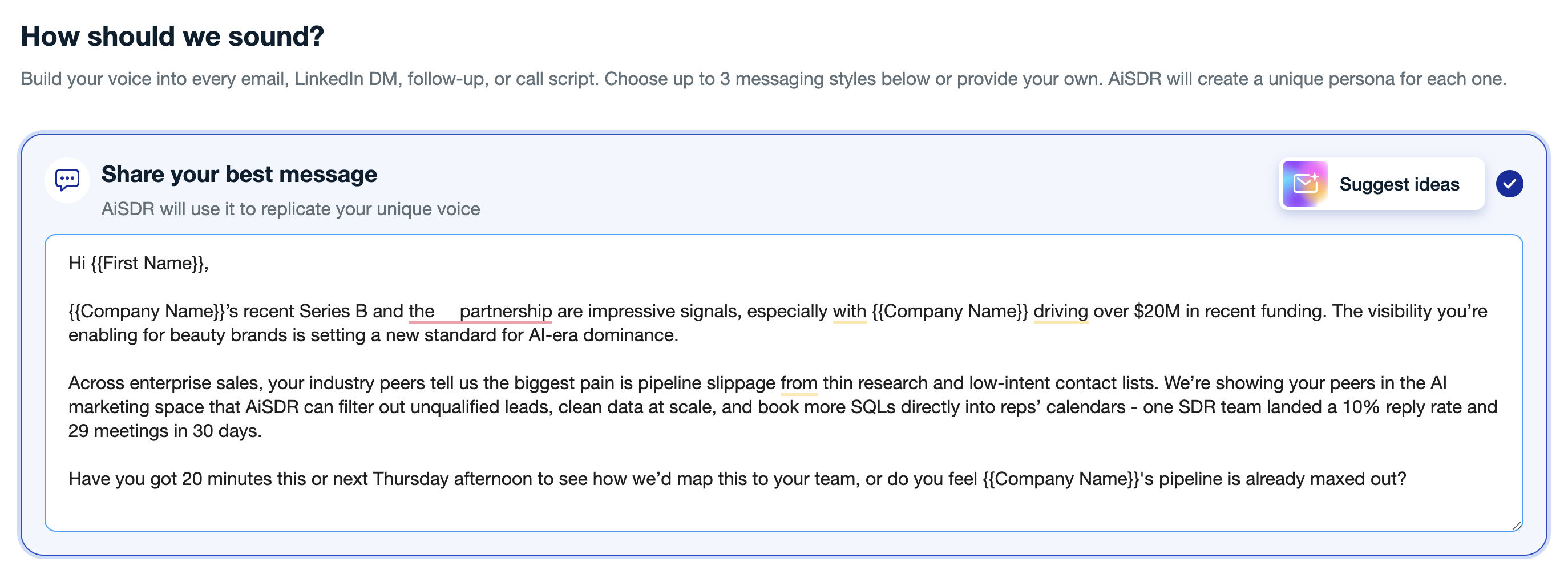
If you don't have an example, click Suggest Ideas. The AI will generate email example ideas based on your company and audience. Select the one that fits best and use it as your template.
Once you've selected a framework or submitted your example, click Continue.
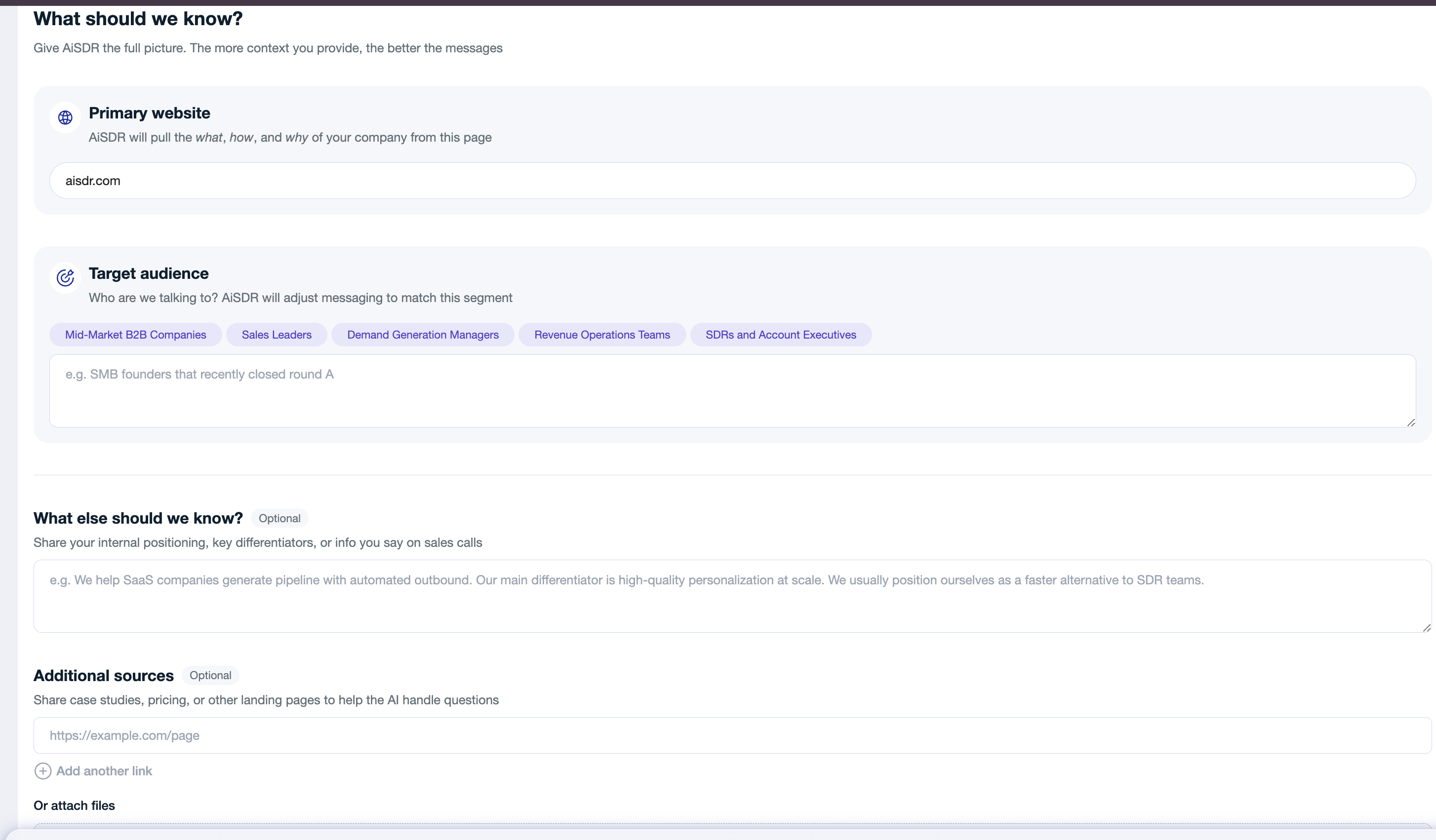
4. Add Company and Audience Details
This step gives the AI the context it needs to generate relevant, personalized outreach.
Webpage
Add your product page URL (e.g., https://aisdr.com). The AI uses this to extract your positioning and core value proposition.
For best results, choose a page that includes specific product details, customer benefits, or technical advantages — not general branding, but a value-focused, content-rich page.
Target Audience Description
Describe the audience this persona will target: job titles, industries, company type, size, and any relevant traits.
Example:
C-level executives and leaders in science, product, and marketing at global companies (500–2,000 employees) in wellness, nutraceuticals, cosmetics, and personal care. They prioritize scientific credibility, personalization, and data-driven innovation.
The AI uses this description to generate the specific pain points that audience is likely experiencing, which makes the outreach more relevant and personal.
Additional Files (optional)
Upload any files that contain relevant information about your company: case studies, or one-pagers. The AI references this material when generating value propositions, proof points, and objection handling.
Step 5: Click "Create Messaging"
The AI takes approximately 15 minutes to generate the persona prompt.
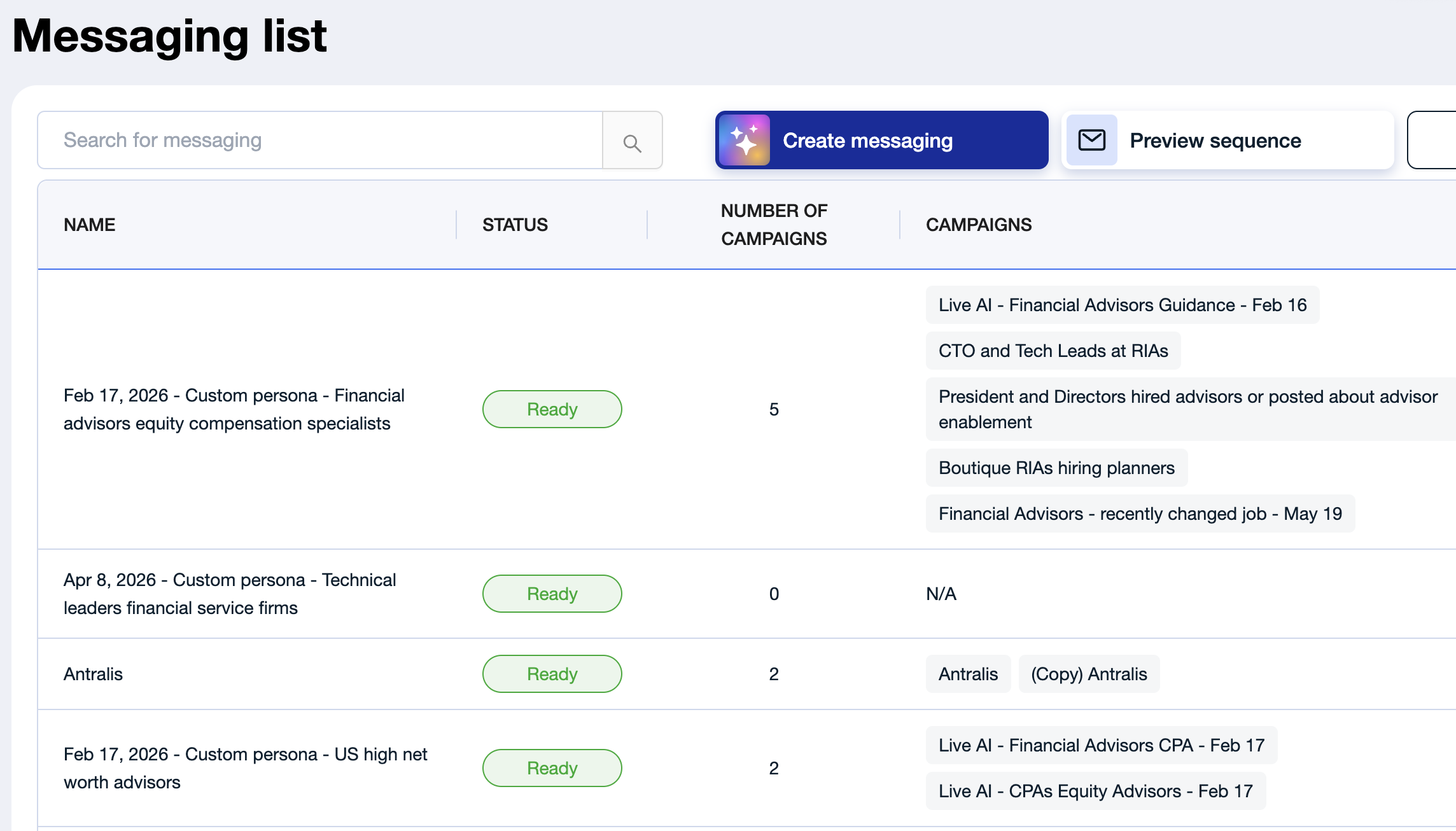
Step 6: Confirm Persona Status Is "Ready"
Once generation is complete, the persona status changes to Ready.
🤖 How AI Uses This Information
AiSDR will intelligently combine your inputs — including company details, ICP description, and case studies — to generate:
Specific pain points your audience likely experiences
Key value propositions mapped to those pain points
Relevant follow-up logic, case study mentions, and objection handling
All of this content becomes part of the persona prompt and is applied dynamically across every generated email.
The more specific and structured your inputs, the more relevant and compelling your AI-generated outreach will be.
🤖 3. Use Ami AI
The fastest hands-off path. Ami AI is a chat-based assistant that researches your website, suggests campaign ideas, and builds a full campaign draft for you — including the messaging framework — that you can review and edit before launching.
It also remembers context from previous conversations, so you won't need to re-explain your company every time.
How to set it up:
Open Ami from the left menu.
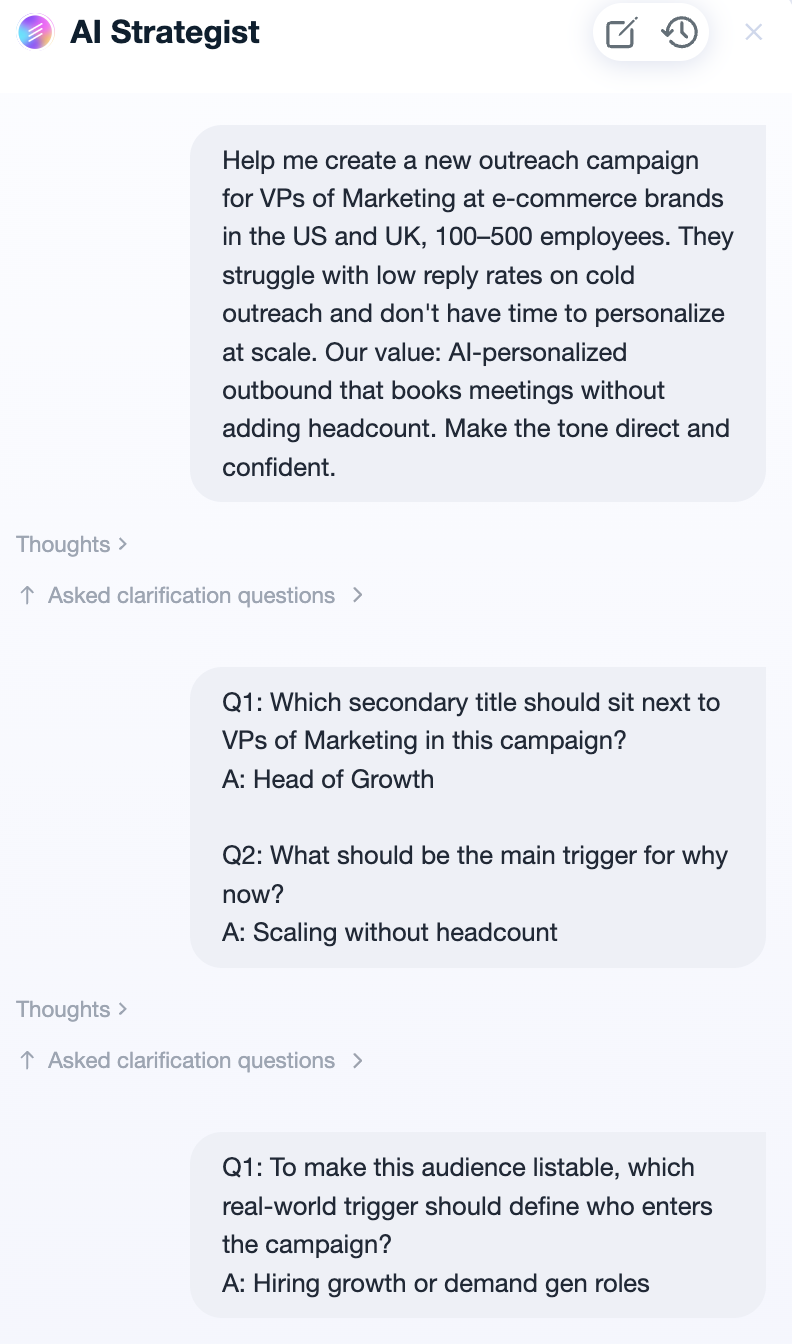
Tell it what you want — for example, "create a campaign for VPs of Marketing at e-commerce brands...".
Use the suggested reply chips, or type your own answers, to refine the audience and angle.
Wait for Ami to generate the idea of the draft campaign
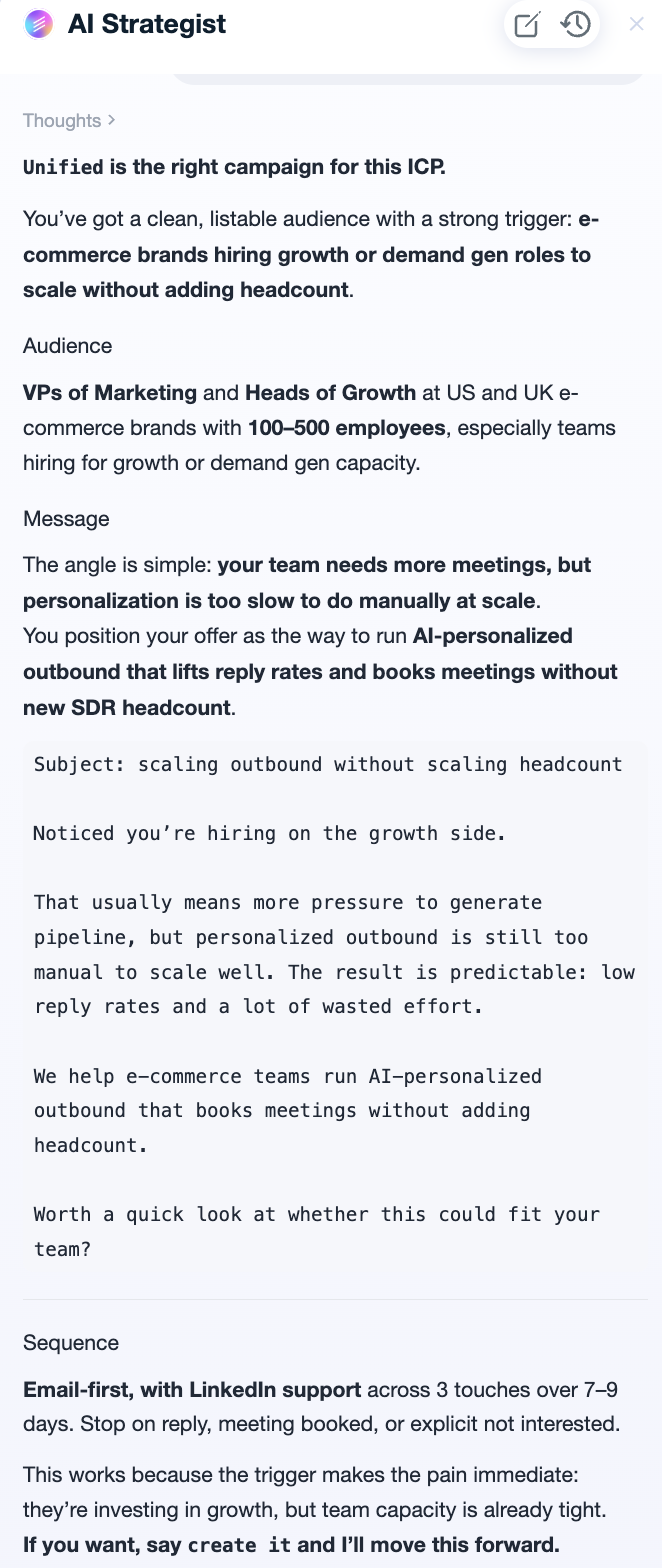
Review the ICP criteria, persona, and sequence that Strategist suggested and edit it if needed.
Once you're happy with the draft, tell the Strategist to create the campaign. It will generate the full sequence and messaging framework for you automatically in a couple of minutes.
✉ What You Can Do Next
A. Generate Test Emails
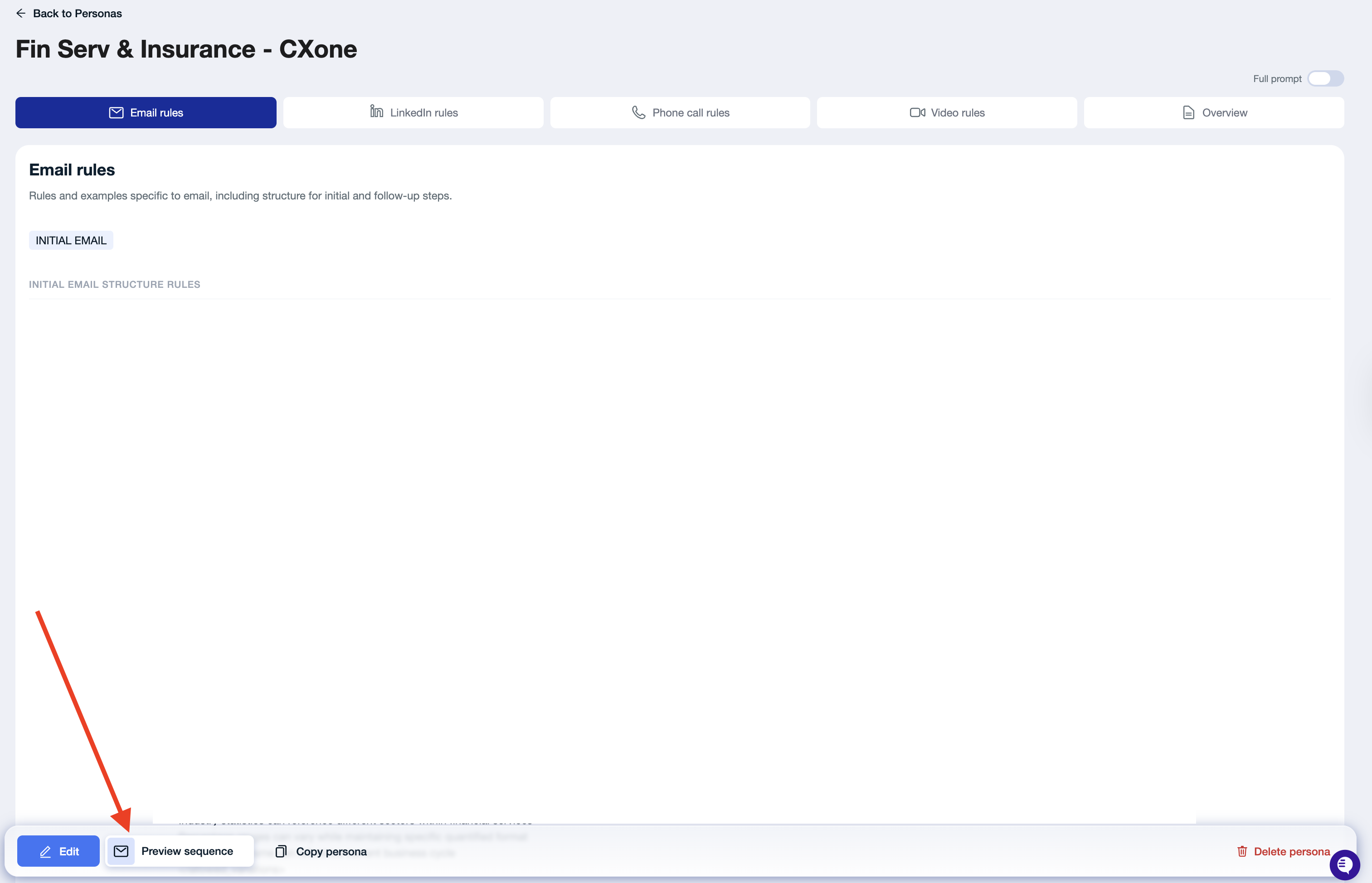
Go to your new messaging
Click Preview Sequence
Select a lead from the dropdown
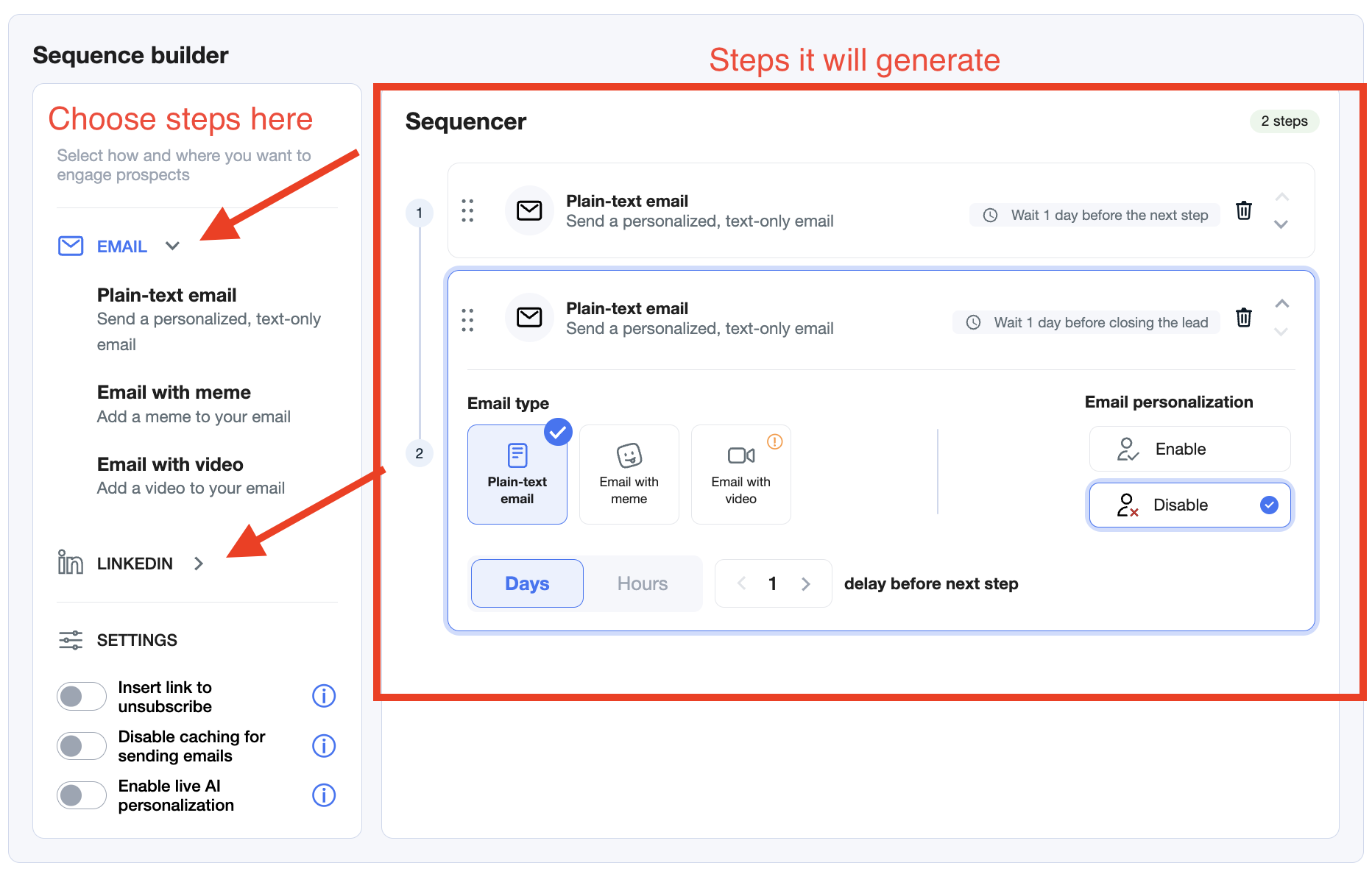
Choose which steps you want to generate (e.g., Email #1, LinkedIn DM)
Click Generate Sequence
Test messaging across several leads to evaluate how the persona performs.
B. Edit Messaging
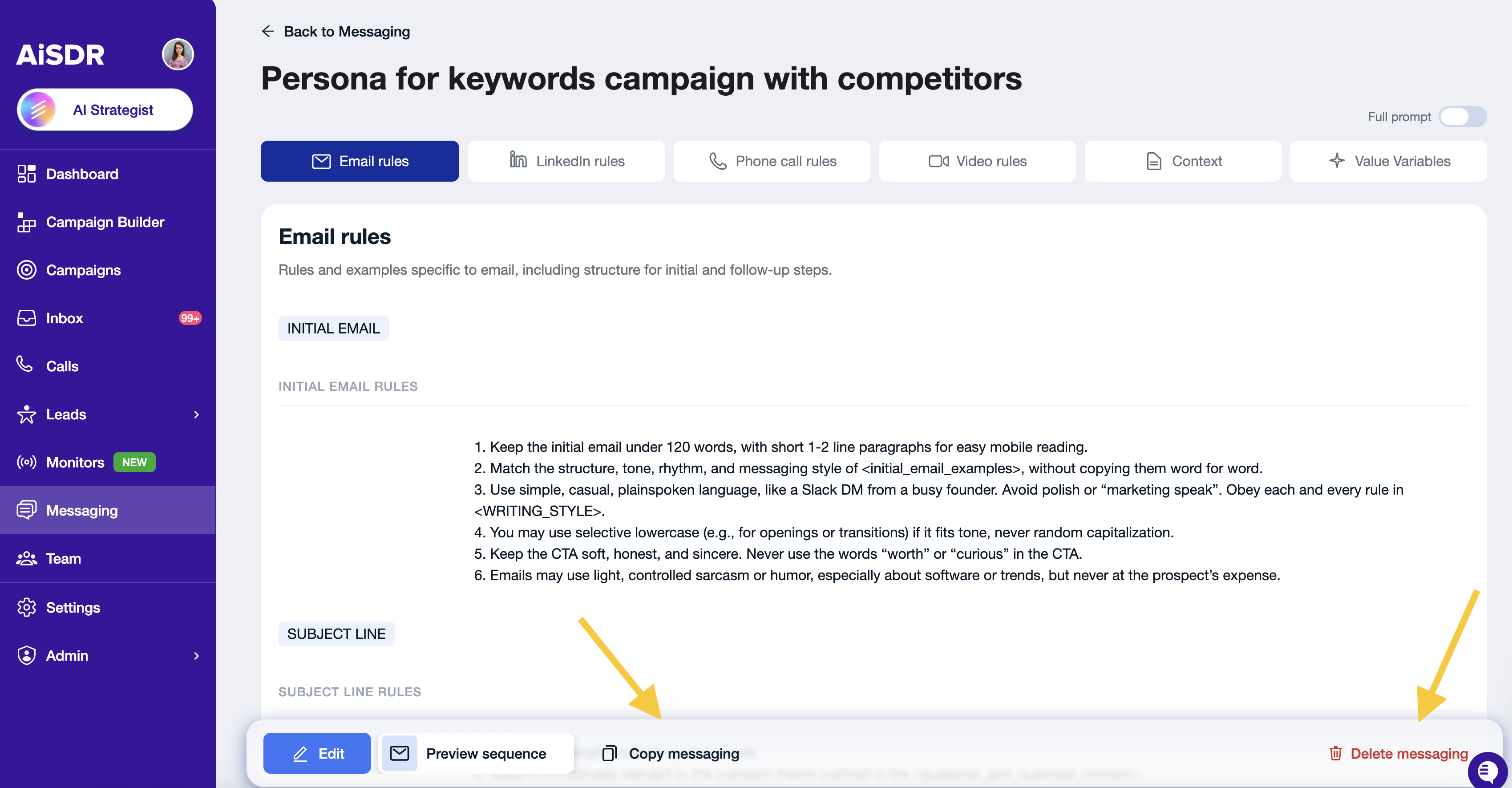
If the AI-generated messages don’t feel right, Give Feedback on them or Edit the persona.
🔗 How to Adjust Your Messaging
C. Delete or Duplicate Messaging
Personas can be deleted (Delete messaging) or duplicated (Copy messaging) for rapid testing.
❓Common questions
Can I have multiple messaging types?
Yes, you can have multiple messaging structures.
We recommend creating separate frameworks for each campaign, especially when targeting different company industries or audience segments. This helps ensure your messaging is tailored, as each group will have distinct pain points and may require a different value proposition.
Can I use the same messaging across multiple campaigns?
Yes, you can use the same messaging across multiple campaigns.
However, if your target audience differs, it’s better to create different frameworks to keep your messaging aligned with specific needs and context.
What happens if I edit a message while a campaign is already running?
If you edit a message while a campaign is already running, the changes apply to all future messages.
Leads who haven’t been contacted yet will receive the updated initial emails + follow-ups. Leads who are already in the sequence won’t restart, but any next steps (e.g. follow-ups) will use the updated messaging.
How to change messaging in a campaign?
Go to the campaign where you want to update the messaging → click Edit → find Messaging Info → click the dropdown next to Name → select a new persona → click Save.
