Sequence Builder Overview
Last updated: May 6, 2026
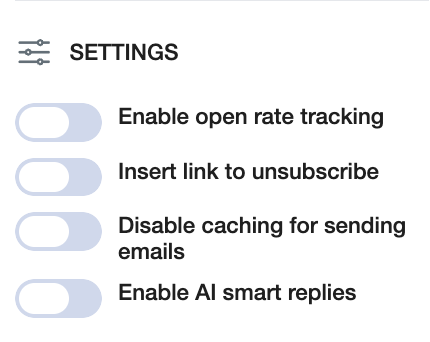
The Sequence Builder gives you full control over your outreach — allowing you to design campaigns exactly the way you want.
Whether you’re keeping it simple with email-only sequences or building a multichannel flow that blends LinkedIn and email steps, the builder is designed to be flexible, intuitive, and highly customizable.
You can adjust the timing between each step, mix message types, and personalize your approach at every stage to match your strategy and audience.
Don’t Want to Start from Scratch? Use a Pre-Set Sequence
If you’d rather not build a sequence from the ground up, we’ve got you covered.
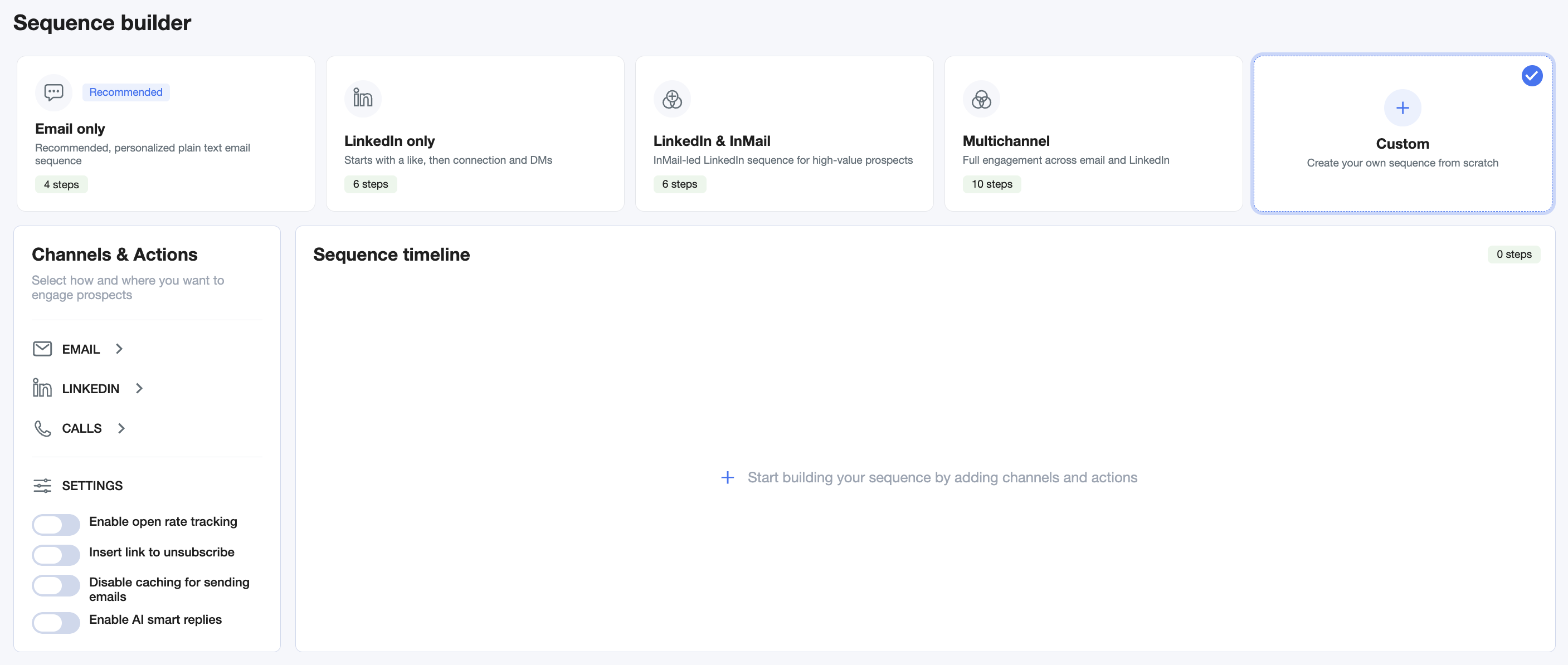
AiSDR includes a set of pre-configured sequences based on our internal best practices — designed to help you launch faster while still staying flexible.
Pre-set options include:
Email Only – A straightforward sequence for focused email outreach
LinkedIn Only – Perfect for warm, professional social engagement
LinkedIn & InMail - InMail-led sequence designed to engage high-value prospects beyond your network.
Multichannel – Combines email and LinkedIn touchpoints for better visibility
Custom – A blank canvas for your own sequence logic
Pro Tip: Even with pre-set sequences, nothing is locked in. You can adjust the timing, edit the steps, switch message formats, or add/remove touchpoints. Use them as a solid foundation, then tweak based on your audience and strategy.
Channels & Actions
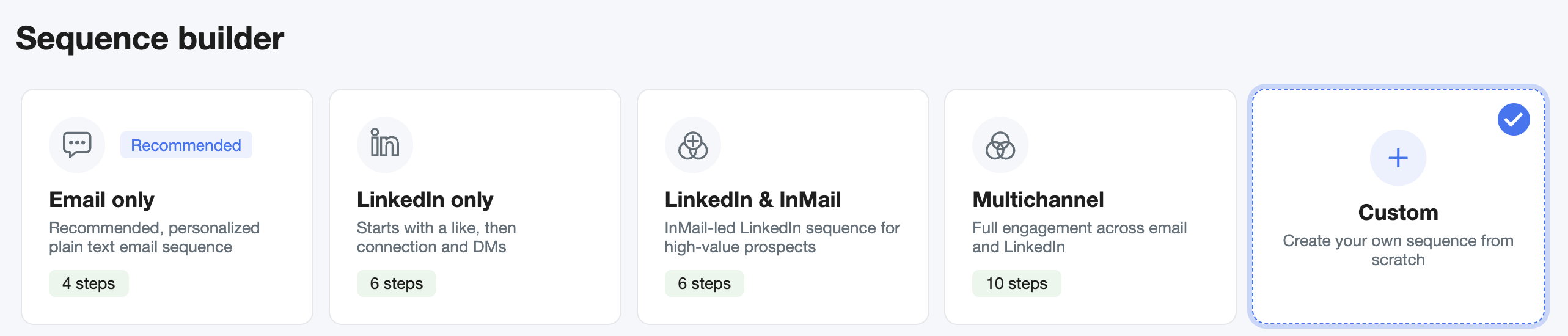
This part of the builder lets you control how each step in your sequence is delivered.
You can choose between email and LinkedIn actions, define the type of message (like plain-text email, LinkedIn connection request, or even meme emails),
It also includes a general settings panel, where you can adjust things like open tracking, unsubscribe links, and AI personalization features — depending on how simple or advanced you want your campaign to be.
Email Steps
When building your sequence, you can choose from a variety of email step types — each designed to match a different tone or engagement style:
Plain-text email – A clean, personalized, text-only email
Email with meme – Add a light, fun touch with a meme to break the pattern
Once the Email with Meme step is in your sequencer, you can configure the topic:
In the "What do you want the meme’s topic to be?" field, type a short description of the theme —
for example:“funny outbound sales problems”
“how marketers react to cold emails”
“B2B buying committee chaos”
Our system will use this topic to generate a relevant meme to embed directly in the email.
Email with video – Include a personalized video message to boost engagement
Each step also includes flexible settings, allowing you to:
Set the delay before the next step (in days or hours)
Enable or disable personalization depending on the tone or goal of that step
Swap the email type at any time — you can easily switch to a meme or video email if you'd like to test different approaches mid-sequence
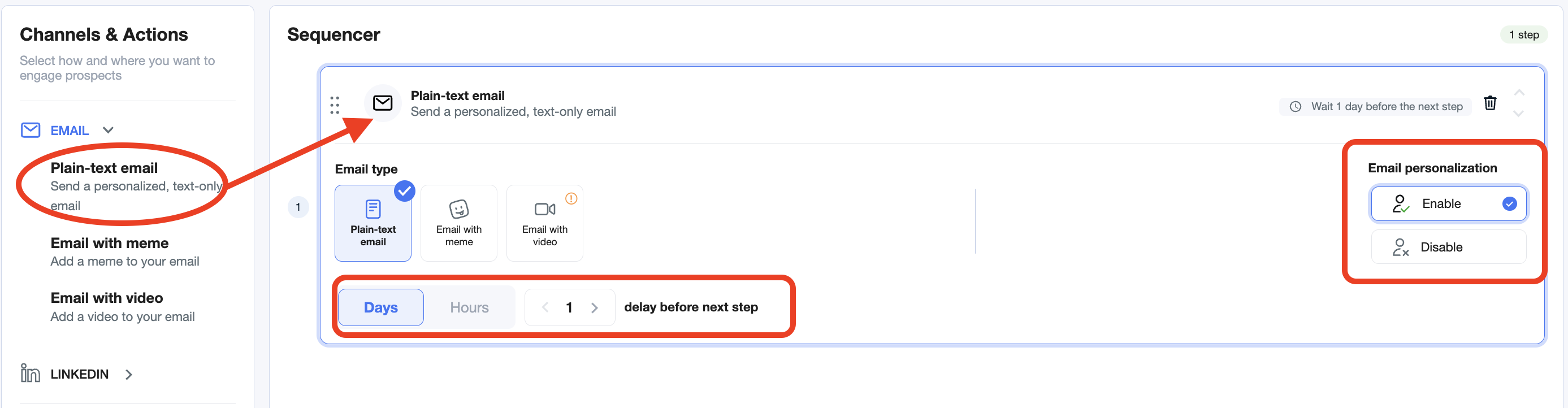
Email with video requires an AI voice replica to be set up. This can easily be arranged with the help of your Customer Success Manager — just reach out, and they’ll guide you through the process.
LinkedIn Steps
The LinkedIn channel allows you to add a variety of engagement actions into your sequence — all designed to create meaningful, human-like interactions on the platform.
Available LinkedIn actions include:
LinkedIn connection request – Start by connecting with your prospect
LinkedIn direct message – Follow up or engage directly
Direct message with meme – Add a lighter, visual touch to your outreach
Direct message with video – Send personalized video messages
Like a LinkedIn post – A subtle way to show interest and warm up the lead
Send a LinkedIn InMail – Reach out even if you're not connected
Voice note – Stand out with a human voice message
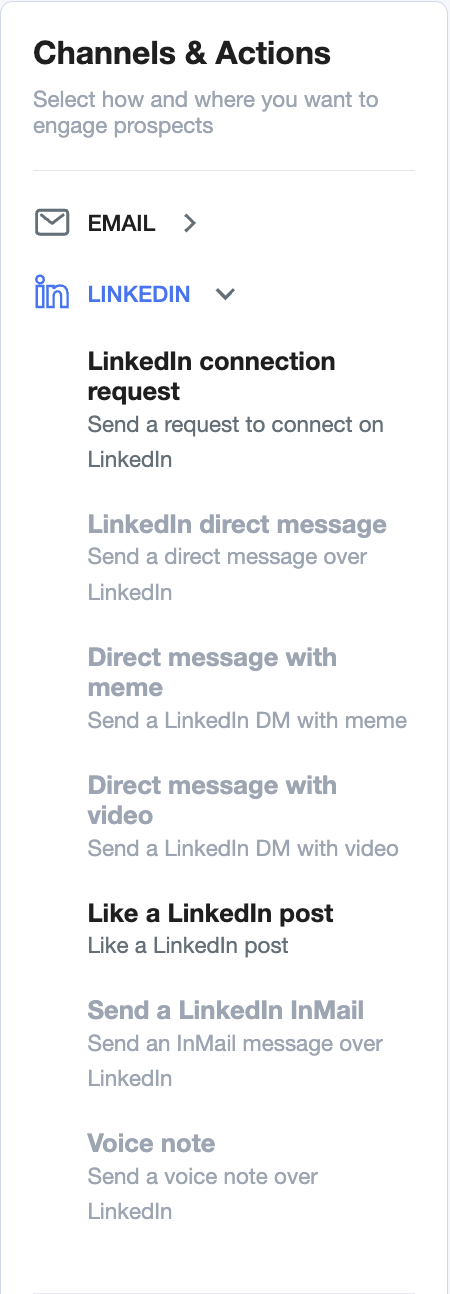
Note: To unlock most LinkedIn steps (messages, voice, meme, video), you must first include a LinkedIn connection request as the first LinkedIn step. This is required because LinkedIn only allows you to message people once they’ve accepted your connection.
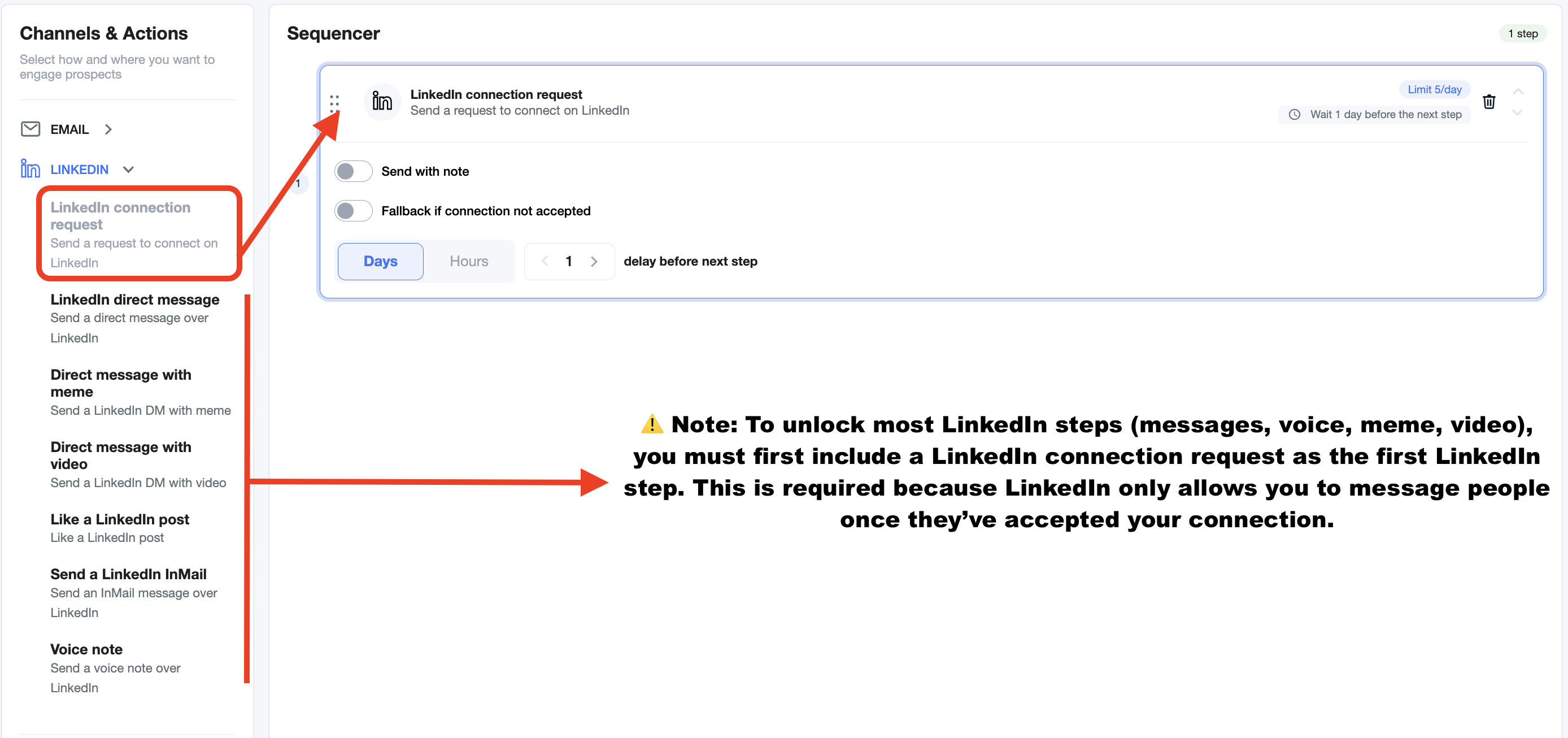
Video and voice notes require an AI voice setup. Just reach out to your Customer Success Manager and they’ll help you get it up and running.
LinkedIn Connection Request
The LinkedIn connection request is usually the first step in any LinkedIn-based sequence — and it's required to unlock other actions like DMs, voice notes, memes, or videos.
Within this step, you have the option to:
Send with note – Add a short personalized message with your request (optional)
Fallback if connection not accepted – Trigger an alternate action if the prospect doesn’t accept your connection within a set time
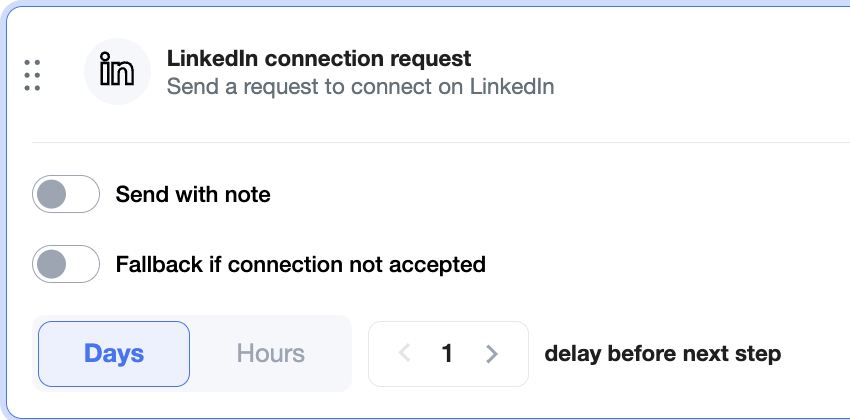
We recommend enabling the fallback option.
Not everyone accepts connection requests — and without acceptance, the sequence could stall. A fallback ensures your outreach continues (e.g., via email or another channel) even if someone doesn’t connect, so you don’t lose momentum or potential leads.
You can also control the delay before the next step, giving prospects enough time to respond before taking further action.
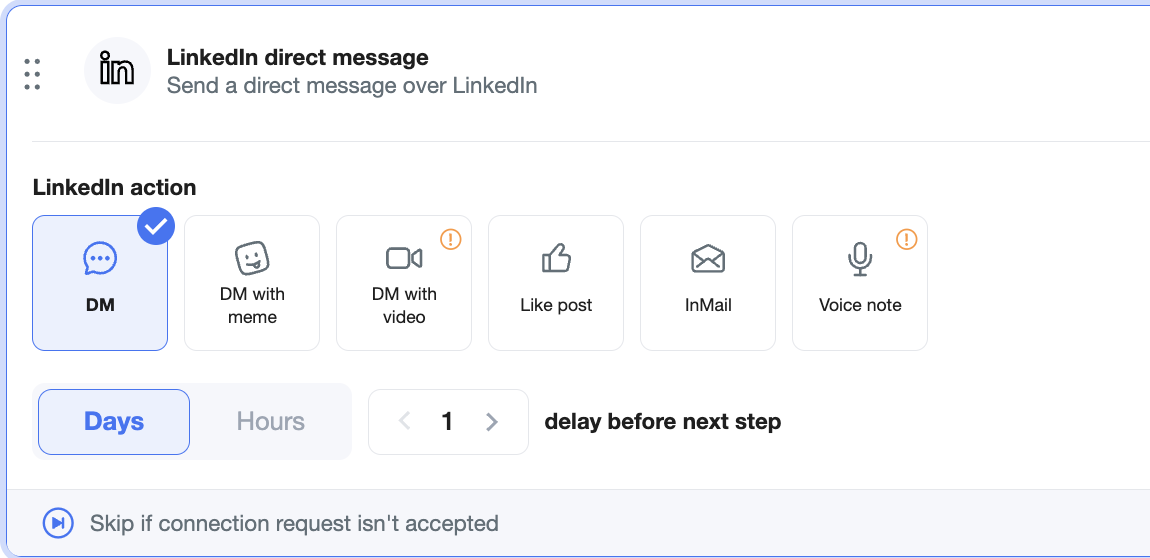
LinkedIn Direct Message:
You can fully customize each LinkedIn Direct Message step using the following action types:
💬 DM – Simple, direct message
😄 DM with meme – Add a light touch with humor
🎥 DM with video – Personalize your outreach visually (requires setup — contact your CS Manager)
👍 Like post – Engage with their content before messaging
✉ InMail – Use InMail to reach out even without a connection
🎙 Voice note – Send a voice message (also requires setup — ask your CS Manager)
You can also:
Set the delay before the next step
You can add LinkedIn steps in two ways: either select them directly from the Channels & Actions menu when building your sequence, or fine-tune the specific action type (like direct message, meme, video, etc.) after the step has been added to the sequencer.
💡 Pro tip: Memes and voice notes help humanize your outreach — and you’ll be surprised how often they spark replies.
Call Steps
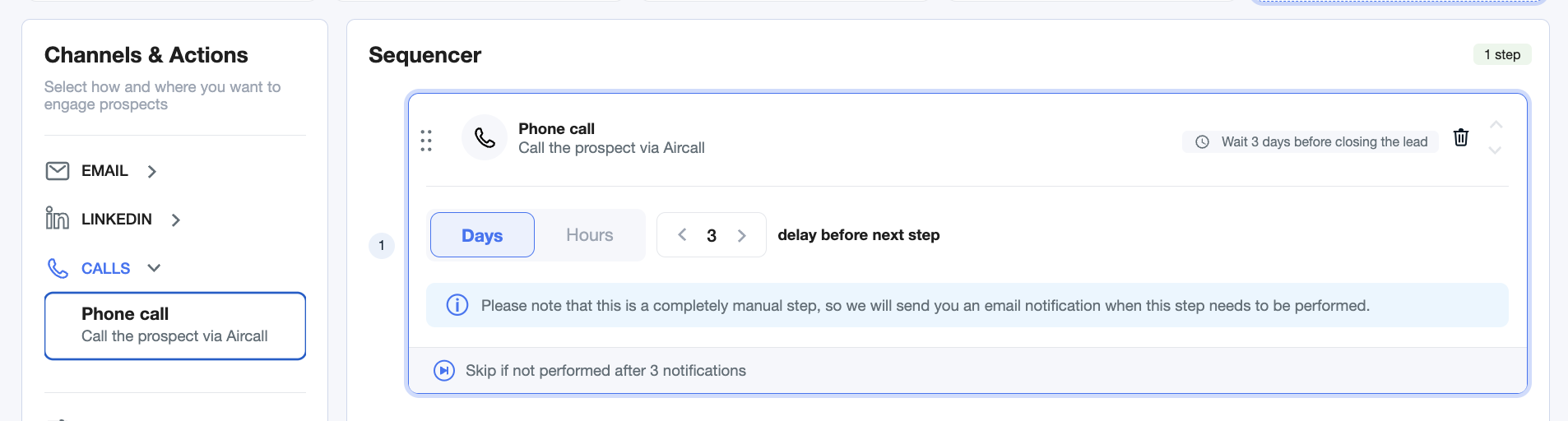
The Call step adds a direct, voice-based touchpoint to your sequence — giving you the chance to connect in real time and build stronger relationships with prospects. Calls are best used once you’ve warmed up a lead through email or LinkedIn, or when you want to prioritize high-intent contacts.
How It Works?
When a call step comes up in your sequence:
AiSDR notifies you with a reminder that it’s time to make the call.
You can place the call directly from the Calls tab or from the campaign lead table inside the platform.
After the call, AiSDR automatically generates a detailed transcript, which you can then use to personalize your follow-up emails or LinkedIn messages
Call Step Options
Each call step includes flexible controls, letting you:
Set the delay before the call (hours or days).
Log outcomes (connected, voicemail, no answer) to keep reporting accurate.
Sync notes and transcripts back into the campaign for more personalized next touches.
Fine-Tune with Advanced Settings
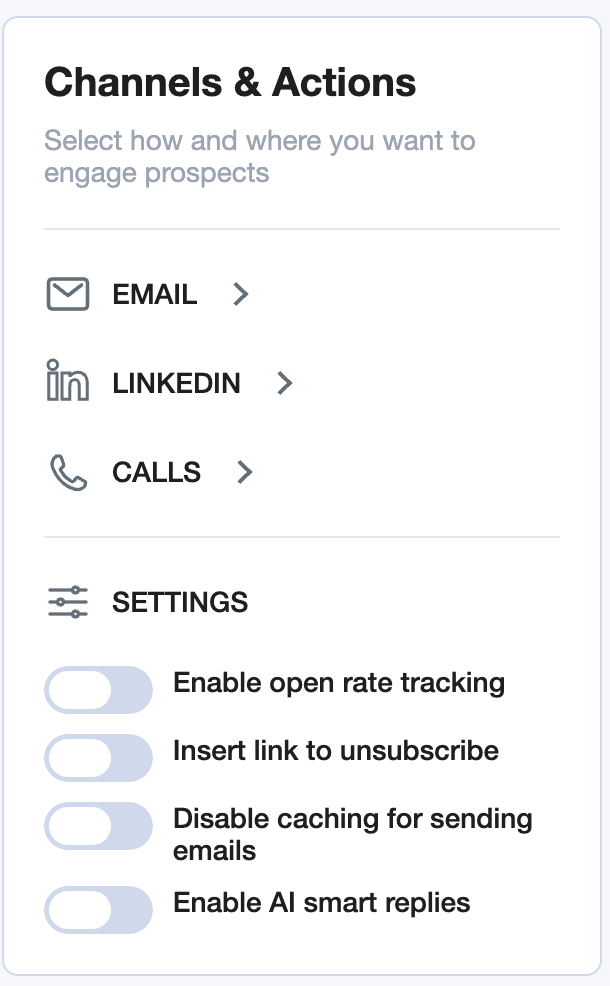
At the bottom of the Channels & Actions panel, you’ll find a suite of powerful toggles under Settings. These give you more control over how your campaigns behave, both in terms of performance and compliance:
Enable open rate tracking
Lets you track who opens your emails. Helpful for monitoring engagement — but be aware it may affect deliverability slightly on some domains.Insert link to unsubscribe
Add a one-click unsubscribe option to your emails. A great way to stay compliant and keep your sending reputation healthy.Disable caching for sending emails
Ensures each email is generated fresh in real time — useful if you’re making updates to your AI messaging and want them reflected instantly.Enable AI smart replies
Once activated, the system can help draft replies to incoming messages, keeping your workflow fast and efficient.