How to Exclude Entries from Your Lead Search
Last updated: September 4, 2025
When running a Lead Search, you may want to refine your results by excluding certain filters. The platform provides several options for exclusions, depending on the database you are using.
Option 1: Use Default Exclusion Filters
How to Access Exclusion Filters
Open the Unified or Sales Navigator database.
Go to the Essential audience filters panel.
Look for the small “plus (+)” icon on the right side of a search field.
Click the icon to reveal additional filter options -> exclusions.
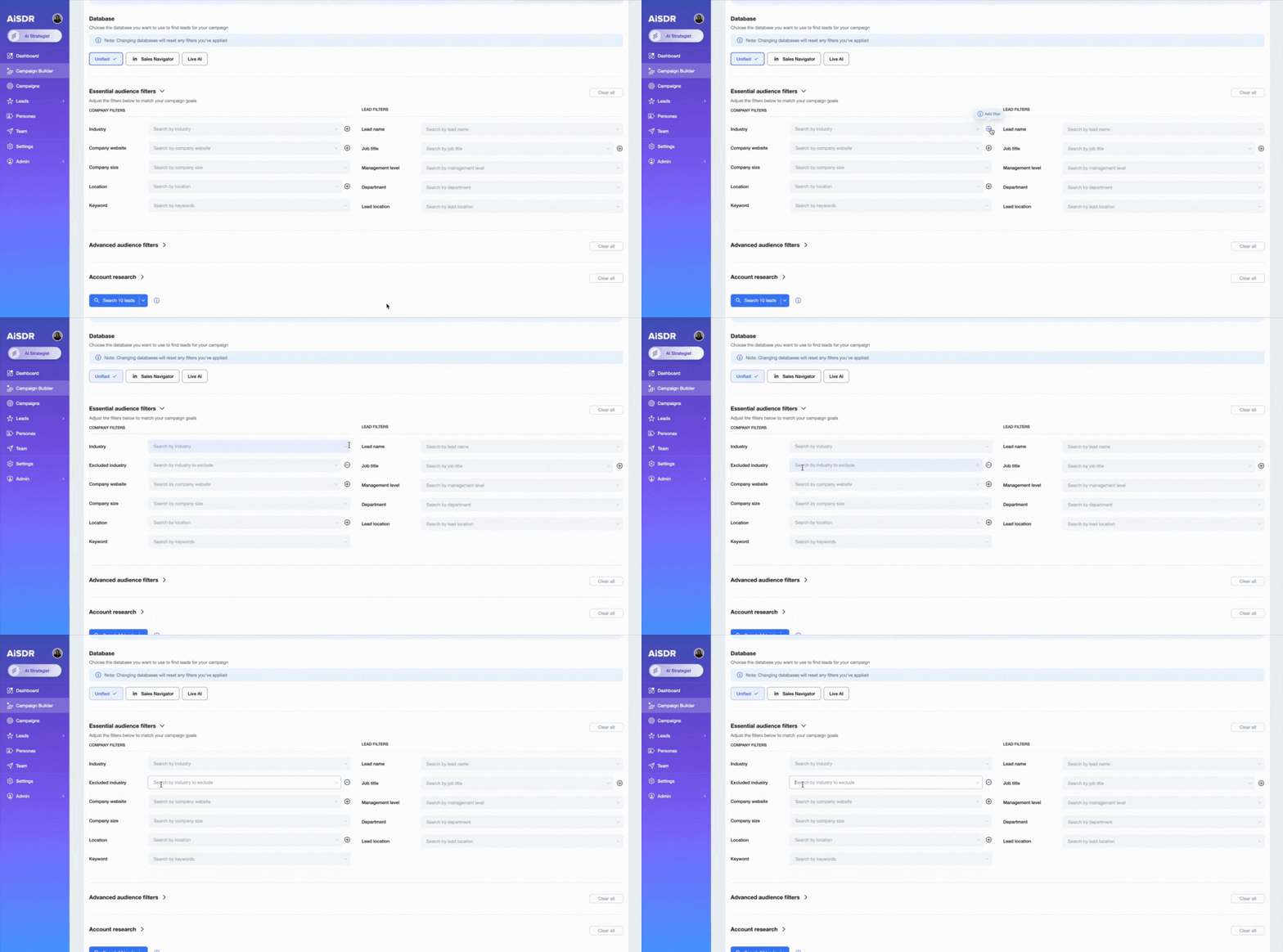
The exclusion filters available depend on which database you are searching in:
Unified Database
Exclude by Industry
Exclude by Company Website
Exclude by Company Location
Exclude by Job Title
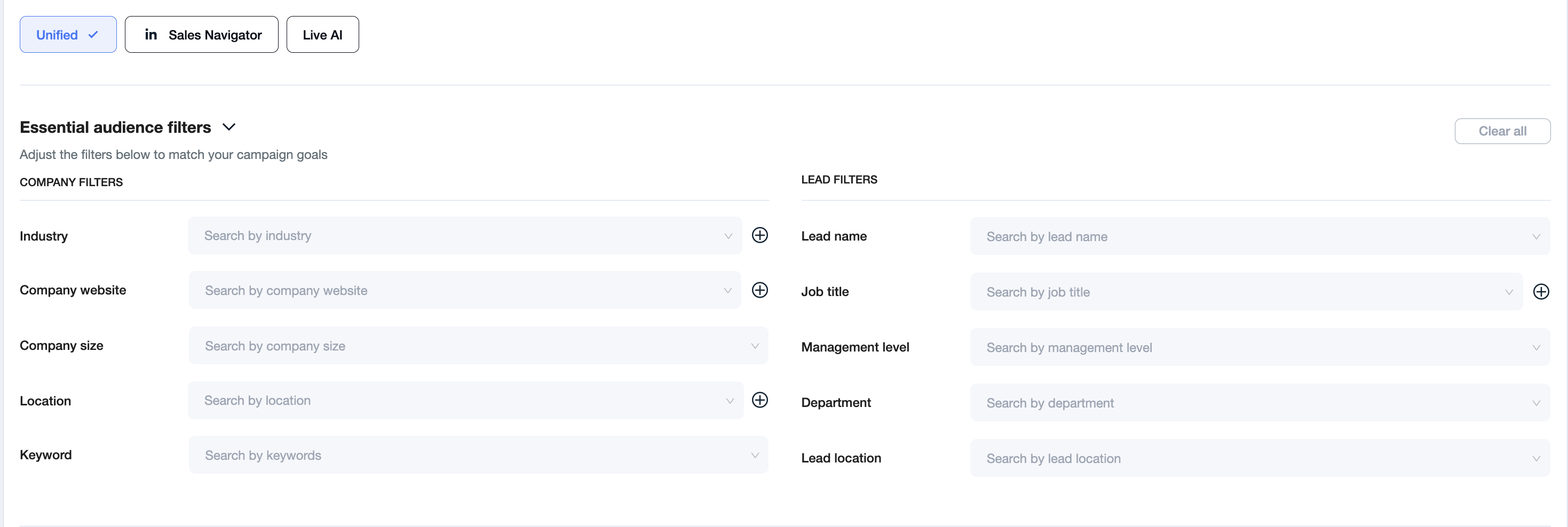
Sales Navigator
Exclude by Company Name
Exclude by Industry
Exclude by Company Website
Exclude by Job Title
Exclude by Management Level
Exclude by Department
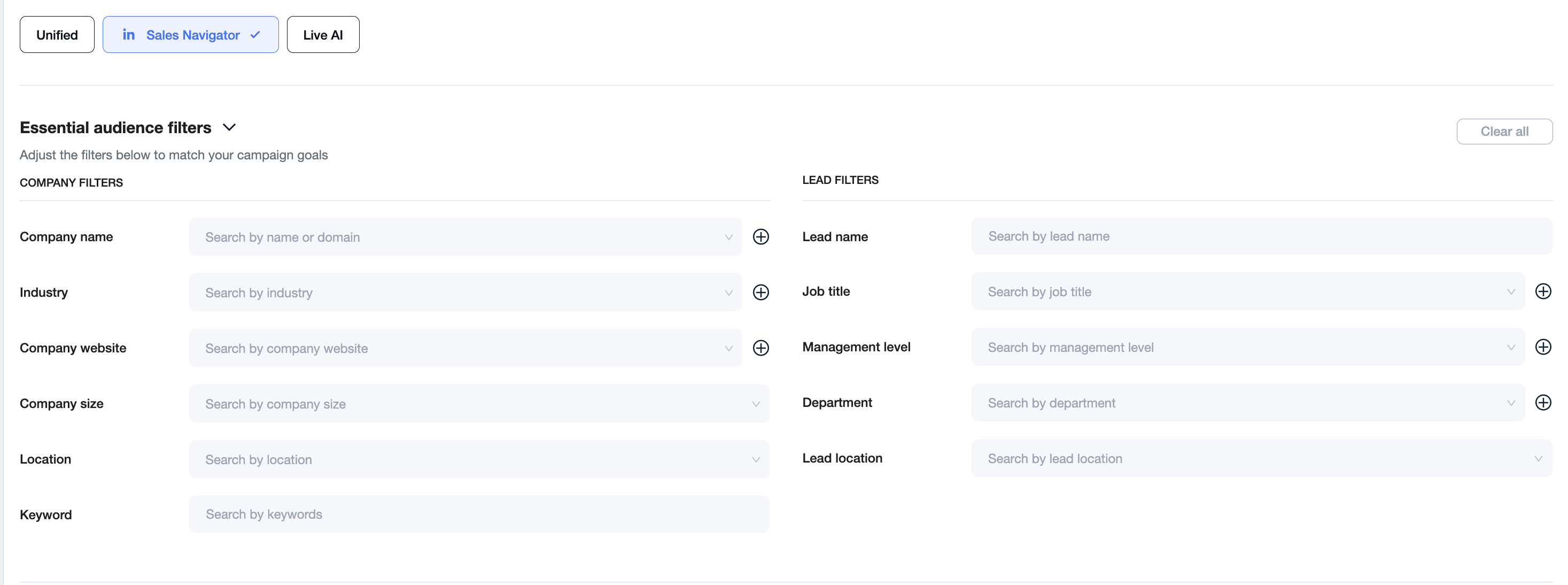
Option 2: Use Live AI for More Flexibility
If the default exclusion filters don’t fully meet your needs, switch to the Live AI database. Here, you can manually add both inclusion and exclusion criteria to refine your search further.
Live AI (Companies)
Exclude by Job Title
Create your own manual exclusion company filters using the left panel by adding specific criteria you want to filter out.
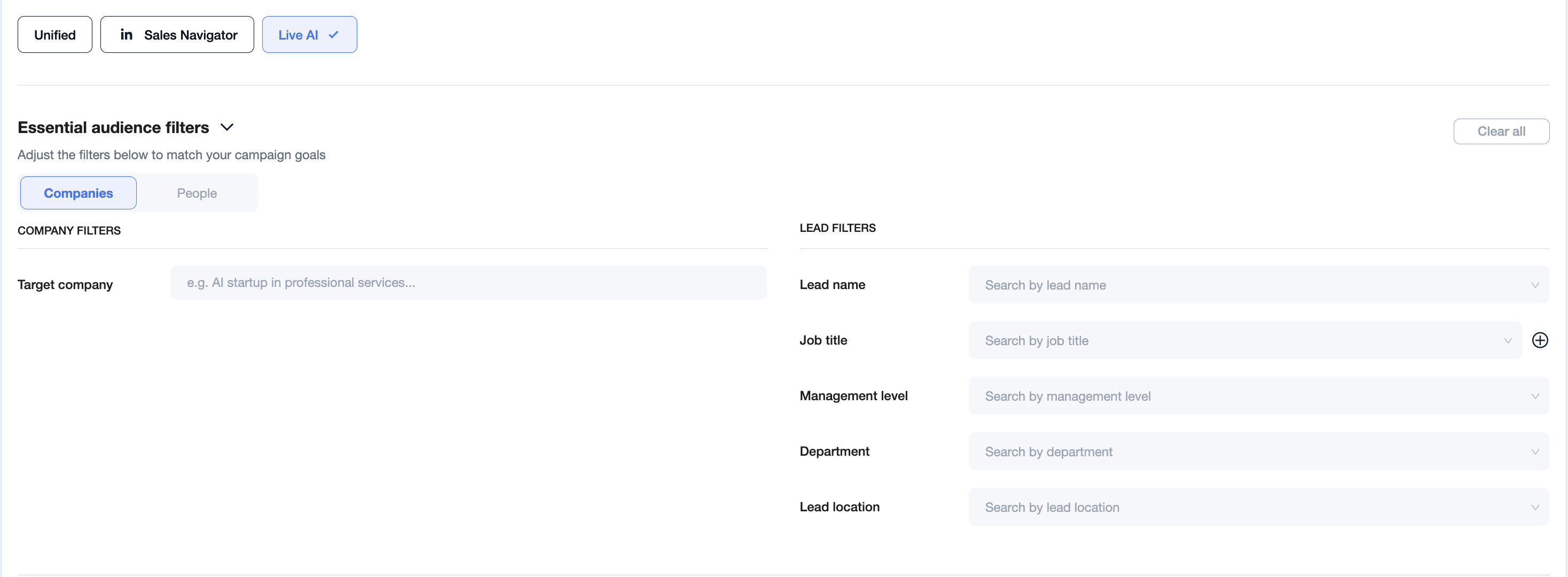
Live AI (People)
Works similarly to the Companies database.
Create your own manual exclusion lead/company filters using the right panel by adding specific criteria you want to filter out.
