AI Scoring: prioritize which of the companies are worth targeting
Last updated: September 15, 2026
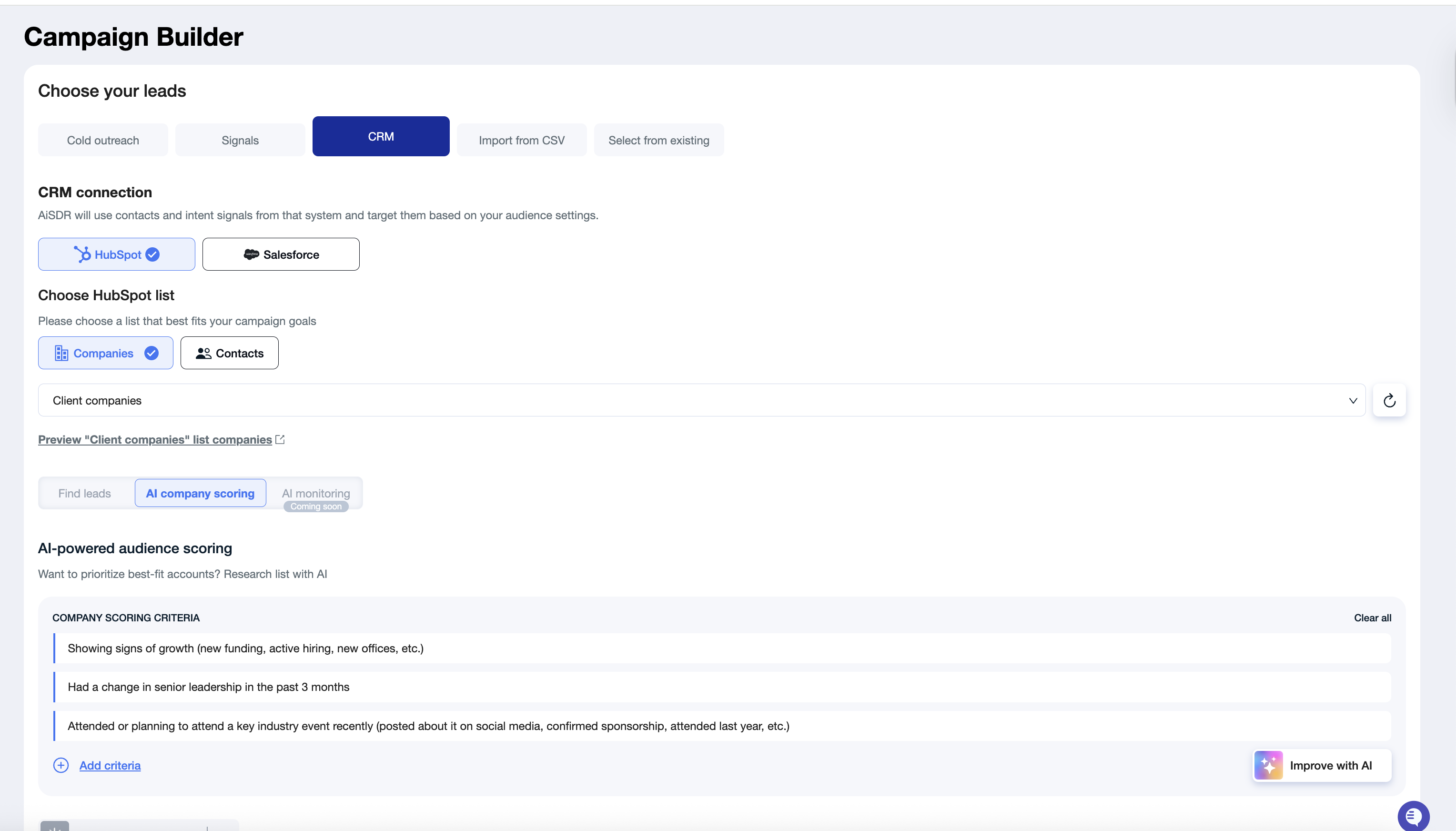
With AiSDR you can prioritize exactly which of companies from your HubSpot are worth targeting with our AI Company Scoring.
You’ll find it here:
Campaign Builder→CRM → HubSpot/Salesforce → Company List → AI Scoring
This feature transforms a basic company list into a ranked, relevance-based, ICP-validated target list—so you focus only on the accounts most likely to reply.
🎯 Why Use AI Scoring?
AI Scoring is perfect for:
Large account lists (e.g., 500–5,000 companies)
ABM campaigns
Closed-lost re-engagement
Vertical-specific targeting
ICP refinement
Inbound lead qualification
Tech-stack-based targeting
Companies showing hiring or growth signals
It takes you from generic account lists → laser-focused, high-intent target lists in minutes.
🚀 What AI Scoring Does
AI Scoring evaluates every company in your HubSpot/Salesforce list using 1–4 custom criteria you define.
You can use our preconfigured criteria or edit/remove/add your own at any time.
After scoring, AiSDR shows you:
Which companies matched at least one criterion
Which companies did not match any criteria
How strongly each company matched (100%, 66%, 33%)
This instantly gives you a clean, prioritized list.
🧠 How Matching Works
AiSDR analyzes each company live across the public internet, job postings, leadership updates, tech indicators, and your custom rules.
Match = company meets 1+ of your criteria
Miss = company meets none
Companies are grouped by match percentage:
100% match → met all criteria
66% match → met two criteria
33% match → met one criterion
Missed → no match at all
Example
You score 10 companies with 3 criteria:
7 companies match
some at 100%
some at 66%
some at 33%
3 companies miss entirely
You can now act immediately on the 7 matched accounts.
You can hover over any match to see exactly why AI believes it matched — or why it didn’t.
🔍 How to Use AI Scoring (Step-by-Step)
Hubspot
Select any list you’ve created in HubSpot
Click AI Scoring
Choose 1–4 criteria
Use Improve with AI if you want help describing the criteria
Choose whether to score the whole list or specific companies
Run the scoring
AI performs live research for each company
Scoring uses your lead search credits (1 credit per company analyzed)
Review the results
Match %, details for each match/miss, full explanation
Select which companies to move forward with
All matched, only 100%, etc.
Save the scored list back to HubSpot
AiSDR automatically writes scoring results into HubSpot:
Four scoring properties are created/updated
Each new scoring run overwrites the previous one
Large lists are saved asynchronously (you’ll get an email)
A new HubSpot list appears automatically
You can filter by match percentage inside HubSpot
Hover to see matched criteria
This makes it easy to revisit, reuse, or build new campaigns later.
Salesforce
Go to CRM → Account Report
Select any report you’ve created in Salesforce
Click AI Scoring
Choose 1–4 criteria
Or use predefined criteria for a faster start ⚡
Use Improve with AI if you want help refining your criteria
Choose whether to:
Score the entire report
Score specific accounts only
Run the scoring
AiSDR performs live research for each account.
Each scored account consumes 1 search credit 💸
📊 Reviewing Results in Salesforce
To see scoring fields inside Salesforce 👀:
Make sure scoring fields are added to your Account page layout
Ensure you have the assigned permission set
Scoring results are written directly into Salesforce:
Scoring fields are created/updated automatically
Each new scoring run overwrites the previous one
Large reports are saved asynchronously (you’ll receive an email notification)
You can also find detailed scoring explanations in the Notes section of each Salesforce account. 📝
To ensure everything syncs properly, the person setting up the integration must have permission to:
Create permission sets
Create custom properties
🔐 This is required for correct setup.
🔥 What You Can Do Next
1. Search for leads in the matched companies
Exactly like normal people search — but now powered by a hyper-precise, filtered account list.
Example from the video:
Search "Job titles”
1-10 leads per company
Search 10 leads
AiSDR enriches them (email, LinkedIn, etc.)
Add fresh leads daily → AiSDR keeps finding new people inside those scored accounts
2. Launch a campaign with full relevance
After searching leads, create a campaign as usual.
Tip:
Use a custom persona referencing the criteria you used in scoring (e.g., hiring signals, recent leadership change).
Relevant messaging = dramatically higher response rates.
🧩 Important Notes
Scoring is cached for 1 day for the same criteria
You can score individual companies or entire lists
You can create unlimited HubSpot lists from scored results
Scoring properties must be visible inside HubSpot (adjust in settings if needed)
Each scored company consumes 1 search credit
“Add fresh leads daily” works only with companies selected from scoring
Each match tier (100%, 66%, 33%) has its own tab for easy filtering