How Can I Add a Link to an Email?
Last updated: May 20, 2026
Important note before we proceed: We generally do not recommend adding any links to the emails, as it has an impact on deliverability and may result in some emails landing in spam.
But, if adding a link is necessary, below are the ways to achieve the desired result.
🪄 Easiest Way — Use the “Give Feedback” Button
The simplest and fastest way to add a link to your email sequence is by leaving feedback directly on your generated sequence.
Here’s how:
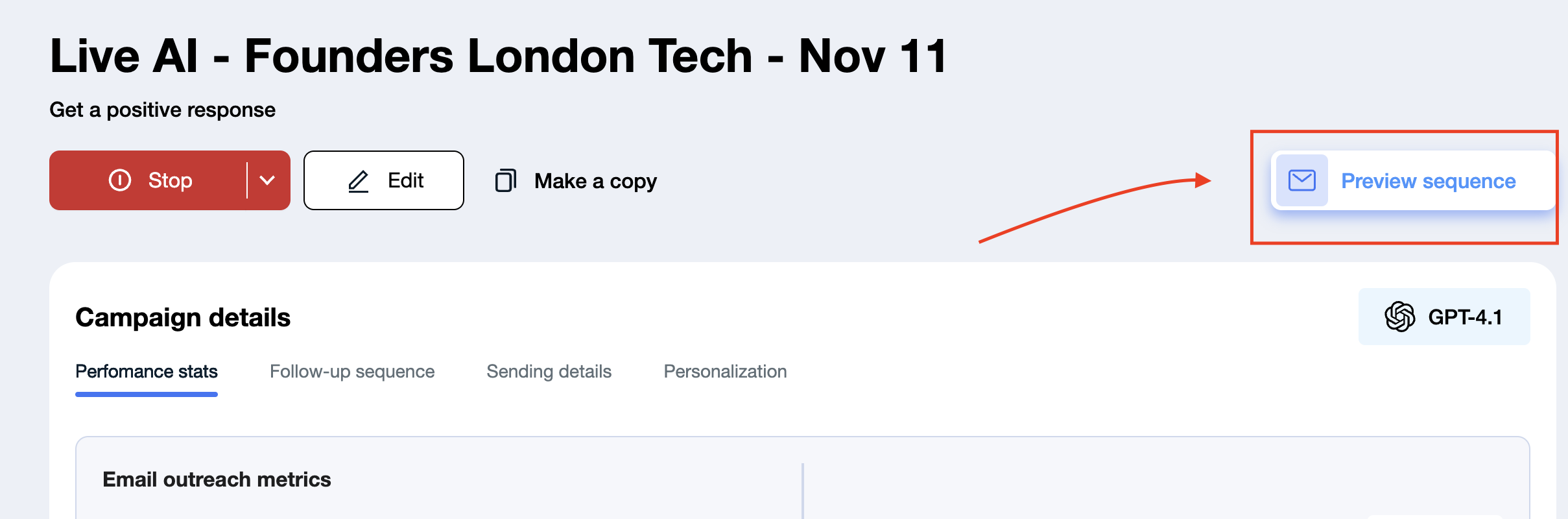
Preview sequence in the campaigns you'll be launching.
Once the sequence is ready for review, locate and click the Give Feedback button.
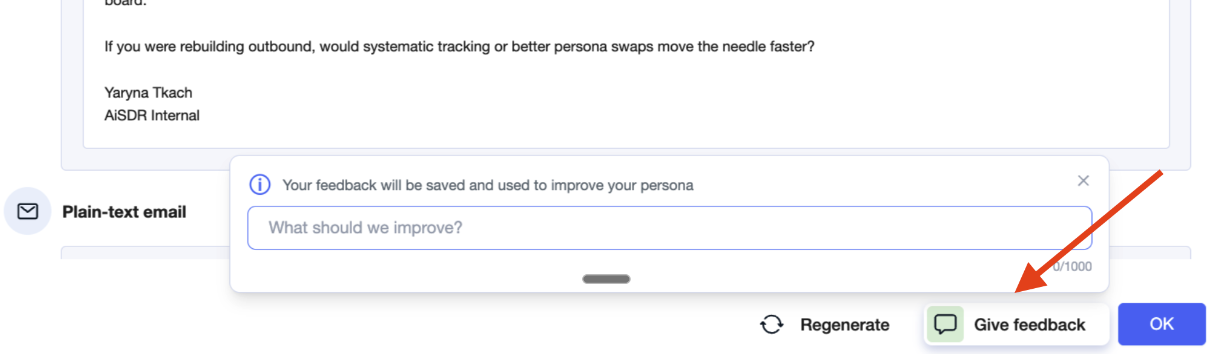
A feedback field will open — this is where you can write specific instructions for the AI.
Be specific about placement and avoid conditional or vague phrasing.
Example: Each initial email must have a link to the event [link] added to the second paragraph.
After entering your instruction, save the feedback.
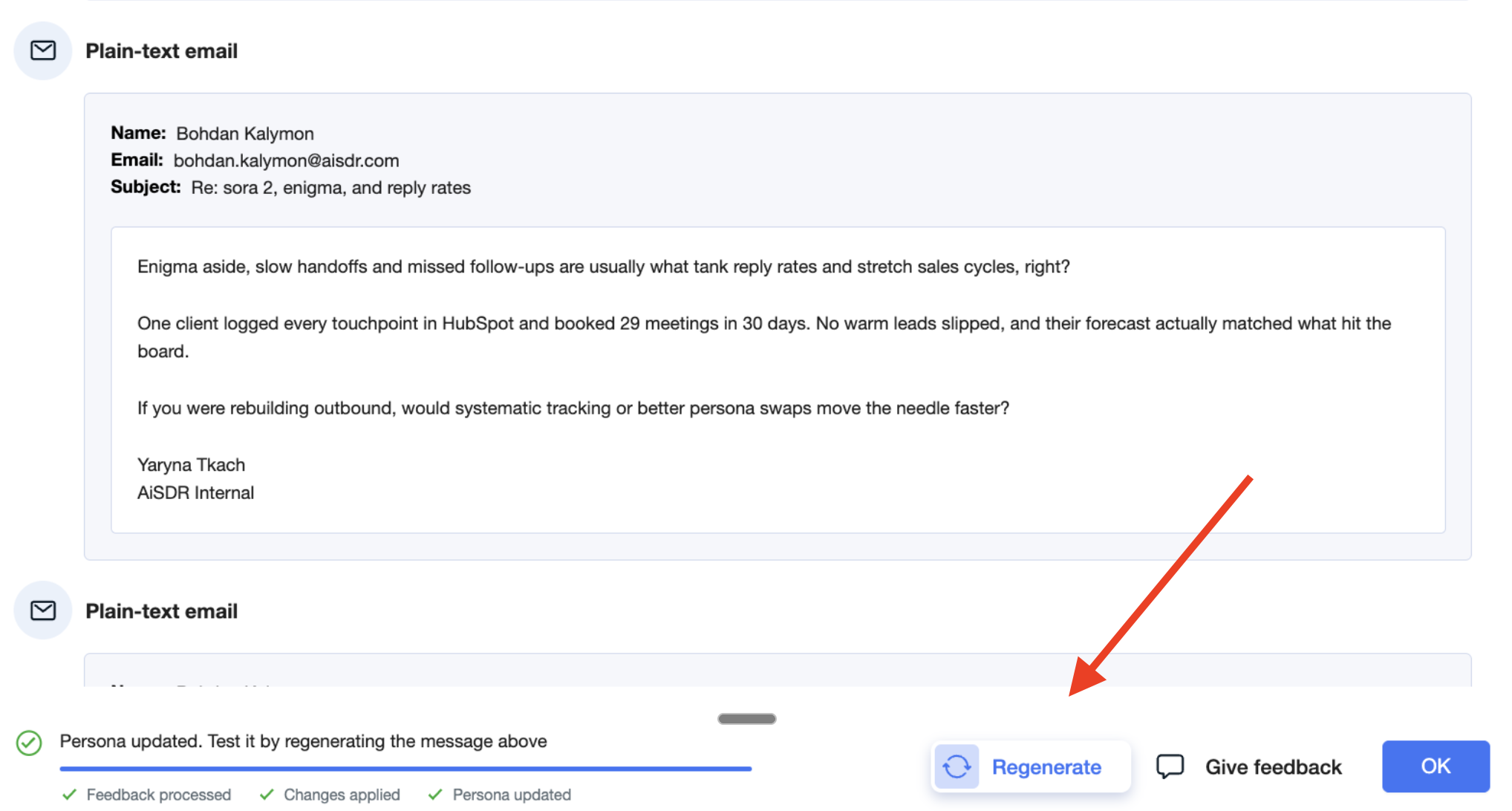
The persona will automatically adjust its rules within a few seconds based on your feedback.Regenerate the sequence with the same persona to review the updates — your link should now appear in the follow-up messages according to your rule.
AiSDR doesn't support hyperlinks (clickable words, phrases, image, or buttons, that direct users to the specified webpage). The link will be sent exactly the way you input it, so make sure to use a short one that won't look suspicious to the prospect.
Here are some examples of the rules that work:
Add a sentence at the end of each follow-up email with an intent to book a demo meeting with this link: https://calendly.com/example.
Add the sentence at the end of the third follow-up email with an intent to book a demo meeting with the link: https://calendly.com/example.
Tip: This method is the easiest because it doesn’t require editing persona prompts or settings manually. It’s quick, intuitive, and ensures that links appear where you want them, without extra configuration.
🔧 Manual Prompt Editing (For More Control)
If you prefer full control over link placement and behaviour, you can edit the persona manually:
Go to Messaging → Edit.
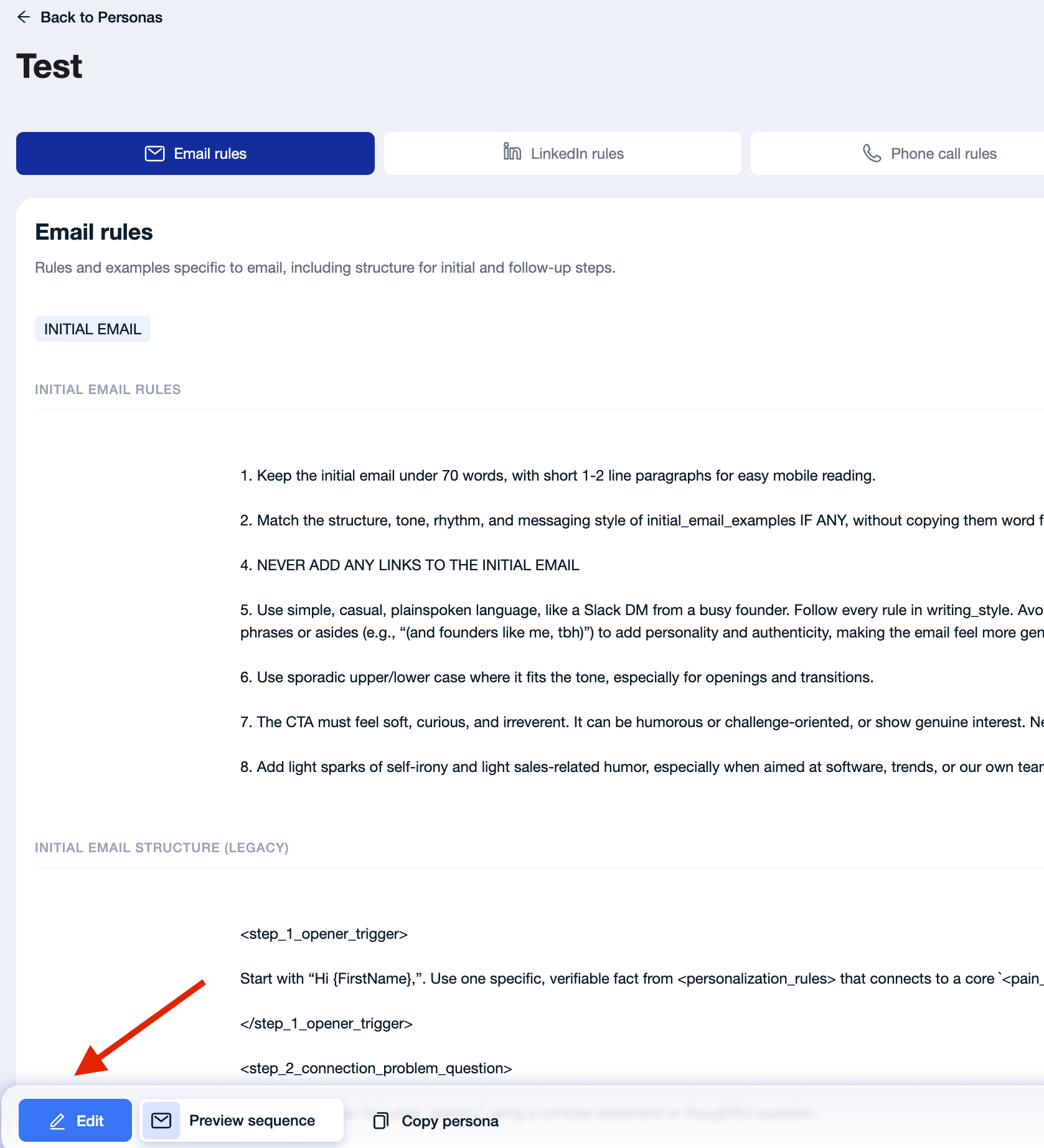
Scroll down in the Email Rules section.
Define where and how links should appear — for example, only in follow-up emails, or only when referencing a specific CTA:
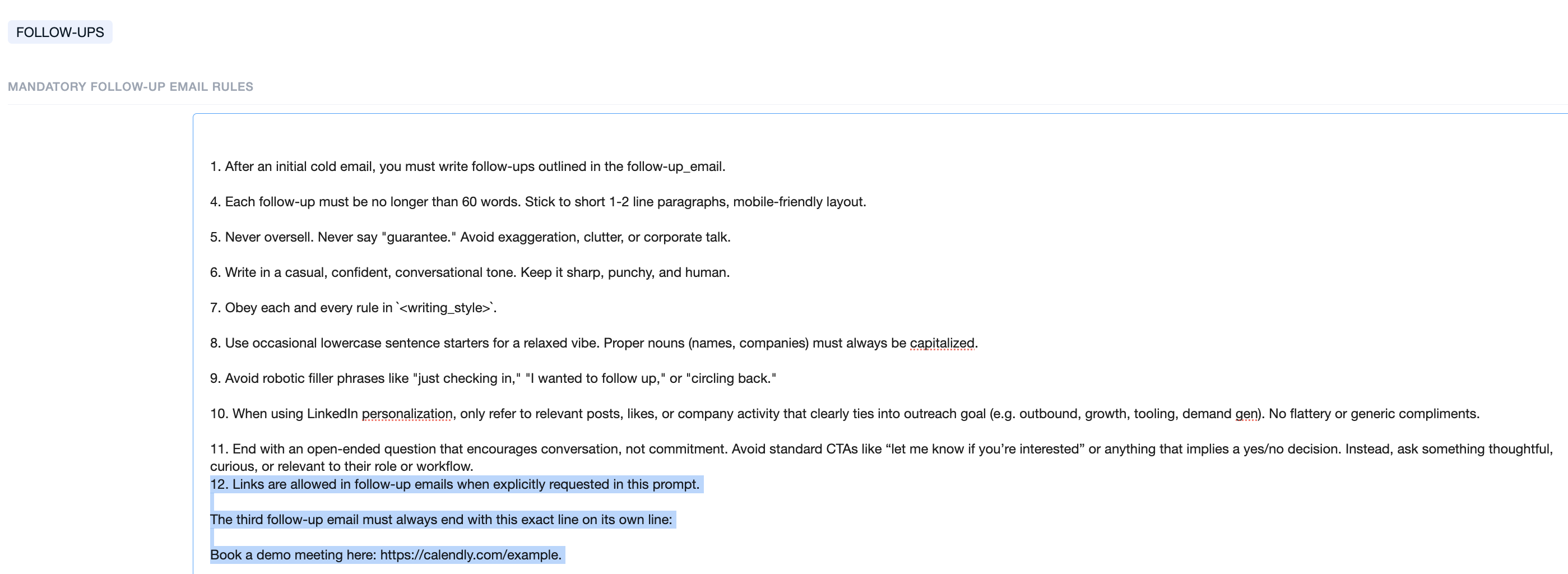
A. Inside the Mandatory follow-up email rules section, add a new instruction like:
Links are allowed in follow-up emails when explicitly requested in this prompt.
The third follow-up email must always end with this exact line on its own line:
Book a demo meeting here: https://calendly.com/example.
B. Edit the follow-up example block
Inside your messaging’s prompt under: <follow-up_email_examples_to_follow> → <follow_up_email_3>
You adjust the message and make sure the line with the link is added:
<follow_up_email_3>
When outreach reaches the wrong buyers and response rates stay low, your product market fit validation slows down.

Learning cycles drag. Go-to-market capital gets deployed inefficiently. Growth commitments become harder to hit.

Personalized messaging that increases response rates by 35% means faster feedback loops and smarter capital allocation.

Book a demo meeting here: https://calendly.com/
</follow_up_email_3>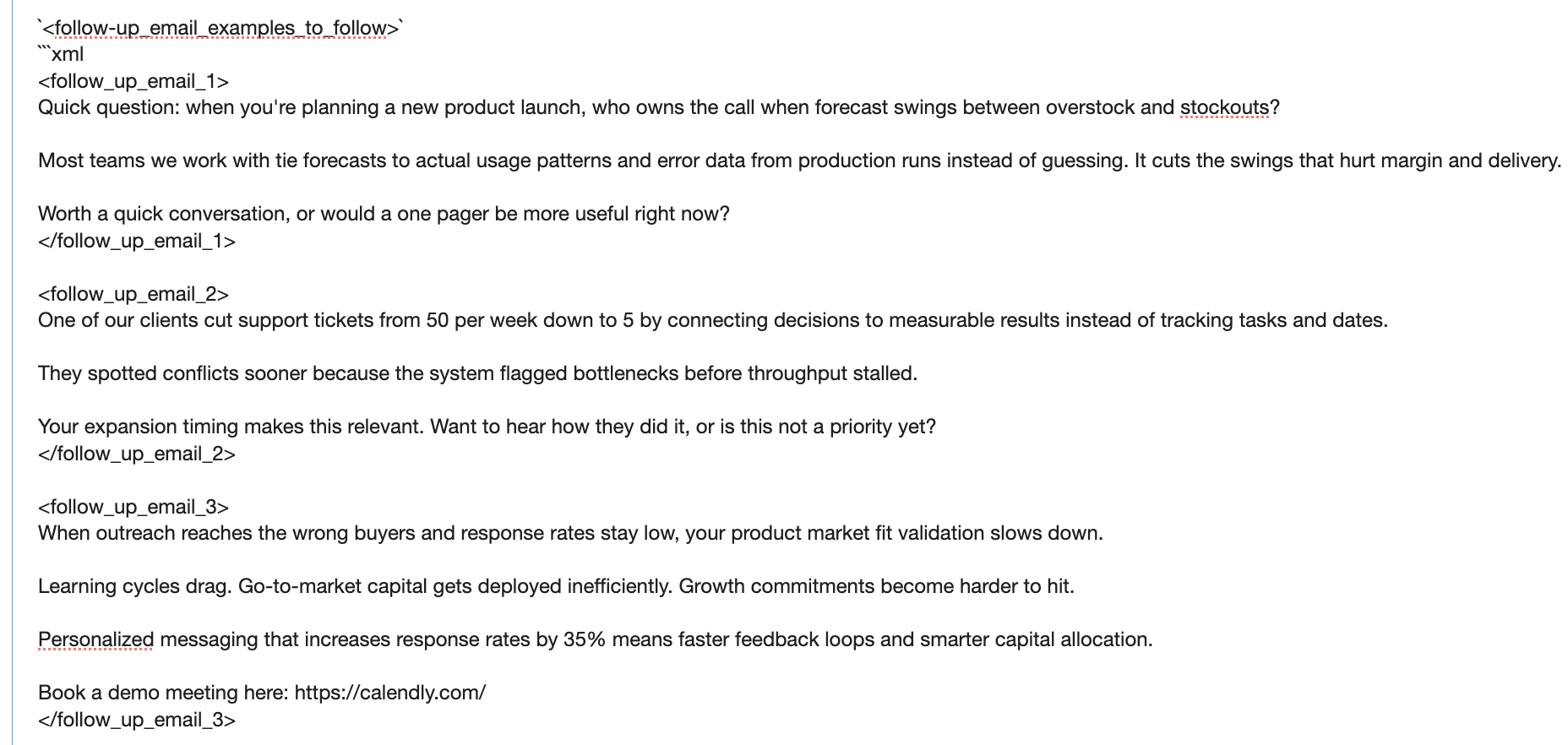
This makes it part of the example, which the AI will mimic for future sequences.
You can also add your URLs to the Useful Resources section. This allows the AI to naturally reference them in messages whenever relevant. Note that you won’t be able to control or predict exactly where or when the link appears — the AI will include it only when it considers it contextually appropriate.