How to Sync and Use Custom HubSpot Properties in AiSDR
Last updated: April 24, 2026
Custom HubSpot properties are often used to store data that is essential for segmentation and personalization. Before that data can be used in AiSDR, the properties must be synced to the platform. This article explains how to sync custom HubSpot properties and use them within AiSDR prompts.
Using custom HubSpot properties in AiSDR follows a simple three-step process:
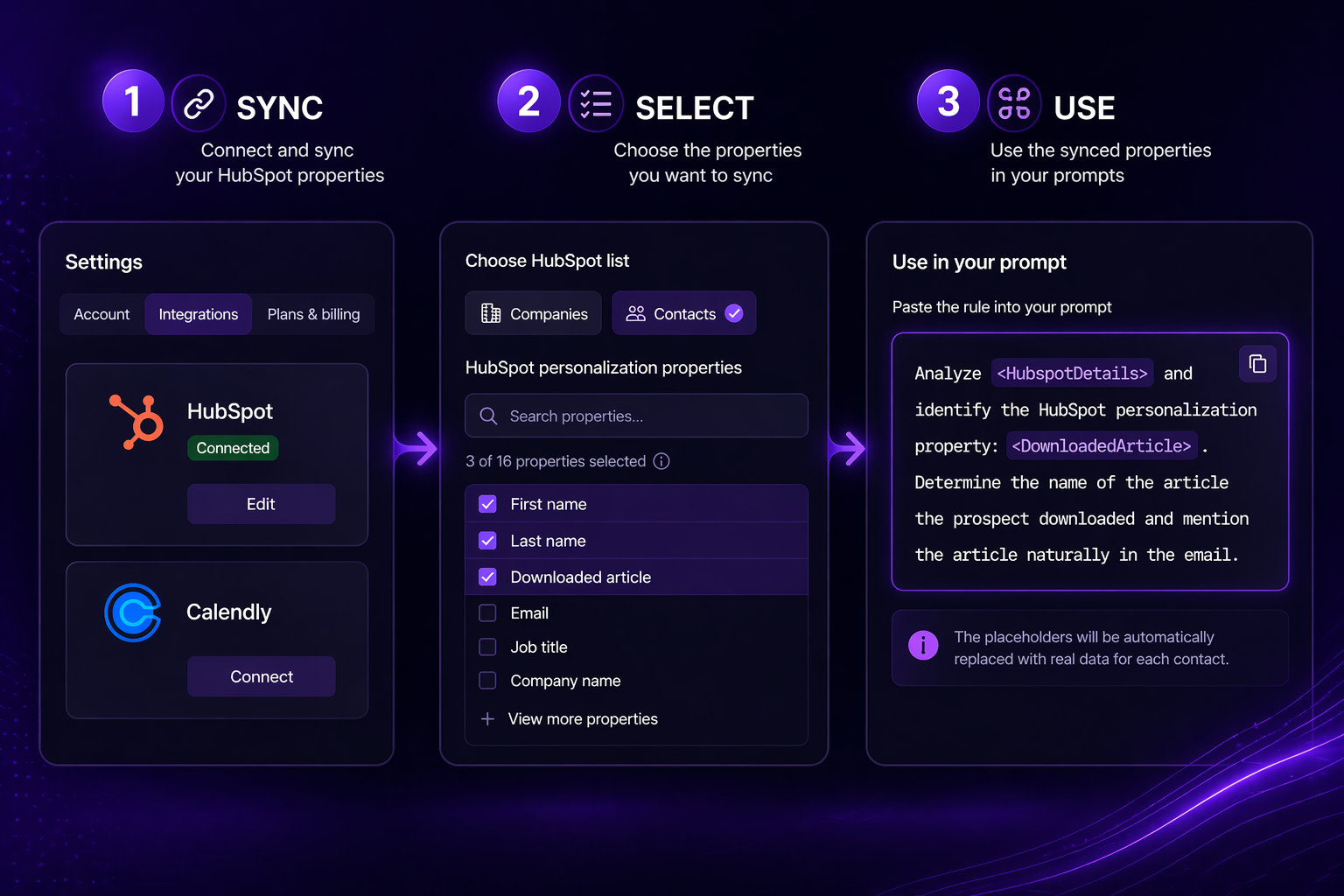
Step 1: Sync
To use HubSpot properties within AiSDR prompts, those properties must first be synced to AiSDR. This ensures the platform can recognize and reference the relevant data when generating emails.
Follow these steps to sync your HubSpot properties:
Navigate to Settings.
Open the HubSpot section.
Click Edit.
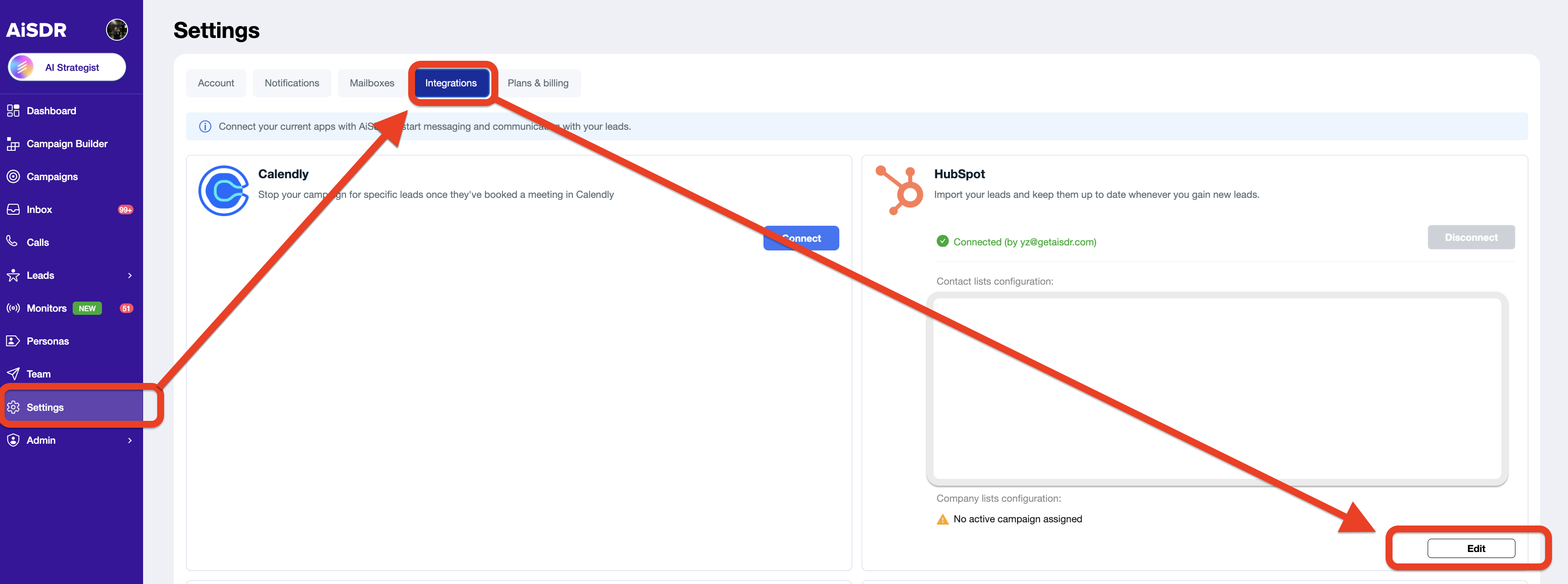
Scroll to the Properties section.
Choose the HubSpot properties you want to make available in AiSDR.
Click Save.
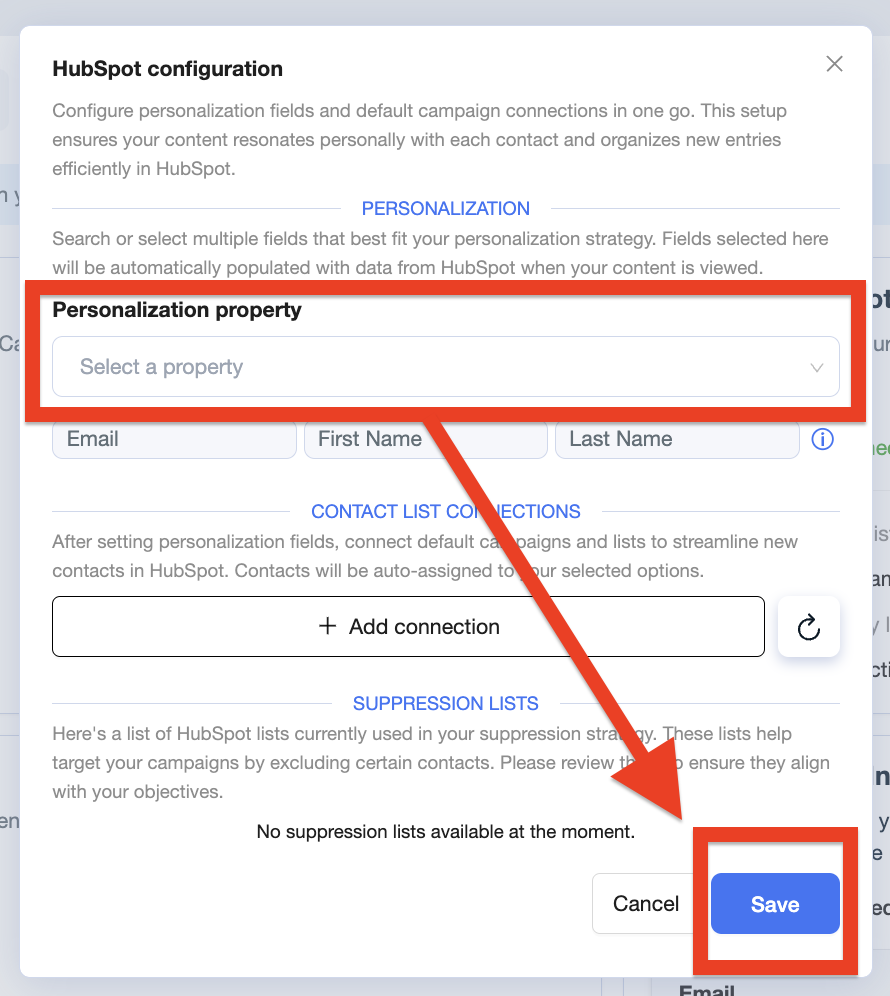
After saving, the selected properties will be synced and ready to use in your prompts.
Keep in mind that only synced properties can be referenced in AiSDR. If a property has not been synced, it will not be available for email personalization.
Step 2: Select
Once your HubSpot properties have been synced to AiSDR, you can choose which of them should be available for a particular list.
During the list upload flow, a section titled HubSpot personalization properties will appear. In this section, you can select the specific properties you want AiSDR to use for personalization within that list.
Upload your list to AiSDR.
In the upload flow, find the HubSpot personalization properties section.
Select the relevant properties you want to include.
Complete the upload process.
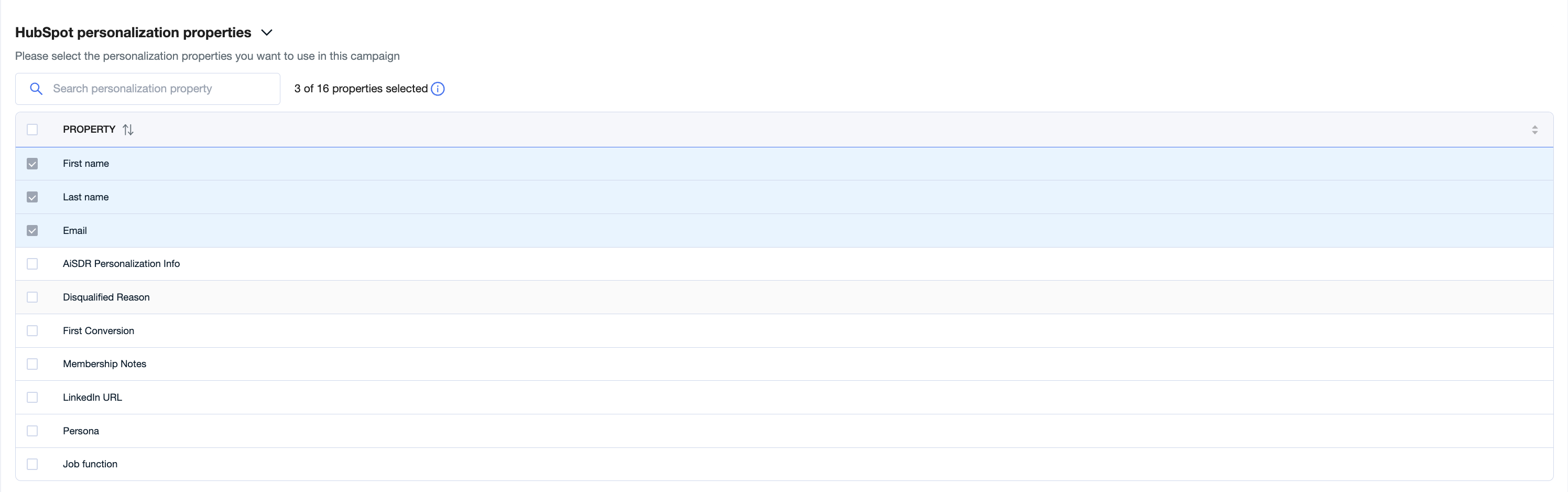
Please note that syncing a property in Settings makes it available in AiSDR generally, but it must also be selected during list upload in order to be used for that specific list.
Step 3: Use
After the property has been synced to AiSDR and selected during list upload, you need to define how it should be used in the email itself.
1⃣ In the Email Rules tab, find the Initial email structure section. This is where AiSDR stores the instructions for each paragraph of the email.
2⃣ Find the section corresponding to the paragraph where the property should appear, then add a rule describing what AiSDR should look for in <HubspotDetails> and how that information should be incorporated into the message.
For example:
Analyze <HubspotDetails> and identify the HubSpot personalization property: <DownloadedArticle>. Determine the name of the article the prospect downloaded and mention the article naturally in the email.
❗Don't forget to update Email style example as well
This approach can be used for any synced HubSpot property. The key is to provide a clear instruction that tells AiSDR which property to reference, what information to extract, and how to incorporate it naturally into the relevant paragraph.
Once these three steps are complete, your custom HubSpot properties will be available for use in AiSDR emails.
If a property is missing at any stage: whether it has not been synced, selected during list upload, or referenced in your email rules: AiSDR will not be able to use it for personalization.