Notification Center: Get emails about matters most
Last updated: March 27, 2026
With the Notification Center, you can fully control what you’re notified about, who receives those notifications, and how they’re delivered.
Instead of getting your inbox overflowing with every update, you can tailor notifications to match your workflow.
✨ What you can do
Notification Center allows you to:
Choose which notifications you receive
Filter alerts by campaign, sender, or event type
Configure notifications for your teammates or stakeholders
Route campaign alerts to specific users
📍 Where to find it
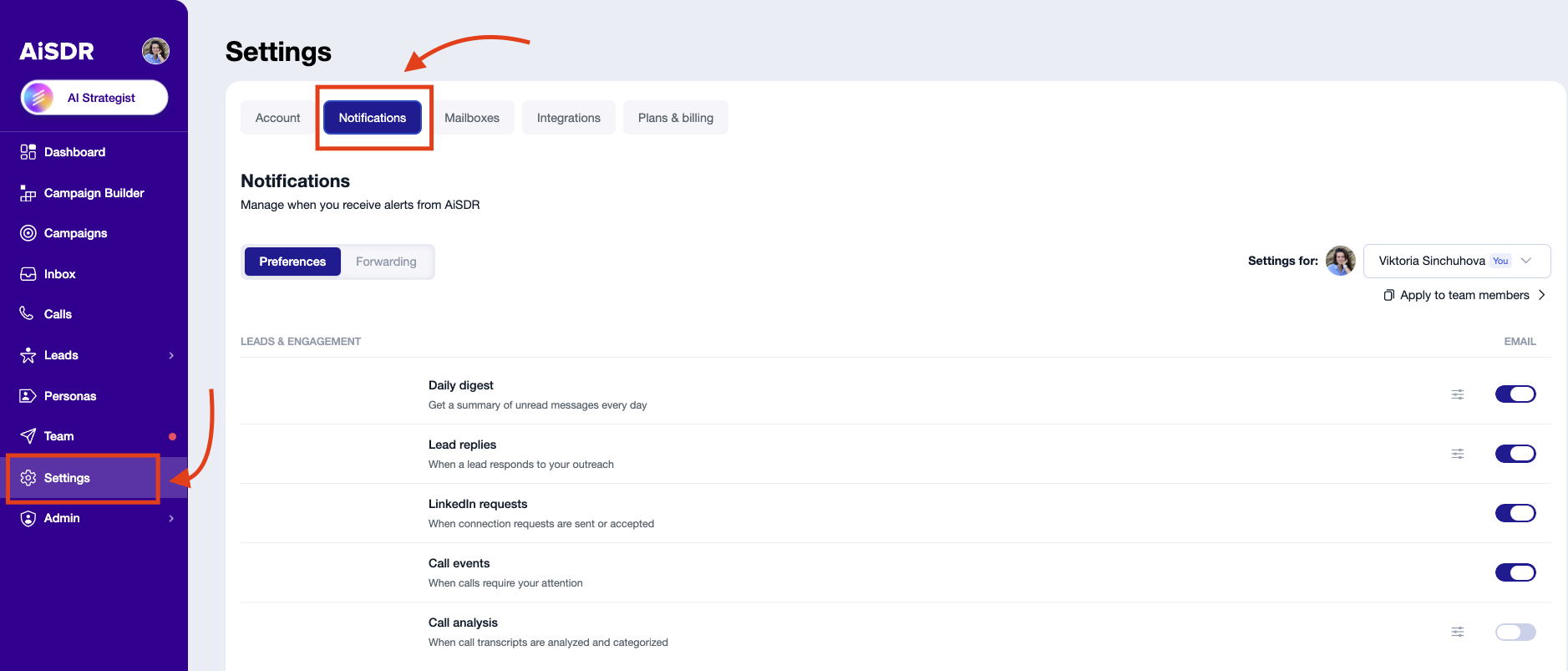
Go to: Settings → Notifications
You’ll see two main tabs:
Preferences → what notifications you receive
Channel routing → configure additional users who need to receive them
🎛 Preferences — your control panel
All notifications are grouped into categories, so you can easily manage what you care about:
💬 Leads & Engagement
Includes:
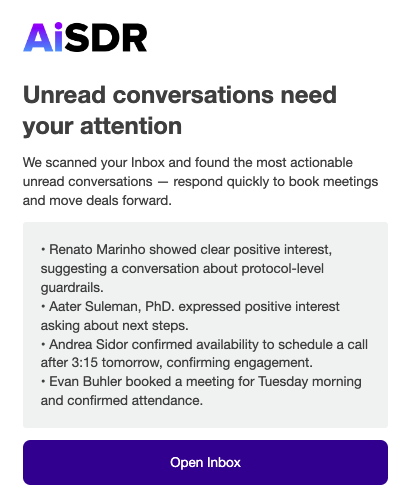
Daily Inbox Digest - an AI summary of all unread messages in the AiSDR Inbox. By default, each user receives them every day. You can configure what types of events to summarise.
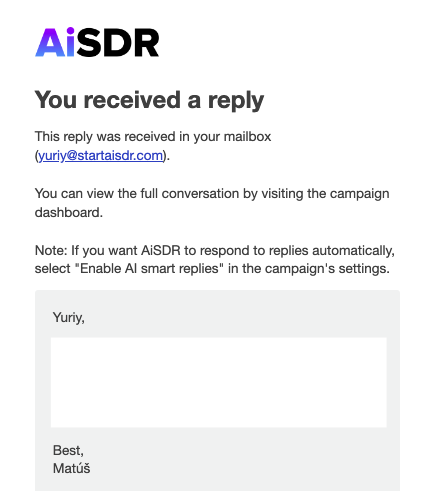
Lead Replies - notifications about individual replies in your campaigns, which are triggered the moment they are received. By default, these are only received by the campaign owner and the sender involved in the conversation with the lead. If the campaign has multiple senders, only the one in contact will be notified. You can configure what types of events to be notified about.
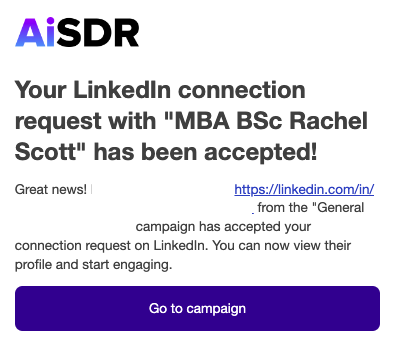
LinkedIn Requests - notifications when connection requests are sent or accepted. By default, these are only received by the campaign owner and the sender involved in the conversation with the lead. If the campaign has multiple senders, only the one in contact will be notified.
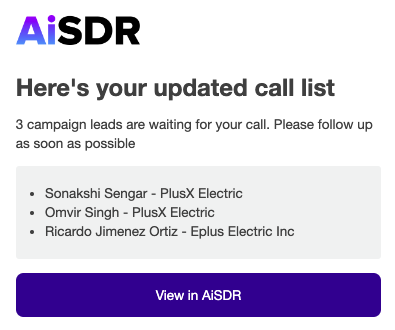
Calls Events - notifies you when the batch of leads reaches the call step in the sequence, and they are added to your to-do list. This notification is sent to the campaign owner.
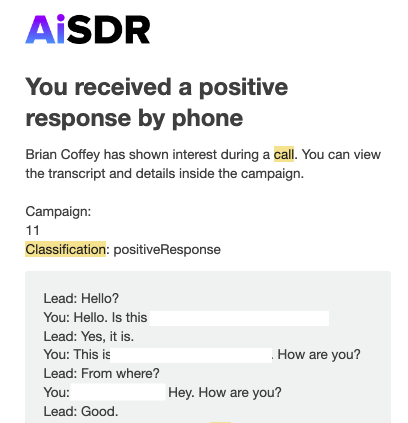
Call Analysis - sends a transcript of each call after it finishes. This notification is sent to the campaign owner.
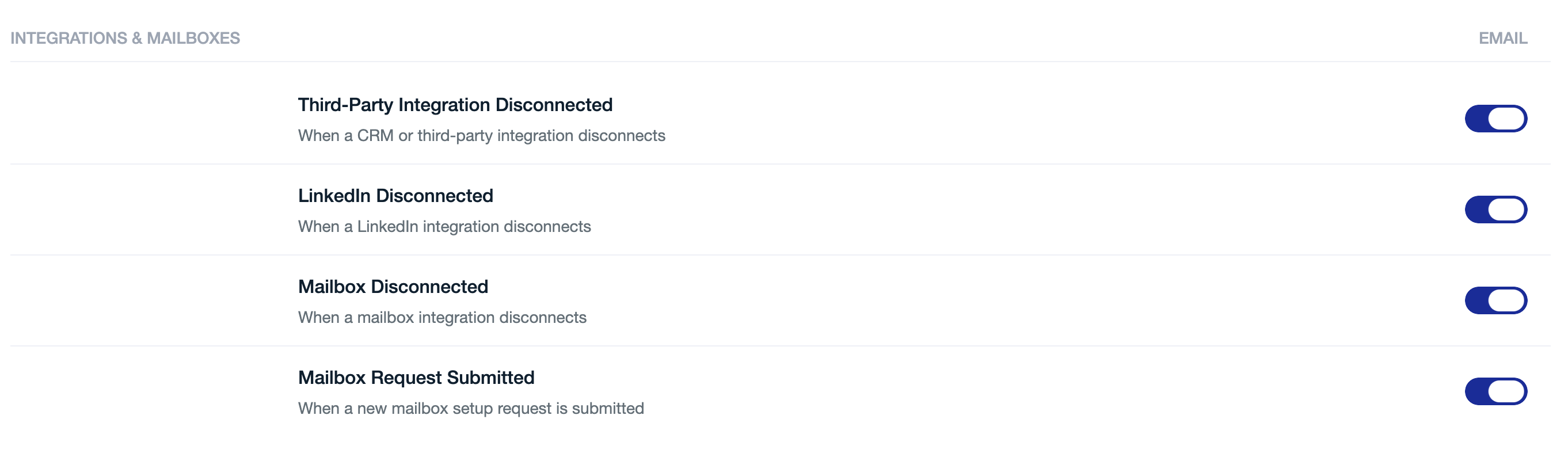
🔌 Integrations & Mailboxes
Includes:
Mailbox Disconnected
LinkedIn Disconnected
Integration Disconnected
Mailbox Request Submitted
💳 Billing & Credits
Includes:
Message Credits Exhausted (always ON)
Payment-related alerts
Website visitor limits (Grow/Enterprise plans)

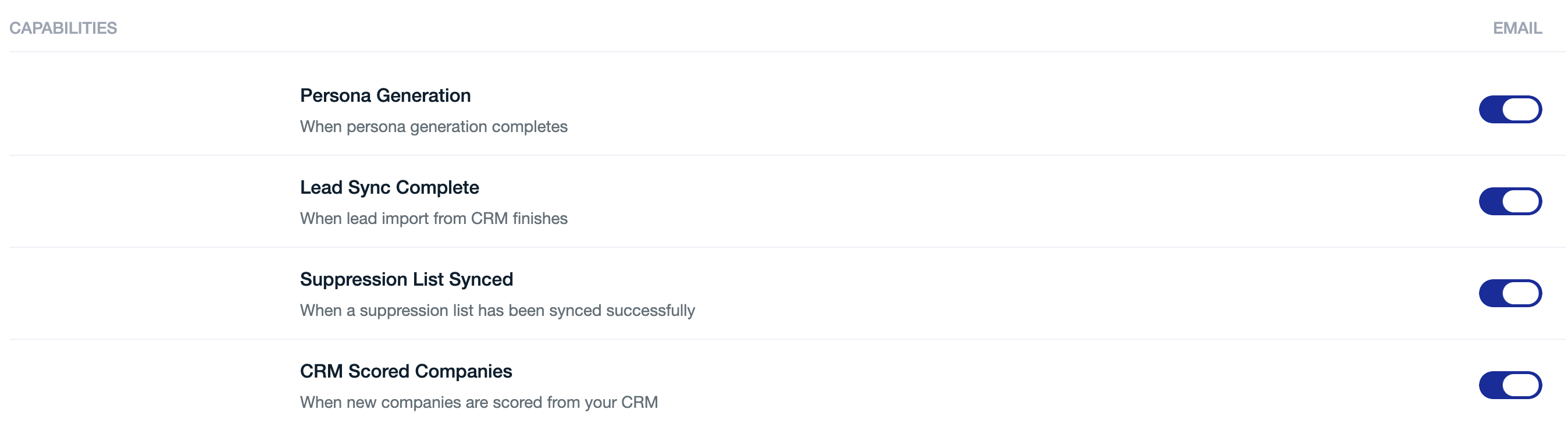
🧠 Capabilities
Includes:
Persona ready
CRM sync completed
Suppression list updates
AI scored companies
🧩 Common use cases (how customers typically set this up)
Below are real scenarios to help you quickly configure what you need.
🎯 I only want to be notified about positive replies (or booked meetings)
Stay focused on real opportunities without distractions.
How to set it up:
Go to Preferences
Enable Lead Replied
Open settings (sliders icon)
Select:
Positive response
Meeting booked
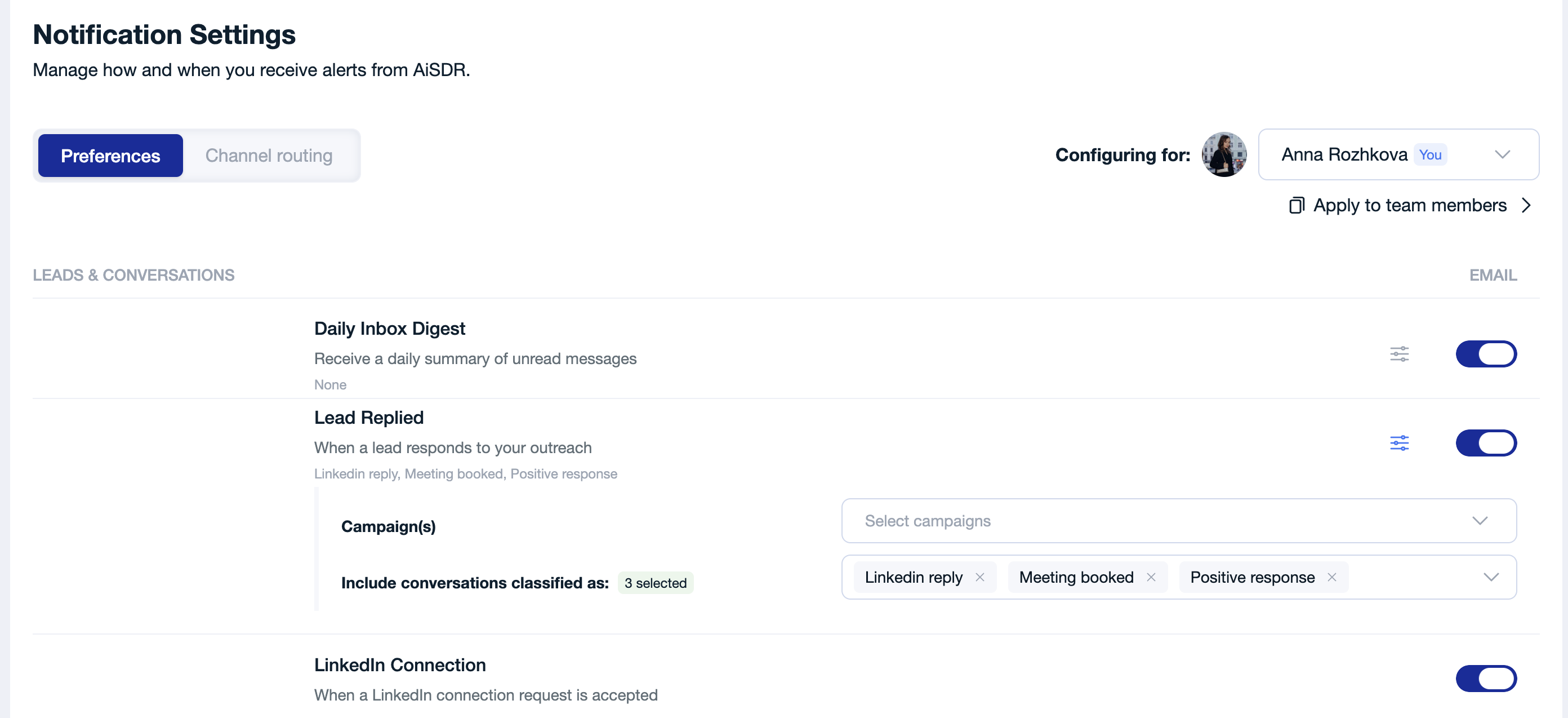
Repeat the same for the Daily Inbox Digest.
✅ You’ll only be notified about high-quality engagement.
🧍 I want to configure how my team receives the notifications
You can do that, if you are the Notification admin.
If the settings below are not visible, reach out to your account manager to request said role.
How to set it up:
In Settings for, switch to the teammate whose settings you want to change
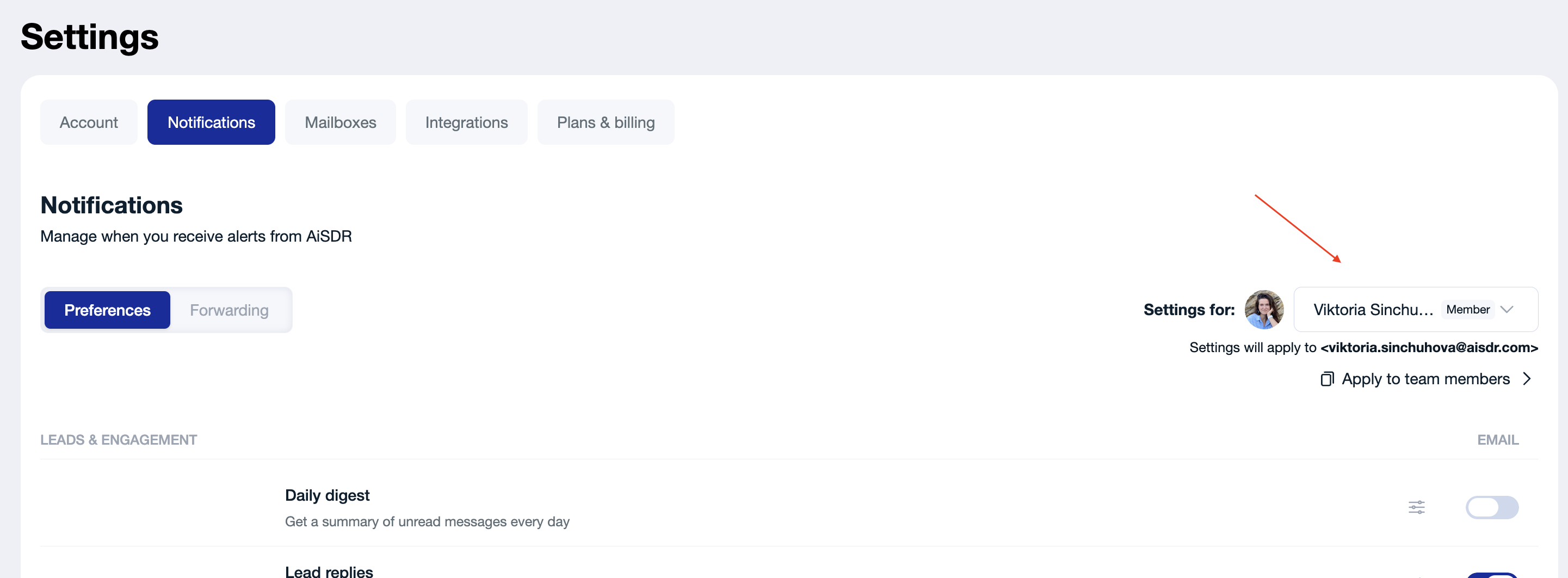
Update their notification preferences directly
Save changes
If multiple team members' notifications need to be configured:
Use “Apply to team members”:
In Settings for, switch to the first teammate whose settings you want to change
Configure their notification preferences
Select multiple users (up to 50)
Apply your configuration in one click
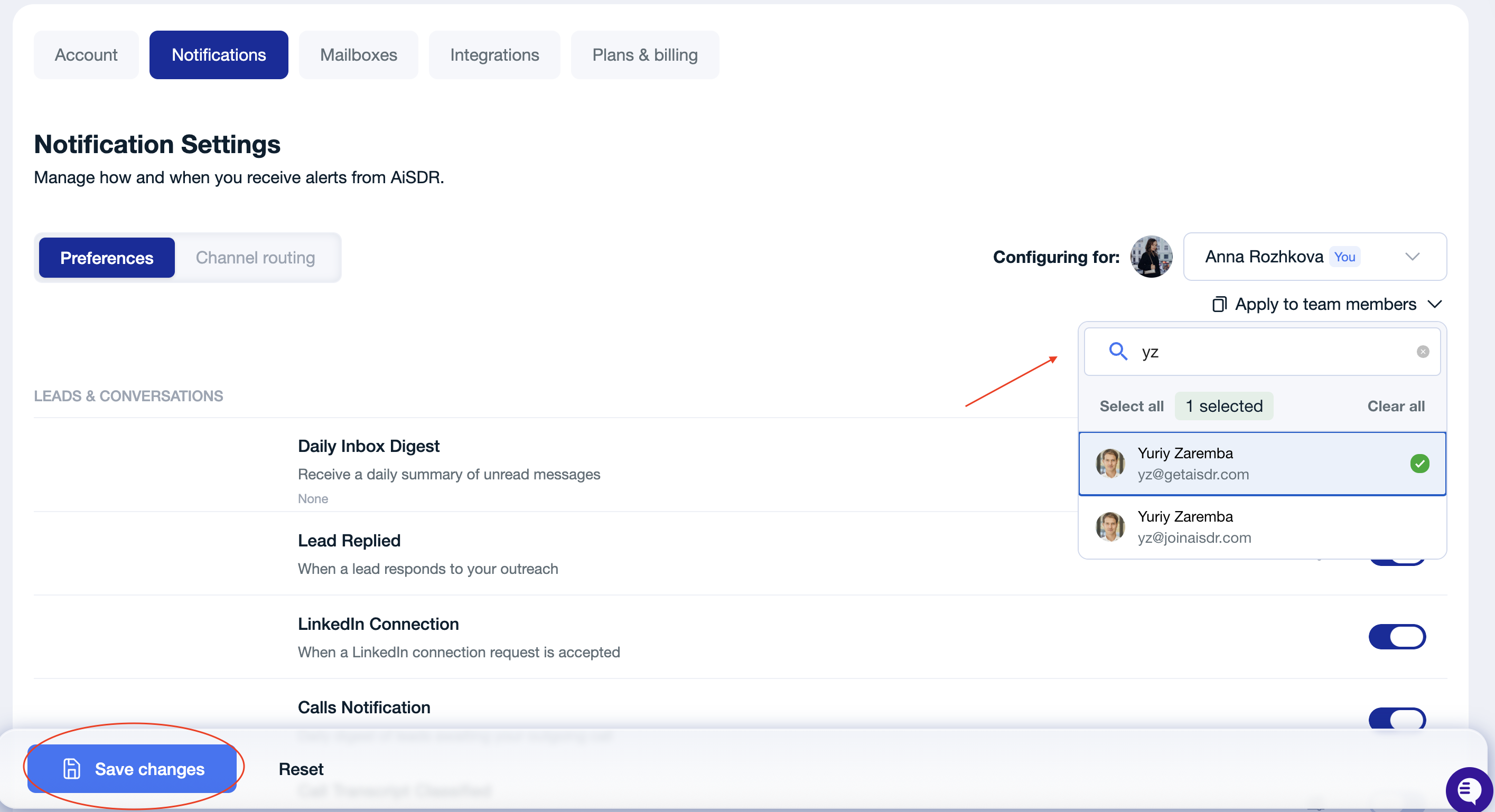
💡 Good to know:
If you are viewing your own settings and use Apply to team members, your own settings remain the source that gets copied to others.
📊 I want to get notifications only about particular campaigns
Perfect if you’re running multiple campaigns but only tracking one closely.
How to set it up:
Enable a notification (Lead Replied )
Open settings
Select your campaign in Campaign(s)
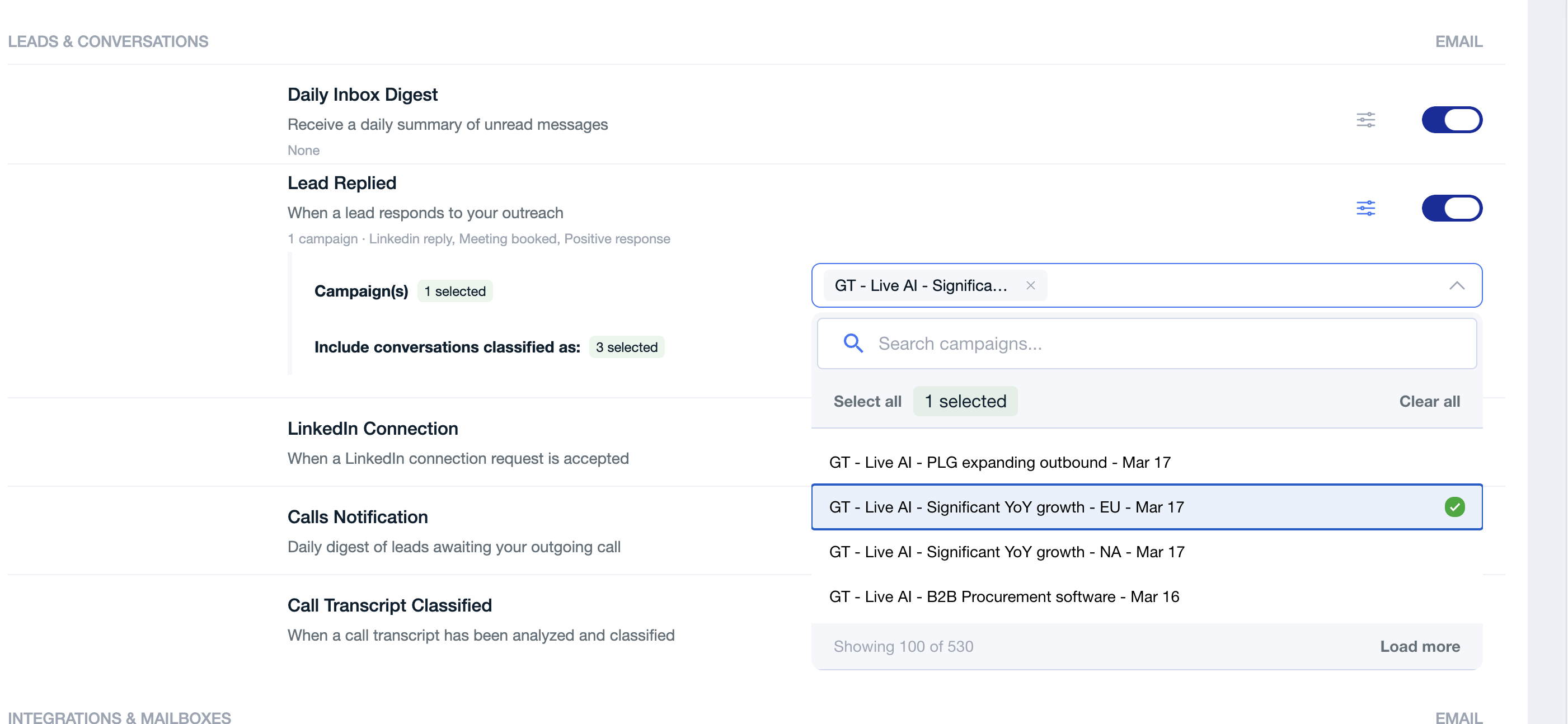
✅ You’ll only receive updates for that campaign.
Note: If additional campaigns are created in the future that you want to be notified about, you will need to add them here manually in the same way.
🔕 I don't want to get any notifications
If you prefer to fully disconnect from notifications and check AiSDR only when needed, you can easily turn everything off.
How to set it up:
Go to Settings → Notifications → Preferences
Turn OFF all notification toggles
Click Save changes
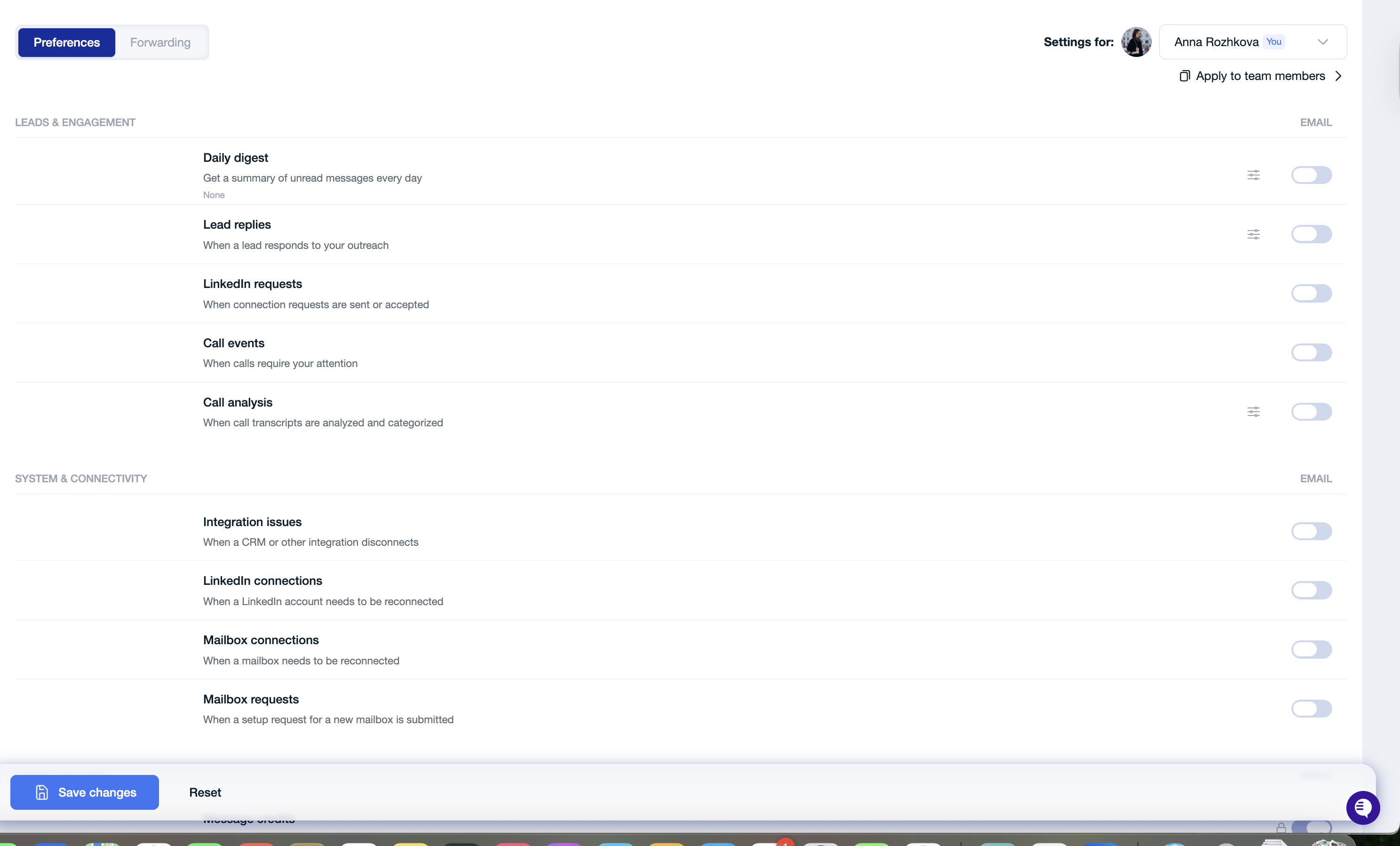
✅ You will no longer receive any email notifications from AiSDR.
🚫 I don’t want any of my teammates to receive notifications (except me)
If you want to disable notifications for multiple team members, you can do this by updating one user’s notification settings first and then applying the same setup to others.
Available option only for the Notification admin
How to set it up
Click Settings for and select one user whose notification settings you want to update.
In Preferences, disable all notifications you want to stop for that user.
Click Save changes.
Click Apply to team members.
Select the other users who should have the same notification settings.
Confirm the action.
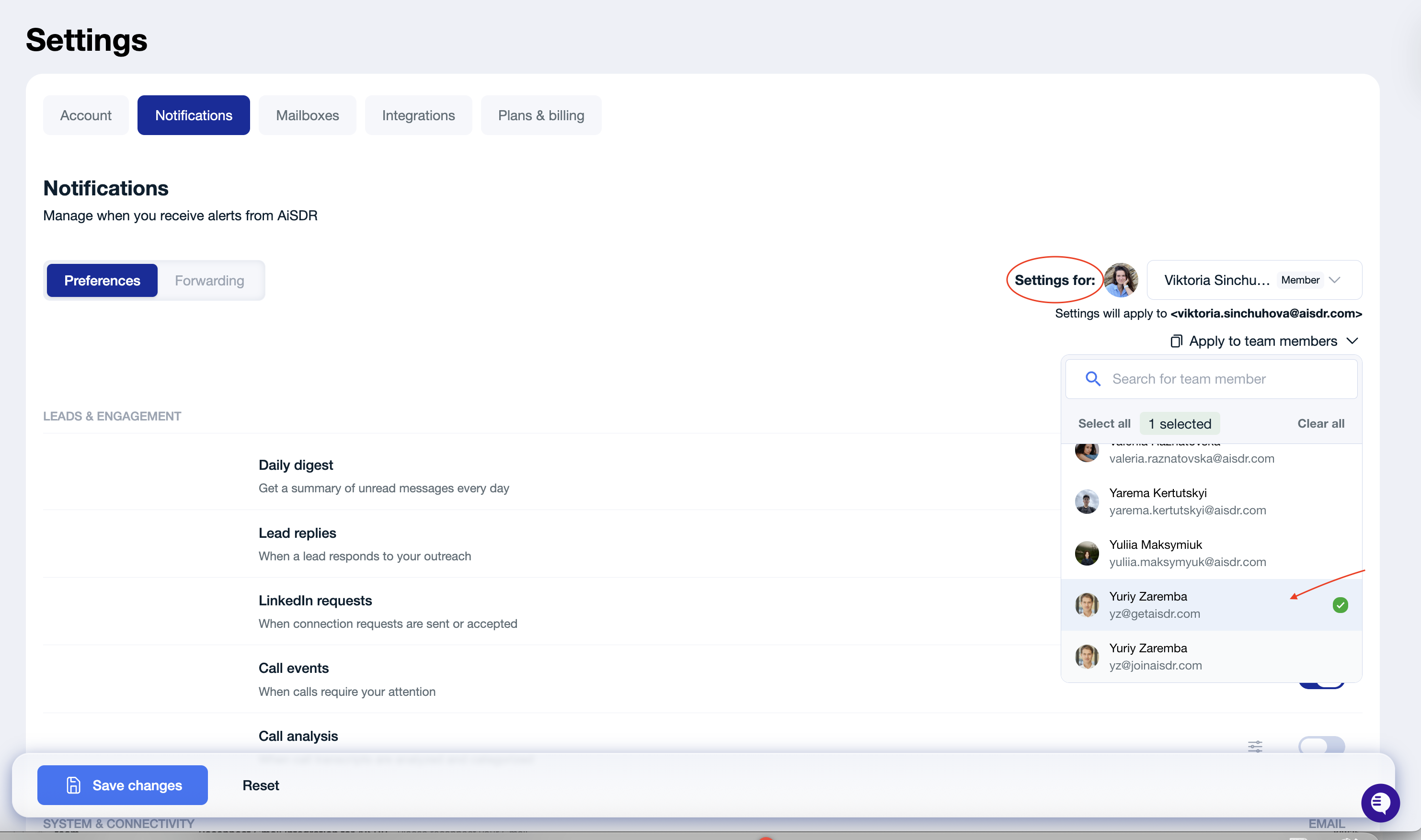
You’ll then see confirmation showing which team members the settings were copied to.
If needed, also check Forwarding
If you want to fully stop notifications, open Forwarding and remove any additional recipients or custom routing rules.
✅ This applies the same notification setup to all selected team members.
💡 Important:
When you use Apply to team members, AiSDR copies the full current notification setup of the selected user — not just one recent change.
📬 I want to get a daily digest, but only with meaningful conversations
Reduce noise and focus on valuable interactions.
How to set it up:
Enable Daily Inbox Digest
In settings:
Select Positive and/or Meeting booked
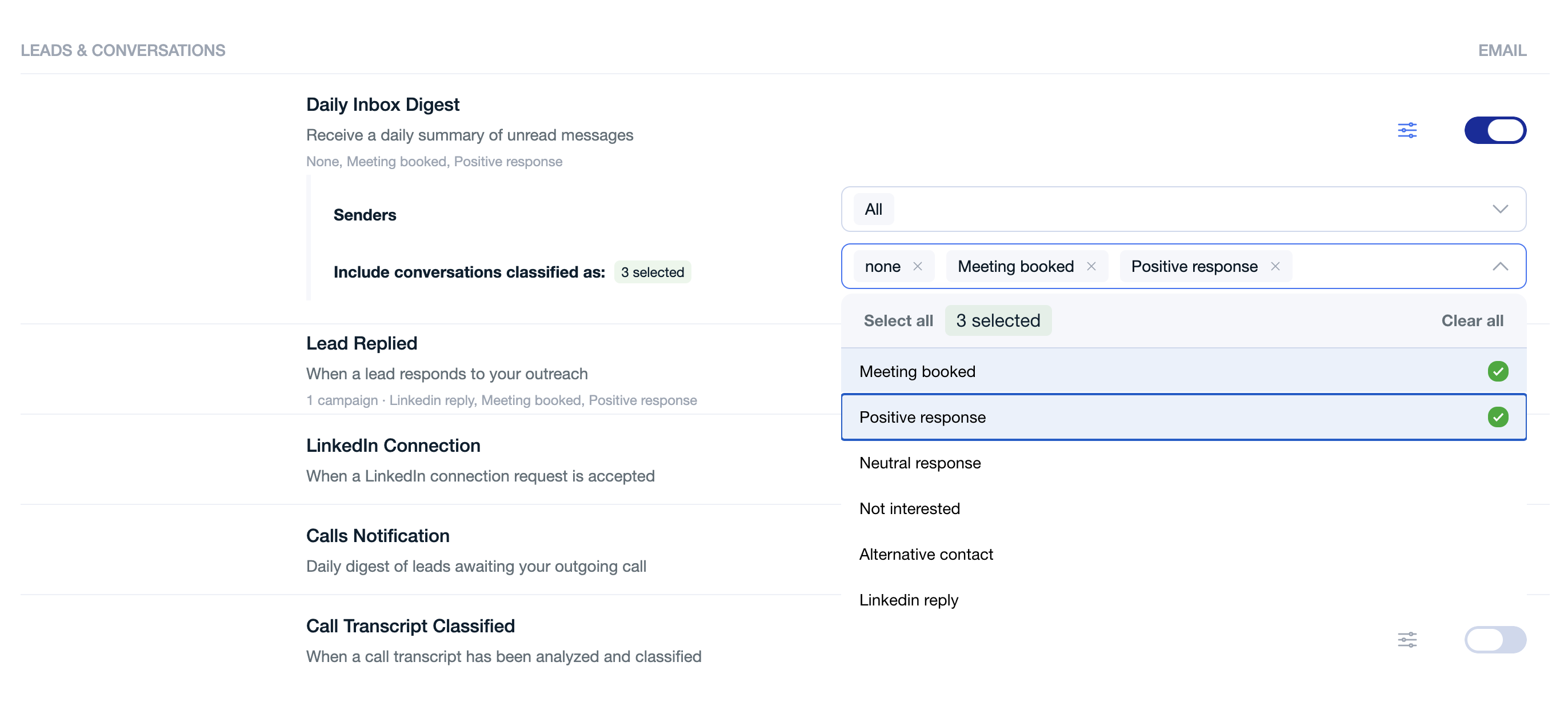
✅ Your digest becomes short, relevant, and actionable.
👥 I want to be notified only about specific senders in my campaign
Useful if you manage multiple inboxes.
How to set it up:
Open Daily Inbox Digest
Select specific senders
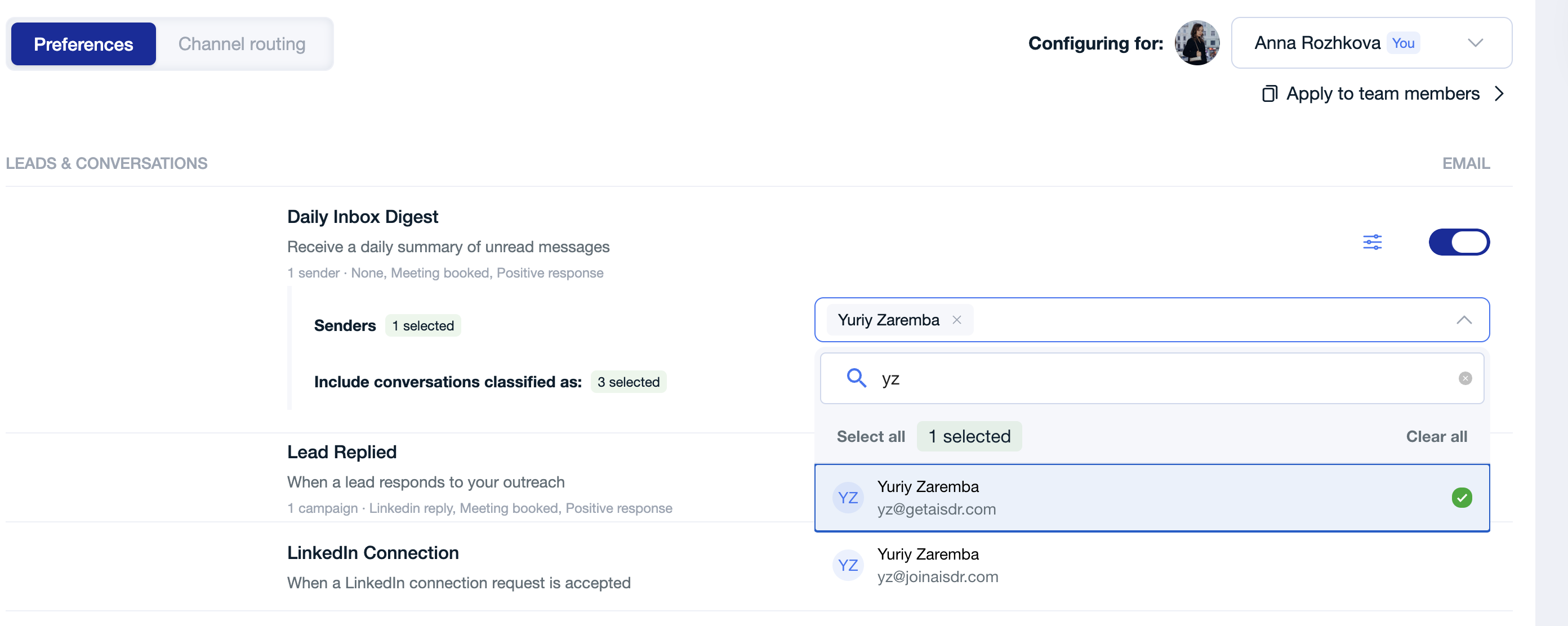
✅ You’ll only see activity from selected mailboxes.
👤 I want my teammate to receive notifications too
Keep everyone aligned without forwarding emails manually.
How to set it up:
Go to Channel routing
Click Add email
Enter teammate’s email
Save changes
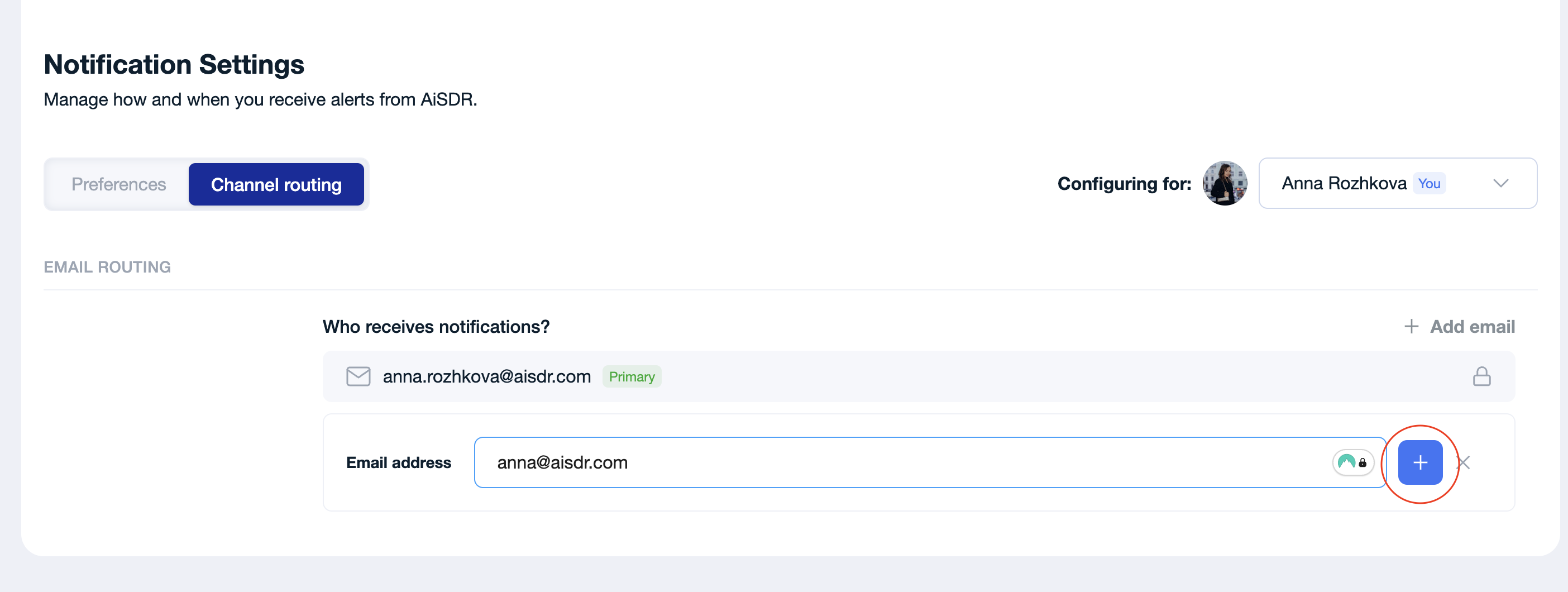
✅ They’ll start receiving notifications automatically.
👀 📞 I want to focus only on important call outcomes and have visibility into call activity
Avoid noise and only track meaningful call results.
How to set it up:
Enable:
Calls Notification
Call Transcript Classified and select "Positive response"
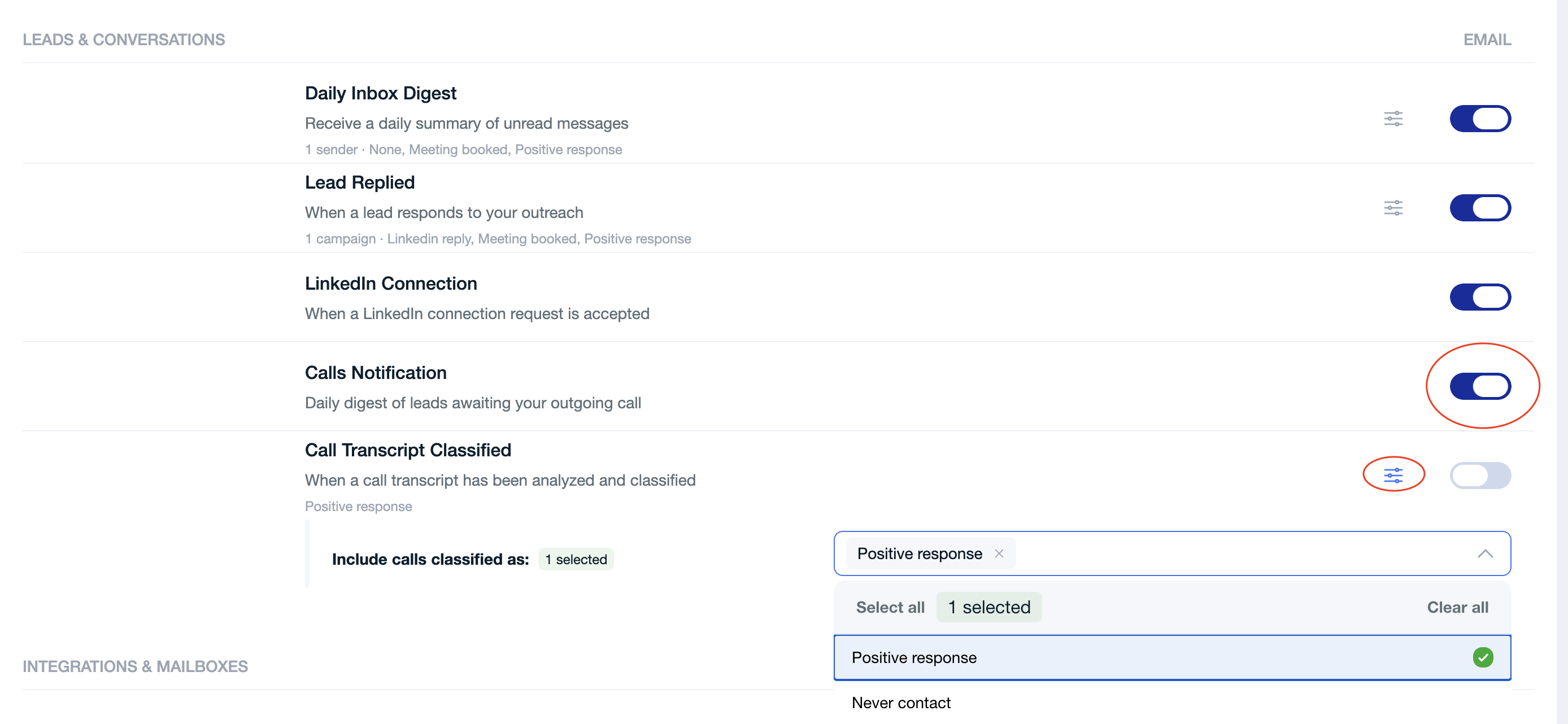
✅ You’ll see both when action is needed and how calls are performing
👮 Permissions and roles
Some notification controls are permission-based.
🧑⚖ Regular user
Regular users can manage their own notification settings.
🦸 Notification Admin
Users with the right permissions can:
view settings for other teammates
configure notifications for other users
use Apply to team members
This is especially useful for admins managing notification setup
👨💼 Recommended setups by role:
RevOps / Campaign Admins
Focus on:
Mailbox & integration health
Billing notifications
Routing setup for the team
Mailbox issues
Founders/ Campaign Viewers
Focus on:
Positive replies
Meetings booked
Billing alerts
Sales reps
Focus on ( Filter by campaigns):
Lead replies
Daily digest
LinkedIn activity
💡 Best practices
Start with only the notifications you truly need
Use campaign and classification filters to reduce noise
Remember that no campaign selected = all campaigns
Review filtered setups when you launch new campaigns
Use routing rules when different teammates own different campaigns
Use Apply to team members carefully, since it copies your full current setup
❤ Final note
Notification Center is designed to give you control without adding complexity.
If you’d like help setting this up for your team or want recommendations based on your workflow — just let your CS manager know, happy to help 🙌