Where Can I See All Responses From My Leads? (Inbox)
Last updated: February 23, 2026
You now have two places to view all responses from your leads:
Inbox: your centralized hub for all conversations
Dashboard: the original place where all responses can be viewed
📥 Inbox: Your Central Place for All Lead Conversations
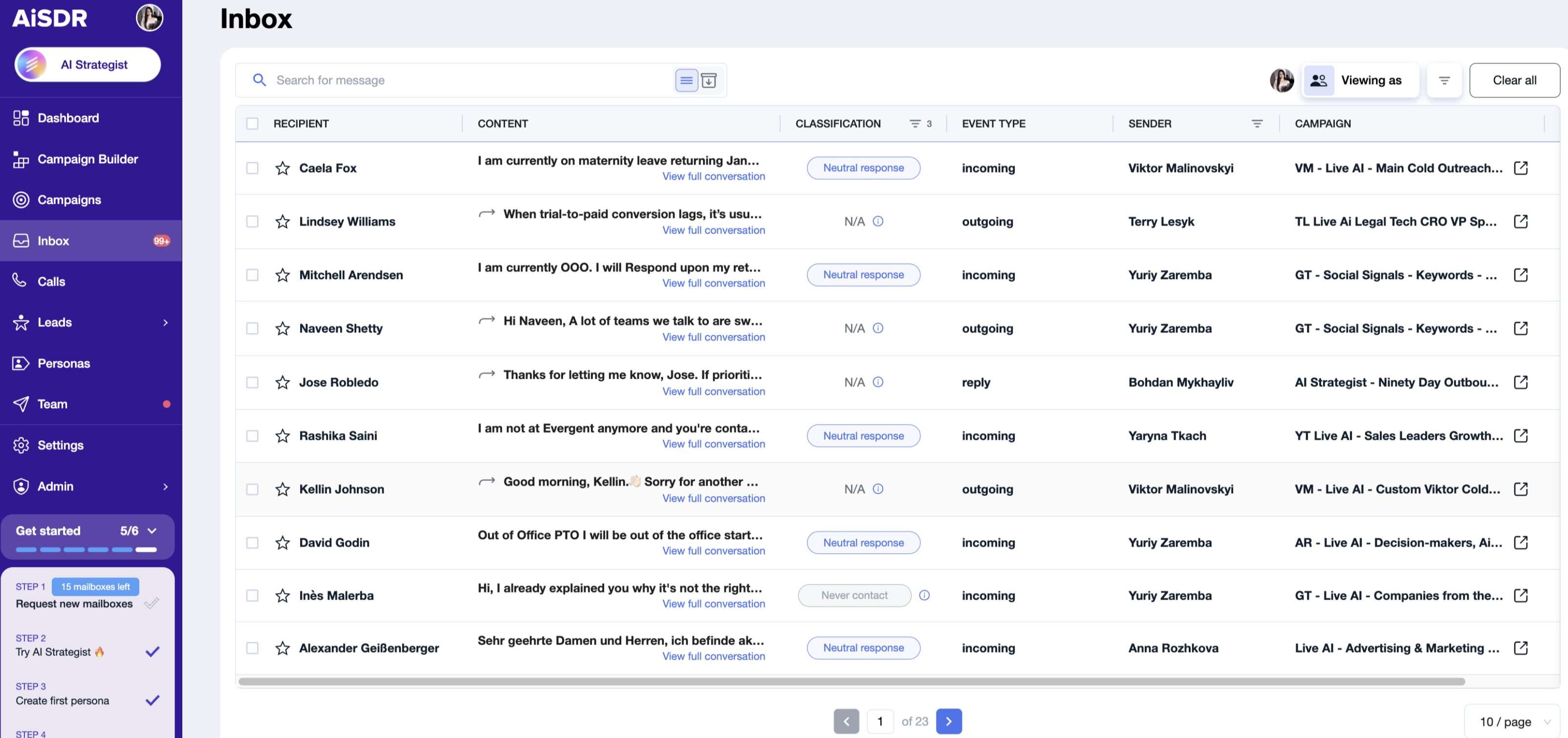
Inbox is the newest and easiest way to see every reply from your leads across all campaigns.
You will see:
All conversations where a campaign lead replied while you were part of the company
Any conversations where you are the sender or the campaign owner
Note: Inbox is populated gradually.
New users may see an empty Inbox at first — but all historical conversations are still available in the Dashboard.
✨ Inbox Features
🔎 Powerful filters
Filter conversations by:
Message text
Classification (positive, neutral, negative, reply types, etc.)
Sender
Read / unread
Starred / not starred
Date
Campaign
Filters are saved directly in the URL, so your view remains the same after refresh or page return.
📂 Inbox + Archive
Your conversations are divided into:
Inbox — active conversations
Archive — conversations you want out of your main view
You can move any conversation between Inbox and Archive.
If a lead replies again:
The conversation becomes Unread for everyone
It automatically returns to Inbox
⚡ Bulk actions
Apply actions to one or multiple conversations:
Mark as read / unread
Star / unstar
Archive / unarchive
Delete
Admins can additionally:
View any team member’s Inbox
Apply bulk actions across users
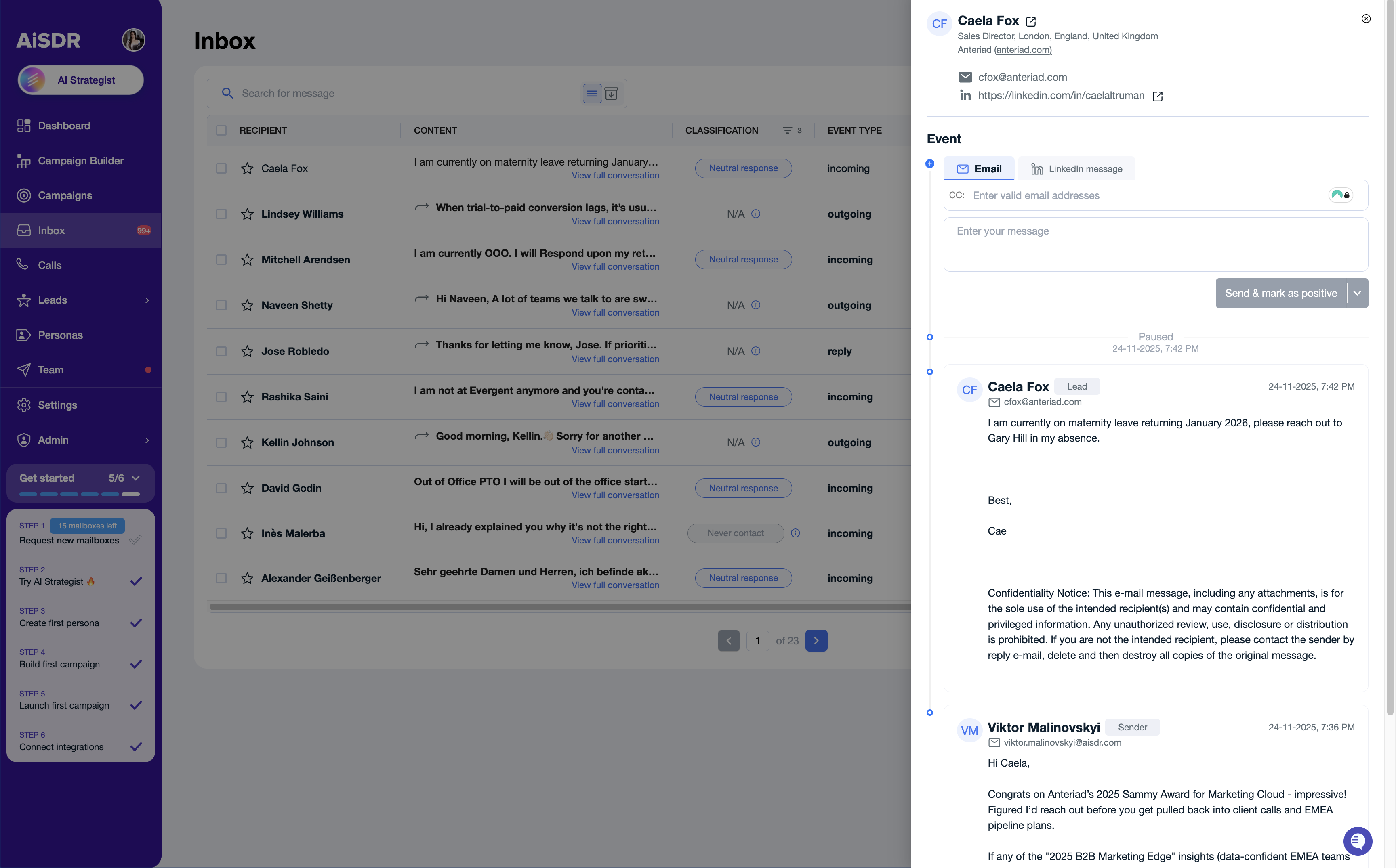
📨 Conversation modal
Click on any conversation row to open a full view containing:
Complete lead details
Entire message history
Ability to reply by email
LinkedIn replies
AI-generated message ideas inside the modal
📬 Configuring Inbox Notifications
AiSDR allows you to control who you receive inbox notifications from and which types of replies trigger them, so you only get alerted about conversations that matter to you.
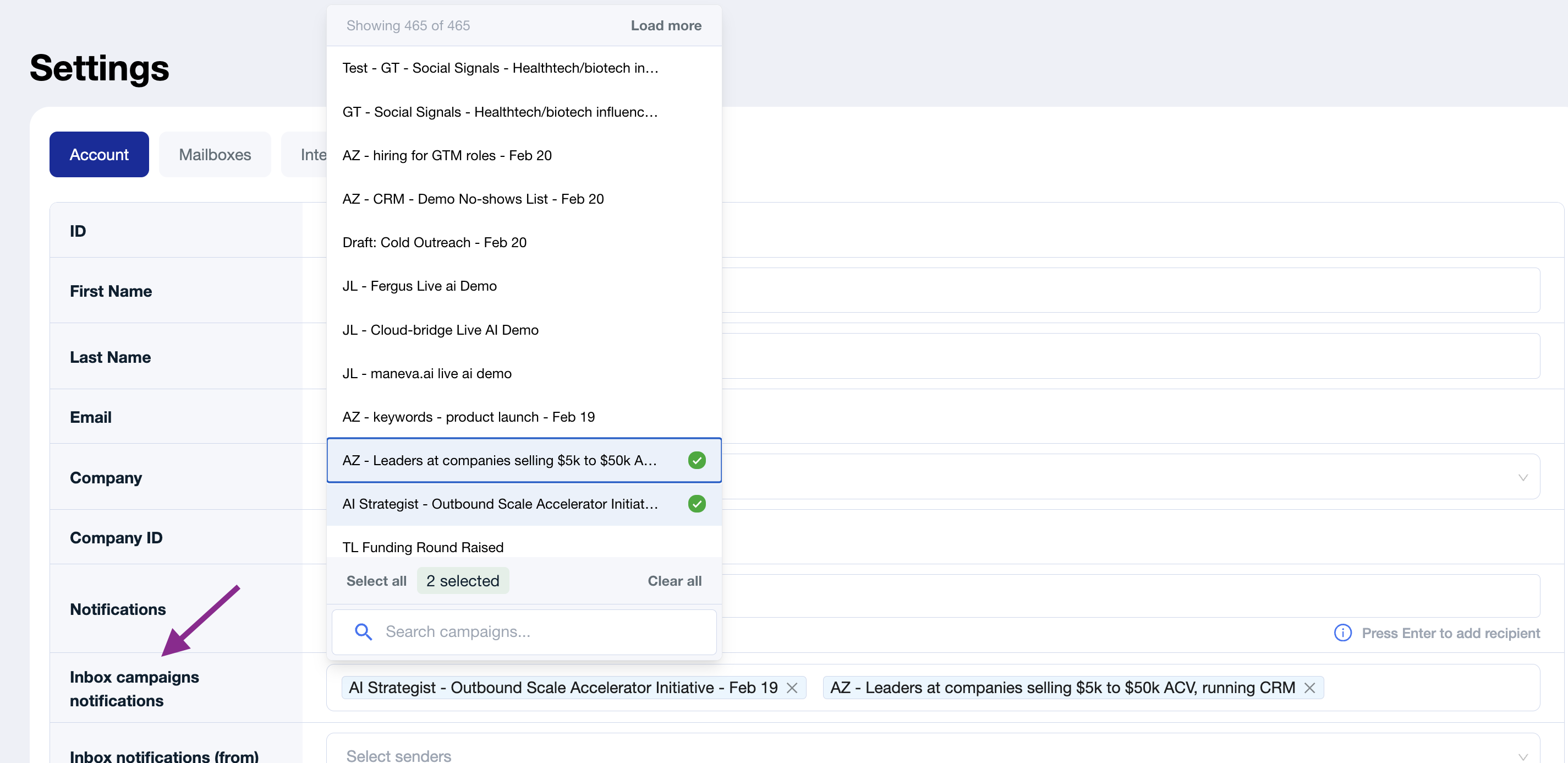
Inbox Campaigns Notifications
Choose the campaigns you’d like to receive notifications about. Useful when multiple teammates are running campaigns and you only want updates for specific ones.
Inbox Notifications (From)
You can choose which campaign senders or team members you want to receive notifications for.
This is useful if multiple people are running campaigns in the same workspace and you only want to monitor replies from specific senders.
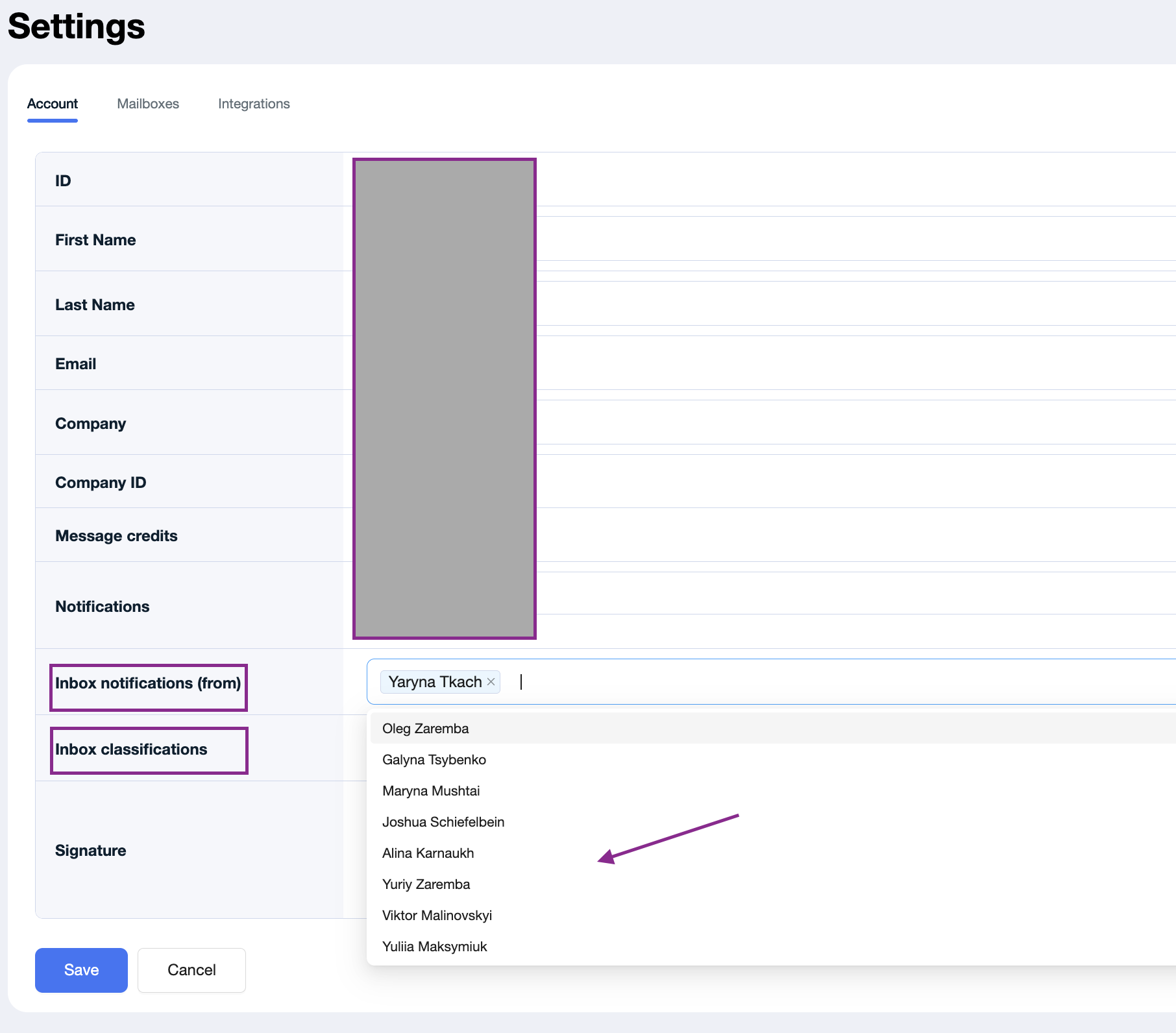
Inbox Classifications
You can also define which reply classifications trigger notifications, such as:
Meeting booked
Positive response
Neutral response
LinkedIn reply
Alternative contact
Autoreply
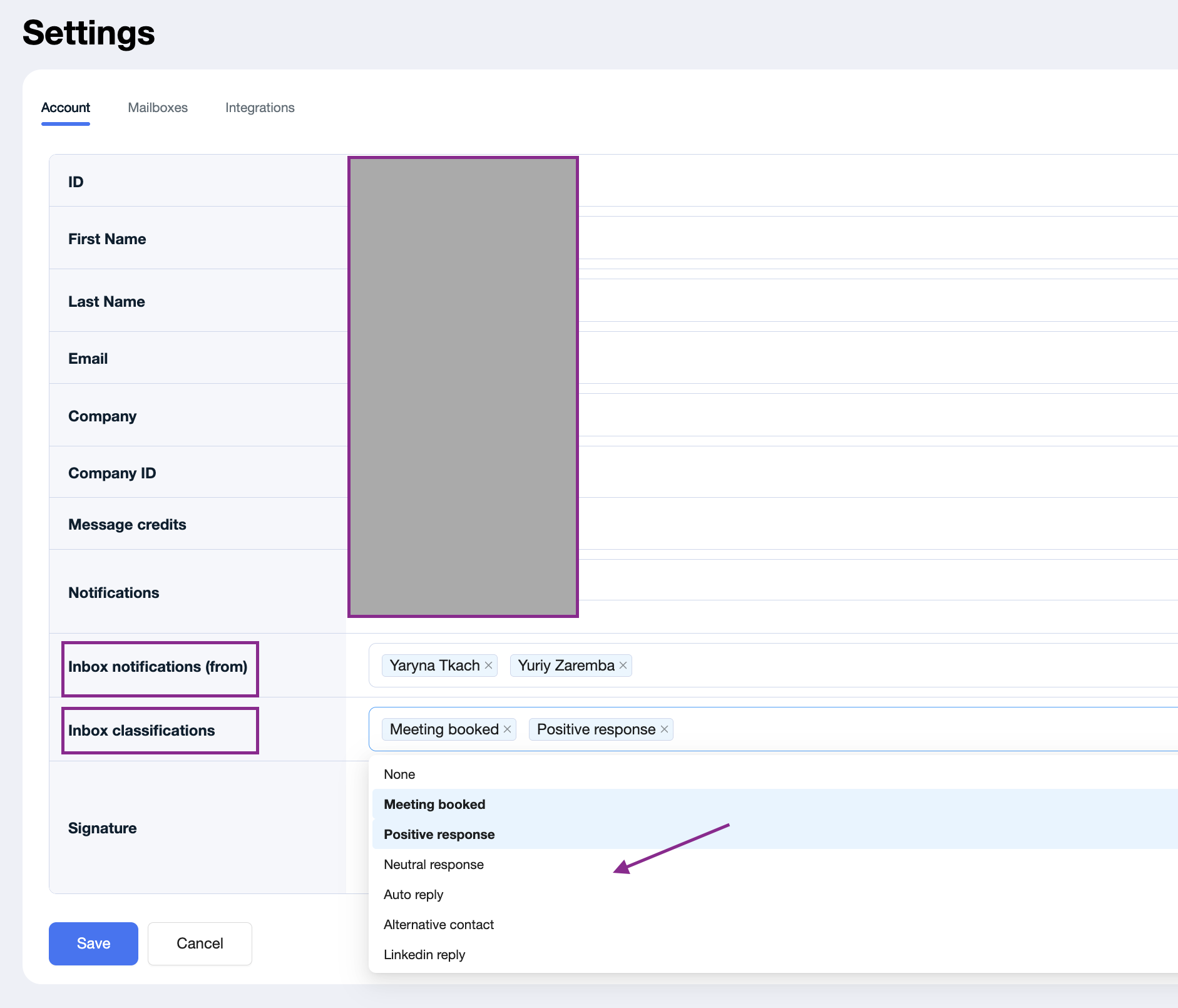
By default, notifications are optimized to alert you only about replies that typically require action. Messages like unsubscribes, auto-replies, or out-of-office responses are excluded unless explicitly enabled.
📥 Daily Digest Email
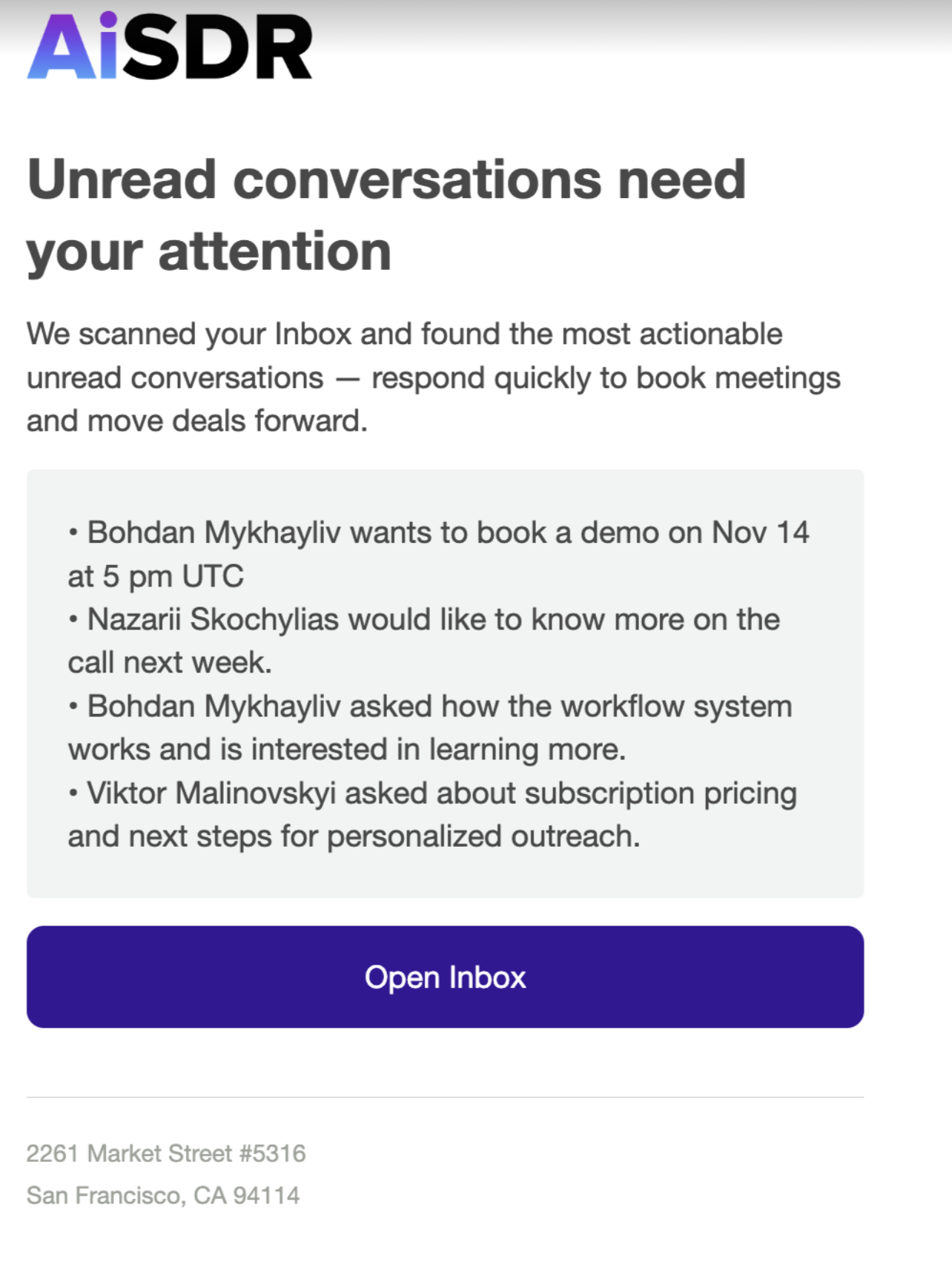
Active users with unread important conversations from the last month will receive a Daily Digest summarizing key replies that require attention.
📋 Dashboard - No Response Left Behind: See Everything on the Dashboard
All responses from your leads can be also viewed in your AiSDR dashboard, under the Performance Overview section. This gives you a clear snapshot of every interaction, so you never miss a reply.
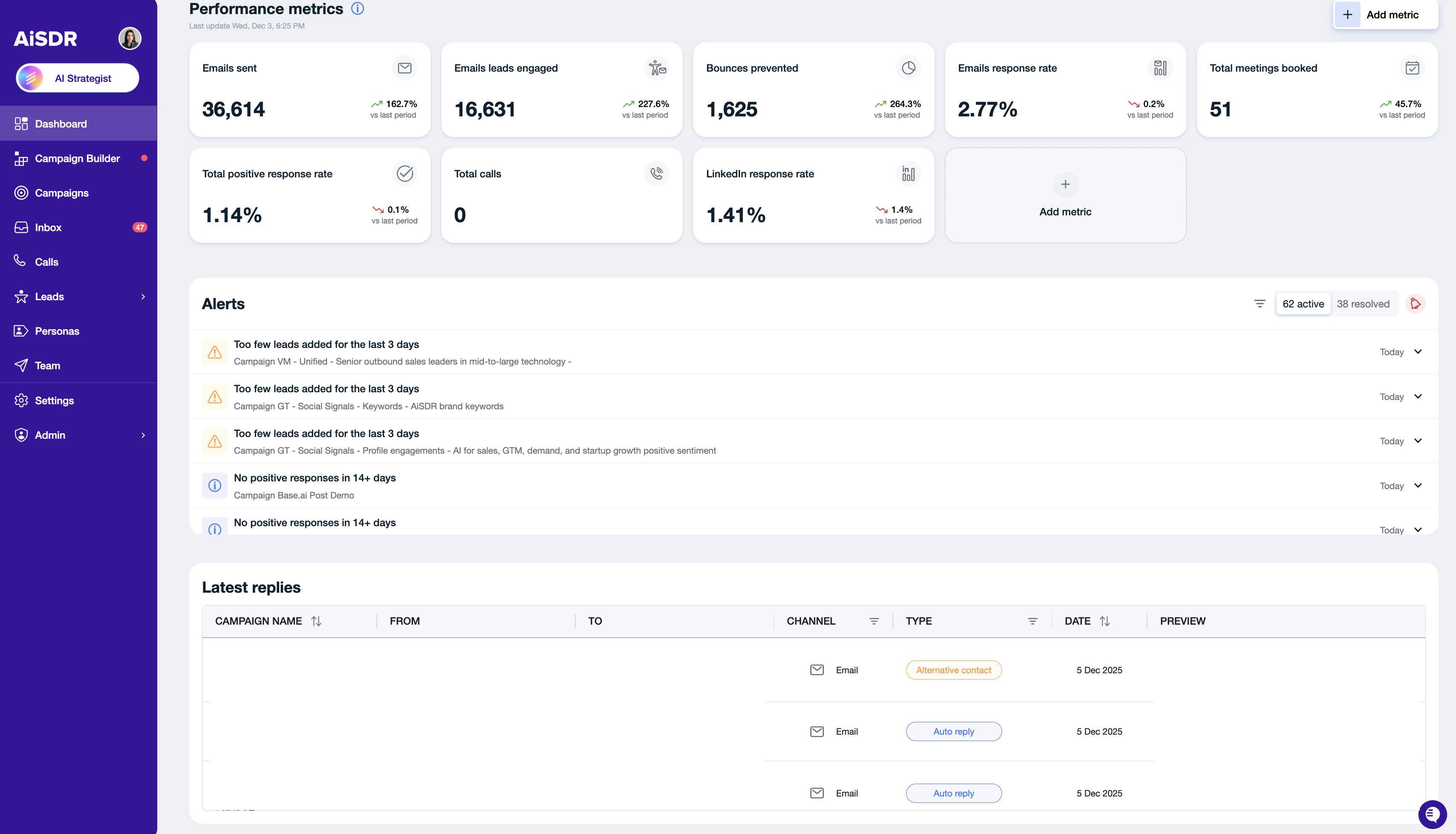
Date range
By default, the data on the dashboard is shown for the last 30 days. But the date range can be adjusted as shown below:

So to view earlier (or all-time) responses, update the date range filter in the top-right corner of the dashboard to refresh the data.
📣 Reply notifications
Once a response is received (if the AI responses are off), you will get a notification over email and in our shared Slack channel.
By default, notifications are sent to:
The campaign owner.
The sender, whose alternative mailbox actually received the reply.
Example:
You have three senders: Alex, John, and Jim.
Alex is the campaign owner and a sender.
John’s mailbox received a reply.
In this case, both Alex and John will receive the notification.
How to Add Teammates Copied On Response Notifications
If you’d like more people on your team to get response notifications:
Go to Settings.
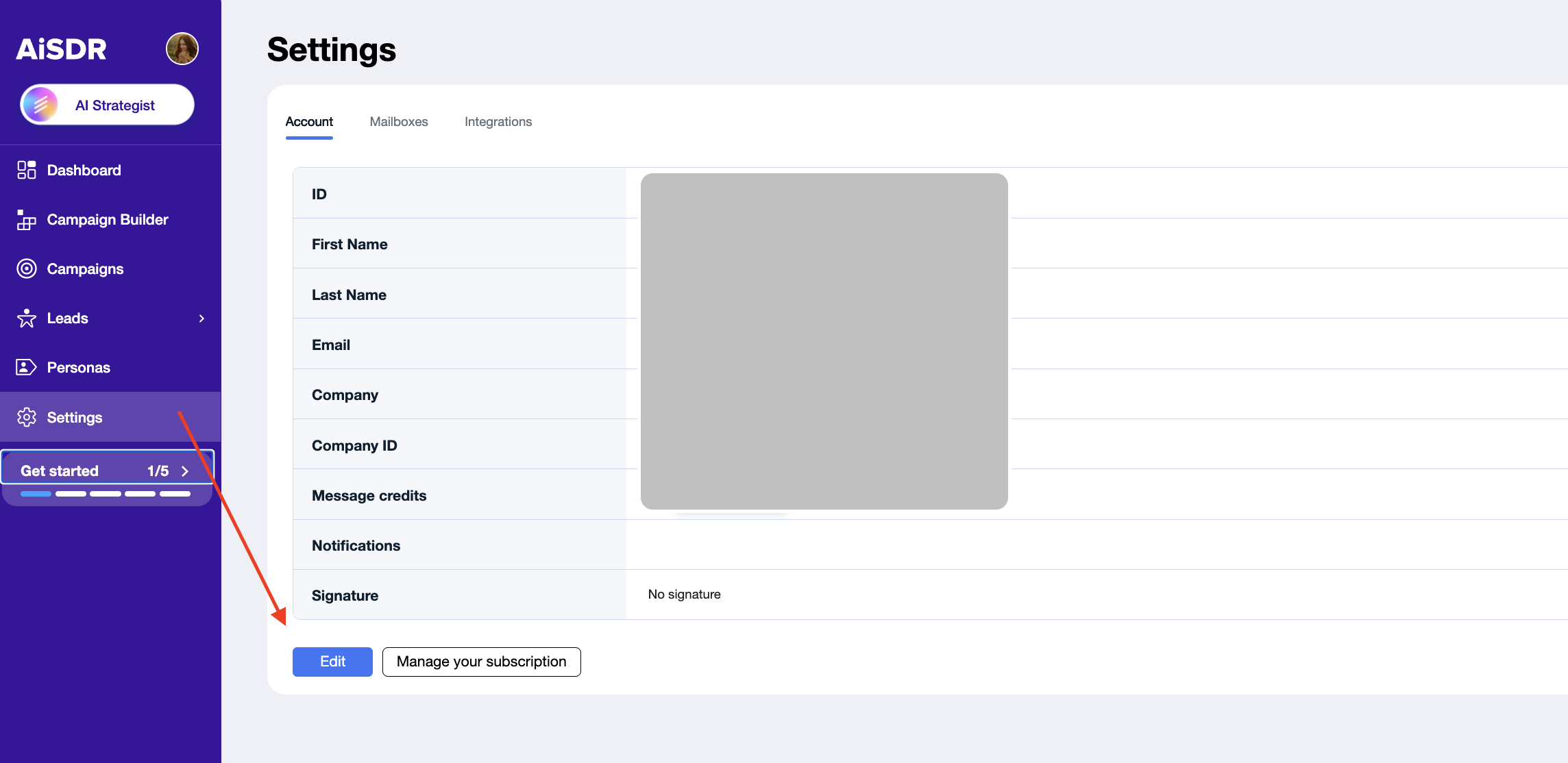
Click Edit.
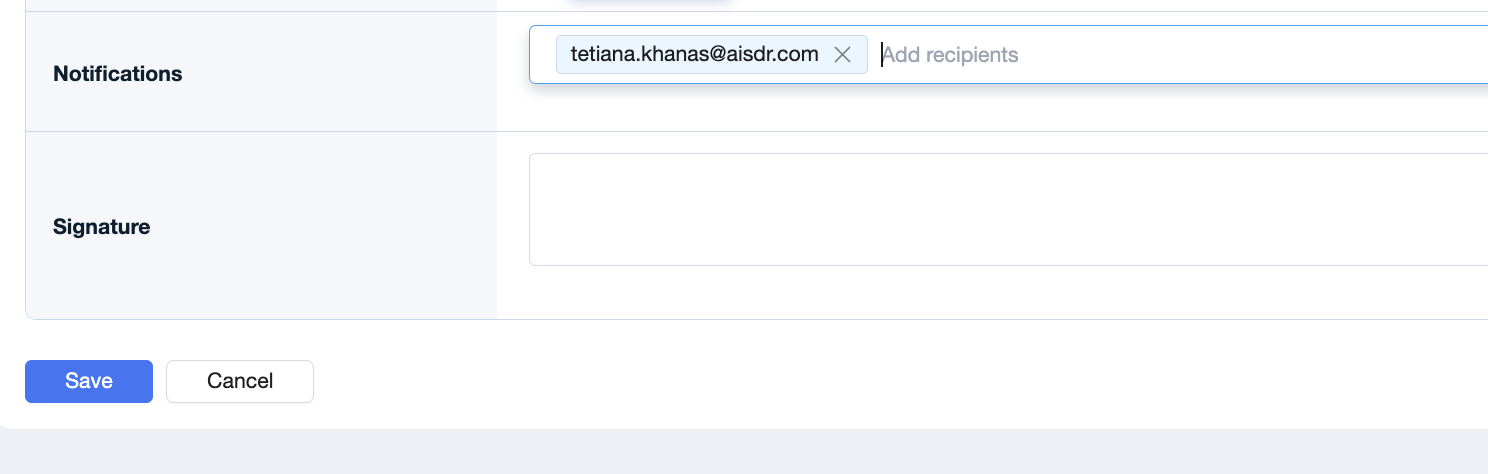
In the Notification field, add your teammate’s email address and press Enter.
Done! Your teammate will now receive notifications whenever replies come in.
Key takeaway: You can always track replies in the Dashboard and Inbox, while email and Slack notifications ensure the right people on your team stay in the loop. And with the option to add teammates, you’ll never risk missing an important response.