How to Enable Website Visitor Tracking
Last updated: June 8, 2026
Please note that this feature is available on the Enterprise tier only.
Step 1: Install the Tracking Pixel
1. Navigate to the integration settings:
Go to AiSDR → Settings → Integrations
Direct link to settings
2. Locate “Website visitor tracking” and click “Connect”
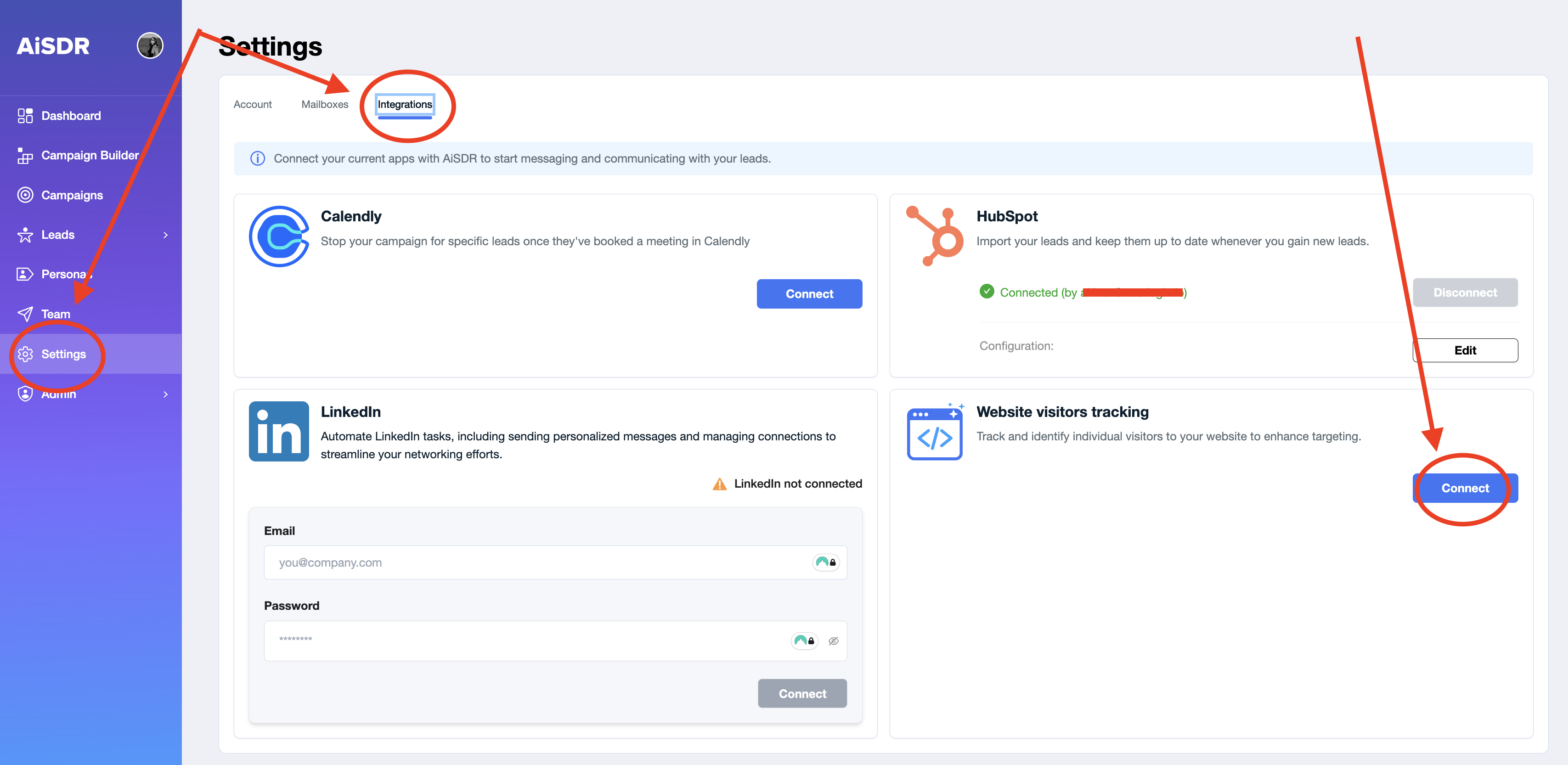
3. Choose your installation method:
You can install the tracking pixel either manually or via Google Tag Manager.
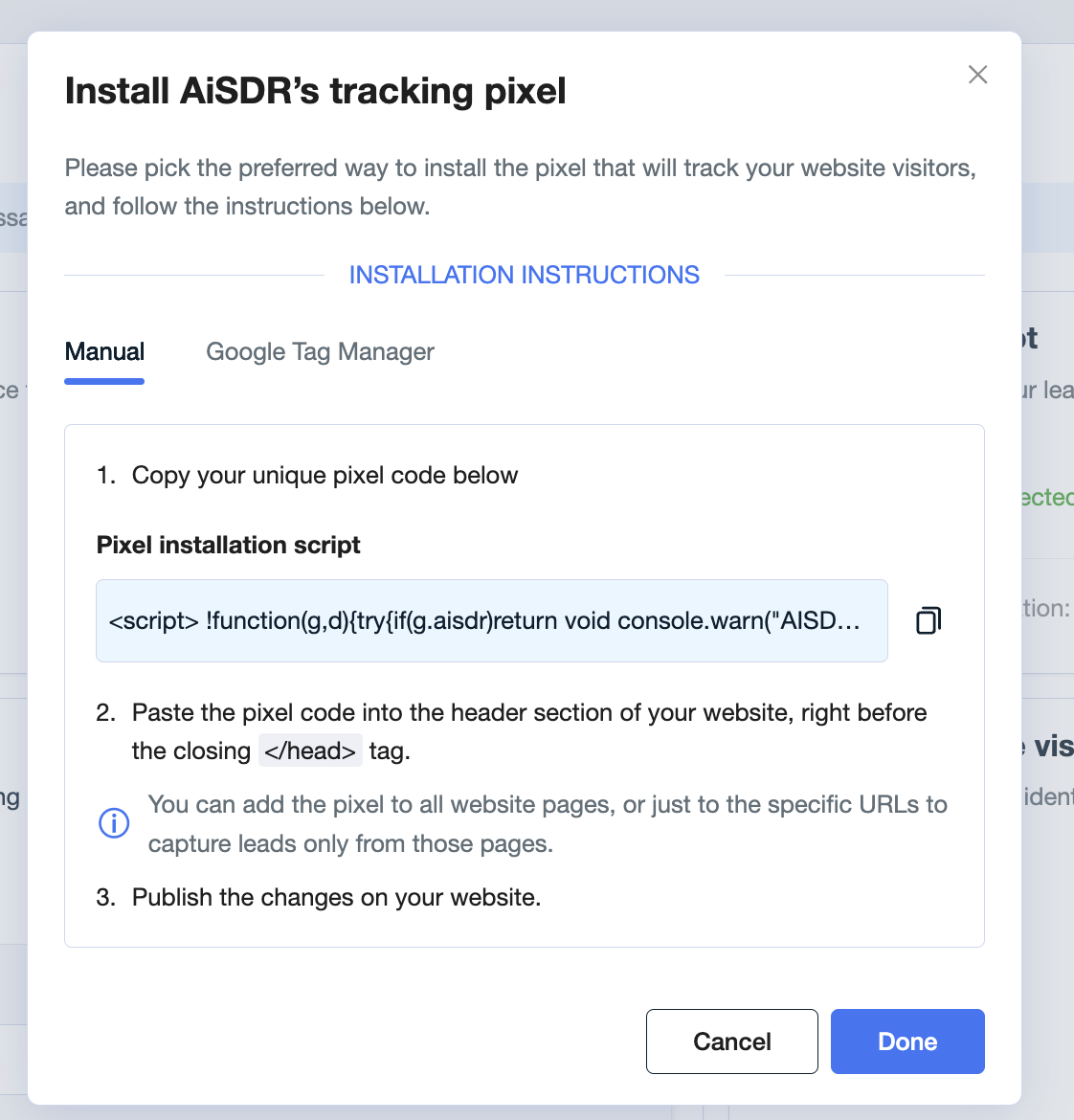
Google Tag Manager Installation | Manual Installation |
Copy your AiSDR pixel code | Copy your unique pixel code generated by AiSDR |
Open your Google Tag Manager account and select the appropriate container | Paste the code into the |
Click “Add a new tag” | You may install it on all pages or only specific URLs |
In Tag Configuration, choose Custom HTML | |
Paste the pixel code into the HTML field | |
Under Triggering, select All Pages | |
Name the tag (e.g., “AiSDR Pixel”), click Save, and Submit the changes | Save and publish the changes |
✅ Note: Only one integration token is issued per company, and any team member can complete the integration process.
Complete integration
After installation, return to AiSDR and click “Done”
The status will update to “Verification”
Once AiSDR detects the first pixel request from your website, the status will automatically change to “Connected”
A “View Leads” button will appear, and a Website Visitors tab will become available in the campaign builder
Relevant articles: