How Do I Add More Leads to an Existing Campaign?
Last updated: September 14, 2026
To add more leads to your existing campaign, open Campaigns, select the campaign you want to add the leads to, click on the Leads tab and find the Add leads button. You’ll see a small drop‑down next to the button with options to:
Continue search – keep the filters already saved for this campaign.
New search – build a fresh search with new filters.
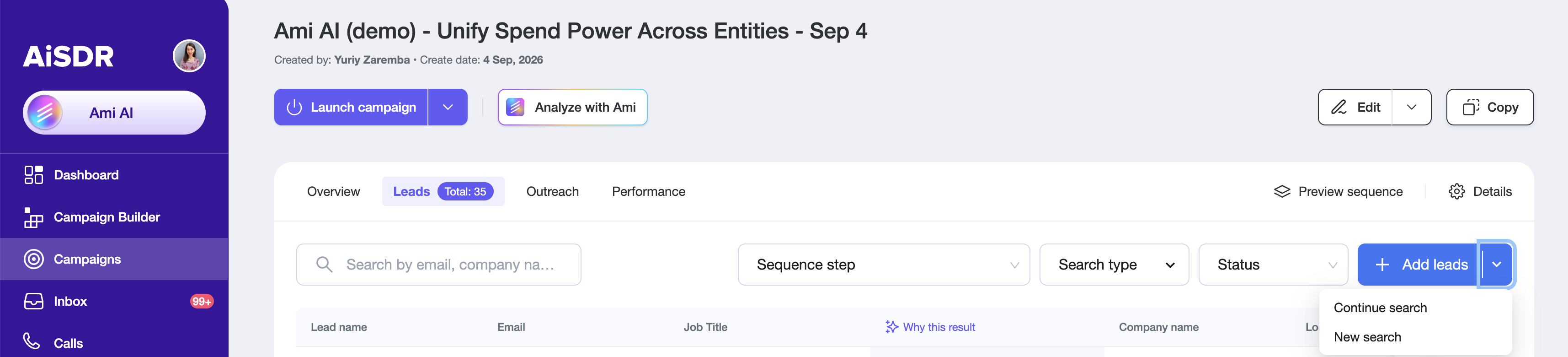
Option A : Continue search
After clicking + Add leads (or Continue search from drop-down) you’ll land on the lead-search page with your previous filters applied automatically.
Review the filters. Adjust if necessary.
Click Continue search for X leads. Use the drop-down to set how many leads you want per search.
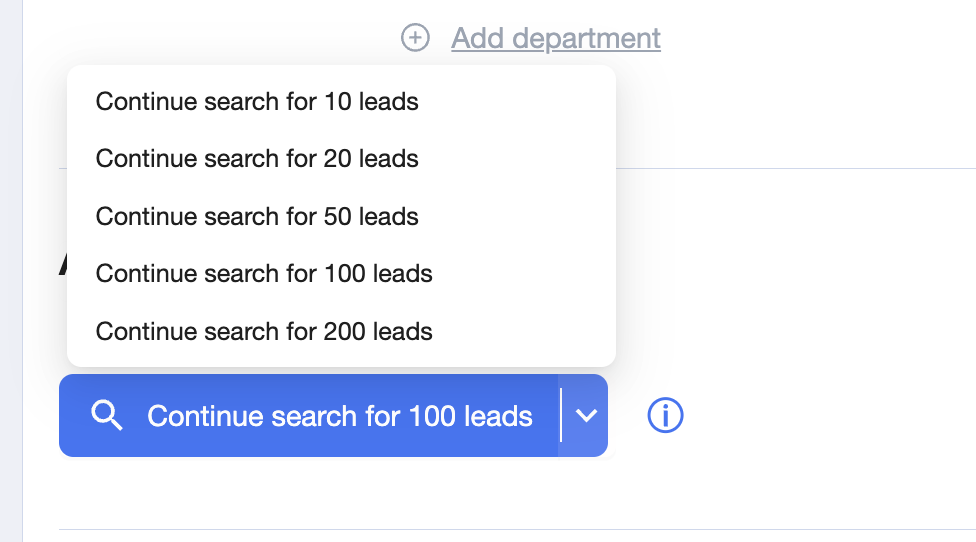
When the system finishes, choose leads you want to add to your campaign.
Tip: If you tweak filters, toggle Add fresh leads daily to Yes so the platform will keep adding matches that fit the updated rules.

Click Next to validate email addresses and enrich profiles.
Click Add leads.
The new contacts are now queued in the campaign sequence!
Special Case: Campaigns Created from a CSV File
If your campaign was built from a CSV upload, choosing Continue search will redirect you to Import from CSV instead of the lead database.
Simply upload the additional CSV file with the new leads.
The system will process and add them to the same campaign sequence.
Alternatively, you can still switch to the Cold Outreach database if you’d like to broaden your audience beyond CSV uploads.
Option B : New Search
In the + Add leads dialog, select New search.
All previous filters are cleared. Define fresh database and criteria (location, company size, tech stack, etc.).
Click Search X leads (select batch size).
When results appear, review and refine as needed.
Toggle Add fresh leads daily to Yes so the platform will keep adding matches that fit the updated rules.
Click Next to run validation and enrichment.
Click Add leads to import them into the current campaign.
Alternative Lead Sources
You are not limited to the platform’s database when adding new leads to an exciting campaign. You can also import leads from:
CSV files (AiSDR supports one upload at a time)
HubSpot contact lists
Website visitors (tracking pixel required)
Social Signals (e.g., LinkedIn, X/Twitter interactions)
To do this, click Add leads, and in the "Choose your leads" section, choose the applicable option:

Ensure Alignment
Always verify that your Messaging (Persona) matches the newly added audience to avoid off‑target outreach.