The Campaigns Page: Filter, Sort, Customize, and Save Views
Last updated: June 30, 2026
The Campaigns page is where all your outreach lives. Every campaign, its status, performance, and owner sit in one table that you can filter, sort, and customize. Best of all, you can save any setup as a View that your whole team can use.
This article walks through everything the page can do.
Reading the campaigns table
Each row is a single campaign. From left to right, the table shows:
Campaign — the campaign name, with key details underneath.
Leads — the total number of leads, plus how many you're adding each week.
Tags — any labels you've applied to organize campaigns.
Status — whether the campaign is Active or Inactive.
Processed — how much of the sequence has already been processed.
Reply rate — the percentage of leads who replied.
Senders — the senders (mailboxes) working the campaign.
Owner — who owns the campaign.
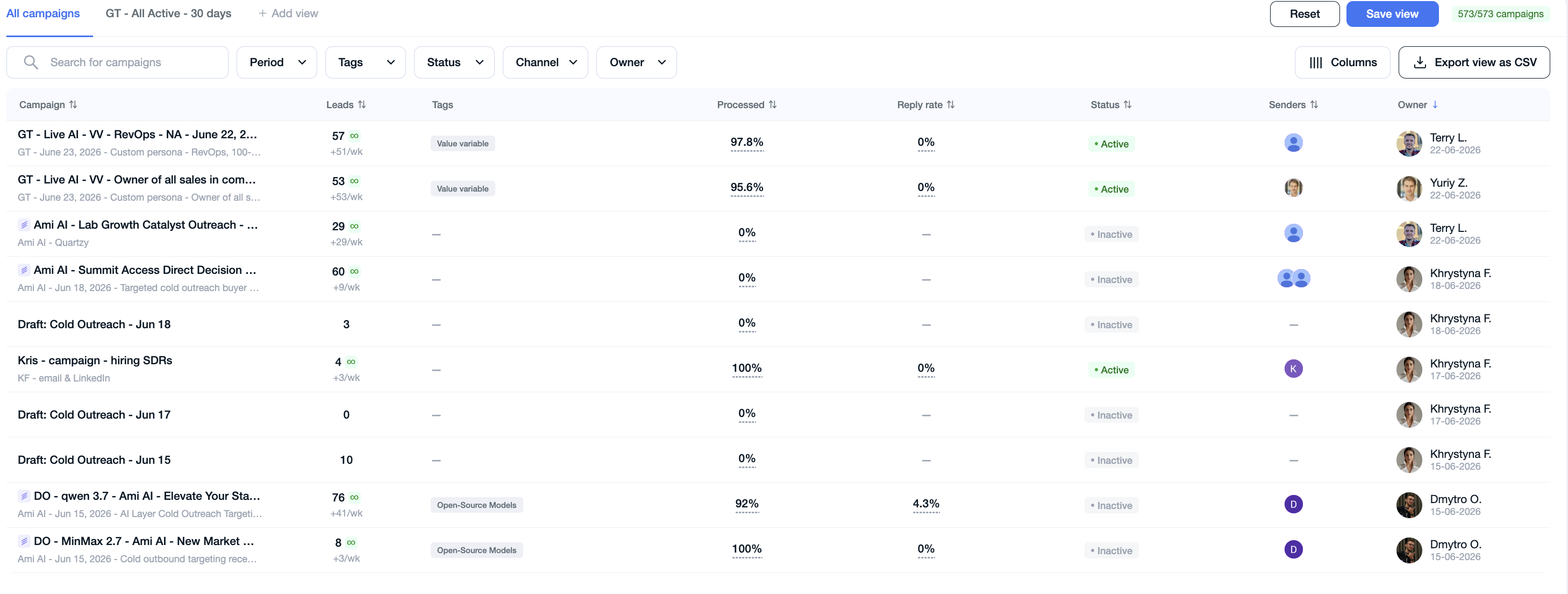
The counter at the top right shows how many campaigns you're viewing versus your total (e.g. "573 / 573 campaigns"). Watch this number as you apply filters — it confirms your filters are working.
Working with tags
Tags help you group and organize campaigns however makes sense for your team.
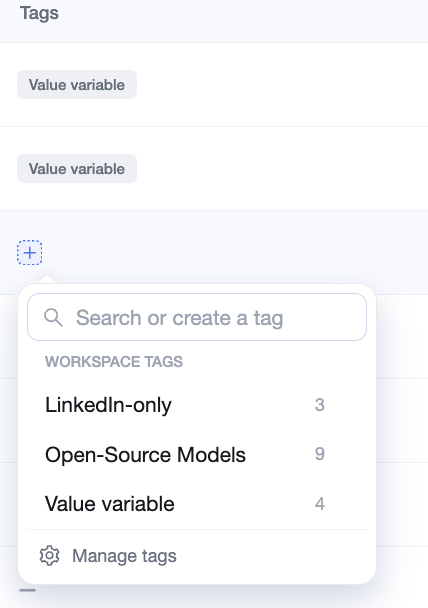
To add a tag, click the small + button in the Tags column. From there you can:
See the tags you've already created and apply them
Add a brand-new tag
Delete tags you no longer need
Sorting
Any column with sort arrows in its header is sortable.
Click once to sort by that column.
Click again to flip the order (ascending / descending).
For example, sort by Reply rate to bring your best performers to the top, or sort by Leads to see your largest campaigns by volume first.

Filtering
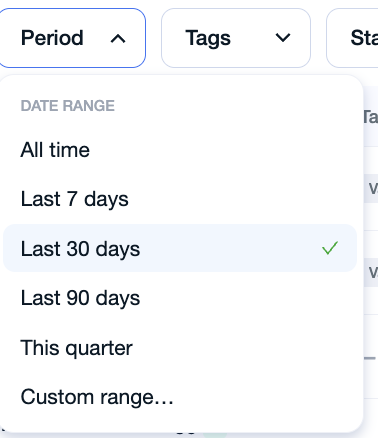
Across the top of the page you'll find filters:
Period · Tags · Status · Channel · Owner
You can stack as many filters as you want to narrow the list. For example, to see only active campaigns from the last 30 days, set Status to Active and Period to 30 days — the list narrows instantly and the campaign counter updates.
Need a specific campaign? Use the search box to find it by name.
Customizing your columns
Click Columns to choose exactly what the table displays.
On by default: Leads, Tags, Status, Processed, Reply rate, Senders. Additional columns are available to switch on, such as Health, Channel, Positive, Meetings, Mailboxes, Utilization, Bounce rate, Open rate, and Last updated — turn on whatever matters to you.
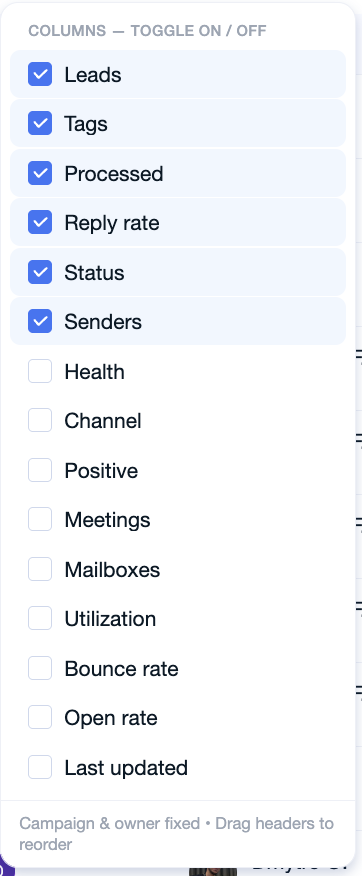
You can also reorder columns: drag a column header to move it. The Campaign and Owner columns stay fixed on the ends, and everything in between can be rearranged exactly how you like.
Views: save your setup for the whole team
Views tie everything together. A View saves your complete setup in one named tab:
Your filters
Your columns and their order
Your sort rule
How to create a View
Set up the table the way you want it (filters, columns, sort).
Click + Add view.
Give it a name — for example, "My Active Cold Email."
Click Save view.
Your View now appears as a tab. One click takes you straight back to that exact setup — no re-filtering every morning.
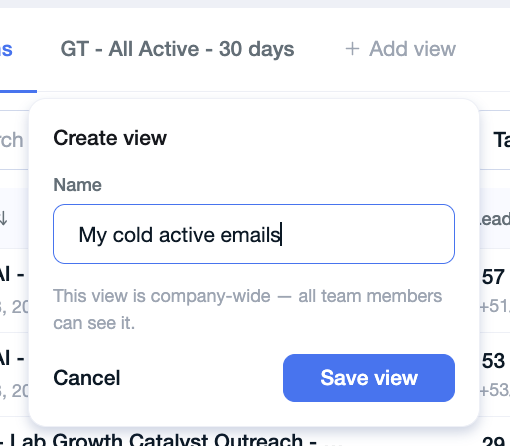
Views are company-wide. When you create a View, everyone on your team can see it. Use this to build shared views the whole team works from — like "All active" or "Needs attention" — so everyone's looking at the same data. Build it once, and the whole team benefits.
Multiple saved views:

Exporting to CSV
Click Export view as CSV to pull whatever you're currently looking at into a spreadsheet — your filters and columns are included. This is ideal for reporting or sharing outside the app.
In short
Filter it, sort it, pick your columns, save it as a View, and your whole team gets it. The Campaigns page is built to give every member of your team the same clear, organized picture of your outreach.