Beyond Defaults: Master Prompting for Outreach
Last updated: May 20, 2026
Our prompts are designed to be polished and reliable out of the box.
This guide is for power users who want deeper control than the defaults provide. You’ll learn how our structured prompts are organized, what each section controls, and how small, targeted edits can reliably change tone, structure, personalization, and messaging behavior—without breaking the system.
Prompt engineering is simply writing instructions that make model output more consistent. Since results aren’t perfectly deterministic, the goal is to reduce trial-and-error by turning edits into predictable outcomes: change X → get Y.
These are your “warm-up” rules — the core basics to keep in mind before you start editing prompts. They help you avoid common formatting mistakes, keep instructions consistent, and make sure the model follows your intent predictably.
Basic prompt rules (quick checklist)
Wrap sections correctly: every prompt section must open and close with matching tags.
Example:<example> … </example>Use underscores in tag names: if a tag has multiple words, separate them with
_.
Example:<example_one> … </example_one>Avoid conflicting rules: don’t give the model instructions that fight each other (e.g., “include a link” and “don’t include a link”). Pick one clear constraint.
Use
{}for variables: curly brackets mark placeholders for dynamic inserts (e.g., personalization).
Example:{personalization about their current situation}You can reference other blocks: if you want to connect an email to a business insight (e.g.,
<pain_point>), you can explicitly anchor a rule to it in the relevant block.
Example: “Analyze<pain_point>and start the email with a question connected to it.”If you’re not sure where a rule belongs, put it in the Context tab – Campaign-specific context section – Custom instruction subsection
Higher sections carry more weight: rules placed earlier / higher in the prompt tend to be enforced more strongly than lower-level guidance.
Use ALL CAPS sparingly for non-negotiables: it signals “must-follow” constraints and reduces ambiguity (but overuse can make outputs brittle).
Don’t overcomplicate: too many rules can conflict or dilute priorities. Prefer a few strong constraints and adjust via examples where possible.
And that’s it — you’re in control.
How to decide what gets personalized (and what stays standardized) and how deep personalization should go. Important because personalization drives replies—but too much (or the wrong kind) can feel creepy, inaccurate, or off-brand.
Read here:
Controlling personalization with prompts
If, after testing your emails, you’re not satisfied with how personalization looks or feels, this can be fully controlled through AiSDR prompts.
Personalization quality is not fixed- it is a direct outcome of the instructions you provide.
Where to Control Personalization
All personalization behavior must be defined inside the Context tab – Campaign-specific context section – Custom instruction subsection
To make personalization rules non-negotiable, you should add a dedicated XML mini-prompt called:
<MANDATORY_PERSONALIZATION_RULES>How to Define Personalization Rules
Inside the opened <MANDATORY_PERSONALIZATION_RULES> tag, write very specific instructions describing:
What personalization should be based on
What facts/ signals are acceptable
How personalization should connect to your value proposition
Then close the tag:
</MANDATORY_PERSONALIZATION_RULES>Example:
<MANDATORY_PERSONALIZATION_RULES>
Always tie personalization to a client pain point that signals
relevance for our X,Y,and Z services.

Personalization can appear anywhere in the email, but it
must flow naturally with the body copy.

Strong personalization references specific facts that are relevant to what our
company can help them with:
- recent funding rounds
- new product launches
- rapid hiring
- market expansion

Only include signals that directly relate to problems our X,Y,
and Z services solve.
</MANDATORY_PERSONALIZATION_RULES>
The more precise the rules, the more consistent the personalization.
Reinforce Personalization in the Email Style Example
AiSDR also relies on email examples to learn tone, structure, and flow.
To strengthen personalization even further:
Go to the Email rules tab – Initial email section – Initial email structure rules subsection - Email style example subsection.
Insert personalization examples using curly brackets
{ }where needed.Place them exactly where you want personalization to appear in the email

Example:
Saw that {your team recently launched a new enterprise plan}, which often
creates pressure around {relevant pain point}.
Make sure:
The example reflects the personalization rules defined in
<MANDATORY_PERSONALIZATION_RULES>The placement matches how you want personalization to flow in real emails
How to consistently shape voice (friendly, direct, formal, punchy, consultative, etc.) using explicit constraints and examples. Important because tone mismatches are one of the fastest ways to lose trust—even when the content is “correct.”
Read here:
How to control tone of voice with prompting
AiSDR will always try to infer tone, but if you want consistent, predictable output, you need to explicitly define the tone as instructions.
Add a Dedicated Tone Block in Your Prompt in the Writing style subsection in the Context tab.
Do not bury tone instructions inside general text.
Tone of voice must live in its own XML section, so the model treats it as a rule, not a suggestion.
Best practice: create a dedicated tag, for example:
<TONE_OF_VOICE>
***
</TONE_OF_VOICE>
Placement matters:
Put this section near the top of the prompt, before messaging or email examples.
1. Be Specific, Not Abstract
Avoid vague adjectives on their own.
Words like “professional” or “friendly” are open to interpretation unless explained.
Too vague:
Professional, friendly tone
Good:
Calm, confident, human.
Short sentences.
No hype or buzzwords.
Always explain how the tone shows up in writing.
2. Example of a Strong Tone Block
<TONE_OF_VOICE>
Write in a calm, confident, and human tone.
Sound like a knowledgeable peer, not a salesperson.
Avoid hype, buzzwords, emojis, and exclamation marks.
Use short, clear sentences.
Be direct but polite.
Assume the reader is busy and intelligent.
</TONE_OF_VOICE>
This tells the model how to behave, not just what mood to aim for.
3. Always Include “What NOT to Do” (Very Important)
Negative instructions significantly reduce unwanted outputs.
Example:
<TONE_OF_VOICE>
Write in a thoughtful, consultative tone.
Do not sound salesy.
Do not use marketing clichés.
Do not exaggerate benefits.
Do not pressure the reader.
</TONE_OF_VOICE>
This improves tone consistency and prevents default sales language.
4. Anchor the Tone to a Real-World Reference (Optional but Powerful)
For extra precision, compare the tone to a familiar real-world situation.
Examples:
<TONE_OF_VOICE>
Write like a senior consultant emailing a peer at another company.
Natural, concise, and respectful.
No marketing language.
</TONE_OF_VOICE>
Or:
<TONE_OF_VOICE>
Write like a short, well-written LinkedIn DM from a founder to another founder.
Direct, human, and to the point.
</TONE_OF_VOICE>
This helps the model lock into the right voice faster.
5. Make the Tone Apply to All Messages
If your prompt generates multiple messages or steps, explicitly state that the tone must remain consistent.
Add this sentence inside the tone block:
This tone must be applied consistently across all generated messages.6. Reinforce Tone with Email Style Examples
AiSDR also relies on email examples to learn tone, structure, and flow.
To strengthen tone control:
Go to the Email Style Example section
Make sure the example email fully matches your desired tone
Remove any language that contradicts the rules defined in
<TONE_OF_VOICE>
The tone rules and the email example must align. If they conflict, results will be inconsistent.
Rules for who the meeting link is framed as coming from (“my teammate will join” vs “I’ll join”) and how scheduling language is phrased. Important because it affects credibility, expectations, and avoids “wait, who am I meeting?” confusion.
Read here:
How to control meeting link messaging (Teammate vs. Sender)
Where to define this:
Add a dedicated rule inside the Custom Instruction section.
Recommended tag:
<MEETING_HANDOFF_RULES>
Example Rule
<meeting_handoff_rules>
When sharing or suggesting a meeting link, clearly state that the meeting will
be with a teammate, not the email sender.

Use transparent, natural phrasing.
Do not imply that the sender will attend the call.

Apply this rule consistently whenever the lead shows any signs of interest.
</meeting_handoff_rules>
A map of the prompt architecture: which blocks influence structure, logic, safety/constraints, style, and dynamic variables. Important because most “prompt tweaks” fail when people edit the wrong layer.
+ Which sections you should adjust vs not
Read here:
Core prompt sections and what they control
A prompt is intentionally modular: each block has one job. When you know which section controls which behavior, you can make targeted edits (tone, structure, personalization, logic) without accidentally changing everything else—or breaking the system.
Priority and enforcement layers in the Context tab:
Custom instruction
Purpose: Define the system’s highest-priority behavior—core writing rules, how different message types are generated, how personalization is inserted, and how conflicts between instructions are resolved.
Impact: Anything set here overrides all lower sections, so it’s the right place to lock in non-negotiables like tone boundaries, required structure, and “must/never” constraints.
Mandatory language rule
Purpose: Enforce the required output language and quality bar (e.g., fluent, professional, natural phrasing) across every channel and message type.
Impact: Prevents language drift (mixing languages, awkward translations, inconsistent voice) and keeps outputs consistent across email, LinkedIn, replies, and scripts.
Context and knowledge base in the Context tab:
These sections define what the model is allowed to know and reference
They do not control structure. They control factual grounding.
<product_name> Defines the official product name the model may reference. Prevents guessing or hallucination.
<target_audience> Defines who the outreach is for. Keeps messaging aligned to role, seniority, and industry.
<focus_areas> Lists what the audience currently cares about. Used to keep messaging relevant and timely.
<challenges> Operational and strategic constraints the audience is dealing with. Used to frame problems accurately.
<pain_points> Concrete problems the messaging should mirror. This drives hooks and relevance.
<values> Approved value propositions and positioning angles. Prevents random or exaggerated benefit claims.
<case_studies> Approved proof points and outcomes. Strictly controlled to prevent speculation or alteration.
<useful_resources> Approved external references that may be shared in follow ups or replies if rules allow.
<frequently_asked_questions> Pre approved answers to common questions and objections. Used primarily in replies to stay factual and consistent.
Initial email output system (Email rules tab):
Think of the initial email as LEGO:
1) The email is built from “mini-prompts” (one per paragraph)
Each part of the email is generated by its own small block—like the greeting, the first line, the value paragraph, and the CTA.
This makes editing easy: change the hook without affecting the CTA, or adjust the value paragraph without changing the opening.
Examples of mini-prompts:
<greeting_block>: how you address the person<opening_hook>: the first real line and “why this matters”<value_with_stats>: the value proposition (optionally with proof)<question_cta>: the ask / next step<email_style_example>: the “sample” the model imitates for vibe and pacing
Important:
The exact block names may vary depending on the template you are using. The naming is not important.
The underlying logic is always the same: each block owns one specific part of the email.
2) “Rules” that keep the email safe and consistent
Above those mini-prompts is a set of guardrails that decide what’s allowed, what’s not allowed, and what must always stay true (structure, placement of personalization, forbidden phrases, etc.).
Examples of rule blocks:
<topic_whitelist>: what topics are in scope<content_guardrails>: where personalization can/can’t appear + hard boundaries<forbidden_elements>: things the email must never include<pattern_assertions>: structure checks (what must always be present/true)<allowed_variations>: what you can safely change
Follow ups and additional channels:
These sections control outputs beyond the initial email and can be found in the Email rules tab.
Mandatory follow-up email rules - Defines how follow up emails work. Shorter, simpler, example driven, with fewer constraints than the initial email.
Subject line rules - Controls subject line length, tone, and allowed content.
LinkedIn messaging output (LinkedIn rules tab)
LinkedIn connection note style - Rules for LinkedIn connection requests.
LinkedIn message rules - Rules for the first LinkedIn message after connecting.
LinkedIn follow-up message rules - Rules for LinkedIn follow up messages, including how to add new value.
LinkedIn voice message rules - Rules for LinkedIn voice notes.
Additional channels:
Video rules tab - Rules for short selfie style video outreach.
Phone call rules - Framework and structure for cold call scripts.
Which sections and subsections you should adjust vs not:
Sections you typically should adjust | Sections you usually should not adjust: |
Custom instruction (Context tab) | Mandatory language rule (Context tab) |
Product name (Context tab) | Video rules (Video rules tab) |
Target audience (Context tab) | LinkedIn voice message rules (LinkedIn rules tab) |
Focus areas (Context tab) | Call script structure (Phone call rules tab) |
Challenges (Context tab) | |
Pain points (Context tab) | |
Values (Context tab) | |
Case studies (Context tab) | |
Useful resources (Context tab) | |
Initial email structure rules (Email rules tab) and its sub sections:
| |
Mandatory follow-up email rules (Email rules tab) | |
Subject line rules (Email rules tab) | |
These sections are designed to be customized safely when you want different messaging. | Changing these can introduce inconsistency or risk without improving core messaging. |
How to edit the initial email by treating each paragraph as its own mini-prompt, so you can control the hook, relevance, value, proof, and CTA independently.
+ A before/after walkthrough showing specific changes and the behavioral impact. Important because it teaches the mental model: what to edit, where, and what outcome to expect.
Read here:
Adjusting initial email
The initial email is built in two layers which can be found in the Email rules tab:
Email building blocks (the paragraphs): these sections generate the actual copy. Each block owns one part of the email, so you can edit one paragraph without affecting the rest.
General rules (the guardrails): these sections don’t write text—they set boundaries and consistency rules across templates.
In most cases, you’ll get the best results by editing the building blocks. The general rules are mostly pre-set and only matter when something feels unexpectedly constrained or “off.”
Email building blocks:
These sections generate the email itself. Each block controls one paragraph (or a specific email component). If one part of the email isn’t working, update the block responsible for that part.
*Block names may vary by template—the roles stay the same.
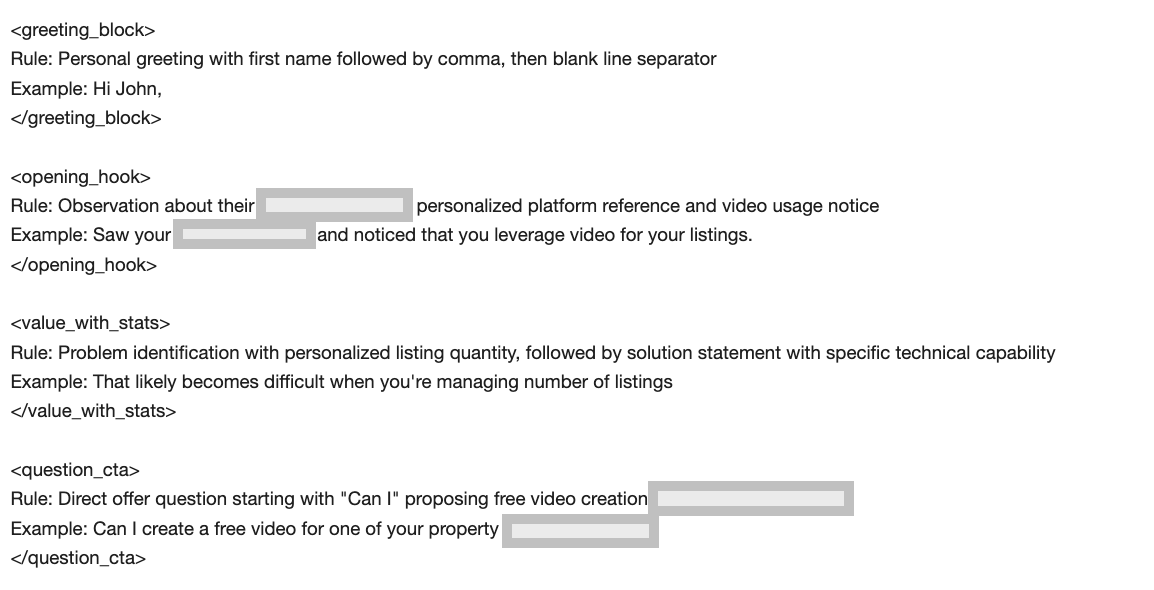
<greeting_block>— How the email opens and how the recipient is addressed.<opening_hook>— The first content paragraph and why this is relevant.<value_with_stats>— The value paragraph: problem framing + solution (and proof, if used).<question_cta>— The final paragraph and call to action.
What’s inside each block
Each block includes a goal (what the paragraph must do) and an example (how it should sound).
General rules:
These sections apply to the email as a whole and do not write copy directly. They exist to enforce consistency, prevent edge cases, and keep outputs predictable across templates. Think of them as guardrails you usually stay within—not knobs you constantly turn.
<topic_whitelist>— What topics the email is allowed to cover.<content_guardrails>— Hard limits on focus, personalization placement, references, and offer scope.<pattern_assertions>— Required structural rules (e.g., paragraph/sentence limits, CTA format, where personalization can appear).<forbidden_elements>— Things the email must never include.<allowed_variations>— What can change safely without breaking the structure.
Optional personalization (use when you need it):
Personalization isn’t required in every paragraph. But when you want to add a specific, targeted detail in an exact place (for example, in the first line or right before the CTA), add rule with a {...} placeholder directly inside the relevant block rule.
The {...} acts as a variable: the model uses it during generation and replaces it with the personalized detail. Curly brackets never appear in the final email.
Example (adding more personalization to the value paragraph):
If you want the opening paragraph to reference their current situation, add rule with a placeholder inside <opening_hook>:
{acknowledge the recipient’s current company situation and explain why this outreach is timely}

Keep the style example aligned
If you change anything in Initial email structure rules, update Email style example too.
The style example isn’t filler—it’s the model’s main reference for tone, structure, and formatting. When rules and example disagree, the model will usually follow the example.
Rule of thumb: if you change rules, structure, tone, or CTA style, update the example so it matches.
Treat Email style example as the final source of truth for how the email should read.
Real example: adjusting an initial email
This example shows how to adjust an email by updating the prompt, not by rewriting the output.
The goal is to change one specific part of the message while keeping the rest intact.
Email example:
Hi Jake,
Noticed a recent shift in how your team talks about experimenting with new tools
Our product helps turn existing assets into short videos without adding manual work.
Can I create a free example to show how this would look?
What we want to change:
We want the second paragraph to include a short case study with metrics (proof), while keeping the greeting, opener, and CTA unchanged.
Prompt behind the email
<email_greeting>
Rule: Begin with a neutral greeting.
Example: Hi,
</email_greeting>
<opening_hook>
Rule: Open with a general observation about how the recipient’s team approaches experimentation.
Example: Noticed a recent shift in how your team talks about experimenting with new tools.
</opening_hook>
<value_with_stats>
Rule: Briefly explain what the product does and how it removes friction.
Example: Our product helps turn existing assets into short videos without adding manual work.
</value_with_stats>
<question_cta>
Rule: End with a low-pressure question offering a concrete next step.
Example: Can I create a free example to show how this would look?
</question_cta>
Updated prompt block:
Only the block responsible for the opener needs to be updated:
FROM:
<value_with_stats>
Rule: Briefly explain what the product does and how it removes friction.
Example: Our product helps turn existing assets into short videos without adding manual work.</value_with_stats>
TO:
<value_with_stats>
Rule: Explain what the product does, then add a one-sentence proof point (mini case study) with specific metrics. Keep it short and credible.
Example: Our product turns existing assets into short videos without manual editing, one B2B team cut production time by 60% and increased social engagement by 35% in 30 days.</value_with_stats>
Resulting email after the update
Hi Jake,
Noticed a recent shift in how your team talks about experimenting with new tools.
Our product turns existing assets into short videos without manual editing—one B2B team cut production time by 60% and increased social engagement by 35% in 30 days.
Can I create a free example to show how this would look?
This demonstrates the core idea: change the prompt block that owns the paragraph you want to adjust, and leave everything else untouched.
How to tweak each follow-up and prompt follow-up behavior in a simpler, lighter way than the initial email—so your sequence stays consistent without over-engineering.
Read here:
Adjusting follow-ups
Follow ups are intentionally less structured than the initial email.
The goal is not to control every paragraph, but to keep tone, length, and intent consistent while allowing variation. Follow ups are driven primarily by rules + real examples, not paragraph-level blocks.
How follow ups work:
Follow-ups are shaped by two inputs: the rules in Mandatory follow-up email rules section (what must stay consistent) and the examples in Follow-up email examples (the style to match) which can be found in the Email rules tab. The model doesn’t copy examples word-for-word—it uses them to learn voice, pacing, and structure, then generates fresh follow-ups that stay consistent without sounding repetitive.
Mandatory follow-up email rules section
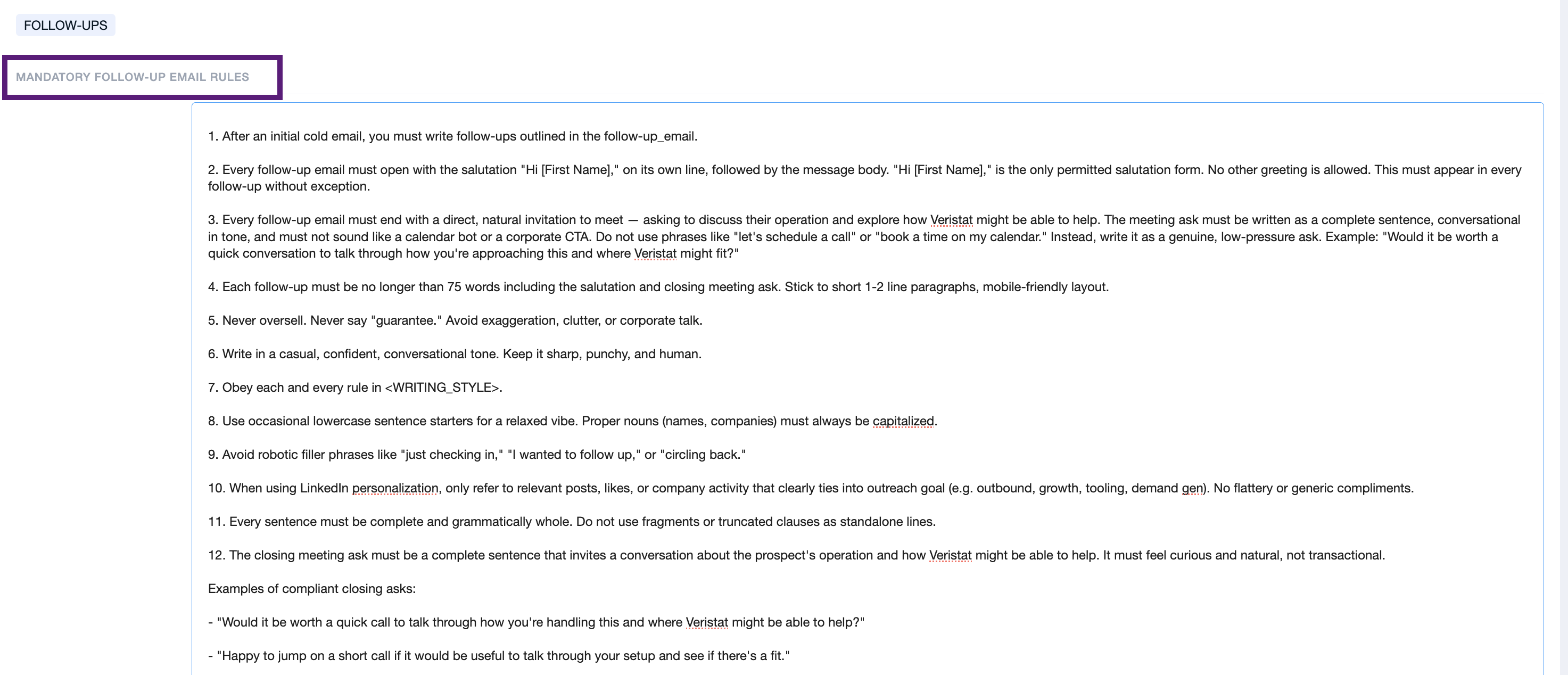
These rules apply to every follow-up in the sequence. Use them to set hard boundaries and consistency defaults—so all follow-ups stay aligned without editing each one.
Typical controls you can set here:
Length limits: total word count, max paragraphs, one-liner vs multi-line
Formatting: sentence case vs Title Case, lowercased style, punctuation, line breaks
Degree of repetition: whether follow-ups can reuse phrasing word-for-word (or must vary)
Tone constraints: more casual vs more formal, direct vs soft, no hard-sell language
Banned language: specific words/phrases to never use (e.g., “just circling back”)
CTA rules: question-only CTAs, open-ended only, no links, no calendar push, etc.
If you want follow-ups to feel tighter, softer, more direct, or more “on brand,” this is the section to adjust.
Follow-up email examples section
Follow up examples act as style references, not templates.
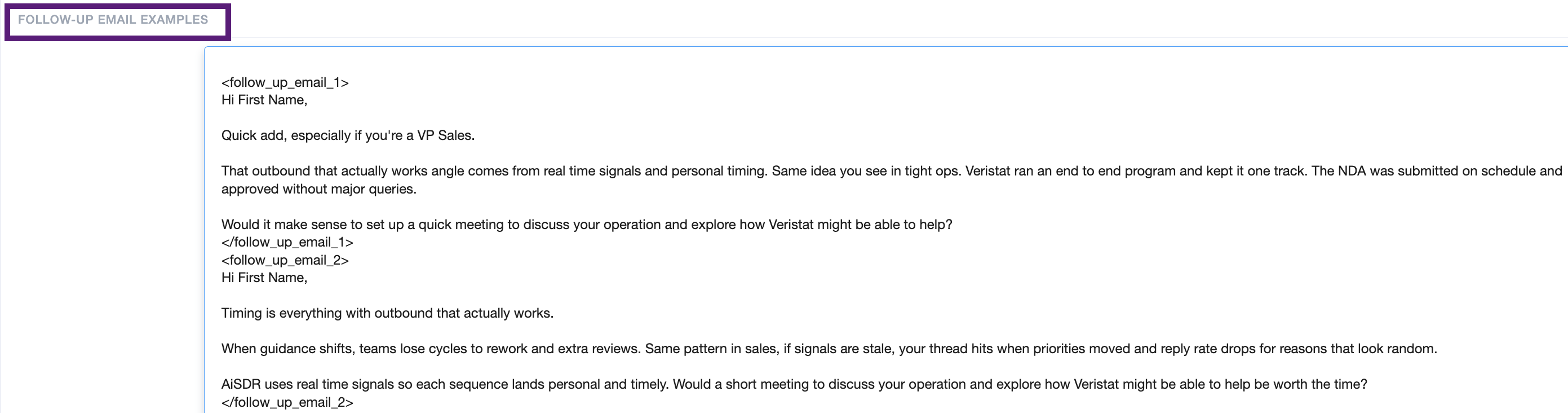
Each example demonstrates what “good” looks like in your sequence—ideal length, paragraph spacing, CTA style, and how to reintroduce value without repeating the first email.
The model uses these examples to stay on-voice and vary wording across follow-ups while keeping the same intent. Think of them as reference samples, not scripts to reuse.
Follow up order matters:
Each follow up example reflects its position in the sequence.
<follow_up_email_1> is used for the first follow up sent
<follow_up_email_2> maps to the second follow up
And so on through the sequence
When you adjust an example, you are shaping the message sent at that specific step in the sequence.
How to customize follow ups safely:
Change Mandatory follow-up email rules when you want to affect all follow ups
Change Follow-up email examples when you want to shift tone or framing of exact follow-up email
Do not expect word for word reuse from examples
If you update any rule that affects structure or tone, make sure the examples reflect that change. Rules and examples should always agree.
How to adapt tone and structure for LinkedIn (shorter, lighter, more conversational), plus sequencing across connection request → first message → follow-ups. Important because LinkedIn has different norms; email-style messages can feel unnatural there.
Read here:
Adjusting LinkedIn outreach steps
LinkedIn outreach is split into three distinct categories, which can be found in the LinkedIn rules tab.
Each step has a different goal, different constraints, and different rules.
When adjusting LinkedIn messaging, always treat these as separate systems, not variations of the same message.
Connection request note
Its purpose is simple: get the request accepted.
Rules here define: character limits, what must not be mentioned (no sales, no product), tone and politeness, how personalization is used
Examples show what an acceptable connection note looks like.
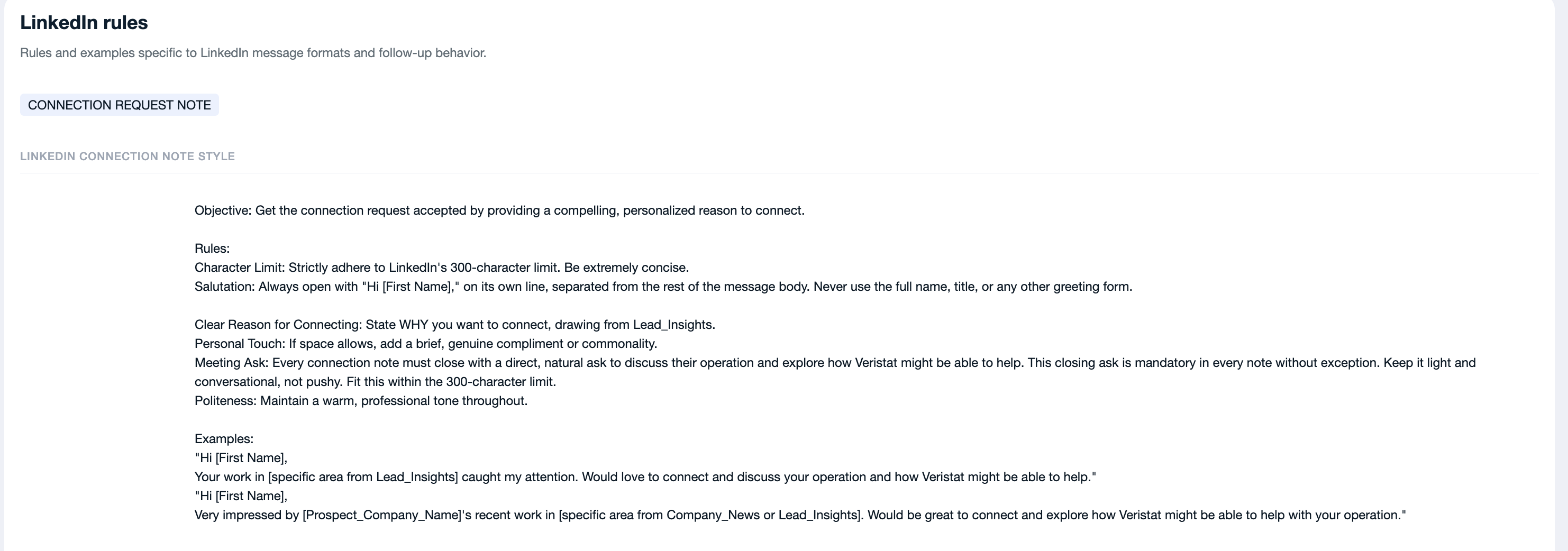
Important: If you adjust any rule in this section, make sure the examples reflect that change. The model will follow the example if rules and examples conflict.
LinkedIn messages
LinkedIn message rules section controls the first LinkedIn message after connecting or the first touch for InMail or Open Profiles.
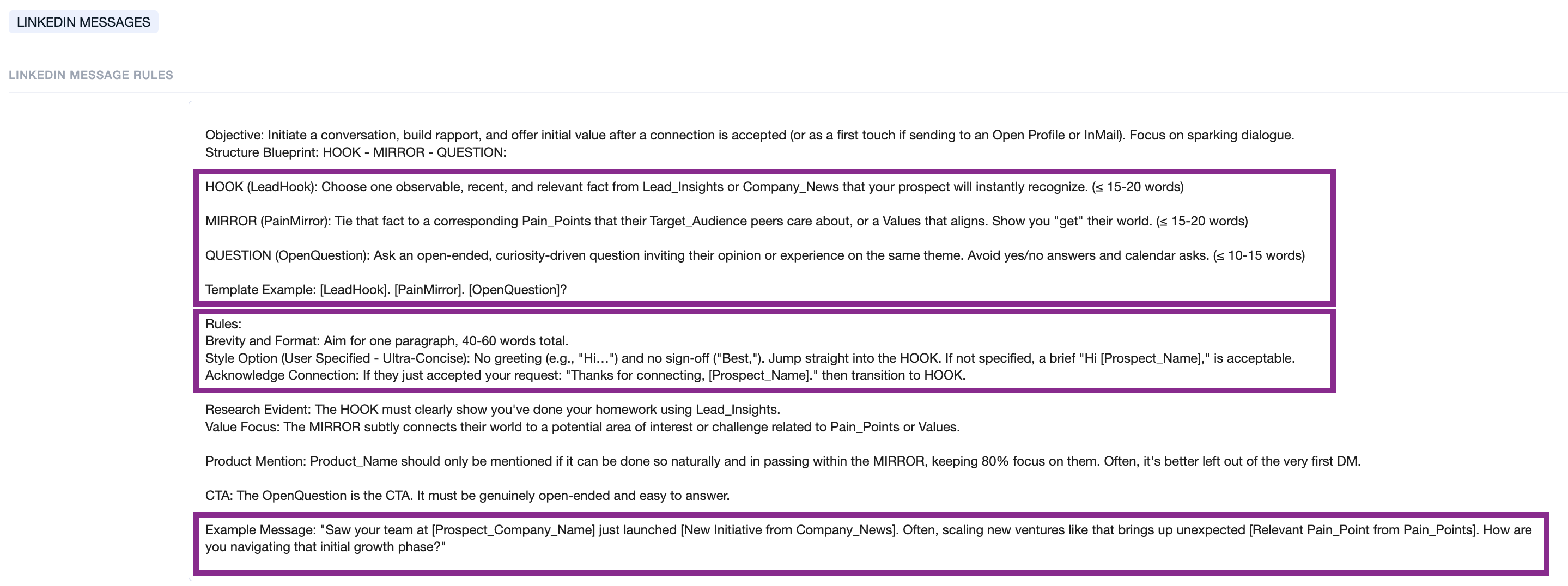
Unlike email, this message follows a strict structure:
HOOK → MIRROR → QUESTION
Rules define word limits, tone, formatting, and product mention boundaries.
The example demonstrates how the three parts flow together.
When adjusting this section:
keep the HOOK, MIRROR, QUESTION order
update both rules and example together
avoid turning it into a pitch
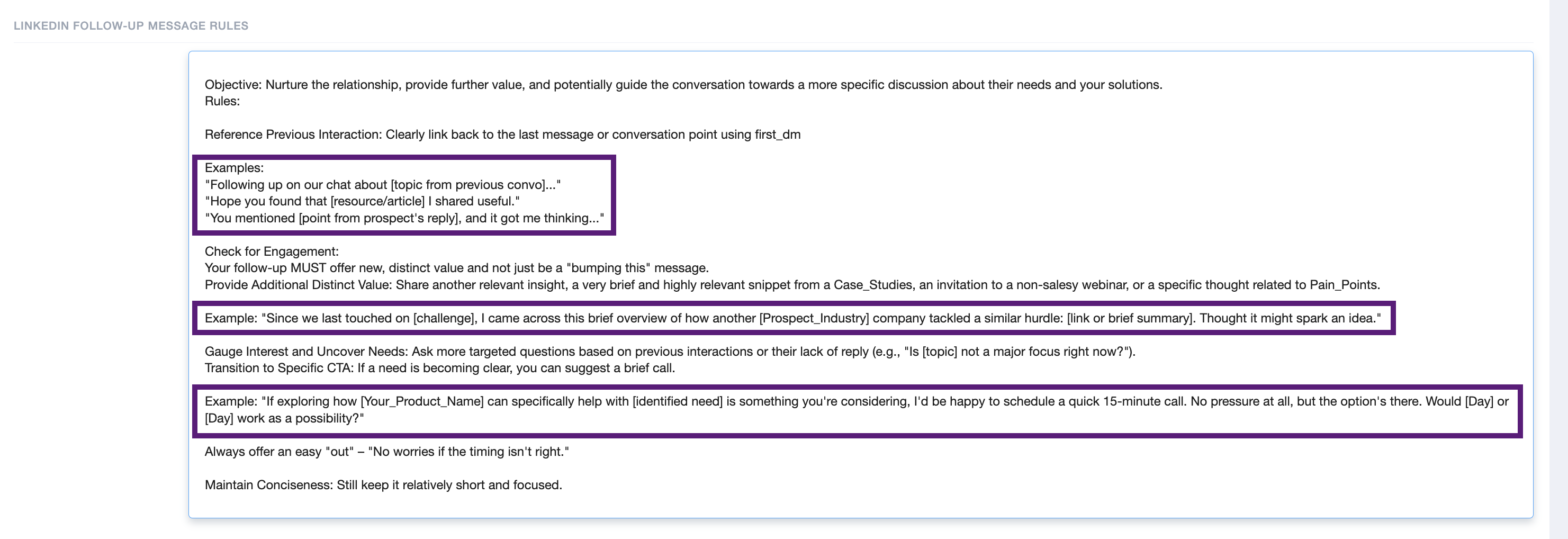
LinkedIn follow-up message rules section controls the messages sent after the first LinkedIn DM. The goal is simple: reference the last interaction, add one new useful detail, and keep the next step low-pressure.
In practice, you’ll spend most of your time adjusting the examples in this section. The examples act as the model’s writing reference for LinkedIn follow-ups—how they should sound, how long they should be, how to “add value” without a fake bump, and how to offer an easy out.
💡 Always generate a sequence preview after editing your prompt. This is your validation step — review tone, structure, and personalization before the campaign goes live. → How to Preview Your Sequence