How AiSDR handles incoming messages when AI responses are ON?
Last updated: December 5, 2025
When AI Smart Replies are on:
👉 The AI will respond to the lead’s questions until they express interest in booking a meeting.
👉 Once the lead shows interest, the AI will send a link to schedule a call.
Here's a more detailed summary of how AiSDR each type of the incoming message:
How does AiSDR Handle Positive Responses
When automated replies are enabled, AiSDR will:
Continue the conversation automatically
Respond within 5–7 minutes of receiving the positive reply.
Notify you only when the goal is met
For example: the lead books a meeting or confirms interest.
Base replies on your persona’s FAQs
AiSDR uses the “Frequently Asked Questions” section in your persona as the foundation for replies.
Review and update this section to keep AI responses accurate and relevant.
How does AiSDR Handle Negative Responses
If the recipient responds with a negative response, for example, "Stop", "Unsubscribe", "No", "No, thank you" AiSDR ensures that no further outreach is sent to them.
If a negative reply is detected, AiSDR will:
Close the contact.
Mark them as “Unsubscribe” in the dashboard.
Stop all further outreach to that contact - AI responses will not be sent.

Automatically add the contact to the suppression list to prevent any future campaigns from contacting them.
📖 Learn more about the suppression list here: What is the suppression list?
How does AiSDR Handle Auto-Replies (Out-of-Office Messages)
Ever wondered what happens when your outreach hits an out-of-office auto-reply? Great news - AiSDR manages it seamlessly for you!
1. Handling Return Dates
If an auto-reply specifies when the lead returns, AiSDR will automatically pause the email sequence for that individual until the exact date they come back. The follow-up will then resume on their return date - no manual effort required from your side.
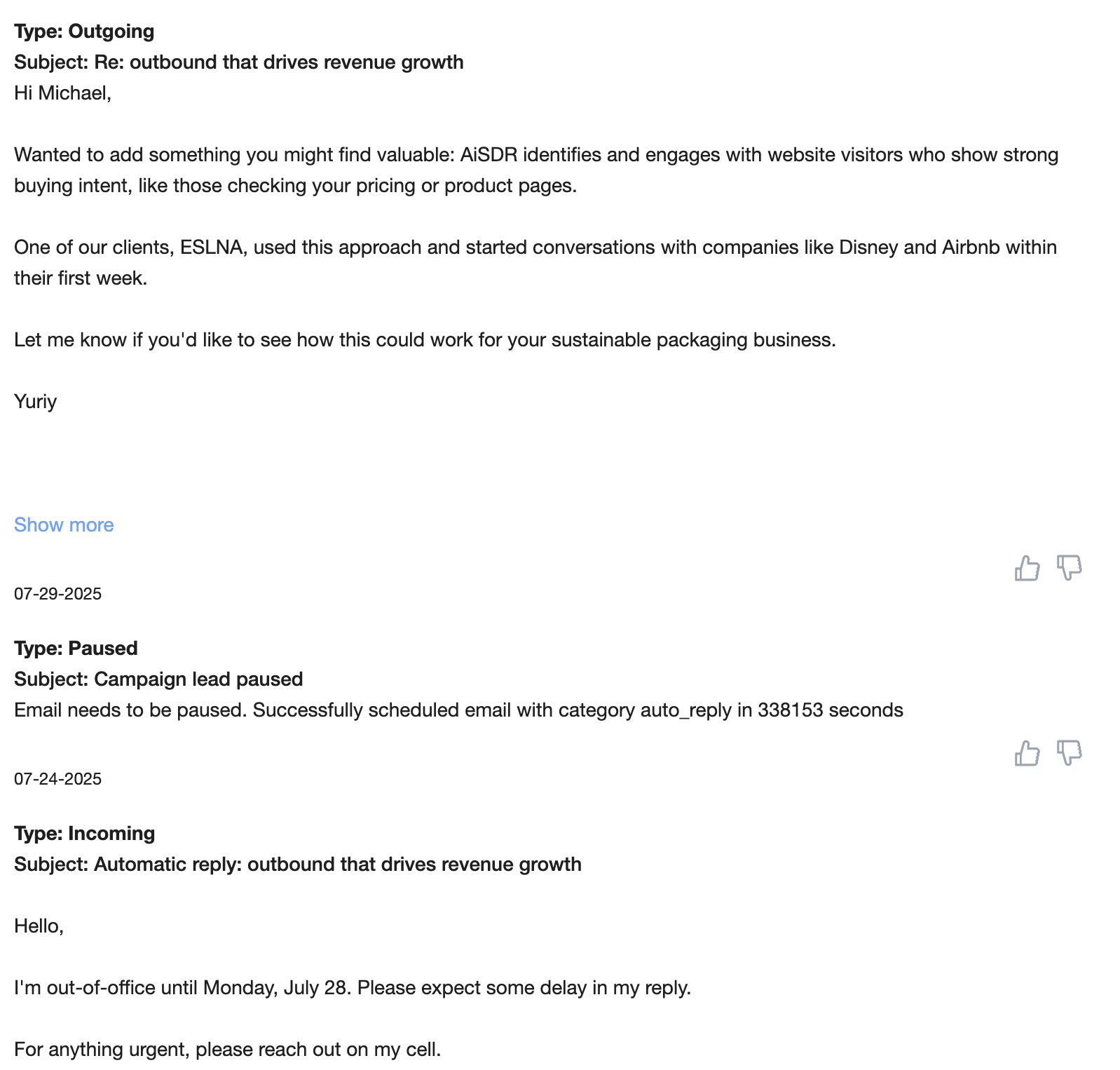
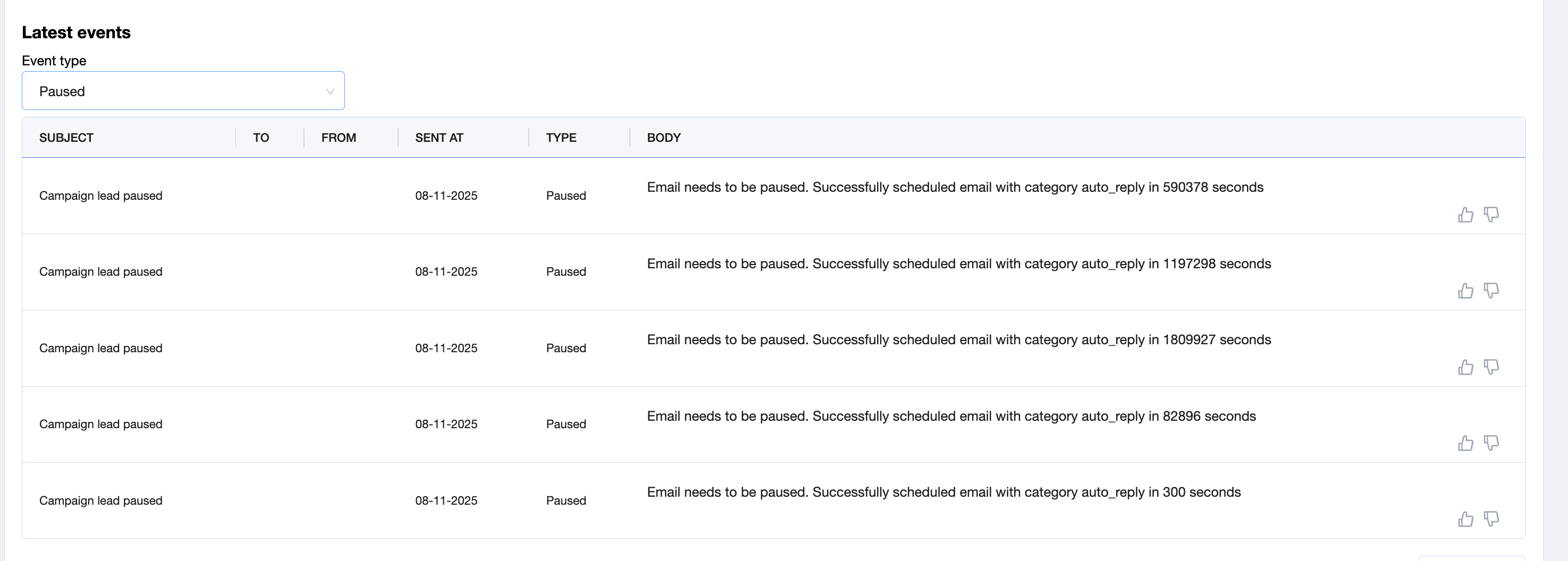
How to check paused actions:
Open the campaign.
Scroll to Latest Events.
Filter by Paused.
2. Reaching Alternative Contacts
Sometimes, an auto-reply might suggest contacting a colleague during the lead's absence. AiSDR instantly picks up on these alternative email addresses, automatically adds them to your campaign, and sends a personalized message to the suggested contact.
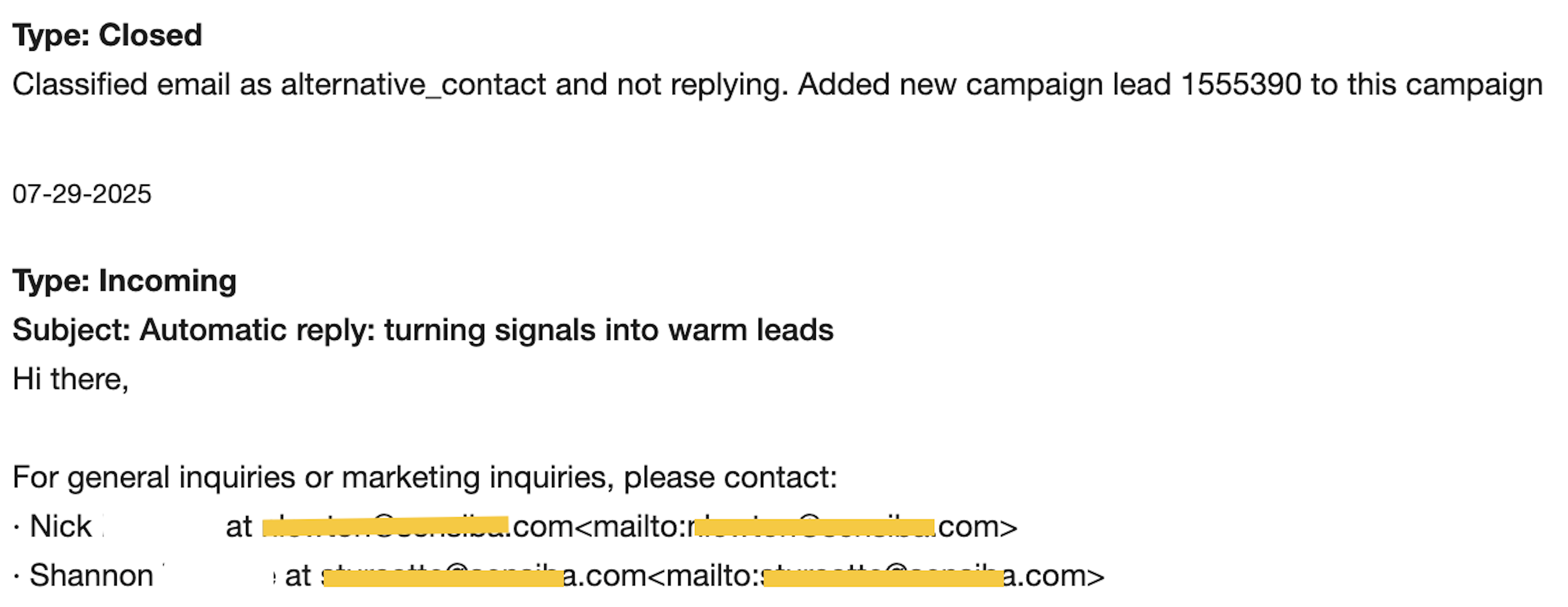
Where to find notifications:
You’ll see updates about alternative contacts in your AiSDR Dashboard.

3. Notifications for Out-of-Office and Alternative Contact Actions
AiSDR does not send you notifications for every out-of-office or alternative contact action. You will only be notified if we receive an interested response from the lead.
AiSDR makes handling auto-replies effortless, ensuring your outreach stays on track and responsive, even when leads are away. 📨
How to Manually Reply to Incoming Messages
You can manage responses easily and directly from your AiSDR Dashboard.
Important: Incoming responses to your AiSDR campaigns will not appear in your regular email inbox (Gmail, Outlook, etc.). All responses are managed exclusively through the AiSDR Dashboard and the Inbox. If you need to move the conversation to your main mailbox, use the CC field when replying (as explained in step 4 below).
1) In the AiSDR Dashboard, click View full conversation next to the lead’s reply. You’ll see the full conversation thread with that lead.

2) Click the blue "Manual Reply" button:

3) Type in the text of your response and do not forget to add your signature.
All links included in your email will be clickable.
4) To include additional recipients, or to move the conversation from AiSDR to your main mailbox, you can add additional email addresses to the cc field:
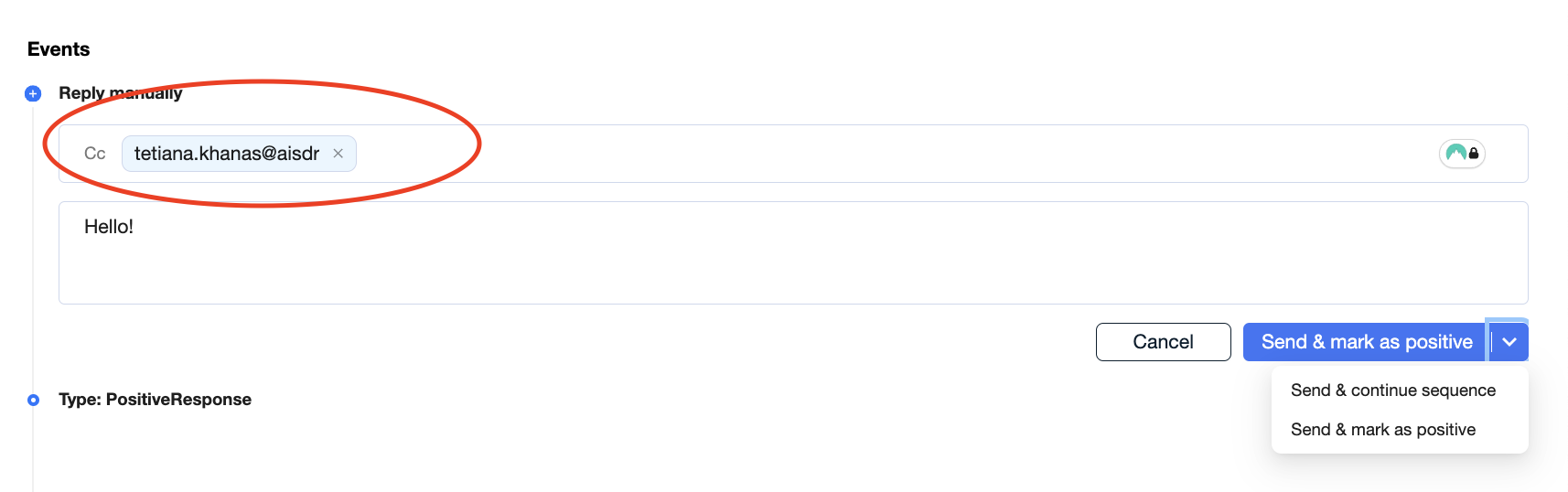
Note: AiSDR does not automatically forward incoming replies to your main inbox. To transition conversations to your work email, you must first send a manual reply from the AiSDR platform with your work email in the CC field. Only after your main mailbox is included in the thread can you continue the conversation directly from your work inbox.
5) When sending your reply, you now have two options:
Send & mark as positive → Sends your reply, and prevents any further AiSDR-generated outreach.
Send & continue sequence → Sends your reply but keeps the lead active in the campaign sequence, so the sequence and additional automated follow-ups will continue.
When creating your campaign content, keep in mind that AiSDR does not support adding hyperlinks or attachments directly to emails (e.g., PDFs, slides, or screenshots).
What you can do instead:
Upload your file(s) to a secure location such as Google Drive (or Dropbox, OneDrive, etc.).
Generate a shareable link.
Place that link in the body of your message with a short context line (e.g., “Here’s a short slide deck you might find useful: [link]”).
✏ How to Mark a Lead as Booked
If your manual reply results in a meeting being secured, make sure to update the lead’s status to Booked.
Marking a lead as Booked ensures AiSDR correctly updates your pipeline and reporting, and prevents any unnecessary follow-ups.
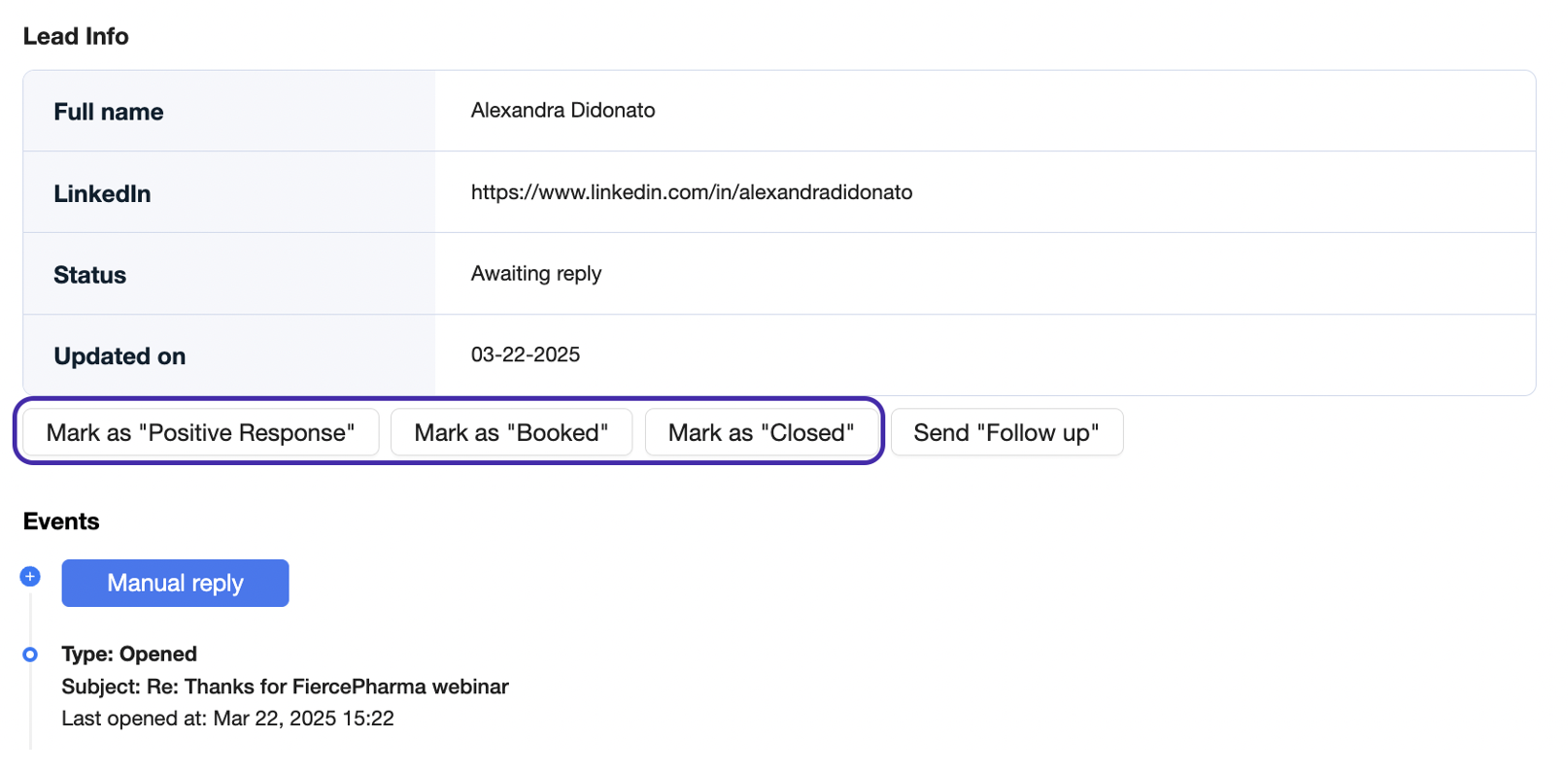
To check how AiSDR classified the response, you can either check the type of response on the Dashboard as shown above, or open the conversation with the lead and see the status assigned. If it is "Closed", then AiSDR has already stopped the outreach.
Quick summary.
When the AI replies are ON:
You will be notified only about positive responses that meet the campaign goal, and they will be counted toward the positive response rate metric.
You will not be notified only about neutral responses that do not meet the campaign goal, and they will be counted toward the response rate metric. AiSDR will automatically send a response and continue the conversation.
You will not be notified about the not interested responses, but they will be visible on the Dashboard, and they will be counted in the response rate metric. AiSDR will not respond to not interested responses.
You will not be notified about the alternative contact responses, but they will be visible on the Dashboard, and they won't be counted towards the response rate.
You will not be notified about out-of-office or bounce responses, and they will not be visible on the Dashboard, and they won't be counted towards the response rate, but you can find them on the "Activity" tab inside the campaign.