Ami AI: How to Plan and Launch Campaigns
Last updated: September 4, 2026
Why it matters: Instead of juggling dozens of disparate tools, hiring consultants, or waiting months for results, Ami AI offers a single platform that delivers predictable outbound outcomes fast.
How to Use Ami AI
Ami AI works like a conversation.
You can:
Ask questions
Agree or disagree with its suggestions
Like or dislike ideas
Guide the AI toward the direction you prefer
This allows you to gradually refine your targeting and messaging until it matches your strategy.
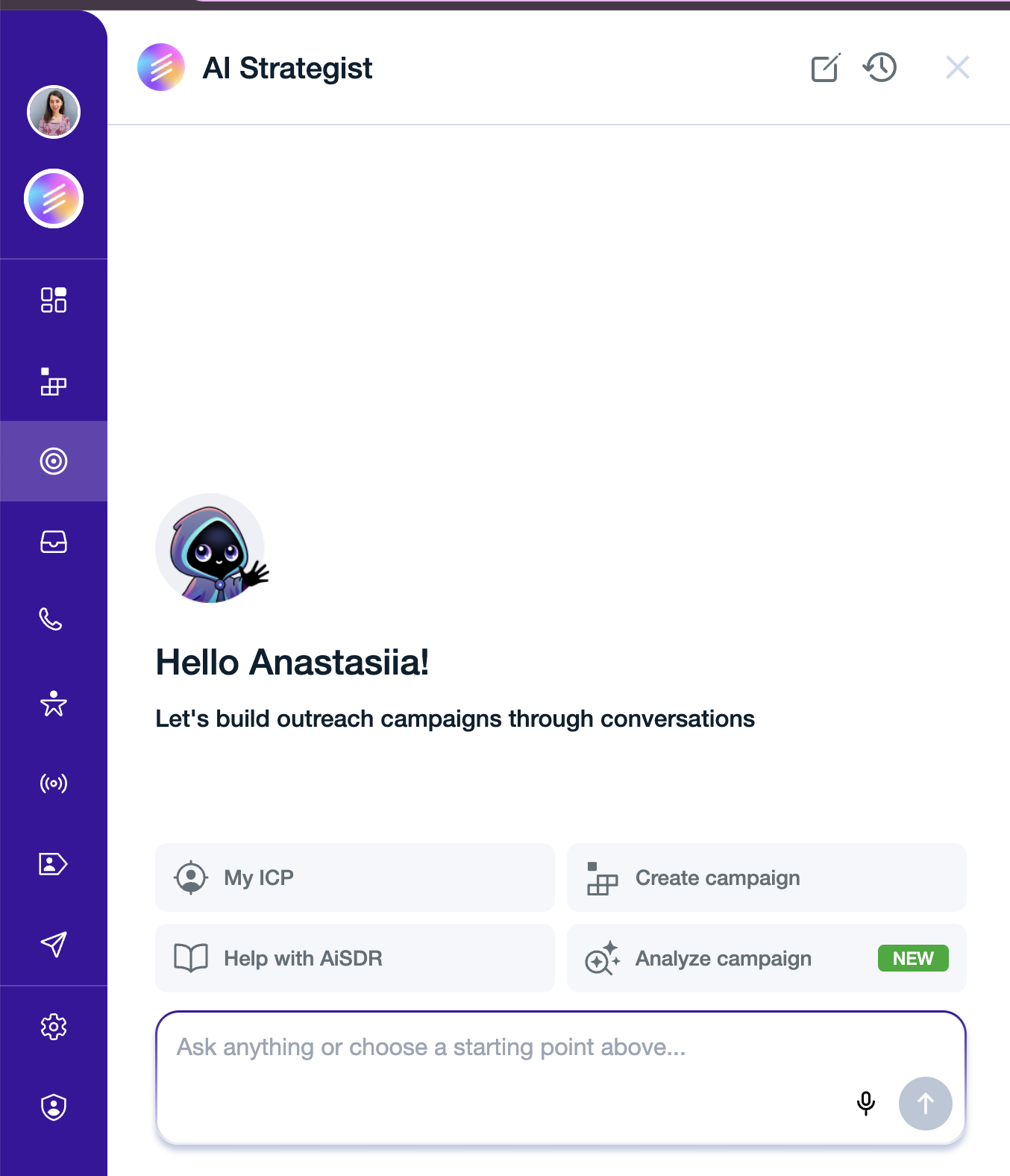
Ami AI currently has four main tabs:
My ICP
The My ICP tab helps you define and explore your ideal customer profile.
Here you can:
Ask Ami AI to suggest different ICPs for your product.
Describe your ideal customer in plain language.
Ask the AI to think about signals or triggers that would make outreach more timely and relevant (for example hiring signals, funding events, or product launches).
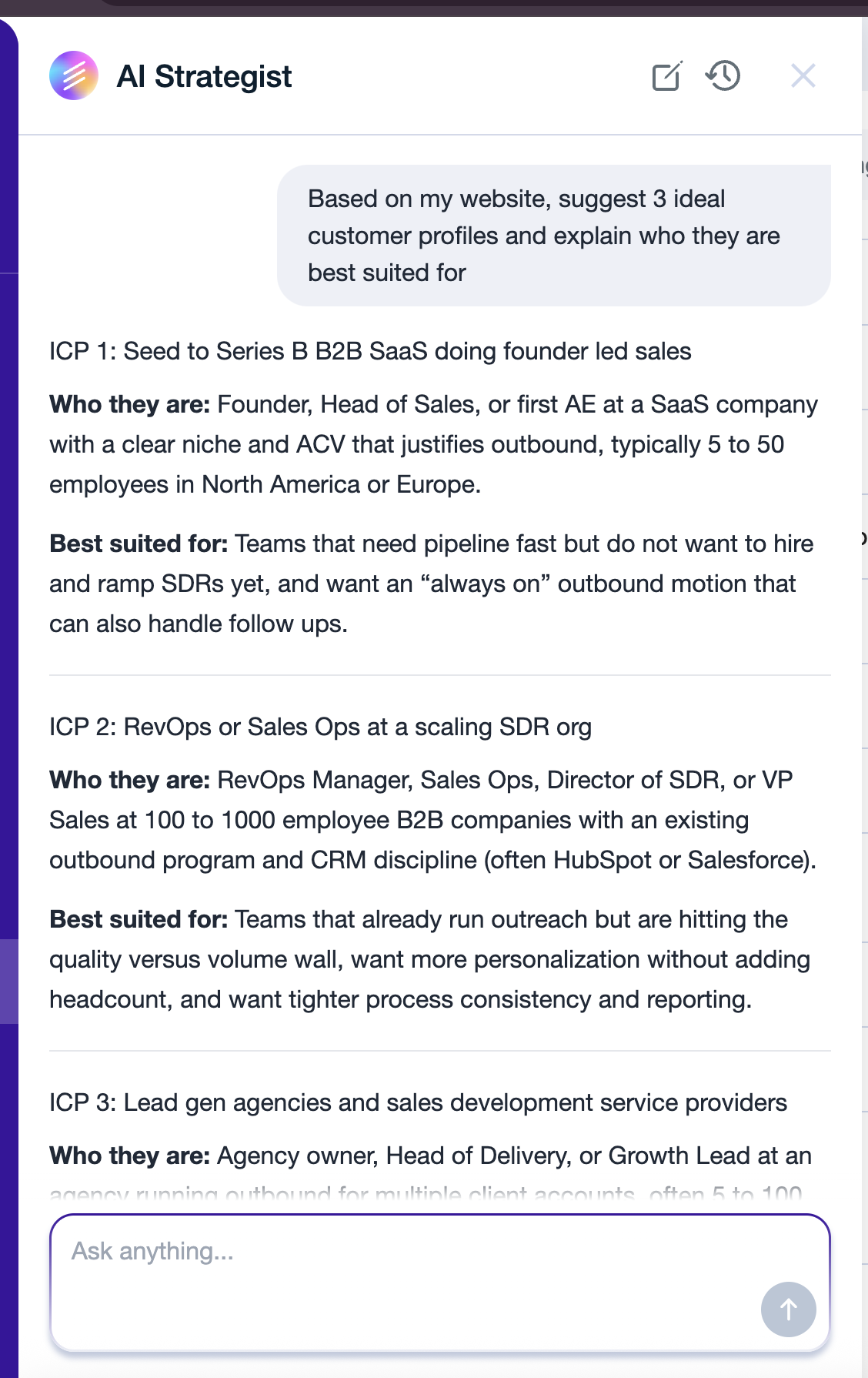
Attach a file (a sales deck, a case study, a list of your best customers ) and ask Ami AI to build ICP ideas from it instead of typing everything out.
This is a great place to brainstorm and refine who you should target and why before building a campaign.
Create a Campaign
If you already have a campaign idea, switch to the Create a campaign tab.
Here you can ask Ami AI to build the entire campaign for you. It will automatically:
Find relevant leads
Generate outreach messaging
Set up the campaign structure
You can also attach a file here and ask Ami AI to analyze it for the campaign creation.
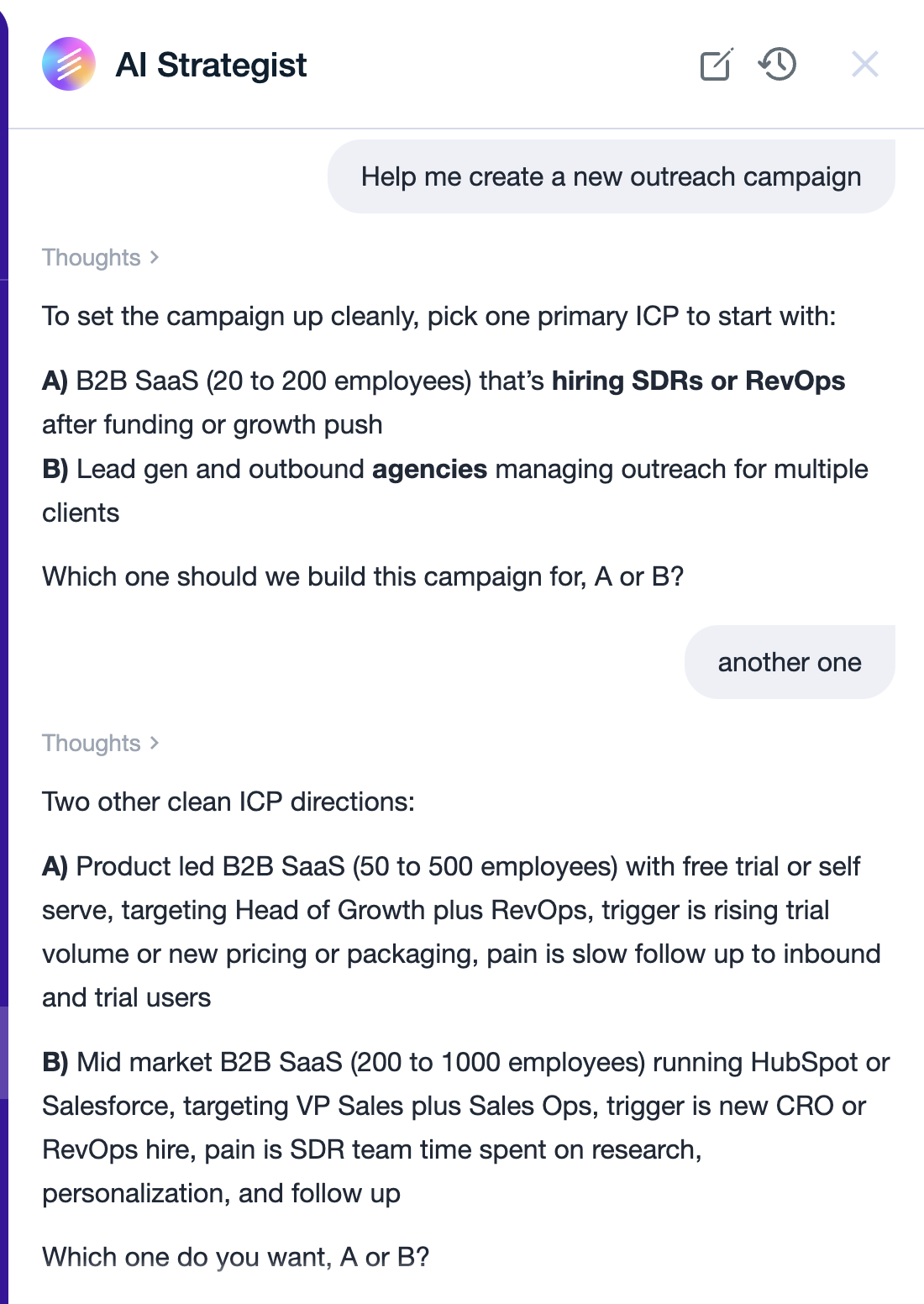
The system may take a little time to generate the campaign, as it needs to gather and analyze relevant data. Don’t worry if the campaign creation takes a few minutes or hours.
Chat With Ami AI (Help with AiSDR)
Your AI Buddy for AiSDR
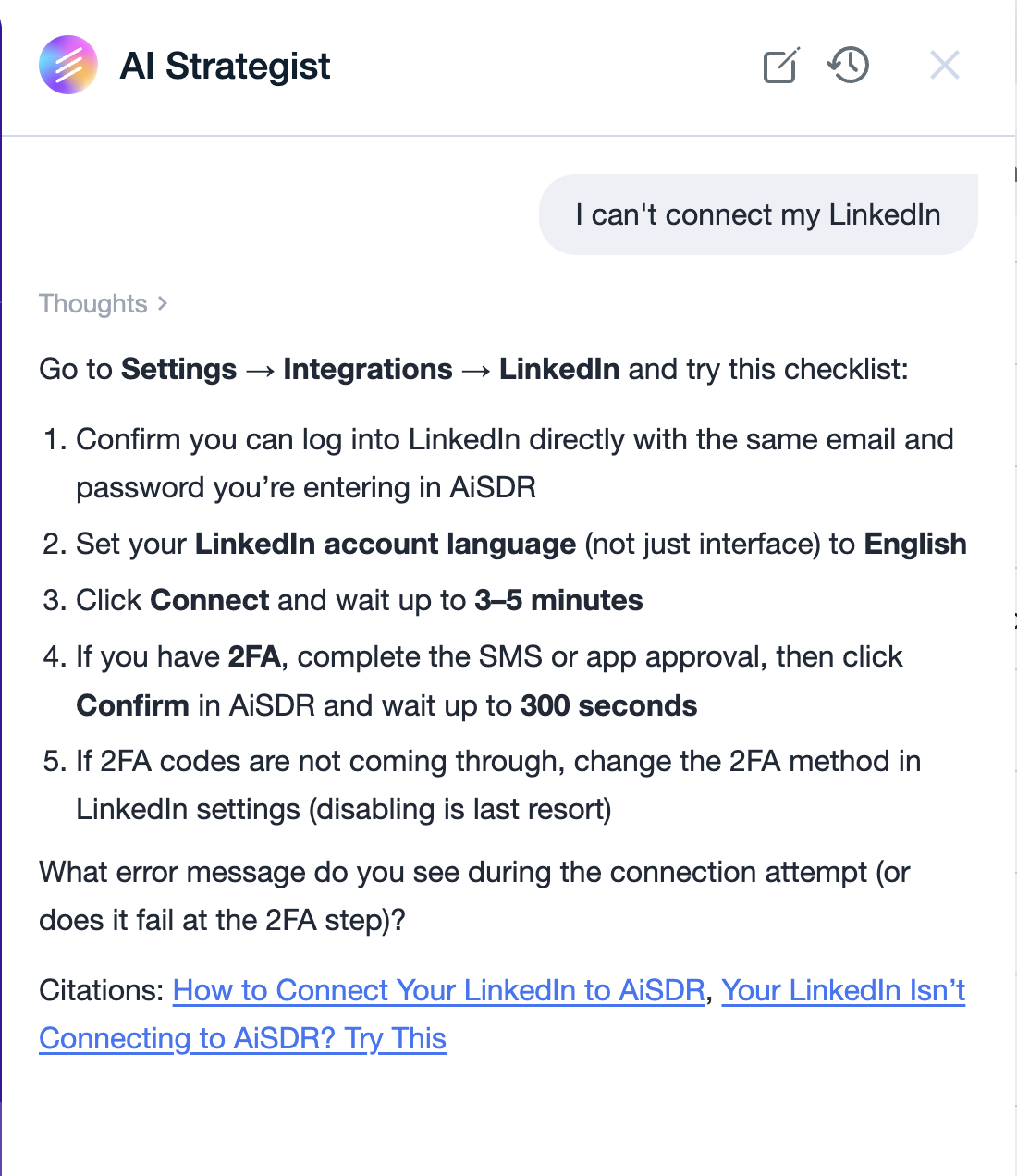
Ami AI can also help with general questions about using the AiSDR platform.
If you're unsure how to:
set up a campaign
choose signals
define your ICP
optimize messaging
you can simply ask the Ami AI. It’s designed to guide you through the platform and help you launch campaigns automatically.
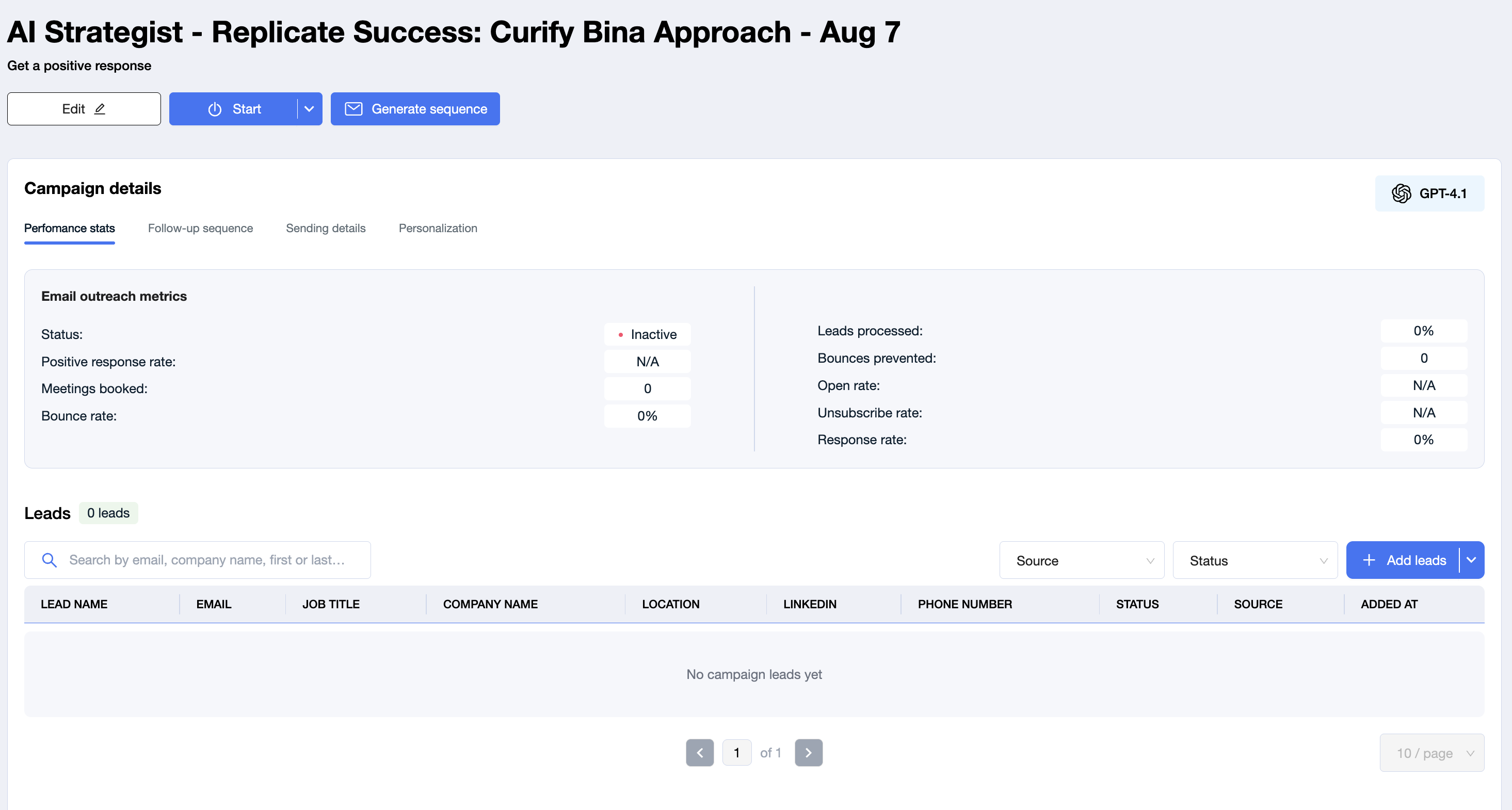
Inspect & edit any element if desired (query, copy, exclusions).
Analyze campaign
This button is designed to analyze the performance and setup of a specific campaign and provide actionable recommendations based on what the system finds.
After the analysis, it can highlight areas that may need improvement, such as targeting, audience setup, messaging, sequence structure, or overall campaign strategy. The goal is to help identify potential issues faster and suggest what could be adjusted to improve campaign performance.
So instead of reviewing everything manually, you can use this button to get a quick overview of what is working, what may be limiting the campaign, and what changes could be tested next.
Additional functionality:
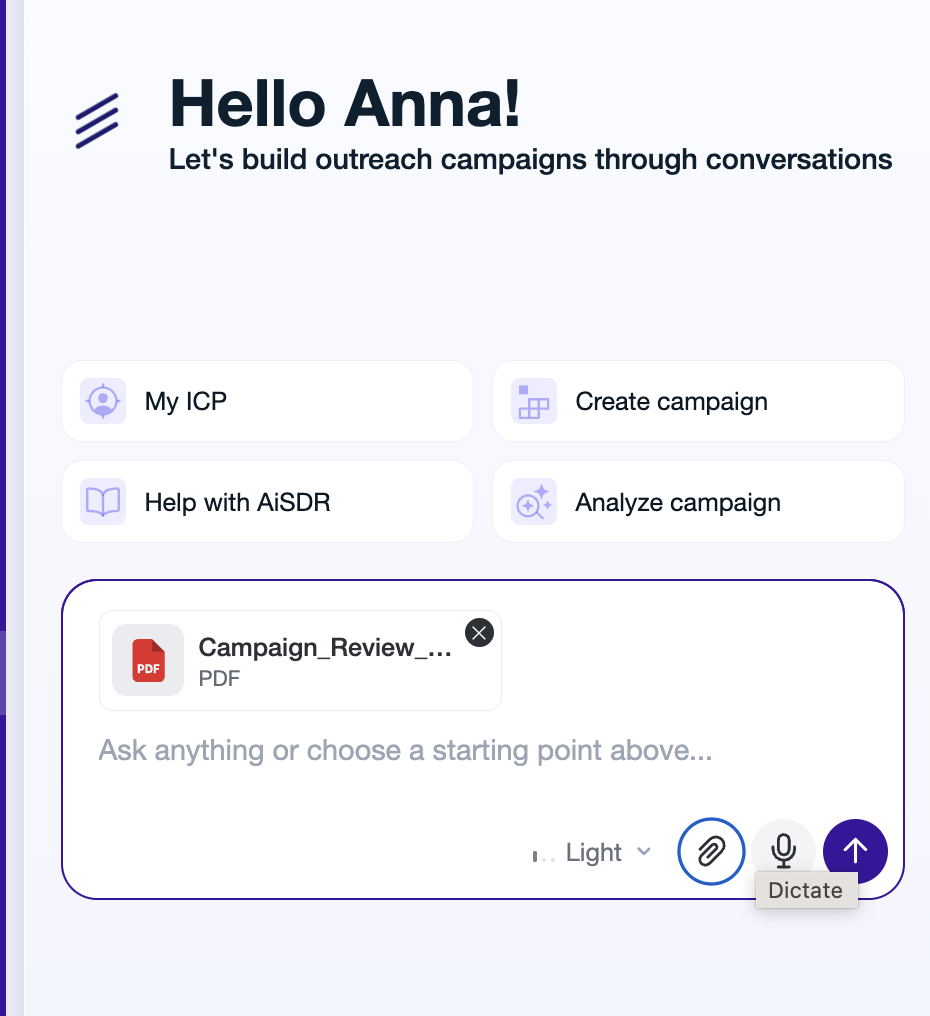
📎 Attach files to the chat
You don't have to describe everything in text. Click the paperclip icon in the chat and attach a file — Ami AI will read it and use it to generate ICP ideas, build a campaign, or write messaging based on what's inside.
Files upload one at a time. Wait until each one shows as Ready, then send your message.
What you can attach:
Documents: PDF, DOC, DOCX, TXT, PPTX
Spreadsheets: CSV, XLS, XLSX
Images: PNG, JPG, JPEG
Limits:
Up to 3 attachments per message
10 MB max per file
PDFs up to 100 pages
Images up to 40 megapixels
Filenames up to 255 characters
💡 Good to know: If you upload the same file twice, Ami AI reuses the copy it already has instead of processing it again. Your files are stored securely.
🧩 Common use cases for attachments:
🎯 I want ICP ideas based on my product materials
Instead of explaining what you sell, let Ami AI read it.
How to set it up:
Open the My ICP tab
Click the paperclip icon
Attach your sales deck (PPTX or PDF), one-pager, or case study
Wait for the file to show as Ready
Ask something like: "Based on this deck, suggest 3 ICPs I should target and why"
✅ You'll get ICP suggestions grounded in your actual positioning, not a generic guess.
Good to know: A case study works especially well here — it shows Ami AI who already buys from you and what problem you solved.
🎯 I want to build an ICP from my existing customer list
Your best-fit ICP is usually hiding in your current customers.
How to set it up:
Export your best customers to CSV or XLSX (company name and domain are enough)
Open the My ICP tab and click the paperclip icon
Attach the file and wait for Ready
Ask: "Find the common patterns in these companies and suggest an ICP based on them"
✅ Ami AI will look for shared traits — industry, size, tech stack, geography — and turn them into a targeting definition.
🎯 I have a screenshot or a slide, not a file
Screenshots work too — a dashboard, a slide, a whiteboard photo.
How to set it up:
Click the paperclip icon
Attach a PNG, JPG, or JPEG
Wait for Ready, then ask your question about it
✅ Ami AI reads what's in the image and works from it the same way it would with a document.
⚠ If your file won't upload
Ami AI rejects a file when:
The file is empty — no content inside
The file is password-protected or encrypted — remove the password and re-upload
The file is corrupted or won't open on your machine either
The extension doesn't match the actual content — for example a ZIP renamed to
.xlsThe file is over 10 MB, the PDF is over 100 pages, or the image is over 40 megapixels
✅ Fix the file and re-upload — no need to restart the chat.
🧠 Memory layer — context that sticks
Ami AI now remembers context from your previous conversations, so you don't need to re-explain who you are or what you're working on every time you open the chat.
Here's how it works:
After your first chat, it generates a memory piece based on what it learned about your company
After every chat that follows, it reflects on the conversation and extracts insights and preferences
It also knows which integrations you have connected and suggests fixes based on what those tools can actually do
The more you use it, the sharper it gets — over time your Strategist learns your preferences and tailors its responses to your exact style, fully autonomously.
💬 Predefined answers — quick reply chips
When you ask Ami AI to do something, it often asks a follow-up question to confirm the next steps or clarify what you meant. To make those moments faster, you'll now see ready-made answer options right under the question — just click the one that matches what you want instead of typing a full reply.
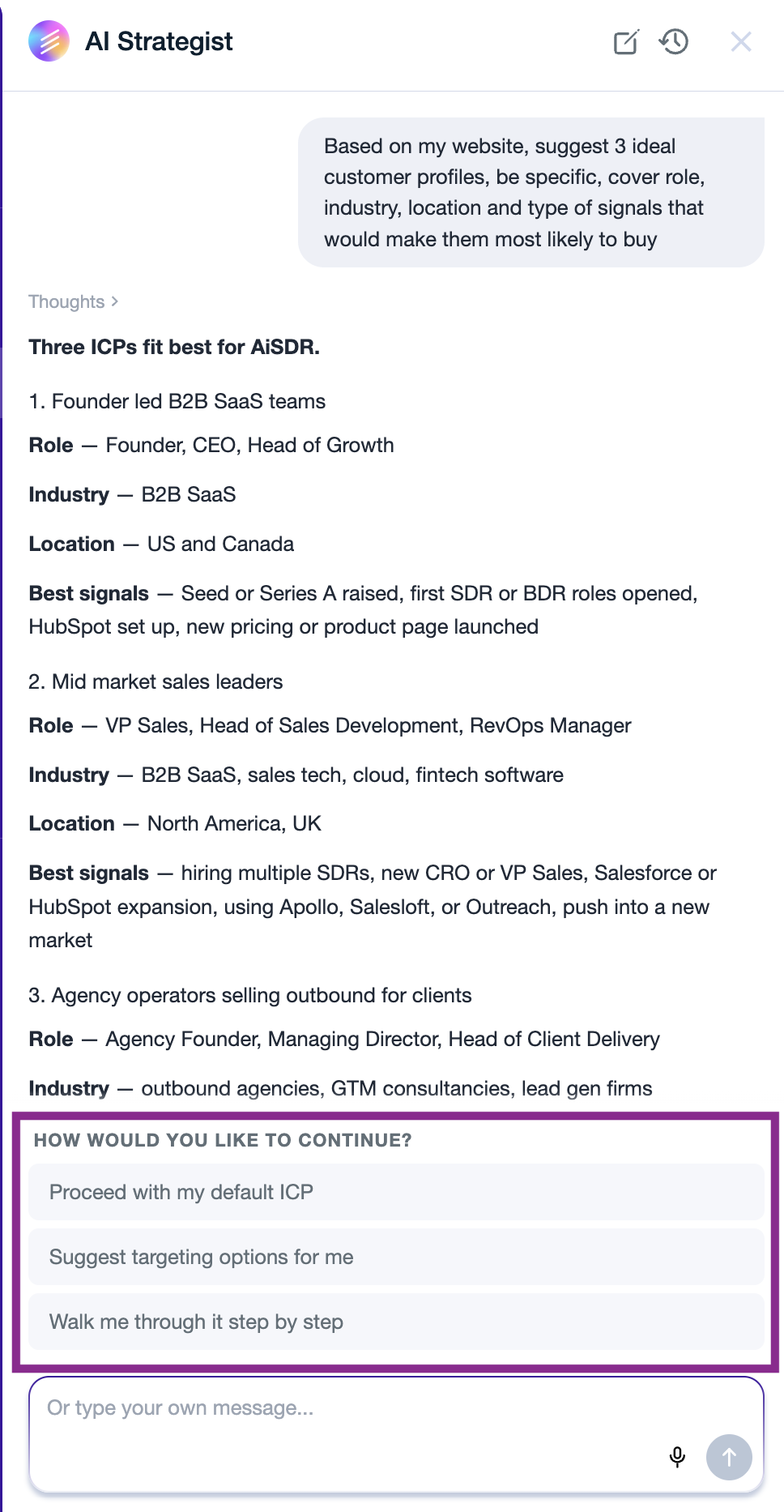
Use them to keep the conversation moving, skip the typing, or when you're not sure how to phrase your next step. You can always type a custom reply if none of the options fit.
Best Practices & Tips
Start broad, refine later. Let Ami AI surface several ideas, then double‑down on the top performers.
Leverage triggers. Use recent funding, tech‑stack changes, or news events to boost relevance.
Monitor performance. Ami AI will iterate automatically, but reviewing metrics weekly helps align with evolving goals.
Combine with human insight. Add unique company values or case studies to the AI‑generated copy for extra authenticity.