What Databases Can I Access in AiSDR?
Last updated: April 8, 2026
In the Cold Outreach tab of AiSDR, you have access to four powerful lead databases. Each is designed to fit different prospecting goals - whether you're going broad for volume or going deep for precise targeting.
This guide will help you understand:
What each database does
How the search process works
What makes each option unique
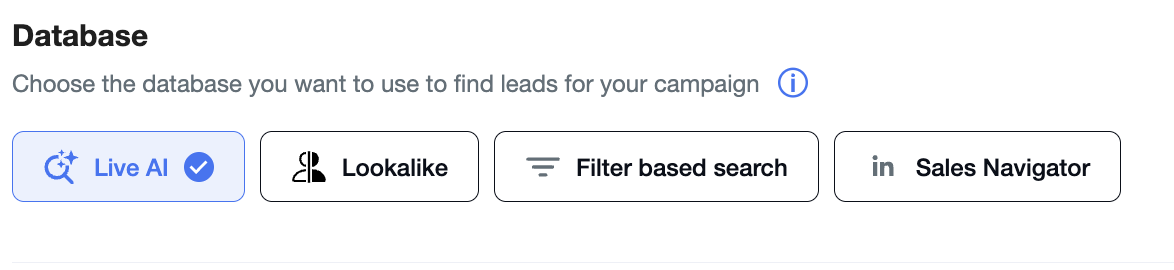
💡 Choosing the Right Database | |
Need to search for leads based on their pains or triggers in a real-time and get the most high intent narrowed down audience | 🤖 LiveAI |
Want to search more detailed info about leads, or to use your existing LinkedIn searches | 👥 Sales Navigator |
Need to search for exact job titles, or have very strict requirements. | ✅ Filter-based |
Need to find the lookalike companies to your best clients or competitors | 🪞Lookalike |
🤖 Live AI search
Live AI search allows you to find verified, in-market prospects with a single plain-language prompt — no filters, just fresh leads straight into your campaigns.
Live AI has two types of searches: People (selected by default) and Companies.
People search helps you target leads according to the criteria you've put in the "Target person" section and sends you a list of people based on that.

⚙ How It Works
Option | What you do | What Live AI search does |
1. Describe your target | Type your ideal lead in the Target person field: | • Breaks the sentence into ≤ 5 qualification chips (e.g., Job: Plastic Surgeon, Location: California) • Crawls the web in real time, surfaces matching names, and shows Why this prospect fits under each contact (e.g., “Board-certified surgeon practicing in Bakersfield, CA”). |
2. Refine on the fly | Add / remove chips or tweak the sentence. | Re-runs search instantly and refreshes the lead list with live data. |
3. Turn on Autopilot | Flip “Continuously add new” before you hit Search. | Runs the query in the background every day, enriches contacts with business email & LinkedIn, and drops them straight into your campaign. |
4. Launch outreach | Click Next → select a persona & sequence. | AiSDR emails and DMs each new lead, adapting tone, timing, and follow-ups automatically. |
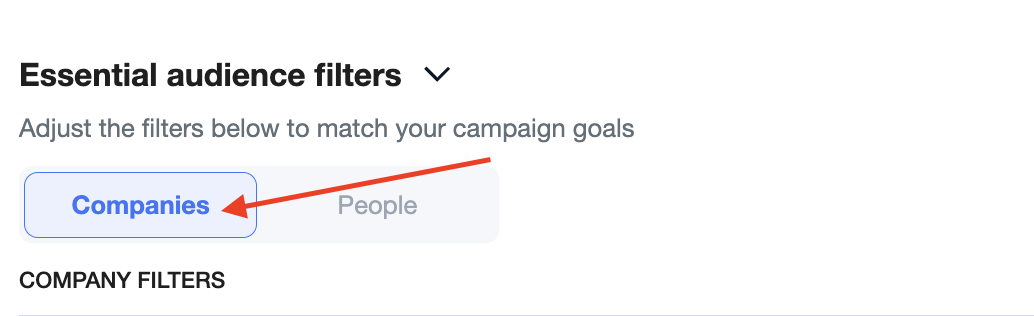
Companies firstly targets companies by their description and then find the leads in it by Lead Filters that you've selected (Lead name, Job title, Management level, Lead location), if you did that.
⚙ How It Works
Option | What you do | What Live AI search does |
1. Describe your target | Type your ideal company in the Target companies field: | • Breaks the sentence into ≤ 5 qualification chips (e.g., Company is a startup, Company develops or uses AI) • Crawls the web in real time, surfaces matching criteria, and shows Why this lead fits under each contact (e.g., “Harvey is a generative AI company founded in 2022”). |
2. Refine on the fly | Add / remove chips or tweak the sentence. | Re-runs search instantly and refreshes the lead list with live data. |
3. Turn on Autopilot | Flip “Continuously add new” before you hit Search. | Runs the query in the background every day, enriches contacts with business email & LinkedIn, and drops them straight into your campaign. |
4. Launch outreach | Click Next → select a persona & sequence. | AiSDR emails and DMs each new lead, adapting tone, timing, and follow-ups automatically. |
To start lead search you need to click "Enter" and then it will be split in the search criterias.

Read more on how to build you LiveAi campaign here:
📄 Step-by-step guide: How to Set Up a Campaign with Live AI
🧠 Filter-based search
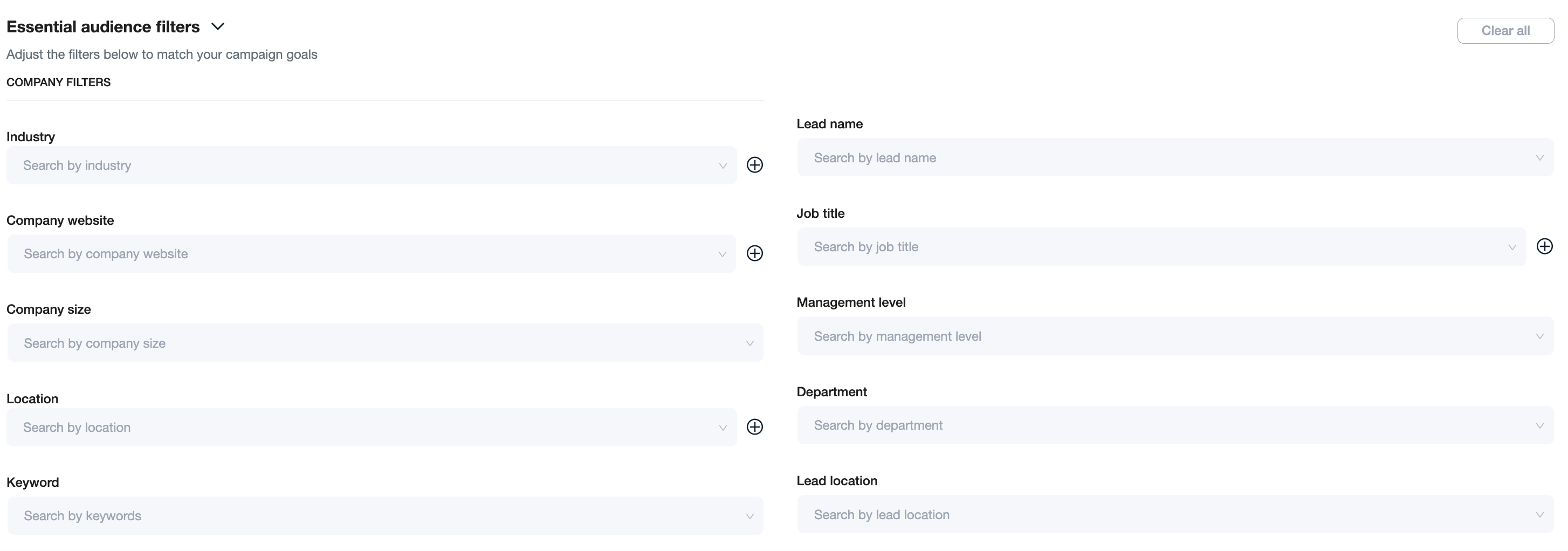
The Filter-based search gives you the most comprehensive lead coverage by combining multiple data providers - through a sequential, multi-source strategy. However, it might be more limiting than LiveAi.
How It Works:
Unified runs a waterfall search, gradually moving through multiple sources to get a full list of leads per company:
We search for leads at the company level using our internal databases. If we find the specified number of leads per company, we return them and move to the next company.
If fewer than no leads are found, we move to the next step.
Fallback to Sales Navigator
The system continues the search in Sales Navigator to fill the gaps.If we reach the specified number of leads, we stop.
Otherwise, we proceed to the final step.
✅ Duplicate Prevention:
During the search, we check for duplicate leads across sources to avoid repeats.
Why use Filter-based?
This type of search is best fitted for when you need to find the exact job titles or if you need to run a broader search. For all the other use cases, it is better to start with LiveAi.
Read more on how to build you Filter-based campaign here:
📄 Step-by-step guide: How to Set Up a Cold Outreach Campaign in AiSDR
👥 Sales Navigator
The Sales Navigator database allows you to search for companies and leads directly via LinkedIn Sales Navigator.
⚙ How It Works:
Option 1: Use Filters
Enter your targeting filters directly in Sales Navigator database
Sales Navigator returns matching leads based on those criteria
Use Advanced Audience filters to find more specific information about the lead:
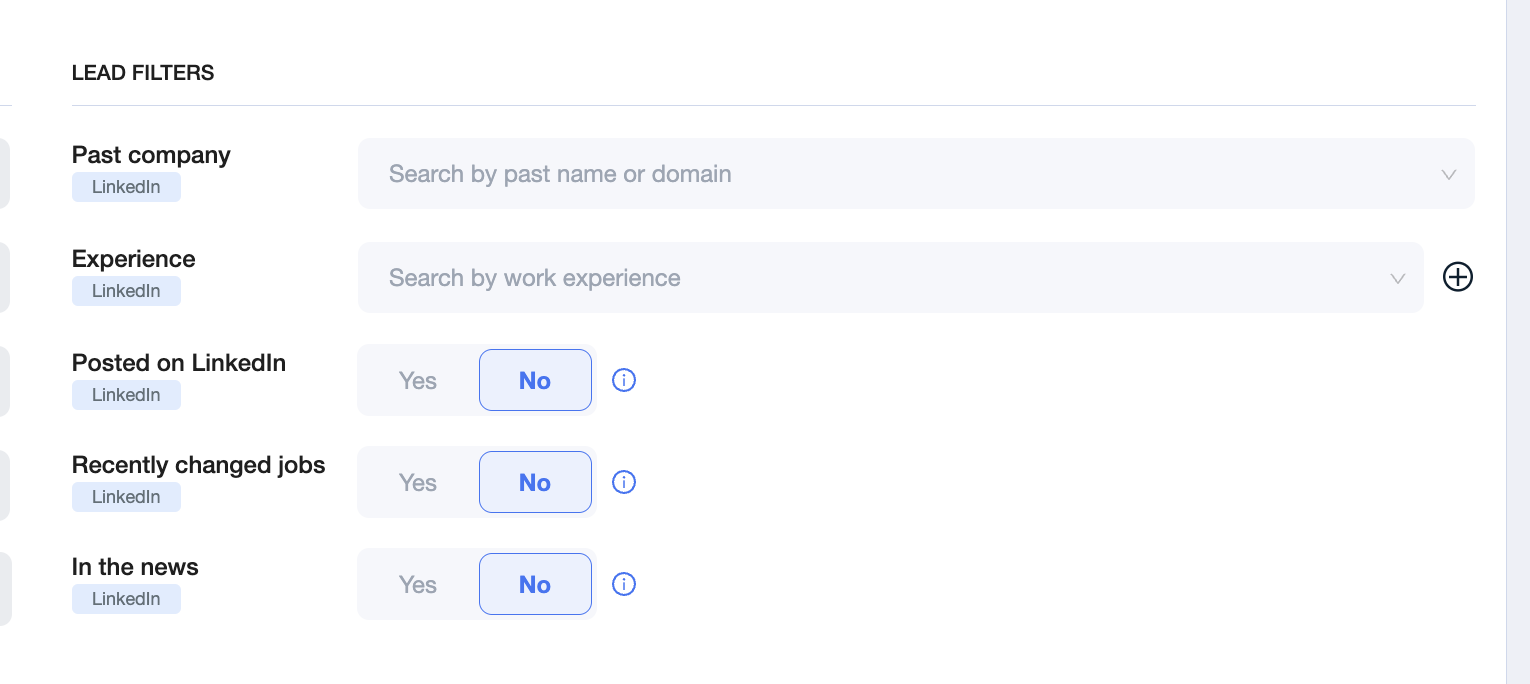
Option 2: Use a Sales Navigator Link
You can also search directly using a Sales Navigator link - a powerful way to bring in leads from your pre-configured LinkedIn search.
How to Use It:
Paste your Sales Navigator search link into AiSDR (Advanced audience filters)
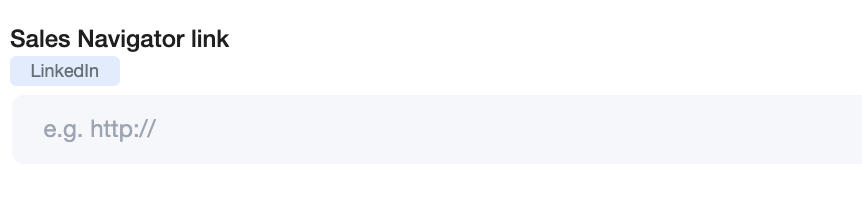
Our system will read the filters from that link and return leads based on your criteria.
🔗 Important: Use a Raw Link, Not a Saved One
For the search to work, the link must contain all visible filters - this is what we call a raw link.
If your link is a saved search (from your account dashboard), the filters would be hidden, and we won’t be able to process it.
💡 Quick Fix:
If you have a saved search you want to use, you should:
Open your saved search -> change or re-apply any filter (e.g., toggle a job title or location) -> the URL will convert into a raw link with all filters visible.
Once the link is raw, you're good to go - AiSDR will read the criteria and return matching leads.
⚠ Important Limitation:
Some account-specific filters from Sales Navigator are not supported. If your search link includes any of these, the system will display an error.
❌ Unsupported Filters:
Buyer Intent
Following your company
Viewed your profile recently
Best Path In
Connection / Connections of
Past colleague / Shared experiences
Workflow
Persona
Account lists / Lead lists
People in CRM / People you interacted with
Saved leads and accounts
🛠 Key Strengths:
Excellent for leveraging existing LinkedIn searches
Integrates with your Sales Navigator workflow
💡 Choosing the Right Database | |
Need maximum lead volume & depth | ✅ Unified |
Want to search more detailed info about leads, or to use your existing LinkedIn searches | 👥 Sales Navigator |
Need freshly verified, real-time leads delivered straight into outreach | 🤖 LiveAI |
🪞Lookalike
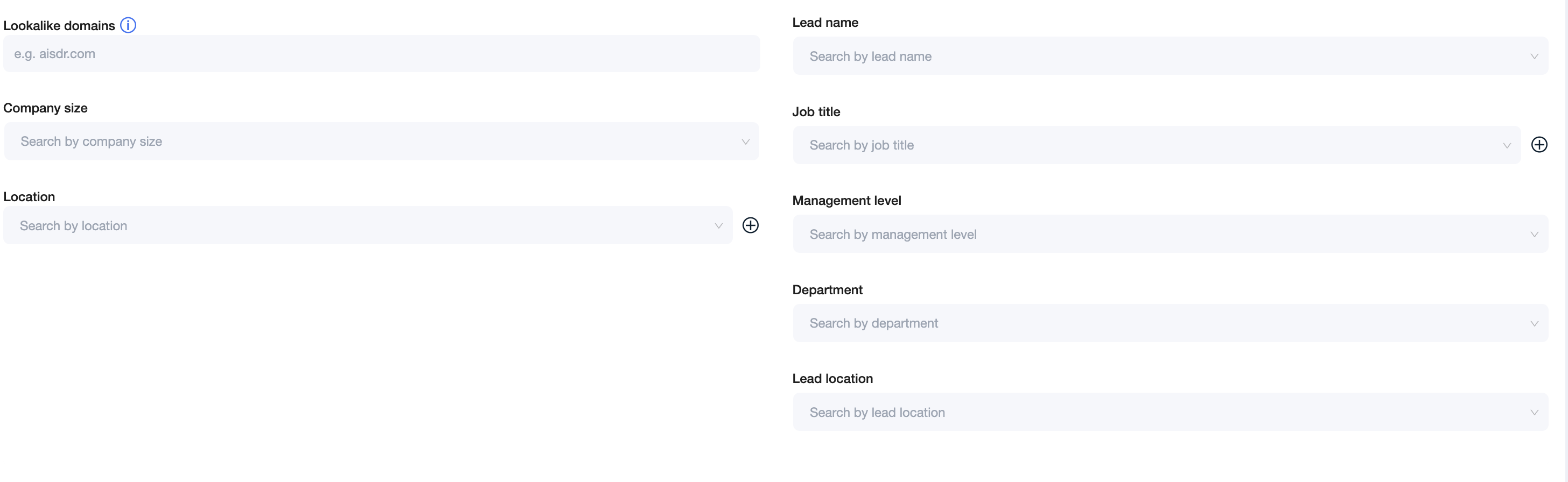
Creating a Lookalike Campaign allows you to replicate the success of your best-fit customers by targeting companies that resemble them. AiSDR’s Filter-based Database and Advanced Audience Filters make this powerful targeting easy.
You can add up to 3 domains of your best customers and we will start searching for their lookalikes and filter out the audience based on the selected filters.
We recommend using the clients from the same industry to make the search more targeted.