HubSpot + AiSDR integration
Last updated: September 4, 2026
The HubSpot integration with AiSDR helps you connect accounts, set up campaigns, sync and enrich leads, and manage suppression lists with ease. These guides explain how to configure the integration and keep your data consistent across both platforms.
🔗 Connecting HubSpot to AiSDR
Integrating HubSpot with AiSDR can simplify your outreach efforts and improve lead personalization. Here’s a step-by-step guide to help you get started:
Log in to AiSDR
Begin by logging into your AiSDR account. Once logged in, navigate to the Settings > Integrations page.Connect HubSpot
Find the HubSpot integration and click on the Connect button. You’ll be prompted to log into your HubSpot account and authorize the connection. Select the appropriate HubSpot account to proceed.
Set Default Campaign Connections
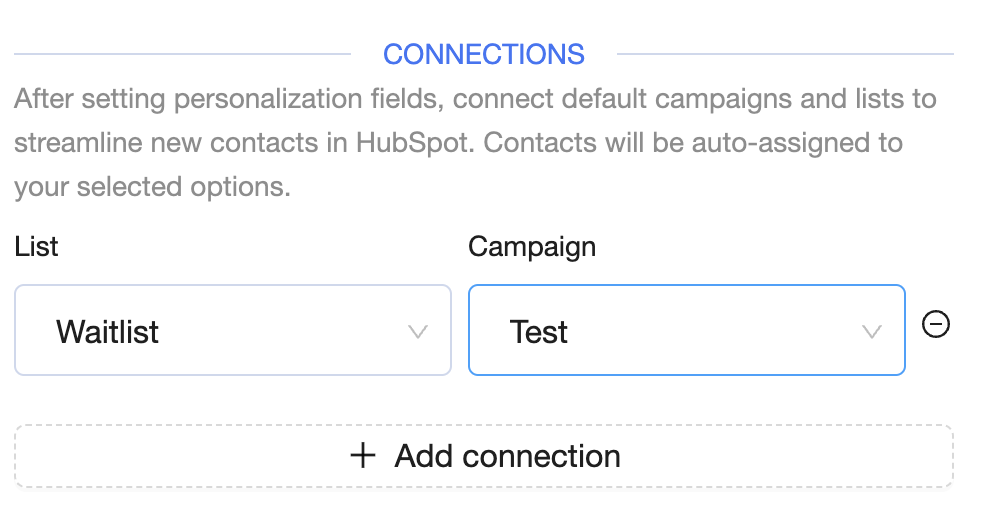
You can also connect your HubSpot lists to specific campaigns in AiSDR. Assigning a list to a campaign ensures that any new contacts added to your list in HubSpot will be automatically assigned to the appropriate campaign in AiSDR.
🔒 What Access Does AiSDR Require?
When you integrate HubSpot with AiSDR, the platform gains access to your contacts, lists and calendar links. This means AiSDR can view and sync contact lists, along with the specific contact properties you want to use in your sales outreach.
It only accesses and syncs the data that you choose to integrate.
How Syncing Works
If you enable contact and event syncing in AiSDR’s campaign settings, any contact updates made will reflect in HubSpot. This includes contact details like company name, LinkedIn profile, and similar, as well as emails sent, and responses received, allowing you to track engagement directly within HubSpot.
🚀 Setting Up a Campaign Using HubSpot Lists
Follow these steps to launch an AiSDR campaign with your HubSpot leads in just a few clicks:
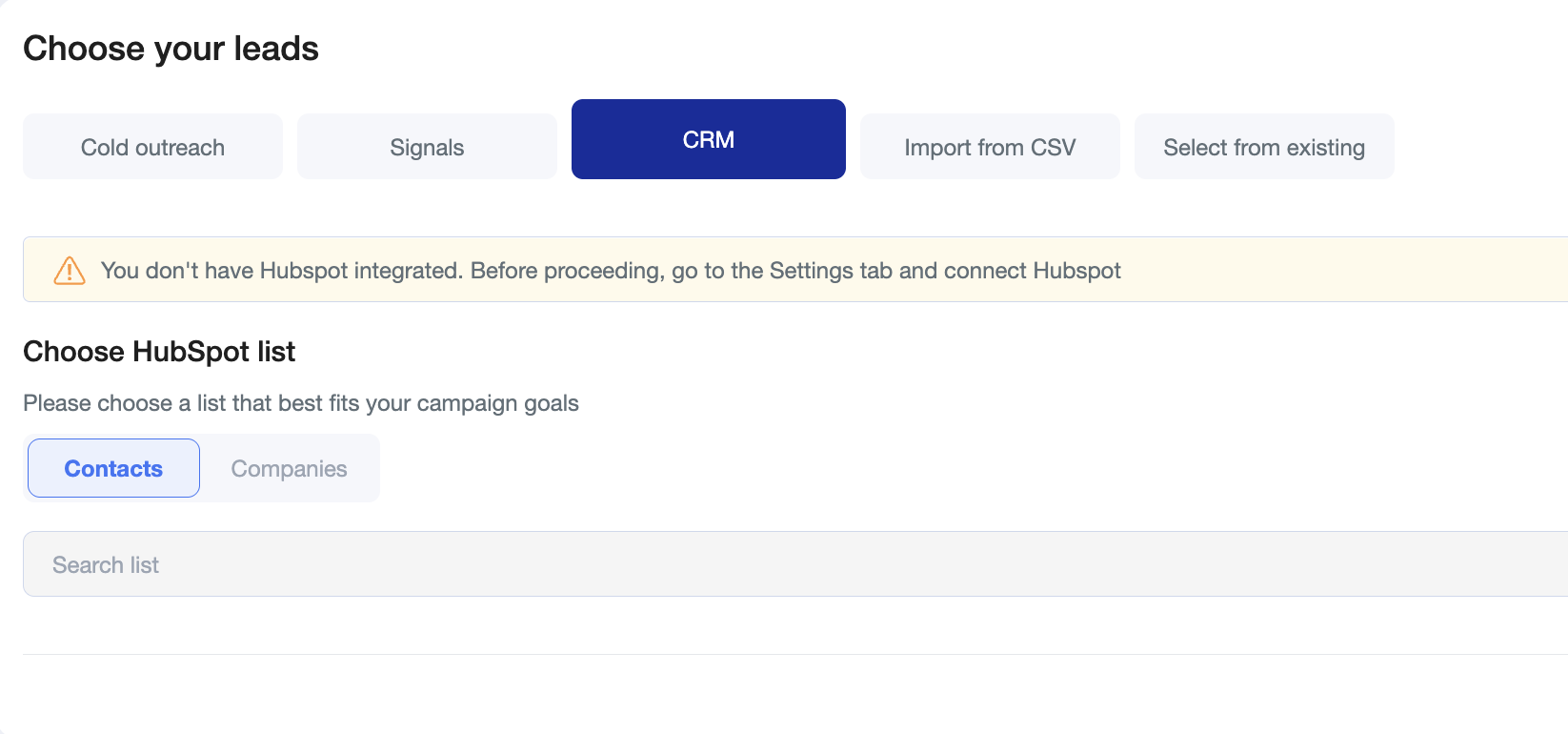
Go to the Campaign Builder – Navigate to the CRM tab and select the list of leads you want to contact.
Customize Personalization – Choose the personalization properties from those you already set up on the Settings page.

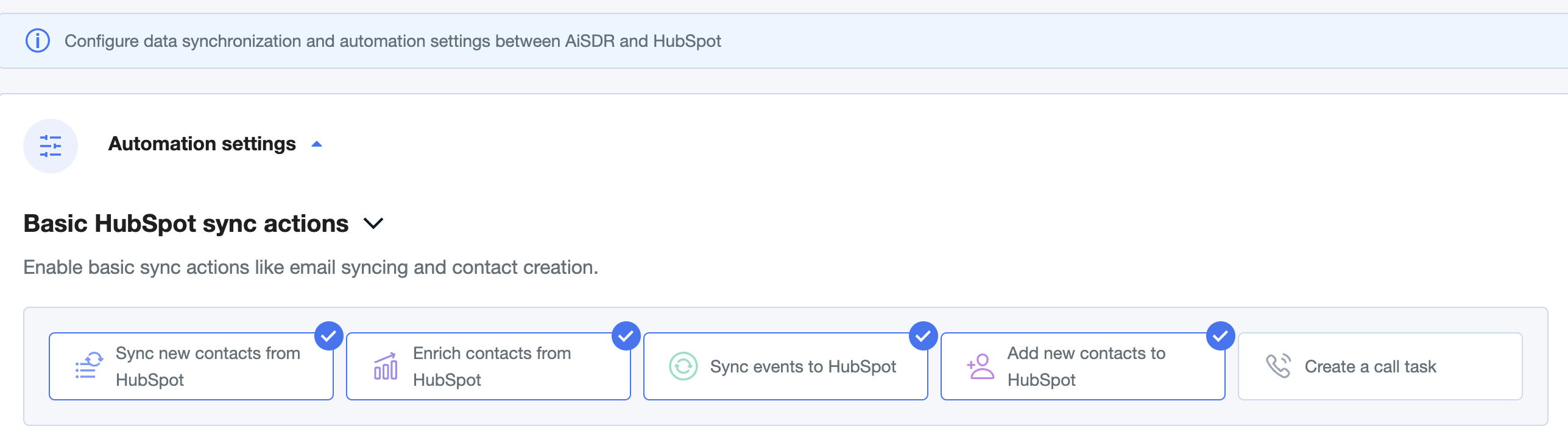
Select Sync Actions – Pick the Basic Sync Quick Actions to ensure smooth integration between AiSDR and HubSpot.
Complete Campaign Setup – Go through the usual steps of campaign setup.
🌐 Enriching HubSpot Company List With Leads in AiSDR
Before we start:
Make sure your HubSpot account is connected to AiSDR.
Check if your HubSpot companies should have valid websites/domains added.
Steps:
Go to Campaign Builder → CRM tab.
Switch the source to Companies.
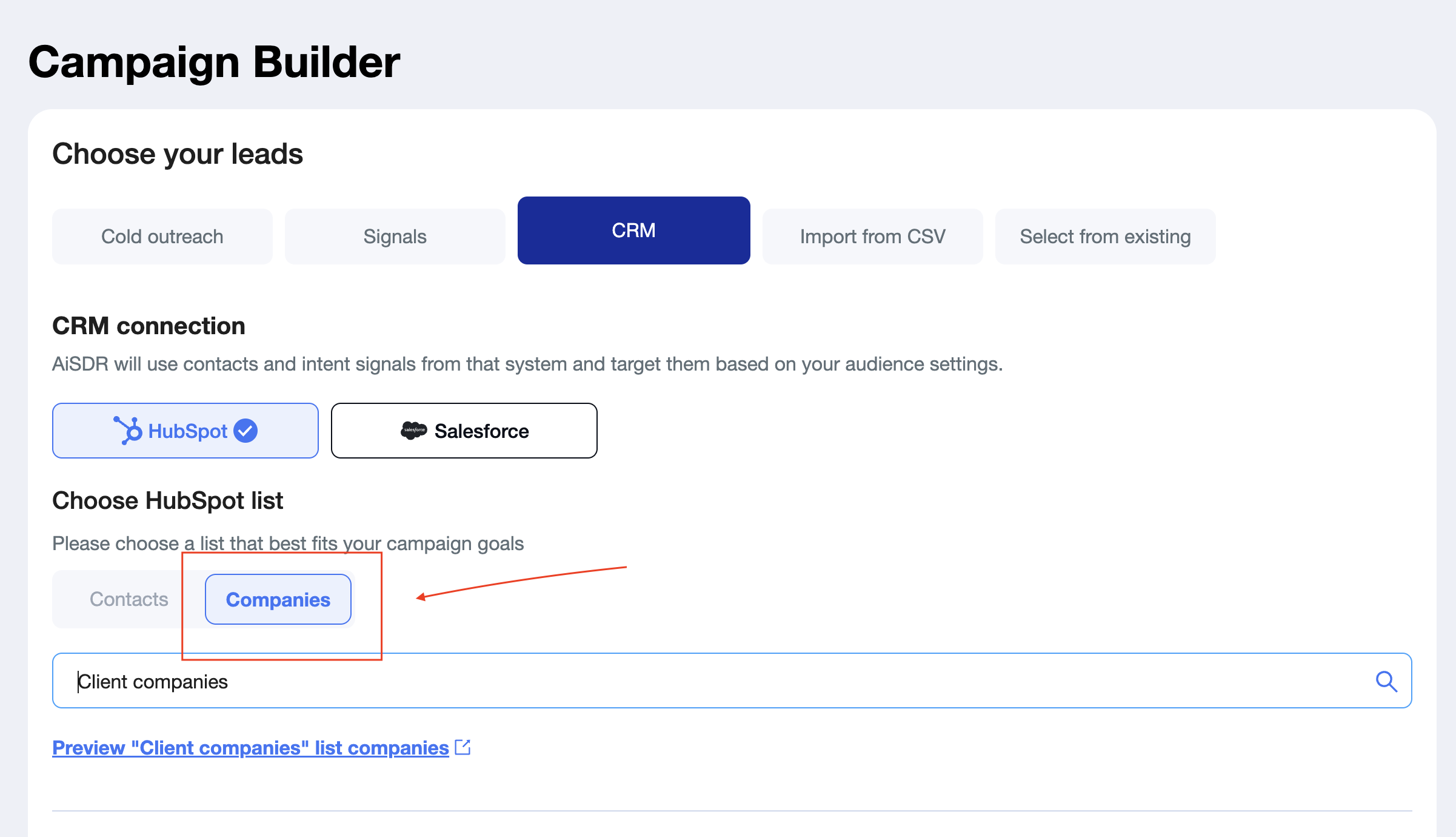
Pick the Company list you want to target.
Set up filters to narrow down Job title and Location (e.g., “Head of Sales”, “United States”).
Review the results, deselect any you don’t want, and add the leads to your campaign.
Finish the remaining campaign steps (senders, persona, schedule).
If you want new contacts and activity to appear in HubSpot, enable Sync new contacts to HubSpot and Sync events to HubSpot.
Tips:
Start broad, then tighten filters if you get too many results.
If you see few or no leads, check that each company in HubSpot has a domain.
What’s next?
Once you’ve added the right leads, complete the campaign setup and launch. For a full walkthrough, see our campaign setup guide.
🖇 What Data Can Be Synced Back to Your HubSpot?
When AiSDR sends lead information into your HubSpot CRM, a set of default properties and activity events is automatically synced to help you keep all lead details and interactions in one place.
🔄 1. What Data Gets Synced Back to HubSpot?
AiSDR syncs both AiSDR-specific fields and standard lead details directly into your HubSpot contact properties.
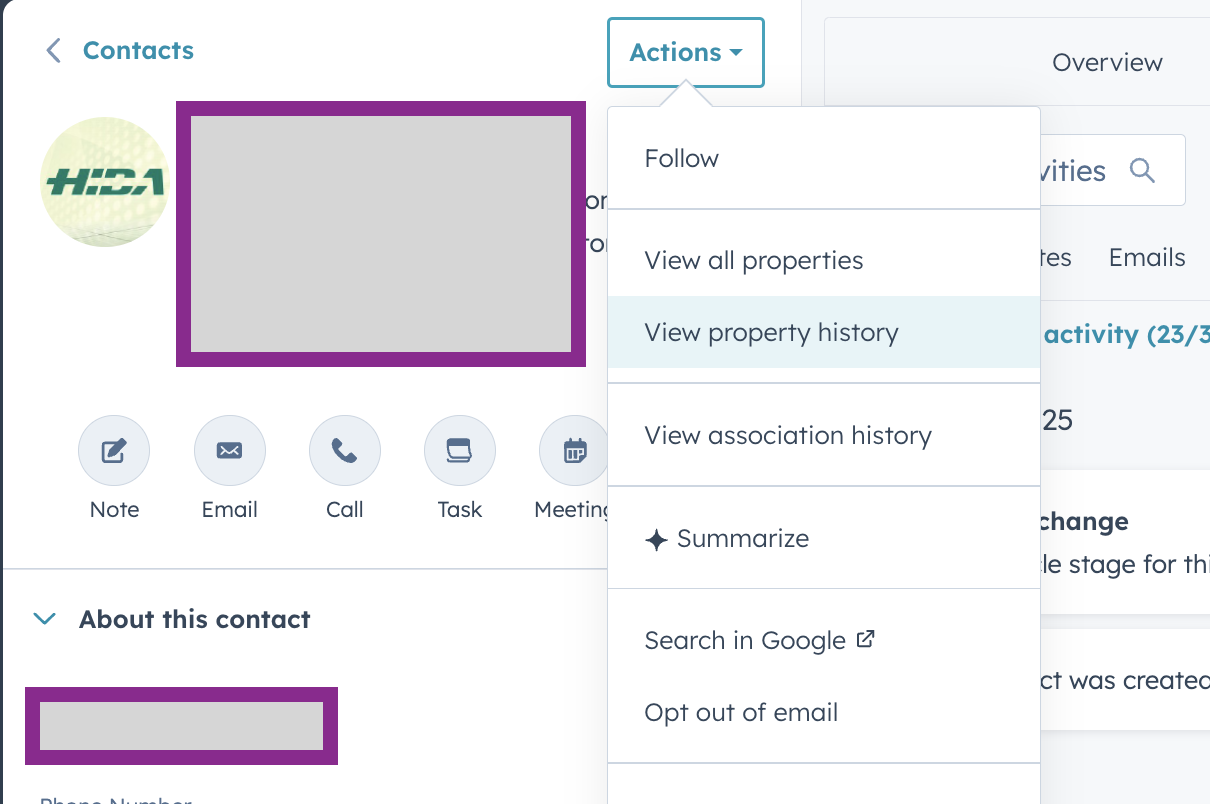
You can view these in HubSpot under: Contact Record → View all properties → Property History
This section will show every field updated by AiSDR.
🧩 2. Default Properties Synced by AiSDR
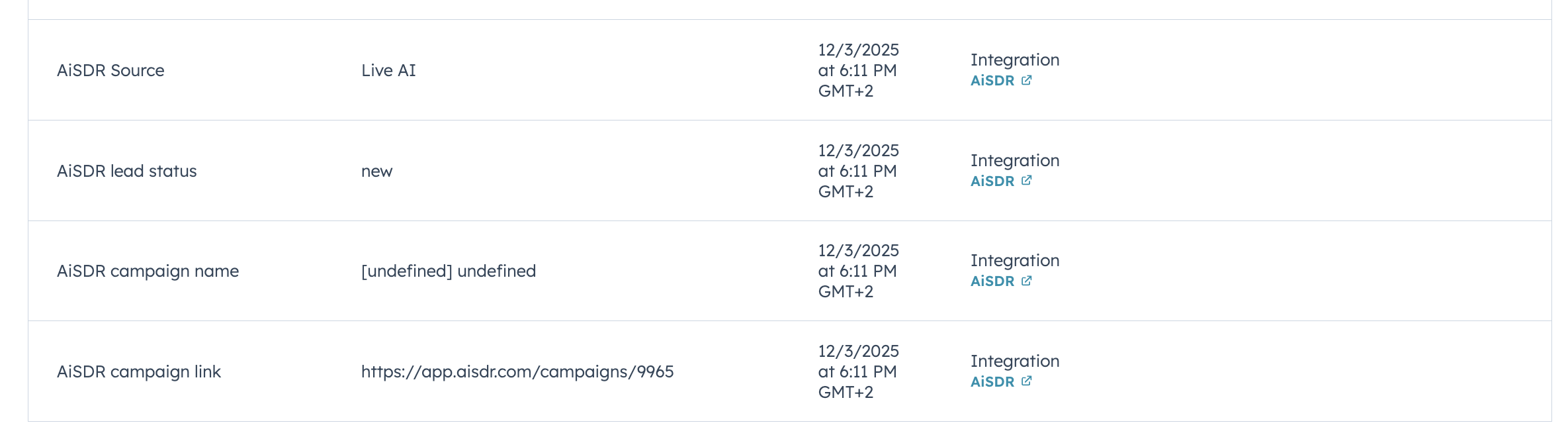
AiSDR Information
These fields help you understand where the lead came from and how it has been processed inside AiSDR:
AISDR Source (Database)
AISDR Lead Status
AISDR Campaign Name
AISDR Campaign Link
Lead Details
AiSDR also pushes essential contact and company attributes, providing better context for segmentation, personalization, and analytics:
Company name
Region
Short name
Last name
LinkedIn URL
Industry
Job title
Website URL
Email
Create Date
These fields populate automatically when AiSDR transfers the lead into HubSpot.
🗂 3. What Events Are Logged on the Lead Page?
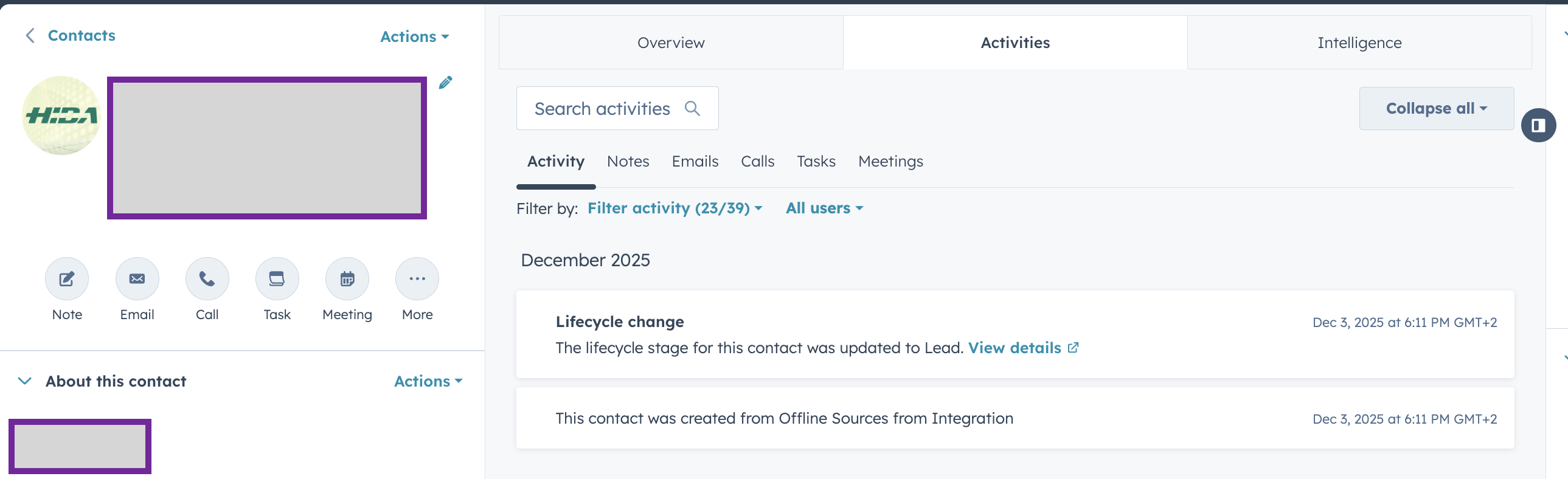
AiSDR logs relevant interactions under the HubSpot Activities section.
To find this, go to: Lead Page → Activities Tab
Here’s what you will see:
Activity Overview
HubSpot’s Activities tab includes a combined stream of:
Notes
Emails
LinkedIn events
Calls
Tasks
Meetings
Any email or LinkedIn event pushed by AiSDR will appear here.
Important Note About Meetings
Only meetings booked via HubSpot meeting links will be tracked and displayed under the Meetings section.
🔄 How to Sync New Leads Back to HubSpot
You can turn on HubSpot sync while building a campaign or at a later stage.
Make sure your HubSpot account is connected to AiSDR before creating a campaign. You can check it in Settings.
Option A — Turn it on during campaign setup
Go to Campaign Builder and find/select your leads.
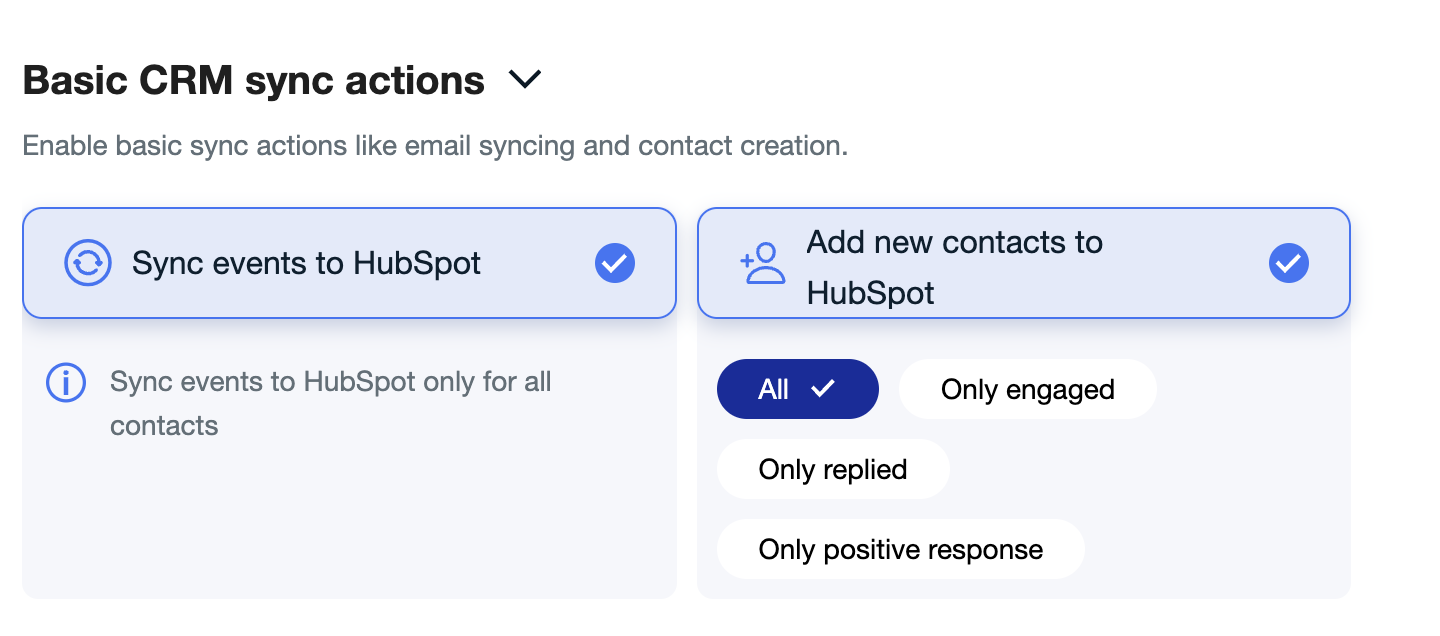
Don't skip the Basic CRM sync actions, and choose the applicable option:
Sync events to HubSpot — sync messages and other actions only for the contacts that are already added to your HubSpot.
Sync new contacts to HubSpot — creates new contacts in your HubSpot for leads AiSDR found and enriched.
When syncing contacts to HubSpot, you have 4 options to choose from:
All – Sync absolutely every lead to HubSpot, even if the lead is on a suppression list.
Engaged – Sync only contacts we’ve interacted with in some way (e.g. sent a message, connection request, or like).
Replied – Sync only contacts who have replied.
Positive Response – Sync only contacts who gave us a positive reply or booked a call.
Important Behavior
If you select Positive Response, a contact will only appear in HubSpot after we’ve received a positive reply. At that point, we’ll also retroactively sync the full conversation history with them.
You can also choose to sync only contacts or only events:
If syncing only events, those events will appear in HubSpot only if the contact already exists in the connected campaign list.
If syncing only contacts, HubSpot will receive only the contacts that match the chosen scope (All, Engaged, Replied, or Positive Response).
Create your campaign.
Option B — Enable it in the existing campaign
Open the campaign.
Click Edit and scroll down to Basic CRM sync actions.
Enable the sync options and don't forget to click Save.
Important: If you enable sync after the campaign has already started, only new leads (created after you turn it on) will be synced.
Tips
Turn on both toggles if you want contacts and their activity into HubSpot.
Keep the setting on for future updates to flow automatically.
When leads are synced in Hubspot from AiSDR, no owner will be assigned and their source will be Integration, AiSDR.
🚫 How to Suppress Leads From HubSpot Lists
Automatically keep your suppression list updated in AiSDR with HubSpot integration - no manual work required.
How to Add a Suppression List (Static or Dynamic)
Go to Leads > Suppression List
Select the HubSpot tab
Choose whether you want to suppress contacts by email address (individual contacts) or by company domain (entire companies).
To do this, select either a Contact List or Company List type.
Choose the list you want to suppress
Click the Upload button
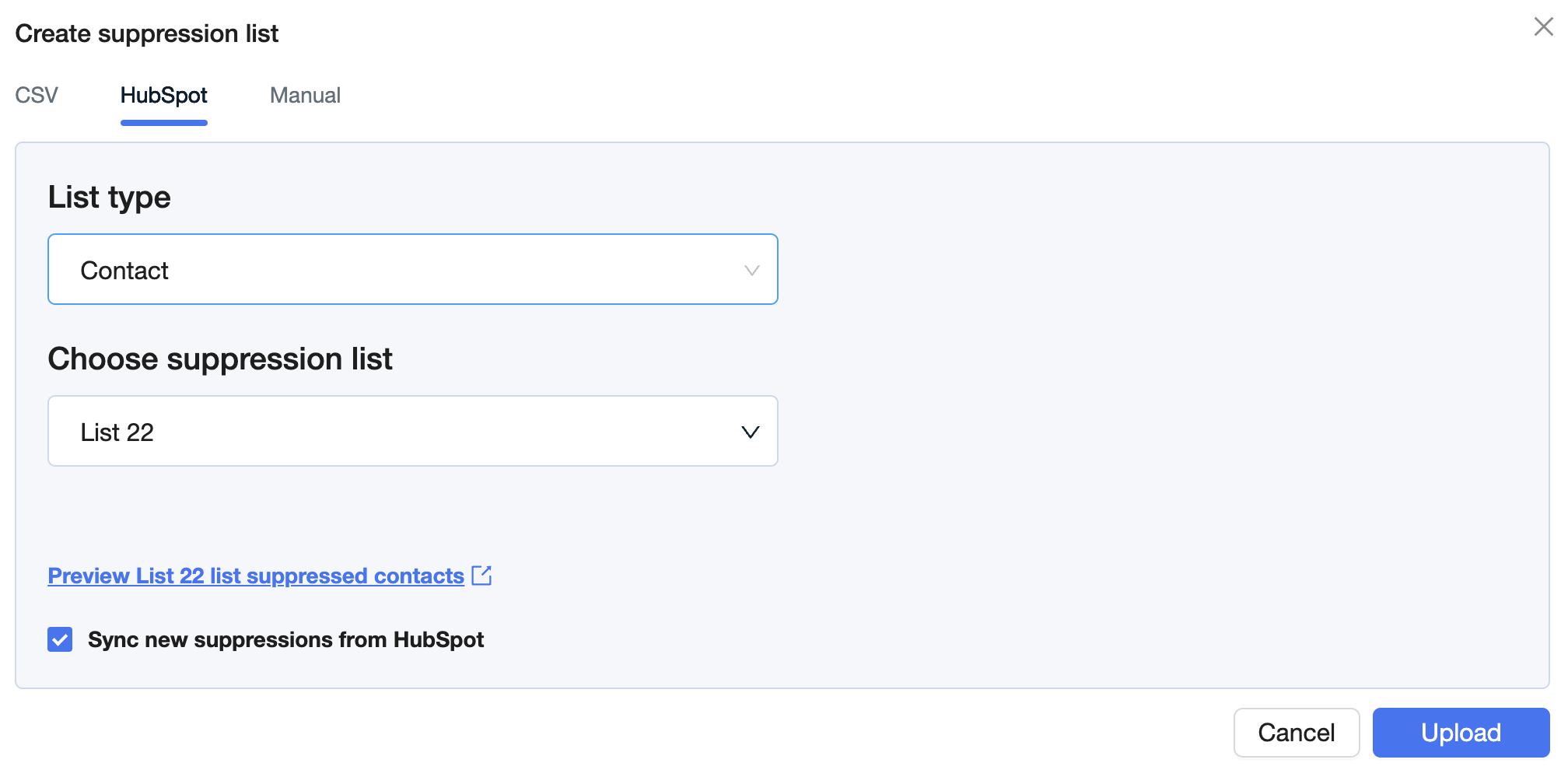
That’s it! The integration ensures that contacts you don’t want to reach are automatically synced, keeping your outreach clean and compliant, without any manual updates.
↻ How to Sync Custom Properties to AiSDR
If you’d like to sync additional HubSpot properties into AiSDR, you can easily customize which fields are brought over. This allows you to enrich your data and improve personalization.
Below is a step-by-step guide on how to select and sync the HubSpot properties you need:
Go to Settings
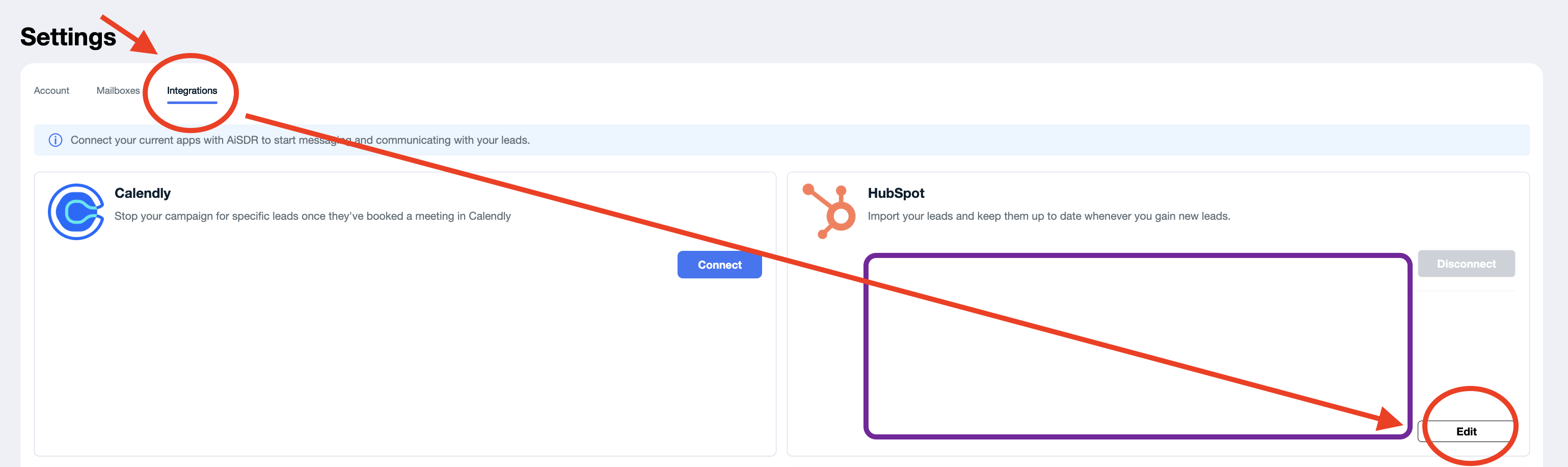
Open the Integrations section
Click Edit
Find the Properties section
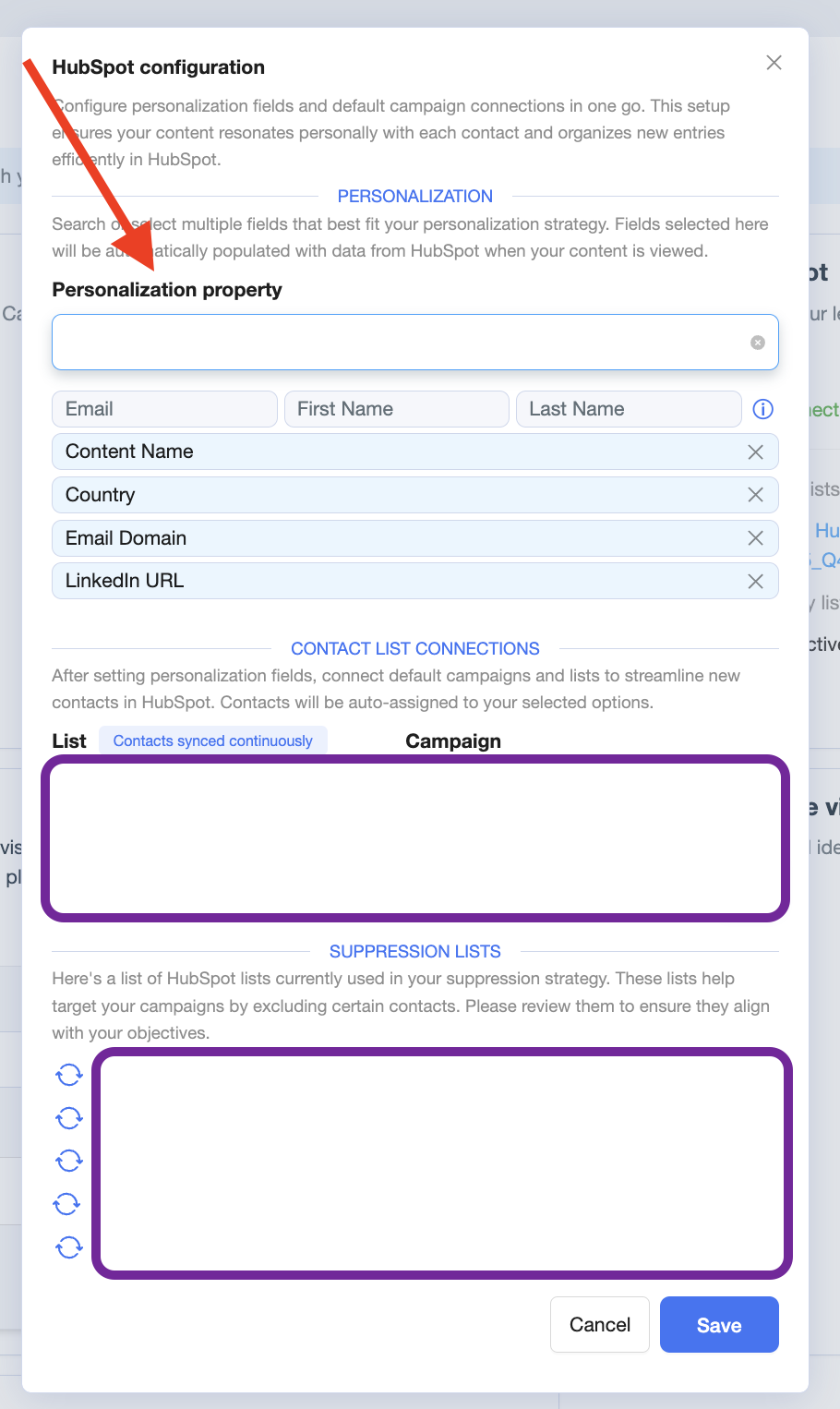
Select and sync the HubSpot properties you need and don't forget to Save
Once synced, these properties become available for use inside AiSDR prompts.
If a property isn’t synced, AiSDR won’t be able to reference it in emails.
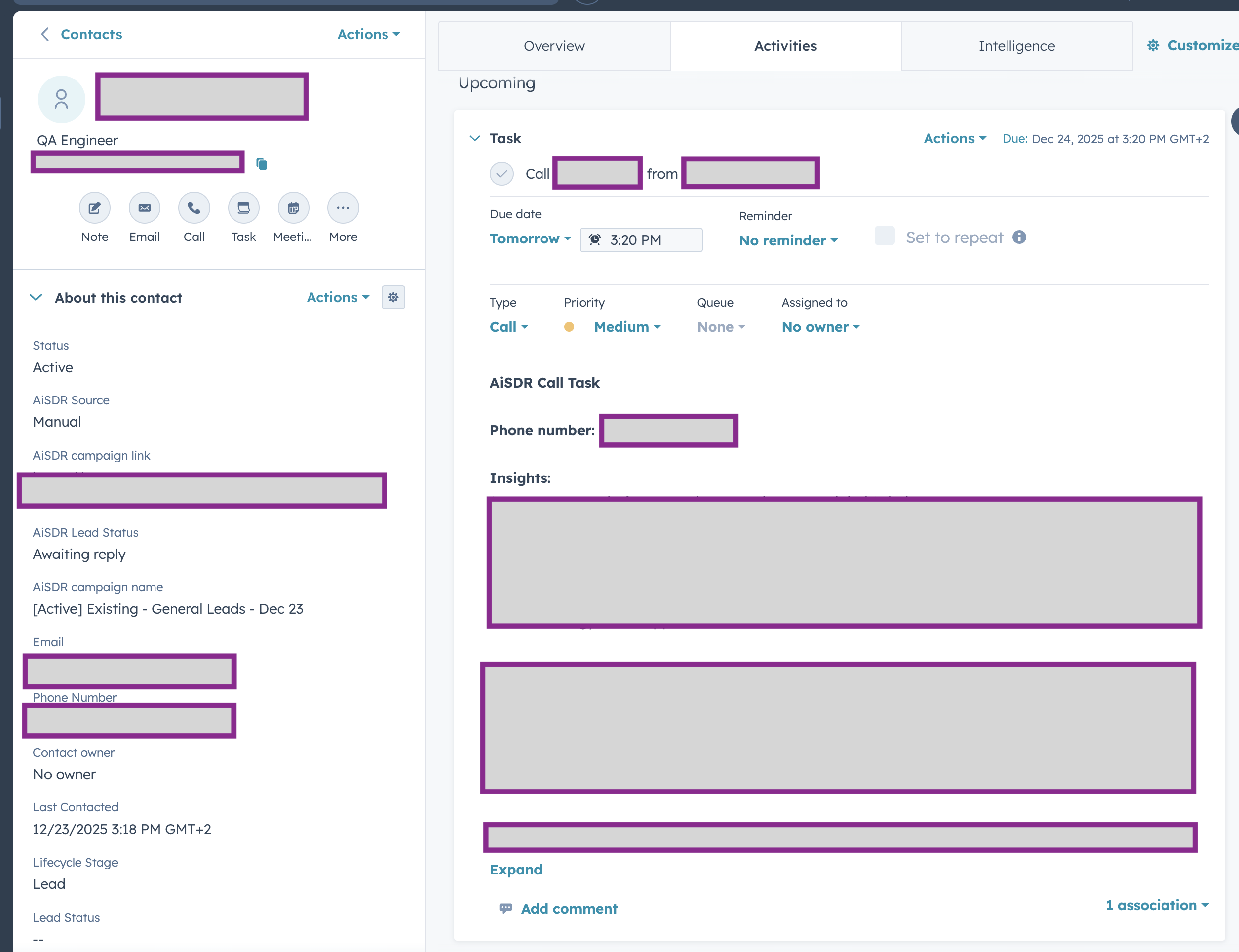
📞 Automated Call Tasks in HubSpot
You can now automatically create call tasks in HubSpot directly from AiSDR workflows.
These tasks are designed to help execute calls more efficiently by including all necessary context in one place, such as:
Call scripts – AI-generated or predefined talking points to guide the conversation
Research steps – structured prep instructions to help reps understand the prospect before calling
Phone numbers – automatically pulled from the HubSpot contact record, so reps can call without manual lookup
Once created, these call tasks appear natively in HubSpot and can be managed like any other HubSpot task. This ensures better alignment between AiSDR-driven outreach and sales follow-up, reduces manual work for reps, and improves consistency across calling efforts.
👀 Advanced HubSpot features
🗑 Deleting contacts
Deleting a contact in HubSpot does not delete it in AiSDR. You need to remove the contact in AiSDR as well.
The CRM sync covers creating contacts, updating contacts, activities, and deal info. Contact deletions are not propagated in either direction — so if you delete someone in HubSpot, their record still exists in AiSDR until you remove it there yourself. The same applies in reverse: removing a lead in AiSDR won't delete the contact in HubSpot.
✨ What this means in practice
A contact deleted in HubSpot stays in AiSDR and can still be contacted if they're in an active campaign
A lead removed in AiSDR stays in HubSpot
Deleting the contact in both HubSpot and Salesforce still doesn't remove it from AiSDR - the rule applies to every connected CRM