How to Manage Lead Replies in AiSDR?
Last updated: February 19, 2026
When you creating a campaign, you’ll have the option to enable AI Smart Replies or leave them disabled. What's better?
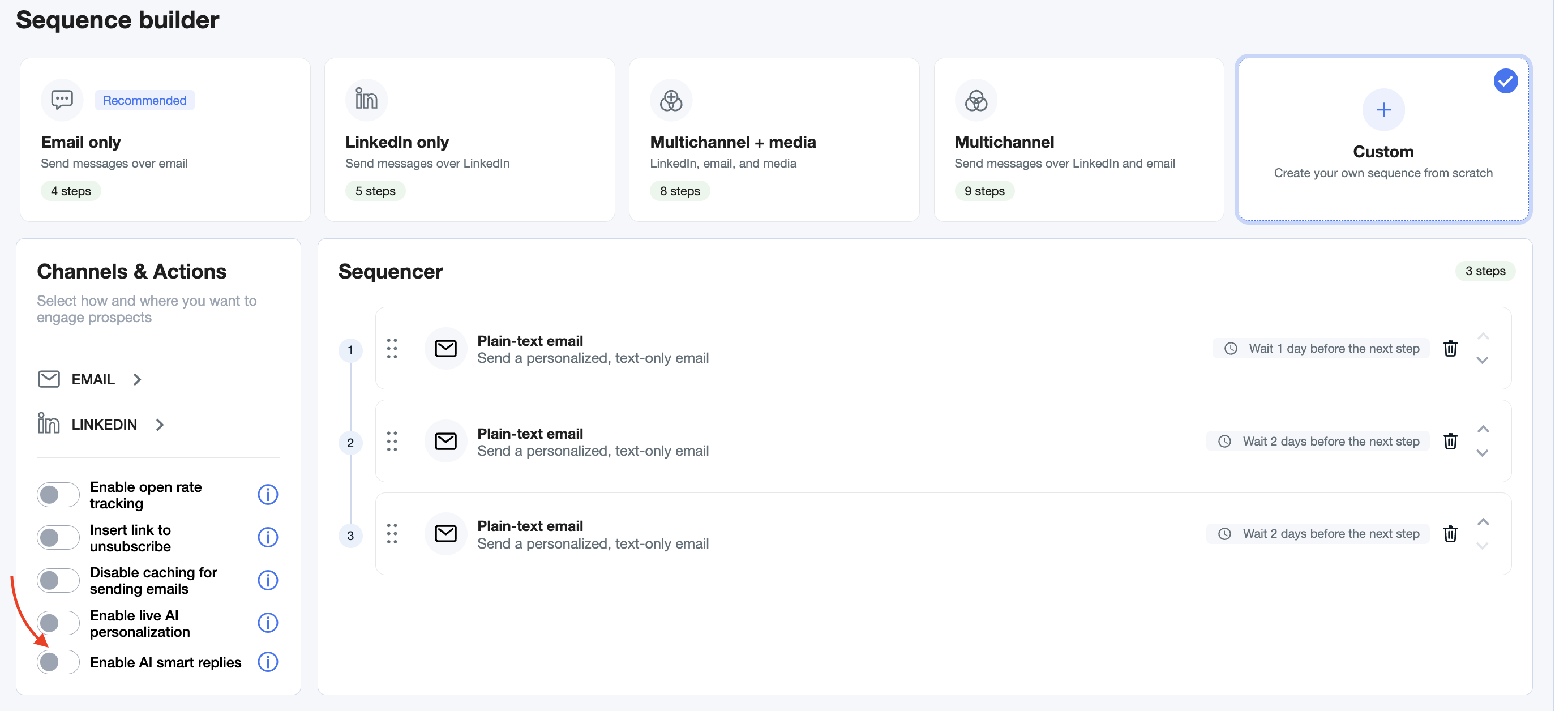
⚙ Options for Managing Lead Replies
Option 1: Replying Manually using AiSDR Dashboard
👉 If you choose manual handling, AI will stop engaging as soon as the lead replies.
👉 You’ll take over the conversation from that point.
📌 Where to see replies
In the AiSDR Dashboard → Performance Overview — get a snapshot of all interactions.
After a new reply is received, you’ll also get notifications from AiSDR via Email and Slack.
✉ How to Reply Manually
1⃣ In the AiSDR Dashboard, click View full conversation next to the lead’s reply.

2⃣ You’ll see the full conversation thread with that lead.
3⃣ Click Manual reply to send your response.
4⃣ (Optional) Add your main work email in CC, so you can continue the conversation directly from your usual mailbox.
5⃣ When sending your reply, you now have two options:
Send & mark as positive → Sends your reply, and prevents any further AiSDR-generated outreach.
Send & continue sequence → Sends your reply but keeps the lead active in the campaign sequence, so the sequence and additional automated follow-ups will continue.
When crafting a response, keep in mind that AiSDR does not support adding hyperlinks or attachments directly to emails (e.g., PDFs, slides, or screenshots).
What you can do instead:
Upload your file(s) to a secure location such as Google Drive (or Dropbox, OneDrive, etc.).
Generate a shareable link.
Place that link in the body of your message with a short context line (e.g., “Here’s a short slide deck you might find useful: [link]”).
Option 2: Replying Manually using Inbox
👉 You can also manually reply to incoming messages directly from the Inbox section.
👉 The process is the same as replying from the AiSDR Dashboard - the only difference is where you open the conversation.
📌 How to Reply from Inbox:
Go to Inbox in the left-side menu.
Open the conversation with the lead you want to reply to by clicking on the chat.
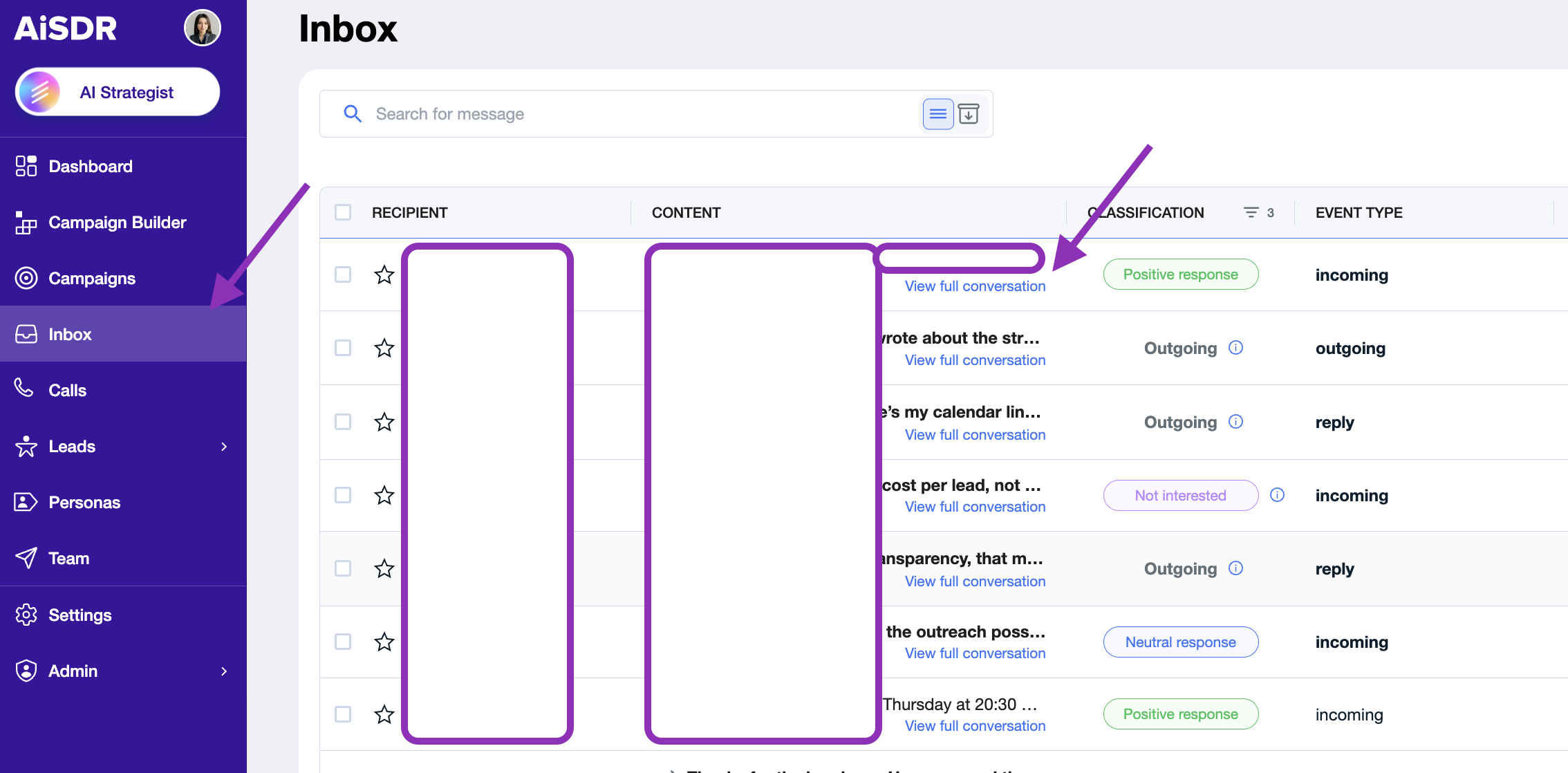
Type your message or review the AI-suggested reply, which is automatically generated based on the full conversation history, campaign context, persona, and the lead’s latest message - you can edit it, rewrite it completely, or send it as is.
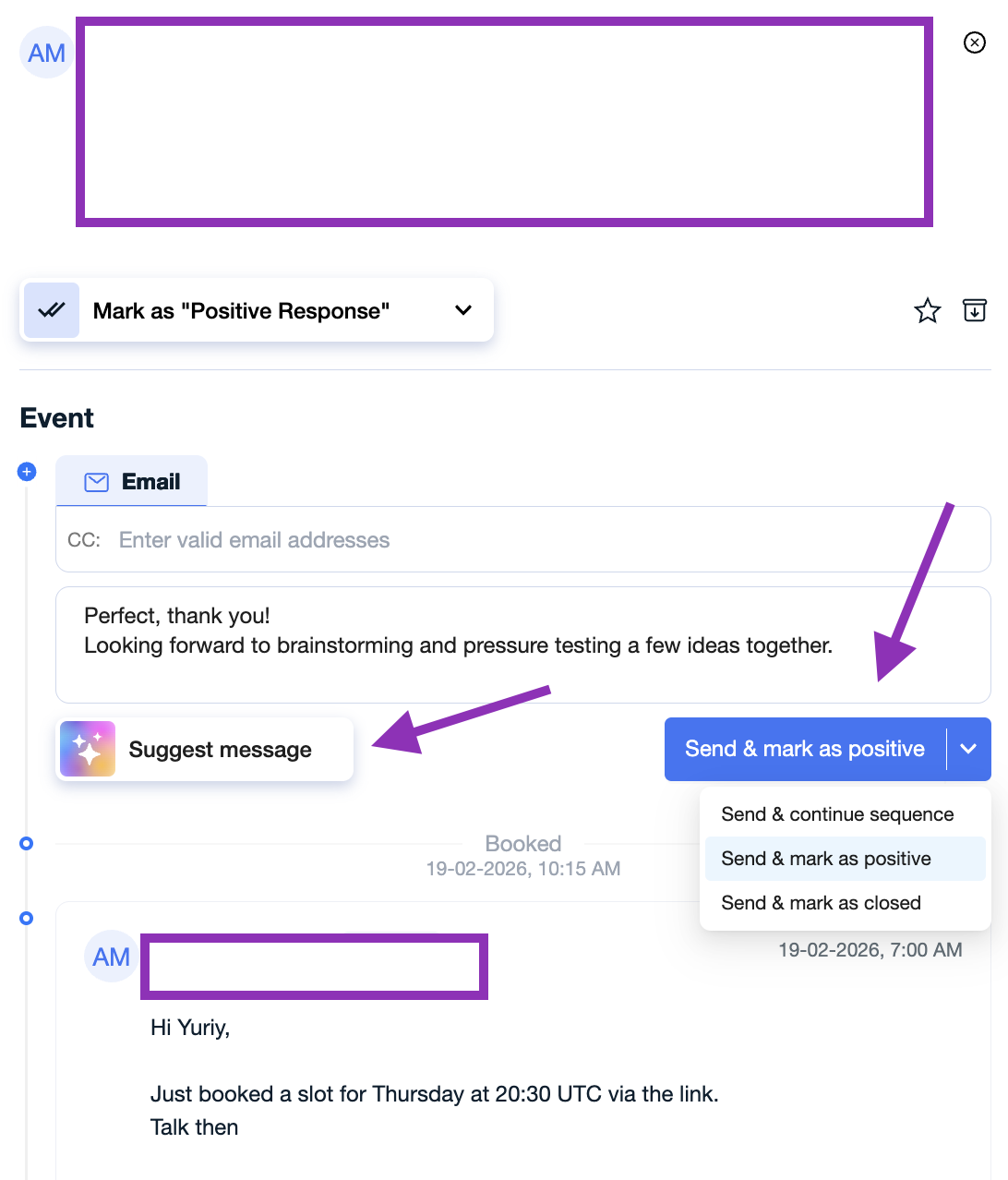
Click Send and mark as positive or any other classification.
That’s it - the reply will be sent from the connected mailbox or LinkedIn account associated with the campaign.
All responses across campaigns are centralized in the Inbox, making it easy to manage and reply to leads from one place.
Option 3: AI Smart Replies
👉 The AI will respond to the lead’s questions until they express interest in booking a meeting.
👉 Once the lead shows interest, the AI will send a link to schedule a call.
Recommendations
Activate AI Smart Replies only after ensuring that your Persona includes an FAQ section — this gives AI the necessary context to respond accurately.
Ensure your campaign goal is to book a demo or discovery call.
If you’re unsure what questions your leads might ask:
Start by handling replies manually. Observe patterns, build a knowledge base, add it to your Personas, and only then activate AI Smart Replies.
Can AI-generated replies be reviewed before they are sent?
At this stage, no. AiSDR does not support a “review before sending” mode, nor is there a way to use AI drafts when replying manually. It’s either:
You reply manually, or
AiSDR replies automatically.
The reason we don’t support a review step is that it would delay responses, which removes the main advantage of AI — quick, natural engagement with prospects. Adding manual review would slow down conversations and make AI replies less effective.
📝 Summary
Two ways to manage replies:
Let AI handle initial interactions (when well-prepared)
Take control manually by using Dashboard or Inbox (recommended at the start)
Stay on top of all replies via Dashboard, Email, and Slack.