How to Track Your Campaign Performance
Last updated: March 26, 2026
Strong campaign performance comes from knowing what is happening at every stage, spotting issues early, and making improvements based on real results. AiSDR gives you the visibility to track campaign progress, review messaging, monitor lead flow, and understand whether your campaign is performing as expected.
Understand what’s happening in your campaign
Check campaign progress, spot alerts, and understand activity trends.
📈 Where to check campaign progress
There are three recommended places to monitor campaign progress:
Sequence timeline, Latest events, and Daily performance on the dashboard.
Together, they help you understand where leads are in the sequence, what actions are happening now, and whether campaign activity is stable over time.
Sequence timeline
The Sequence timeline is the main place to understand how your campaign is progressing.
You can find it in Campaign > Campaign details > Follow-up sequence.
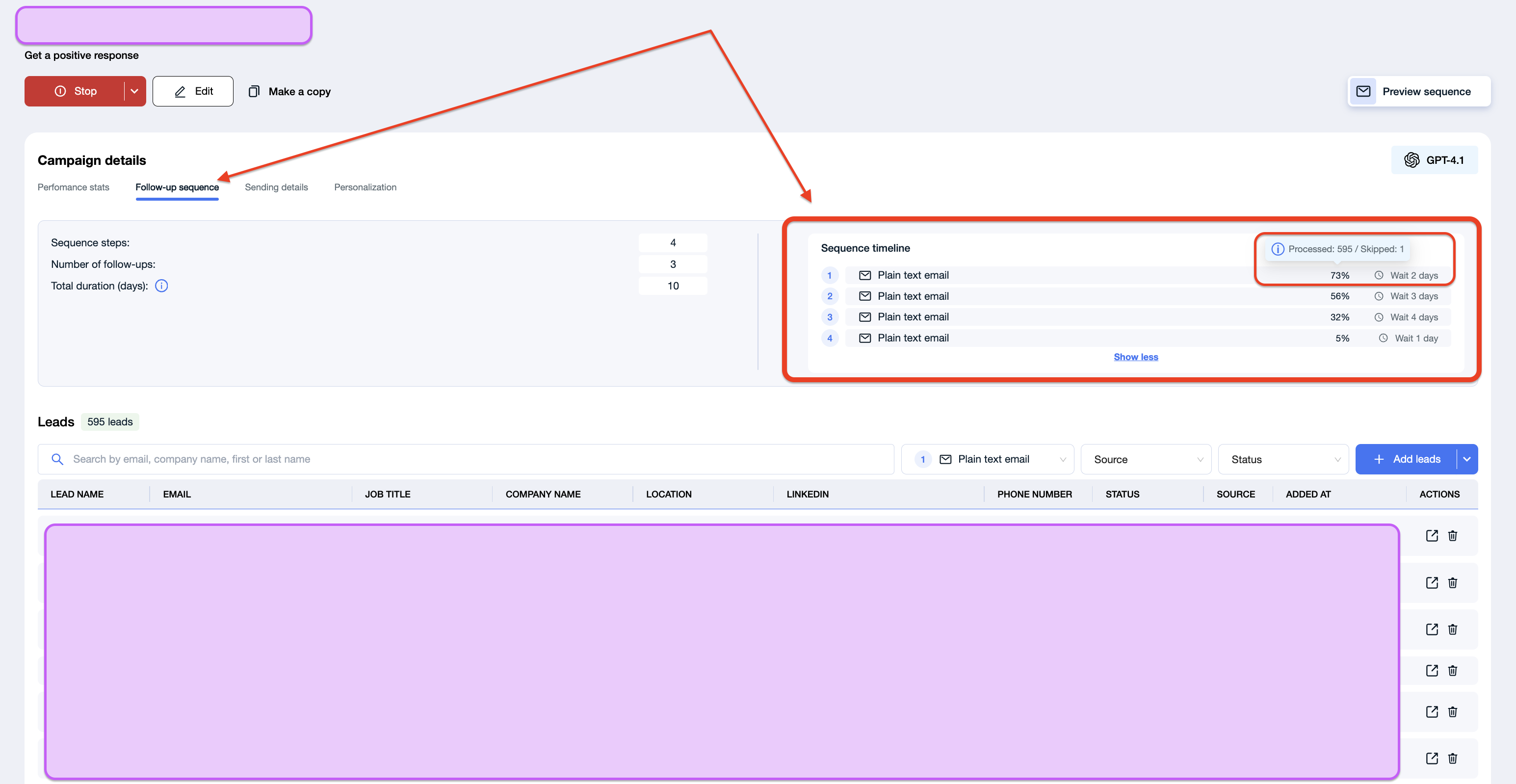
Here, you can see:
campaign completion progress
which step leads are currently in
how leads are distributed across the sequence
If you click on a step in the timeline, the Leads section updates to show the leads currently at that step. This helps you understand how leads are moving through the sequence
Latest events
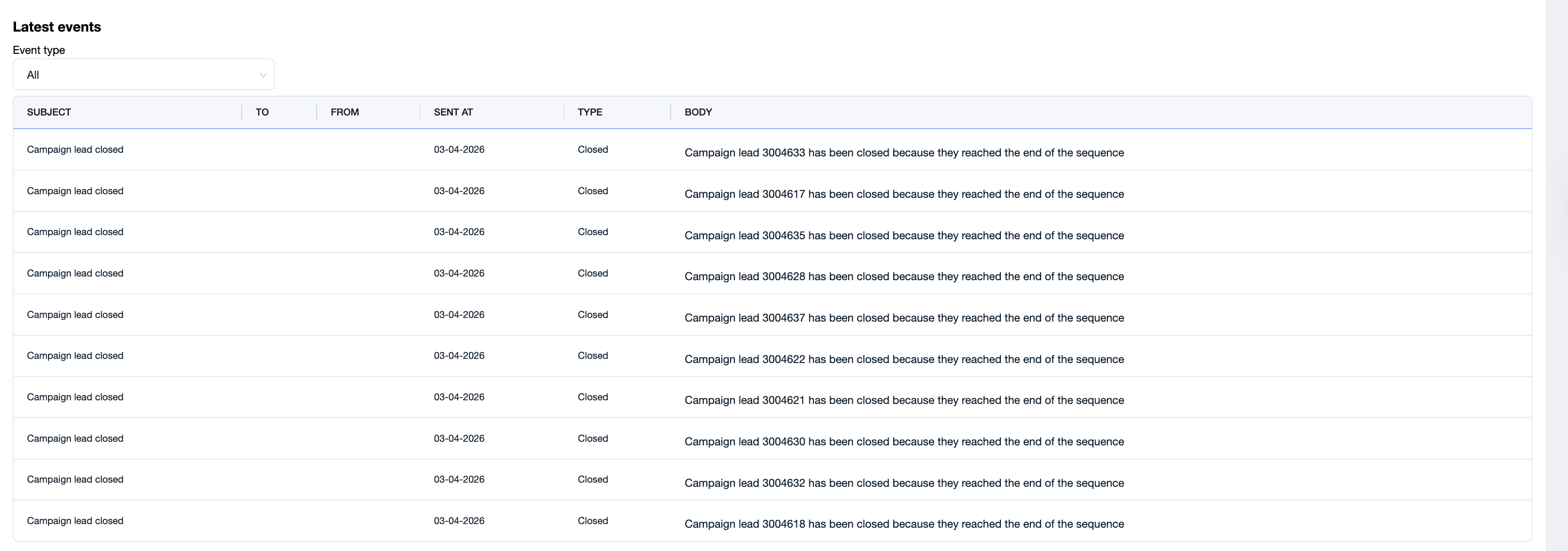
You can find the Latest events section in the same campaign, at the bottom of the page, which shows a live list of the most recent actions in the campaign
This is the best place to confirm that the campaign is actively running. You may see events such as:
emails sent
LinkedIn steps completed
leads closed
leads reaching the end of the sequence
If you see regular activity, it means the campaign has traction and is moving. For example, a message like “Campaign lead has been closed because they reached the end of the sequence” confirms that the campaign is running through to completion.
Daily performance
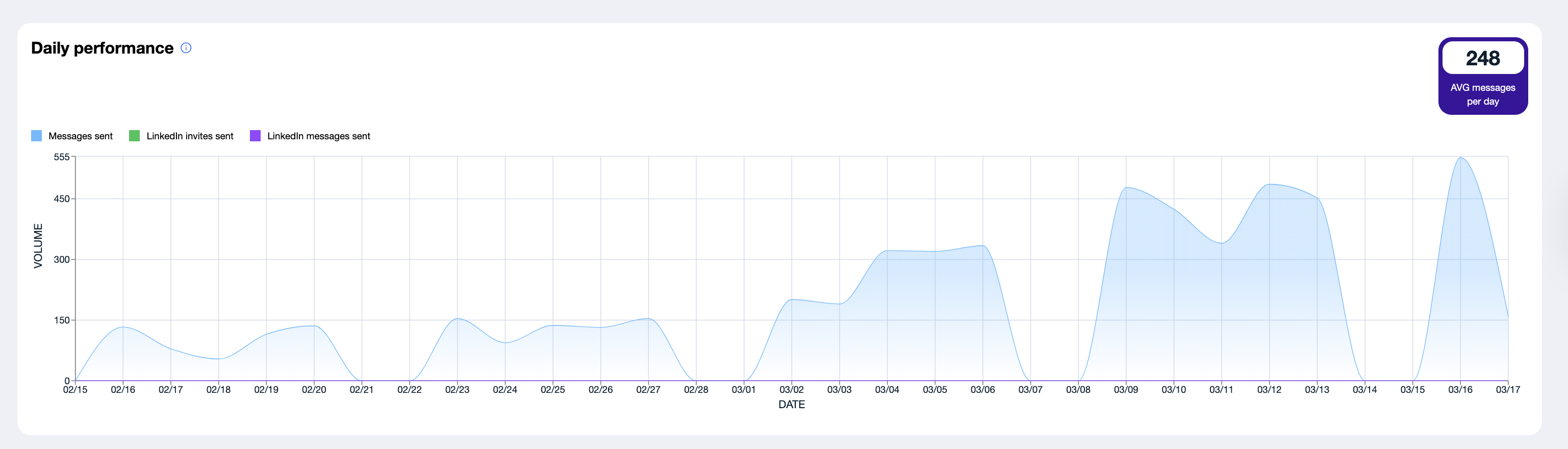
The Daily performance chart on the dashboard helps you understand the campaign’s sending trend over time.
Numbers on the Dashboard may differ from the Campaigns page because dashboard data can have up to an 8-hour delay. This is expected.
First, select the campaign you want to review + make sure to select correct date range:

Then look at the chart:
if activity is consistent or trending upward, the campaign is performing steadily
if activity is dropping or reaching zero, the campaign may be finishing or already finished
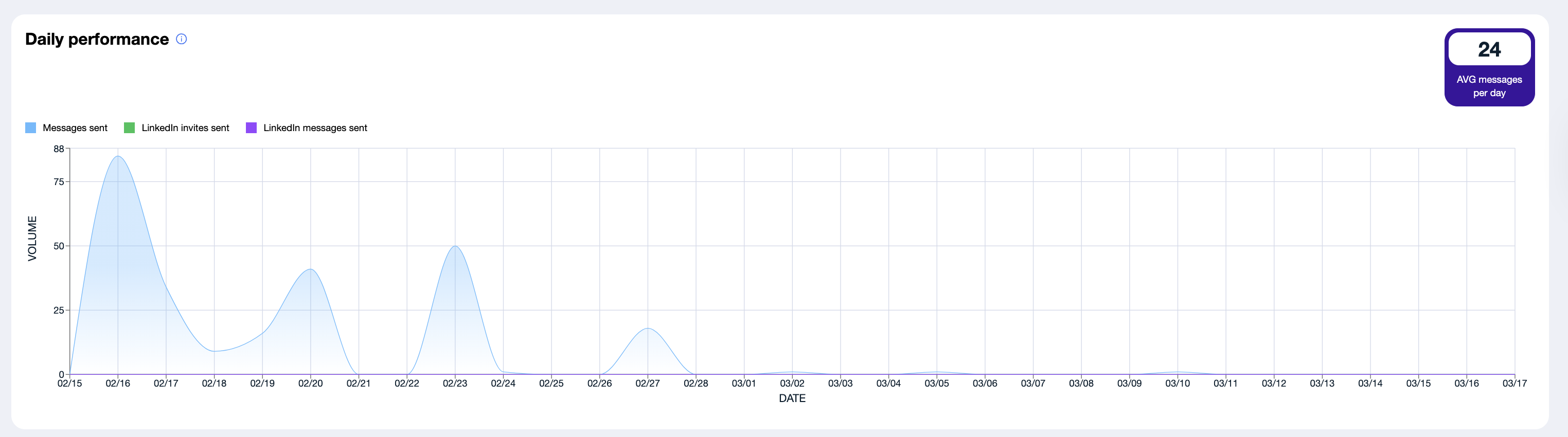
This view is useful for spotting overall momentum at a glance. While Sequence timeline and Latest events show detailed progress, Daily performance helps you quickly see whether campaign activity is stable, growing, or winding down.
Use Sequence timeline to see where leads are, Latest events to see what is happening right now, and Daily performance to understand the overall activity trend.
🚨 Dashboards alerts
Alerts help you catch issues before they affect campaign results.
Your AiSDR assistant flags things like too few leads added, detected bottlenecks, low deliverability, or disconnected mailboxes: problems you might not notice right away, but that can have a real impact on campaign performance.
Learn more here 📄 Alerts in AiSDR Dashboard
Evaluate whether your campaign is performing well
Review health signals and compare results against realistic benchmarks.
⛑ How to tell if your campaign is healthy
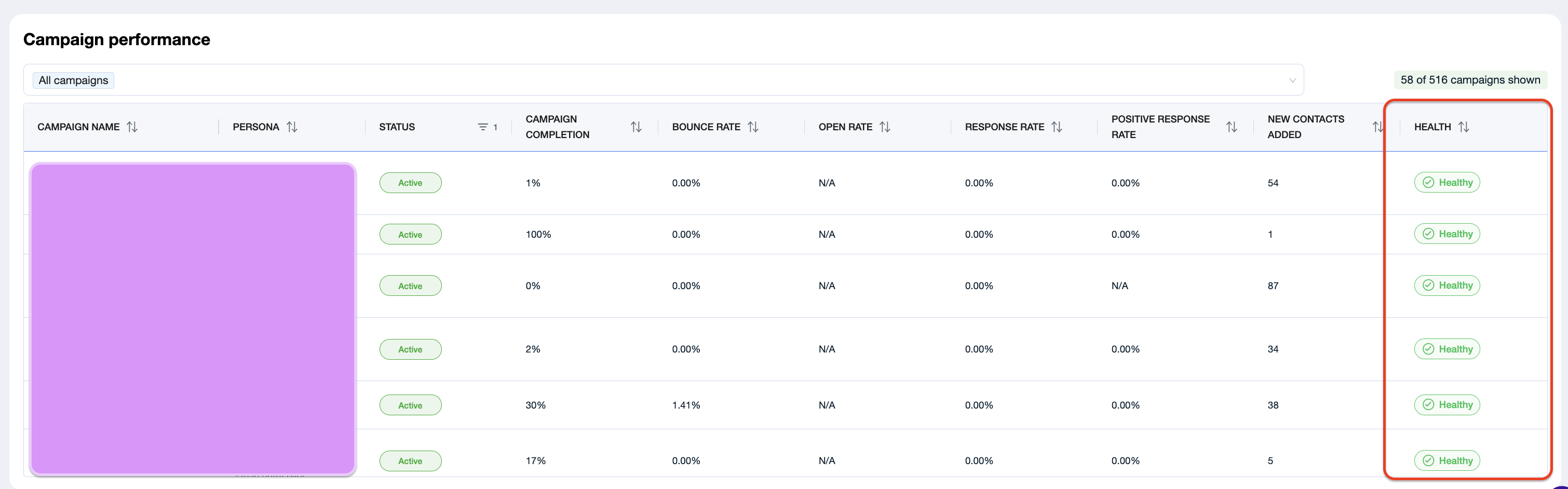
Start with reviewing Campaign performance tab on the dashboard. This is your AI analyst: it reviews campaign performance, progress through the sequence, completion status, and other signals, then marks the campaign as healthy or at risk based on the overall picture.
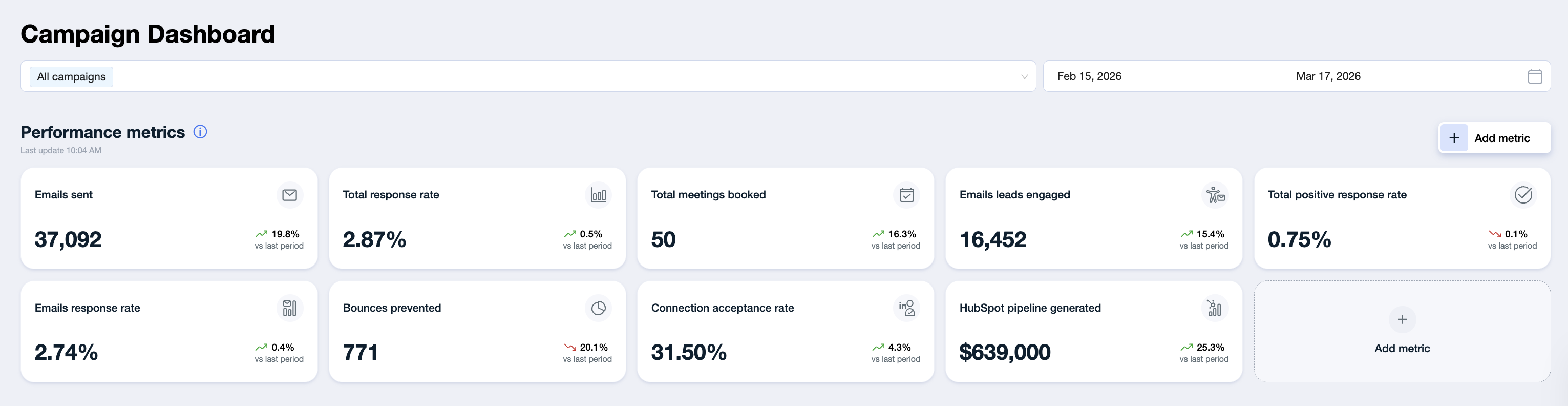
The Performance metrics tab provides a more concrete view of campaign health by surfacing key outcomes such as response rate, booked meetings, and other high-value indicators. When these metrics demonstrate consistent traction and align with your KPI targets, it is a strong sign that the campaign is performing well.
If the Campaign performance tab marks the campaign as at risk, and the dashboard shows little or no activity, that usually means the campaign is underperforming and may need refinement.
What good performance looks like depends on your goals, but in general, a healthy campaign has stable activity, visible traction, and results that move toward your target KPIs.
🎯 Campaign performance benchmarks
Good performance depends on your industry, audience, offer, and campaign type. As a general benchmark, a response rate of around 1–3% and a positive response rate of around 1% are solid starting points.
Let a campaign run for at least 3 weeks before evaluating performance or making changes. In the first week, it’s normal to see mostly unsubscribes, out-of-office replies, and alternative contact replies while the campaign is still gaining traction.
A healthy campaign usually:
is marked as Healthy in the Campaign performance tab
shows stable activity over time
shows traction in the Performance metrics tab
supports your KPI goals, such as replies or booked meetings
How to compare your results:
You can compare campaign results in two ways:
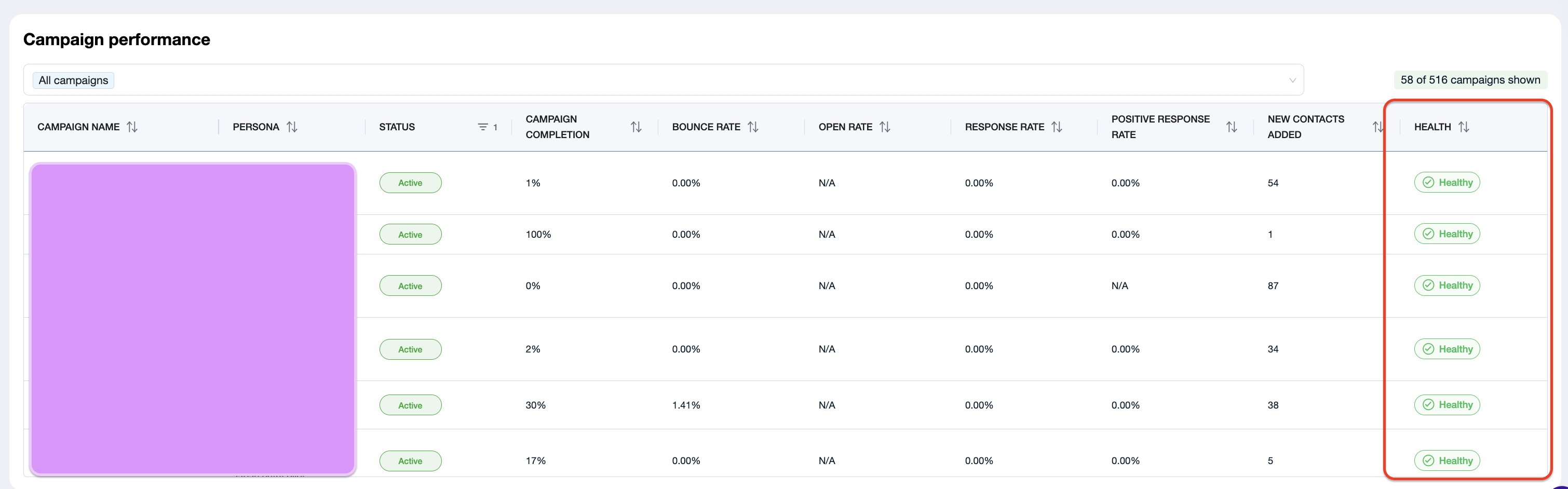
Check the Campaign performance tab to see whether campaigns are marked as healthy or at risk
select a specific campaign on the dashboard and compare its metrics for a more detailed view (don't forget to set the correct data range)

Review what may need improvement
Inspect messaging, lead flow, and campaign setup to identify next steps.
📝 How to review messaging
The right place to review messaging depends on whether you want to check live messages that have already been sent or preview messaging before launch.
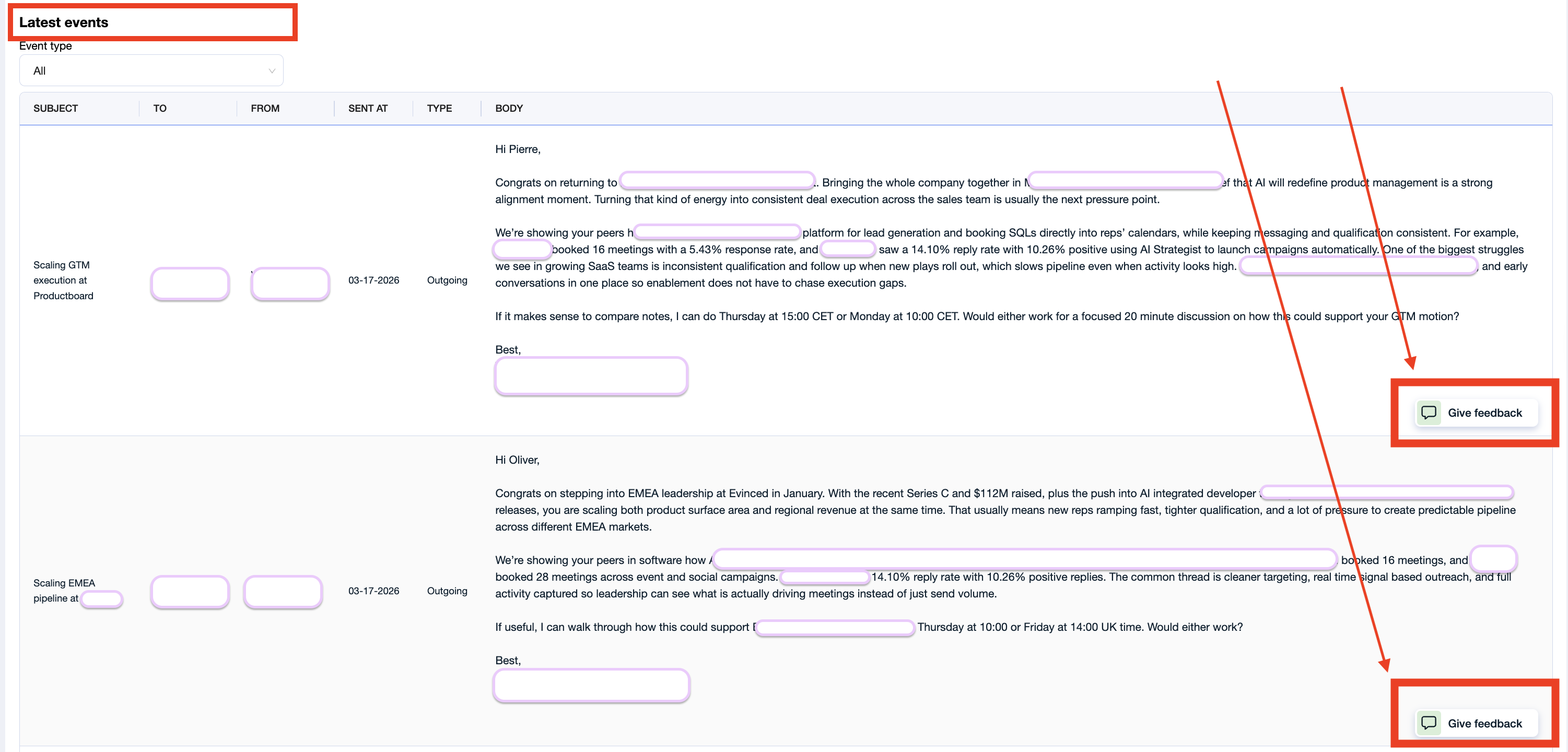
➡ If you want to review messages that have already been sent, go to the Latest events section in the campaign. This section updates in real time and shows the latest actions taken within the campaign, including outgoing messages. It is the best place to check what has actually been sent to leads. If anything looks off, you can also use the Give feedback option there to flag it and improve future messaging.
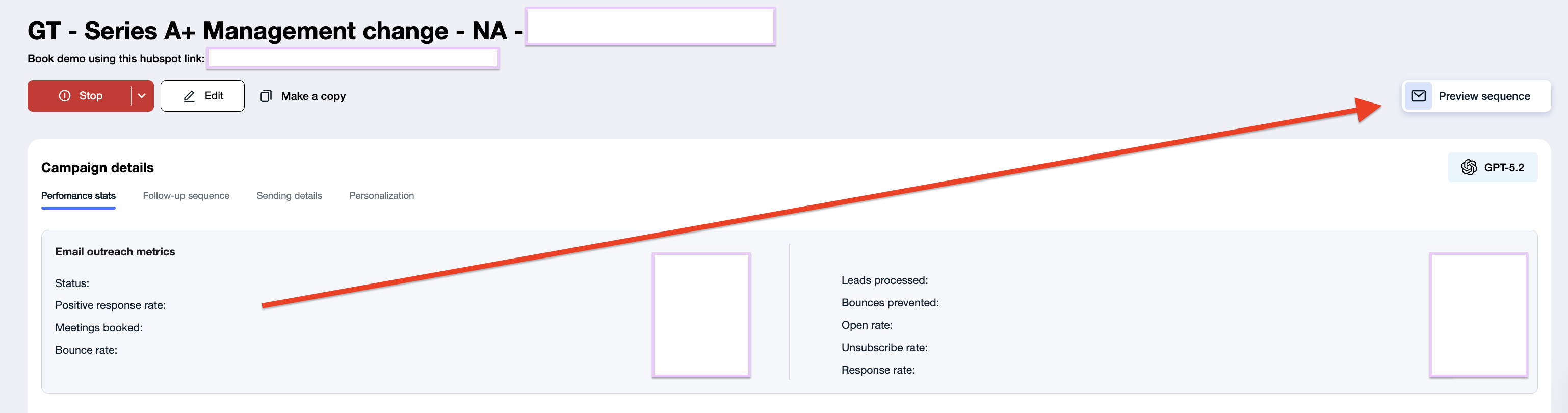
⬅ If you want to run a test generation before going live, use Preview sequence. You can access it directly from the Persona or Campaign tab to review the full sequence before it goes live.
📄 How to Test-Generate a Full Sequence
📄 Persona Feedback: How to easily make adjustments to the messaging
📤 Where to find the audit trail of actions
Use Latest events when you need a clear record of what happened in the campaign and why. Located at the bottom of the campaign page, this section acts as a live activity log, showing campaign actions as they happen.
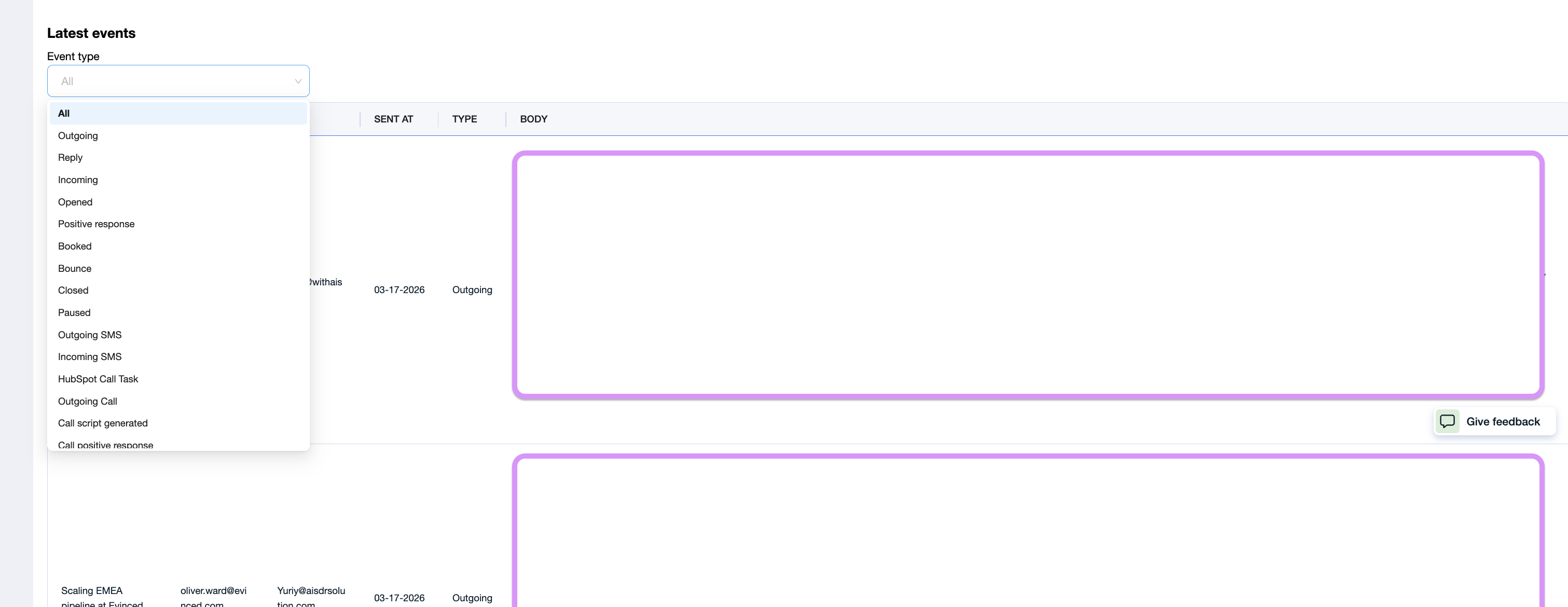
It gives you full visibility into campaign activity, including
emails sent, LinkedIn steps, replies, positive responses, booked meetings, bounced emails, and other lead or campaign events. You will also see lead status changes, such as leads being closed because they were duplicates, invalid, on a suppression list, or had reached the end of the sequence.
For better visibility, you can also filter the event list by event type, which makes it easier to focus on the specific actions you want to review.
📊 Where to find campaign activity logs
Campaign activity shows who made a change, what was changed, and when it happened. This is especially helpful when multiple team members work in AiSDR, as it gives you a clear history of campaign actions and continuous search updates.
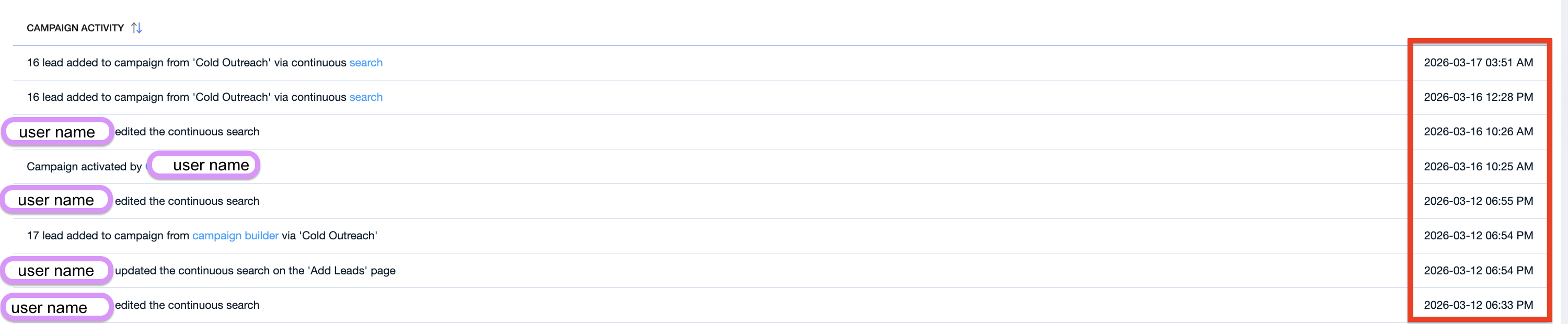
In this section, you can review actions such as:
when the campaign was launched or deactivated
who edited the search criteria
when leads were added through continuous search
alerts related to continuous search, including when it stopped working
Each event is timestamped, so you can quickly understand the sequence of changes and keep track of team actions inside the campaign.
🧐 How to know if you have enough leads
If you use continuous search, this is much less likely to become an issue. Continuous search adds new leads automatically on a daily basis, so you do not need to monitor lead availability manually as closely.
AiSDR will usually alert you before lead volume becomes a problem. If fresh leads have not been added for some time, you may see the alert “Too few leads added for the last 7 days.”
You can learn more about it here 📄 Alerts in AiSDR Dashboard
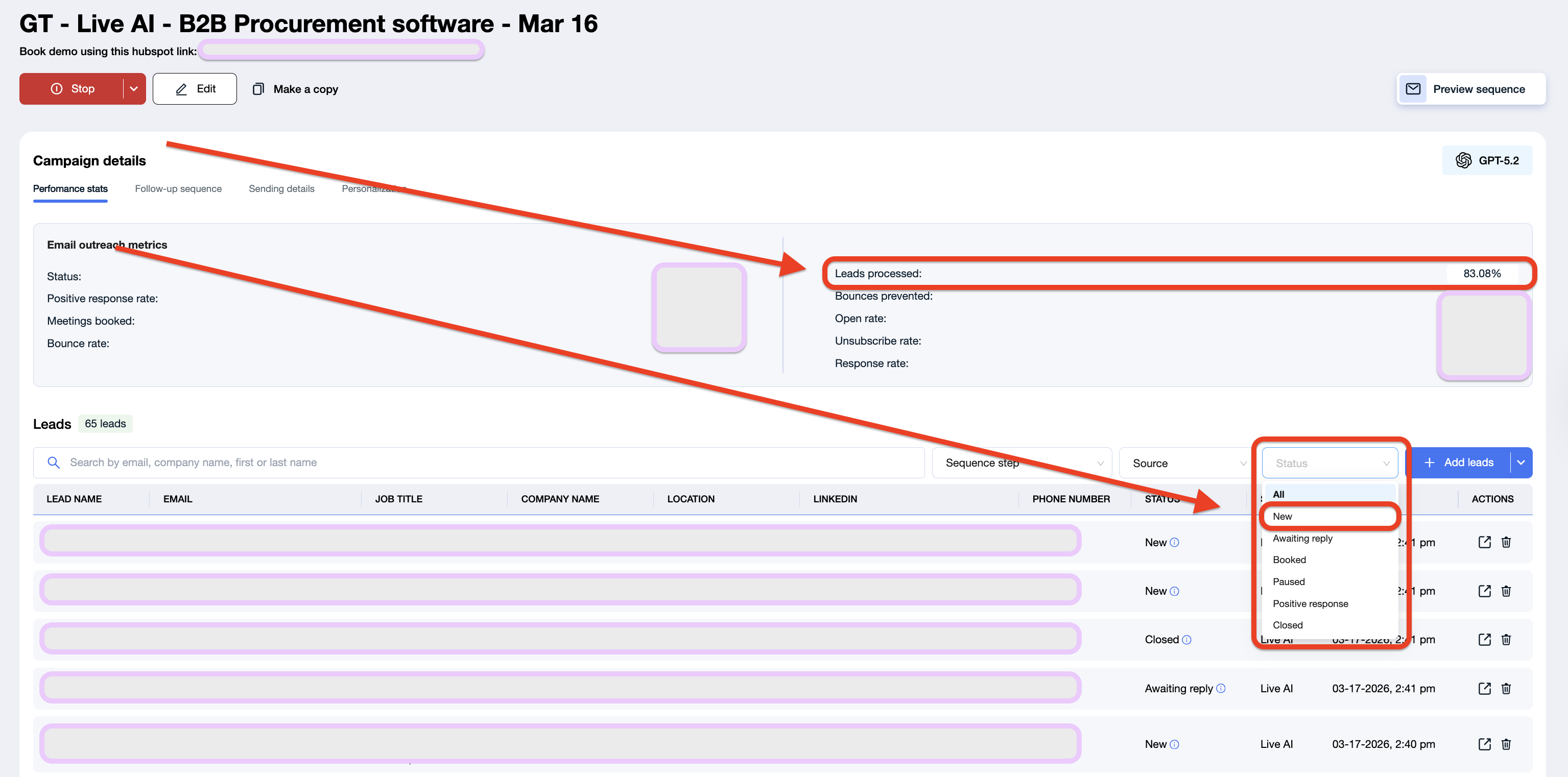
You can also check lead volume directly in the campaign:
(1) First, look at the percentage of leads processed. If that number is getting close to 100%, it usually means the campaign is running out of leads and more should be added.
(2) Second, check how many leads are still in New status. If only a few leads remain there, or the number is already zero, it is a sign that the campaign needs fresh leads to keep running smoothly.
AiSDR is designed to keep campaigns running with minimal manual oversight. These views are there to give you confidence, surface exceptions, and help you step in only when something needs attention: not to turn campaign management into a manual process.