How to Create Suppression Lists?
Last updated: June 25, 2026
To create or manage a suppression list, follow these steps:
1. Navigate to:
Leads → Suppression List → Create List
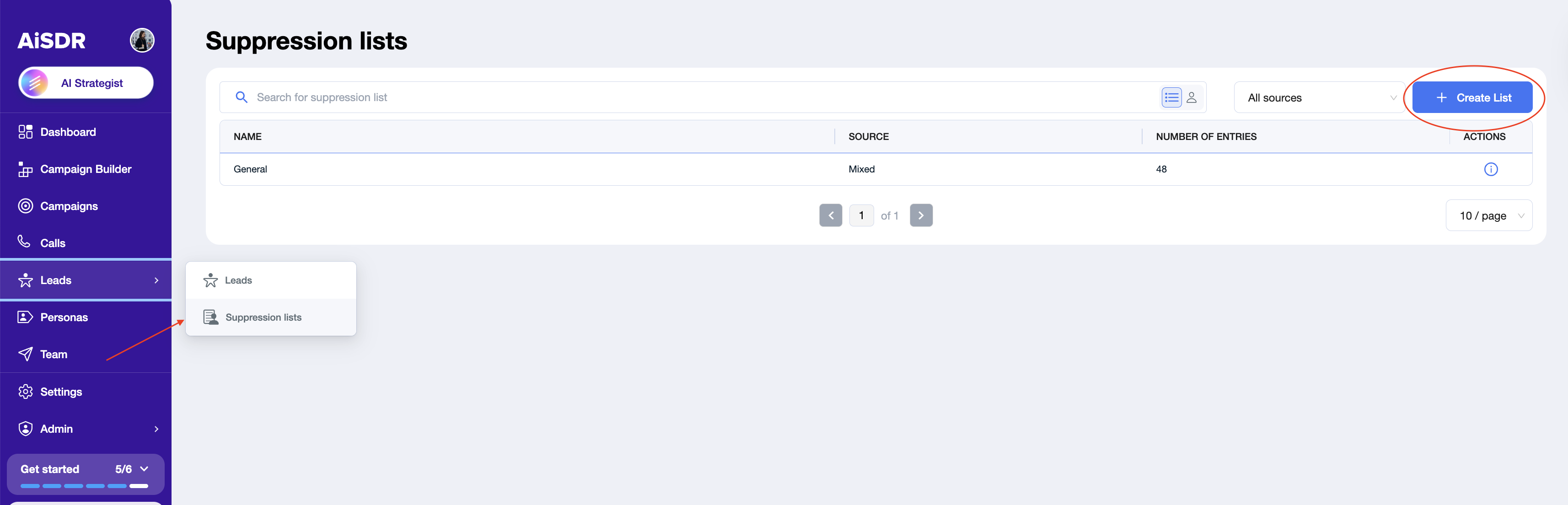
‼ You can use any format of CSV list, we will detect your columns automatically, we just need to have emails or domains.
You’ll see four options to create a list:
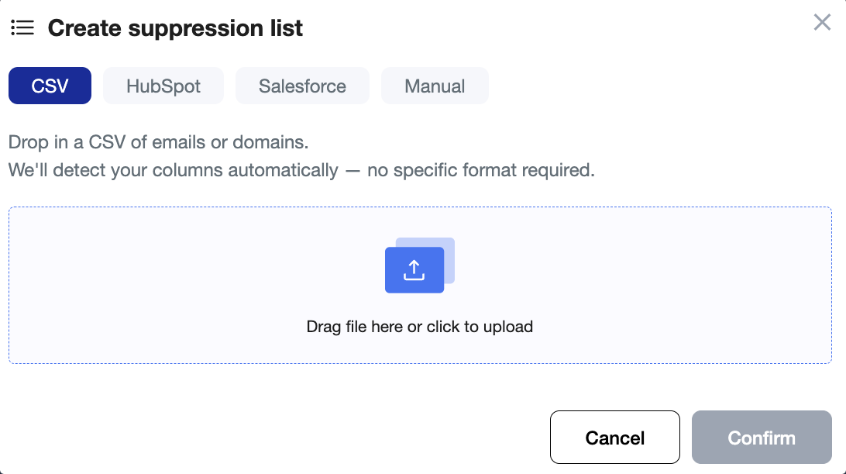
📁 Option 1: Upload a CSV
Upload a CSV
Click “Create suppression list” and select the CSV tab
Upload a CSV file with domains or emails you'd like to upload.
Click Confirm.
🔄 Option 2: Sync with HubSpot
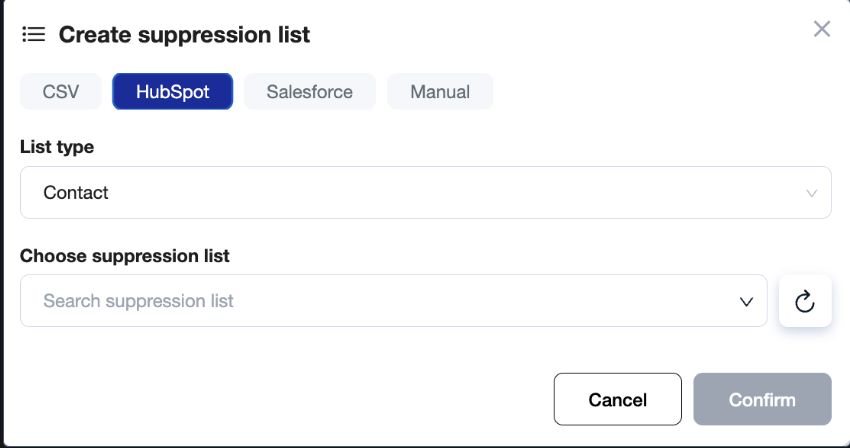
If you use HubSpot as a CRM and it is connected to AiSDR, you can import a suppression list directly:
Switch to the HubSpot tab;
Select List type: Contact (to suppress individual leads) or Company (to suppress entire companies);
Choose an existing HubSpot list;
Click Confirm;
Optional: Enable “Sync new suppressions from HubSpot” to auto-update the list.
🆕 Option 3: Sync with Salesforce
Sync with Salesforce:
You can sync only emails to AiSDR from Salesforce Suppression list;
Only Contacts and Accounts reports are supported. Report must be public in Salesforce to sync successfully with AiSDR.
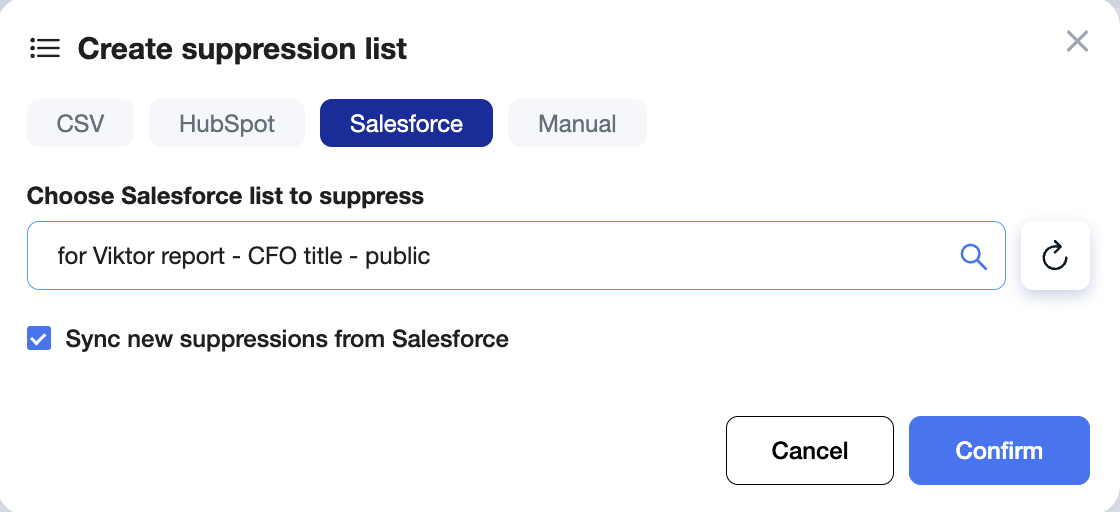
If you use Salesforce as a CRM and it is connected to AiSDR, you can import a suppression list directly:
Switch to the Salesforce tab;
Select the list to upload;
Click Confirm.
Active vs. Static Lists
Active Suppression List (default): Automatically adds new contacts if they appear in Salesforce.
Static Suppression List: Only includes contacts available at the time of upload.
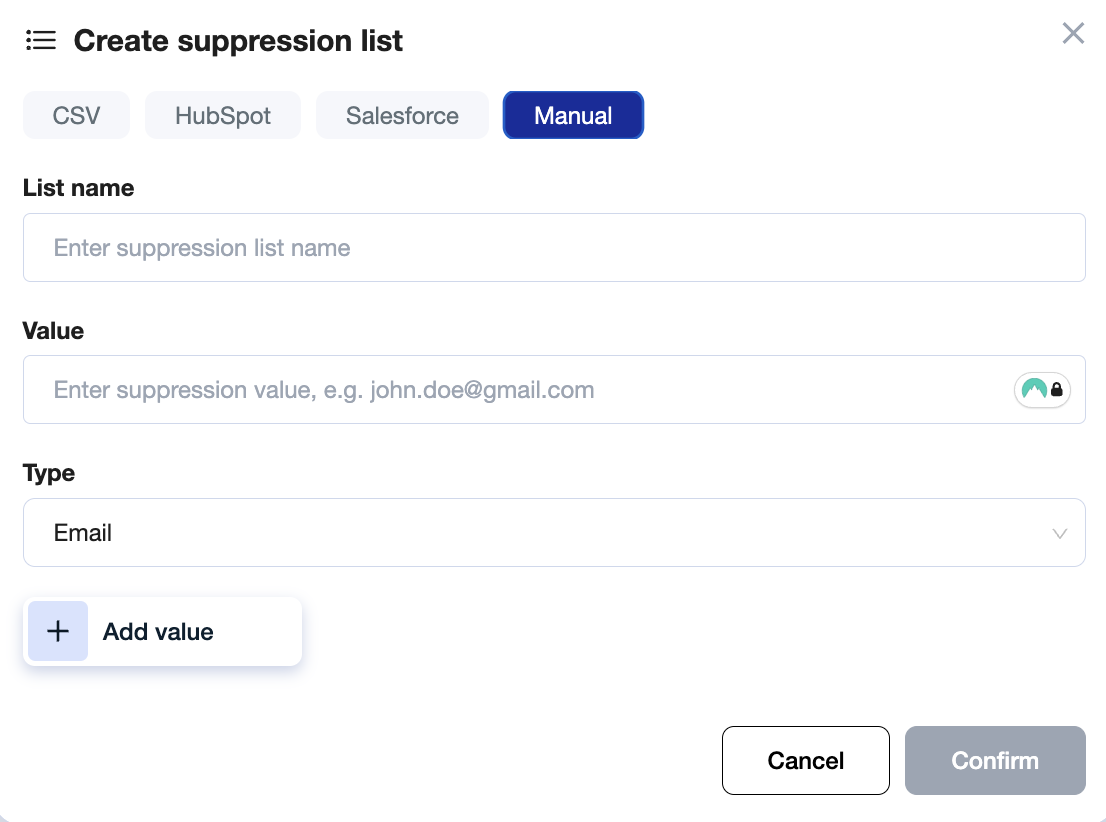
✍ Option 4: Add Manually
Add Manually:
‼ Each lead you add using this method creates a separate suppression list. If you want that lead to be part of a specific existing list, you must first open that particular list and then add the record from inside it.
Switch to the Manual tab;
Create the List name;
Enter the email address or domain you wish to suppress (Value);
Select the appropriate type (Email/Domain);
Click Confirm to save.
❓FAQ
🔢 Why is my synced count lower than my HubSpot list?
This is expected - it's not an error, and no one was dropped.
When AiSDR imports your list, duplicate emails and domains are merged into a single entry. If the same email appears more than once, or many contacts share the same domain, they collapse into one suppression record.
For example, a HubSpot list of 163,000 contacts can sync as ~32,000 suppression entries once duplicates are removed. Everyone on the original list is still protected - you're just seeing the de-duplicated count.
✅ A lower number means de-duplication worked, not that contacts were lost.
⏳ I just synced a large list and the count looks incomplete
Large lists take a few minutes to fully sync - usually up to ~15 minutes.
If the number looks low right after syncing, give it a little time and refresh. The count will settle once the import finishes.
✅ Wait ~15 minutes before comparing counts, especially for lists over a few thousand records.
💡 Best practices: what to put on a suppression list
Your suppression list is there to protect the people you don't want AiSDR to contact. Once someone is suppressed, they're removed from outreach, so be intentional about what goes on.
Include:
Domains of your active customers - so AiSDR never emails an existing account
Contacts tied to active deals or open opportunities - leave live sales conversations to your team
Anyone who has explicitly asked not to be contacted
Competitors
✅ Good: suppress current-customer domains + contacts in active deals
❌ Avoid: dumping your entire CRM in, including stale leads you could re-warm