Daily Performance: Sending Volumes
Last updated: December 5, 2025
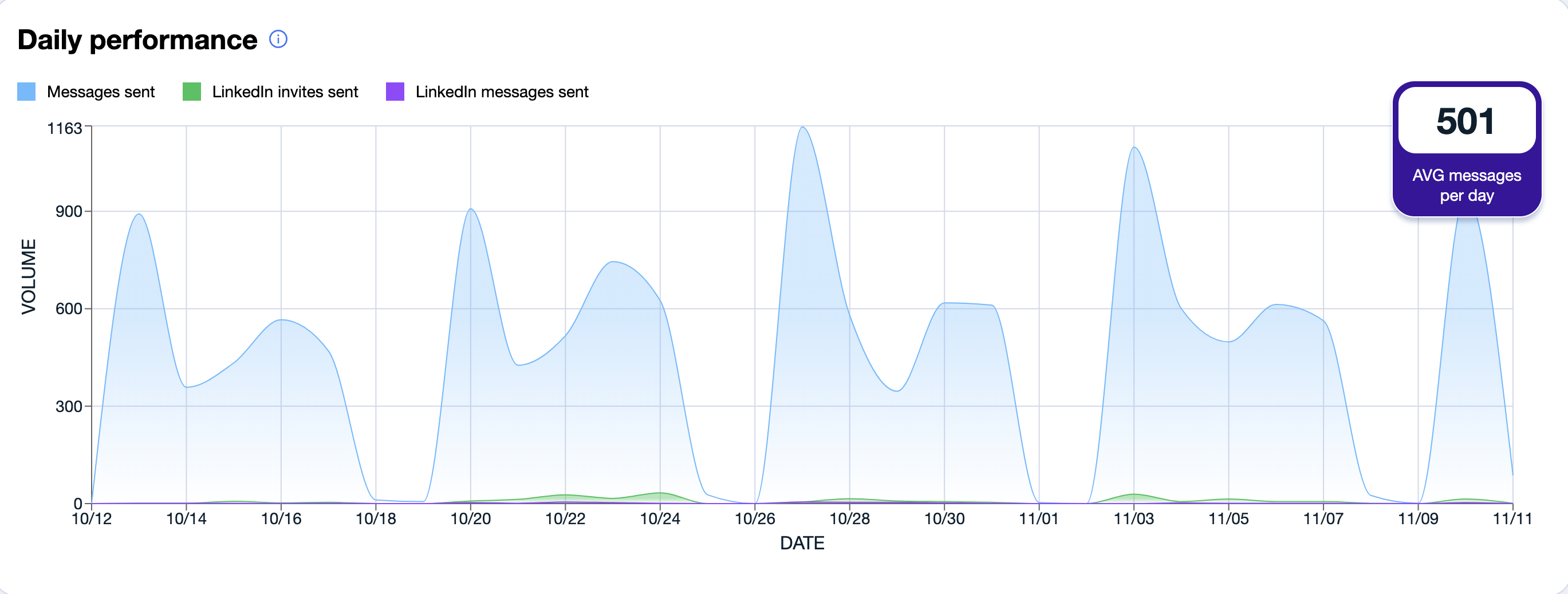
The Daily Sending Volume chart provides a visual timeline of your outbound activity — including both email and LinkedIn-based outreach.
What You’ll See
The graph tracks daily counts for:
Emails Sent (blue)
All emails delivered to leads.LinkedIn Invites Sent (green)
Connection requests sent through LinkedIn.LinkedIn Messages Sent (purple)
Follow-up or direct messages sent to LinkedIn connections.
To the right, you'll also see your average number of emails sent per day, helping you understand your current pace.
Why It’s Useful
This chart helps you:
Spot inconsistencies in outreach volume;
Verify that campaigns are running as expected;
Identify when lead supply is low;
Ensure you’re not over-sending beyond your subscription limits.
Review specific campaign performance by filtering the dashboard to individual campaigns.
How to Read the Trends
Consistent Volume
A steady bar chart means your campaigns are running smoothly — you’re regularly engaging leads without major drops or spikes.Declining Volume
If the graph shows a downward trend, it's often a sign that:You've run out of leads;
Campaigns are pausing due to missing personas or mailboxes;
It’s time to top up lead lists or reactivate paused campaigns.
Rising Volume
If daily sending increases quickly:Check that you're still within your subscription limits;
Adjust pace if needed to avoid exhausting credits too early in the cycle;
Ensure sender reputation remains healthy by spreading volume across mailboxes.
If Everything Is Still at Zero
Seeing no data at all? Don’t worry — this is usually due to one of the following:
Campaigns haven’t launched yet;
No leads are assigned to the active sequences;
Campaigns are still in draft or paused mode.
Another common cause is selecting the wrong date range or encountering a temporary loading issue. If that's the case, simply update the date range filter in the top-right corner of the dashboard to refresh the data view.

Once your campaigns begin sending, the chart will update automatically with real-time activity.
Pro Tip
Use this chart not just to check activity — but as an operational tool. It tells you when to scale, when to slow down, and when to take action to keep your outreach machine running smoothly.