Salesforce + AiSDR integration
Last updated: August 12, 2026
The Salesforce integration with AiSDR syncs leads and key campaign activities between platforms so your team can run outreach in AiSDR while keeping Salesforce up to date.
With our 2-way sync, you can:
Pull leads into AiSDR from Salesforce Reports
Push AiSDR leads and activities (emails, notes, meetings) back into Salesforce, so reps see the full history in one place
Sync Salesforce data to AiSDR to strengthen the personalization
Salesforce → AiSDR
⛓💥 Connecting Salesforce to AiSDR
How to Connect Salesforce
Go to Settings → Integrations → Salesforce.
Click “Connect”.
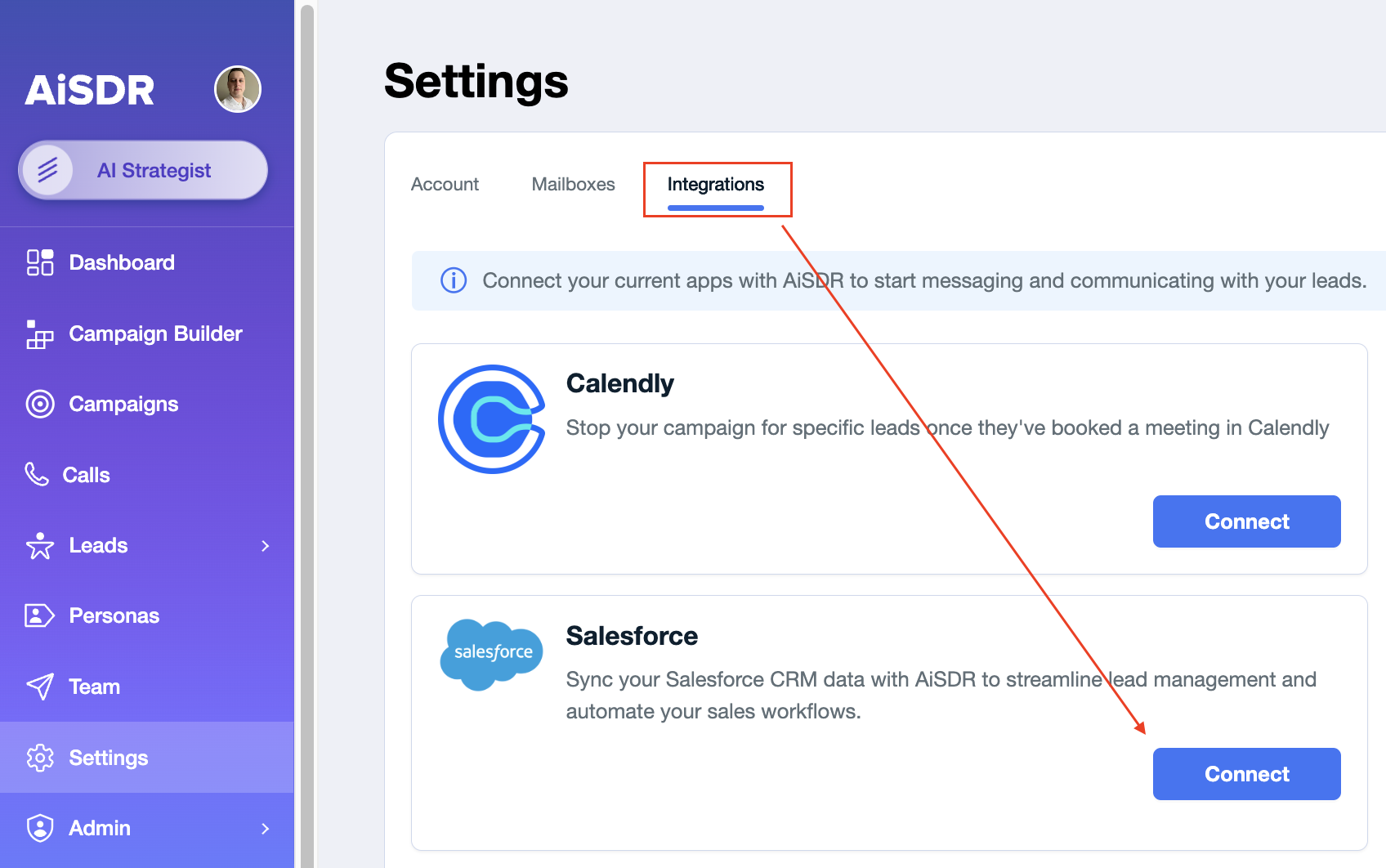
Authorize the connection on the Salesforce side.
Once connected, you’ll see confirmation that your Salesforce account is successfully linked. From here, you can configure reports and campaigns.
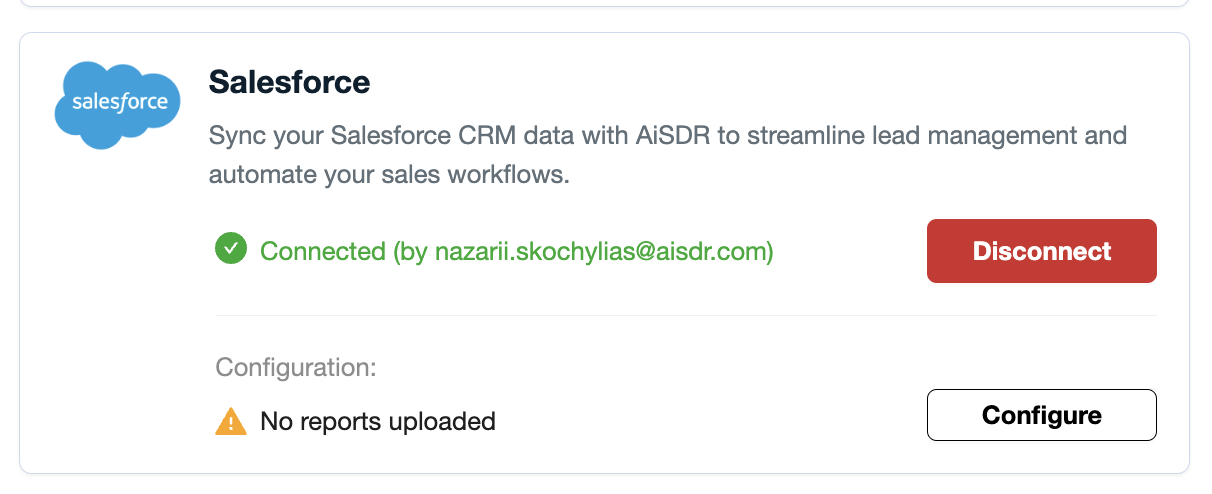
Only a Salesforce admin can complete the connection.
If you see the OAuth error in Salesforce when trying to connect, it means you do not have the right scope of permissions in Salesforce to proceed with the connection.
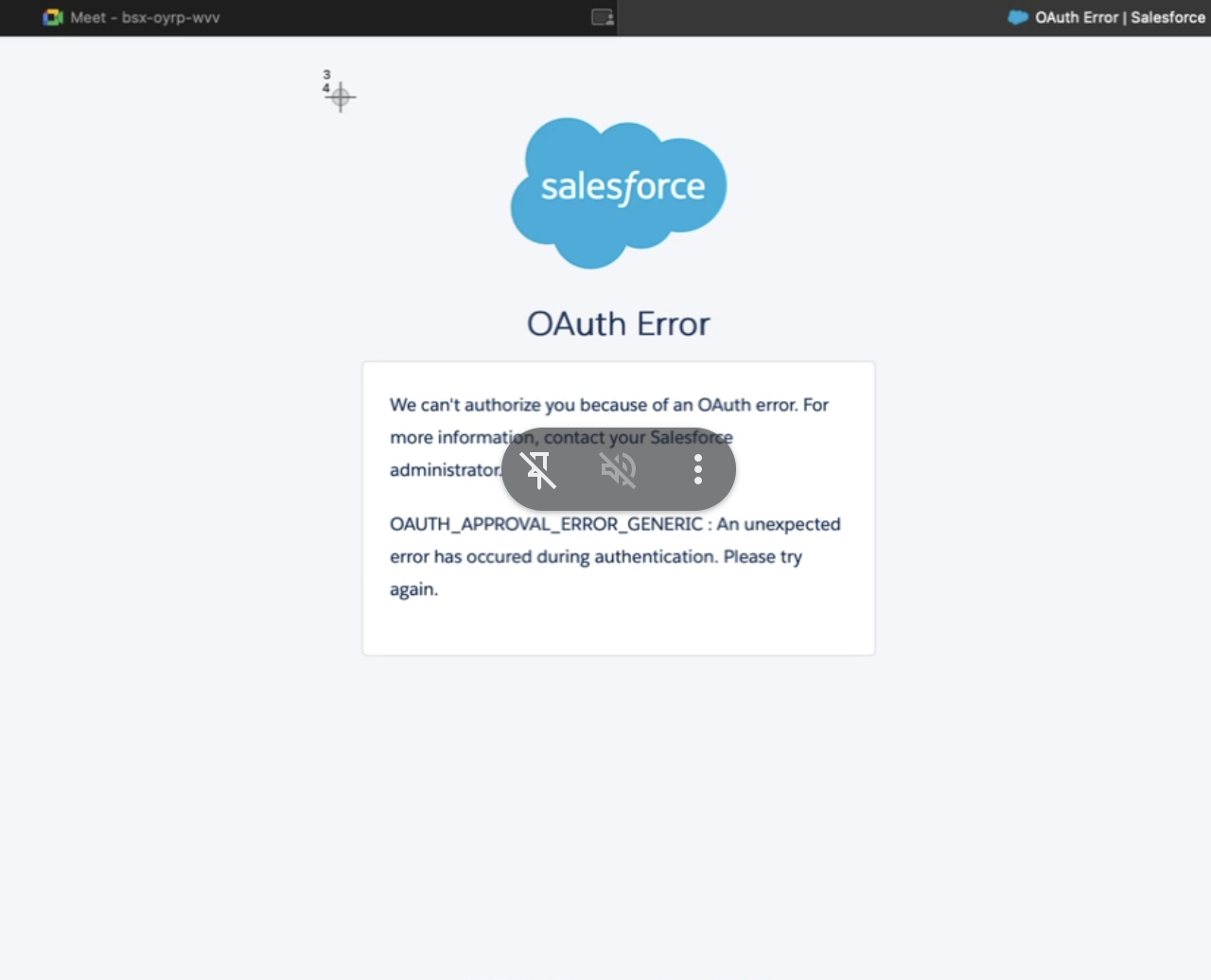
Contact your Salesforce admin to create the connection instead or if you are the admin, but still are seeing the error above, let us know in the dedicated Slack channel or via help@aisdr.com.
📊 Syncing Salesforce Reports to Campaigns
You can connect Salesforce reports directly to AiSDR campaigns. This ensures all new contacts from Salesforce reports flow seamlessly into the selected campaign.
Steps to Connect a Report
Go to the Integrations.
Choose the Salesforce section.
Select the report to connect and campaign you'd like to connect it to.
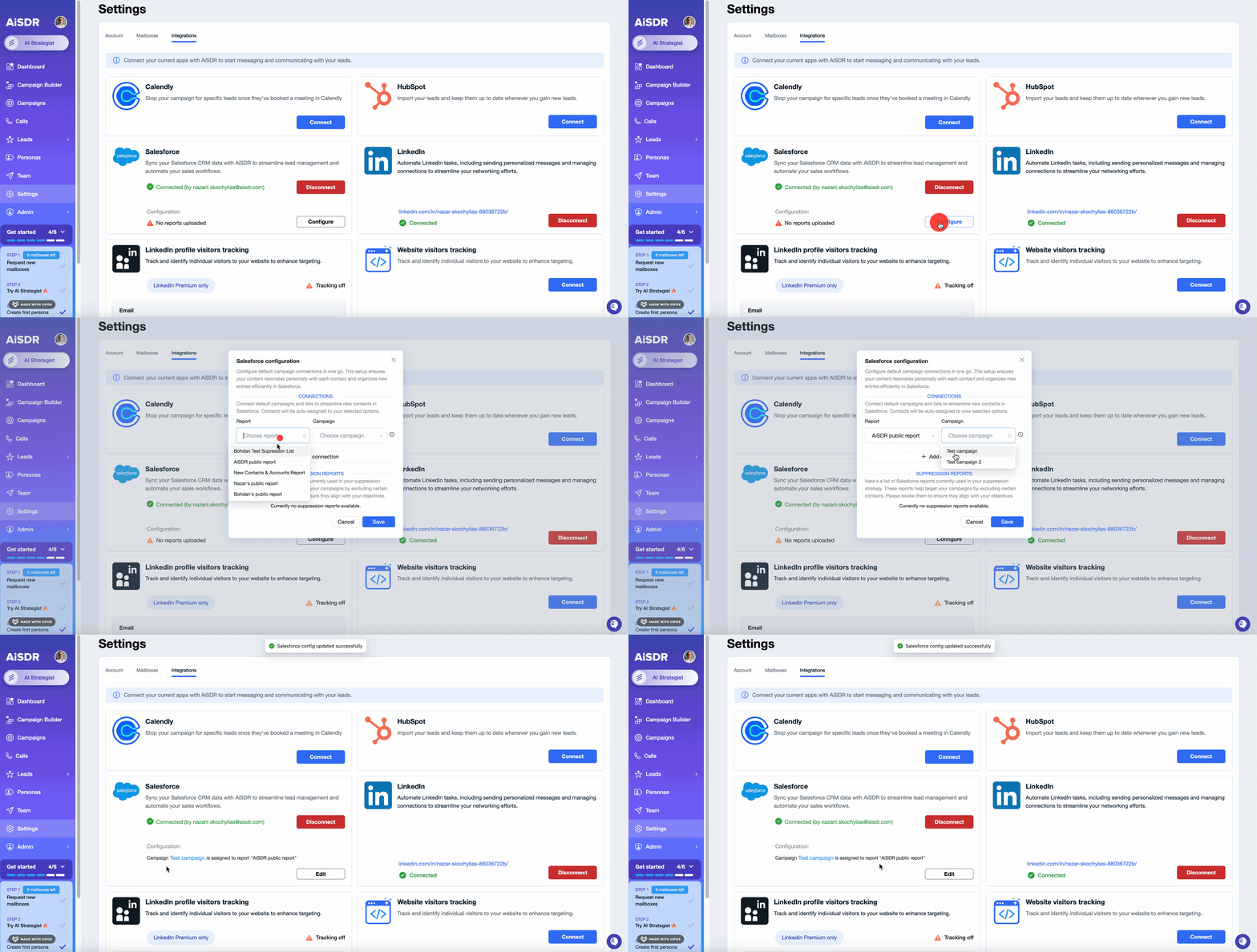
Once a connection is established, you will see Basic Salesforce sync actions directly inside the linked campaign. The option Sync new contacts from Salesforce will be enabled automatically, ensuring that new contacts from the connected report will be added automatically.
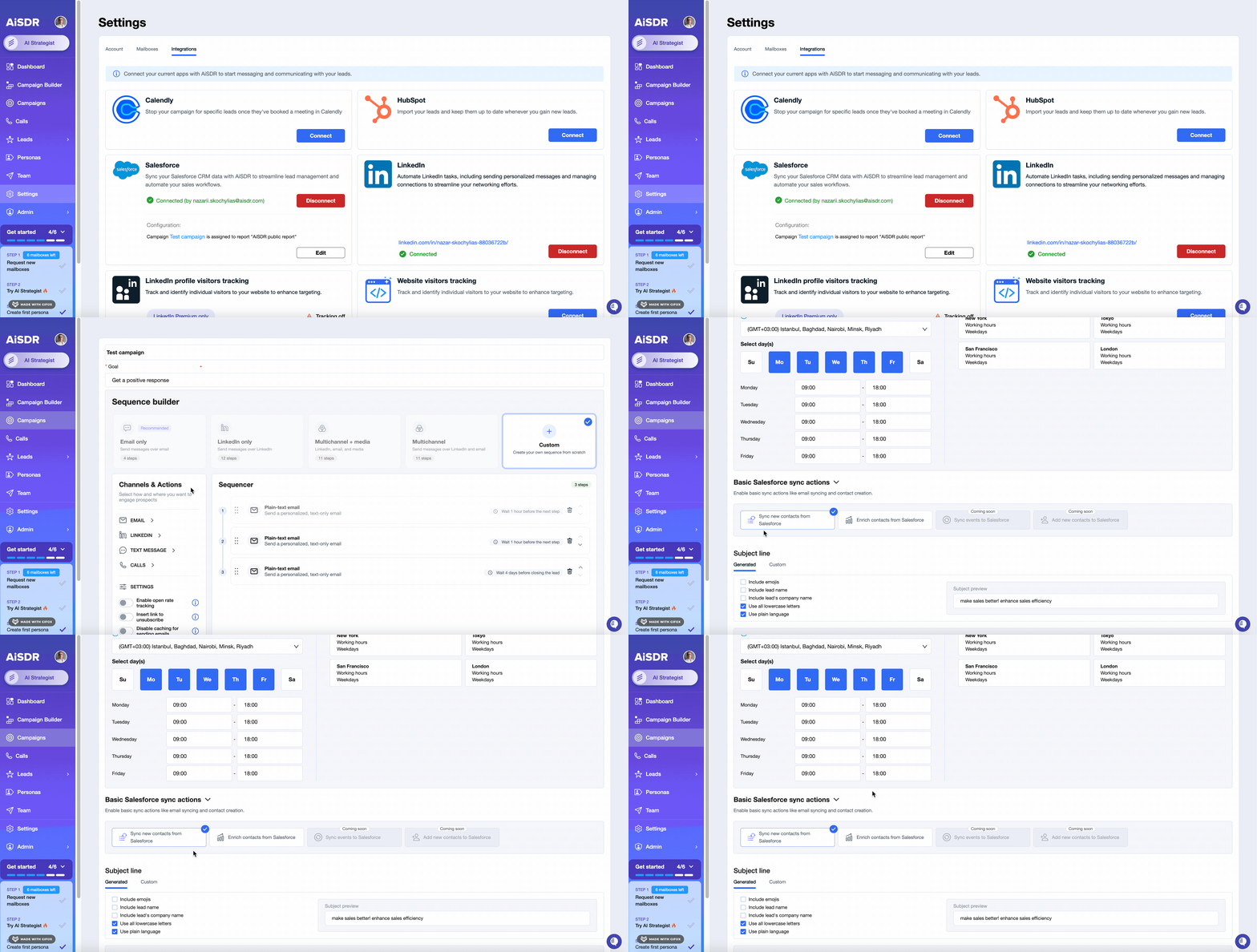
Only Contacts and Accounts reports are supported. Report must be public in Salesforce to sync successfully with AiSDR>
Sync Options
Automatic sync every 4 hours: New leads added to the Salesforce report are synced automatically (enabled by default).
Disable sync anytime: You can turn off continuous sync in campaign settings.
Limitations
One campaign can only connect to one report.
A report can connect to multiple campaigns.
Salesforce and HubSpot cannot run simultaneously in the same campaign.
🚀 How to create a campaign with Salesforce leads?
AiSDR makes it simple to pull leads from Salesforce into campaigns — both during campaign creation and on an ongoing basis.
Adding Leads at Campaign Creation
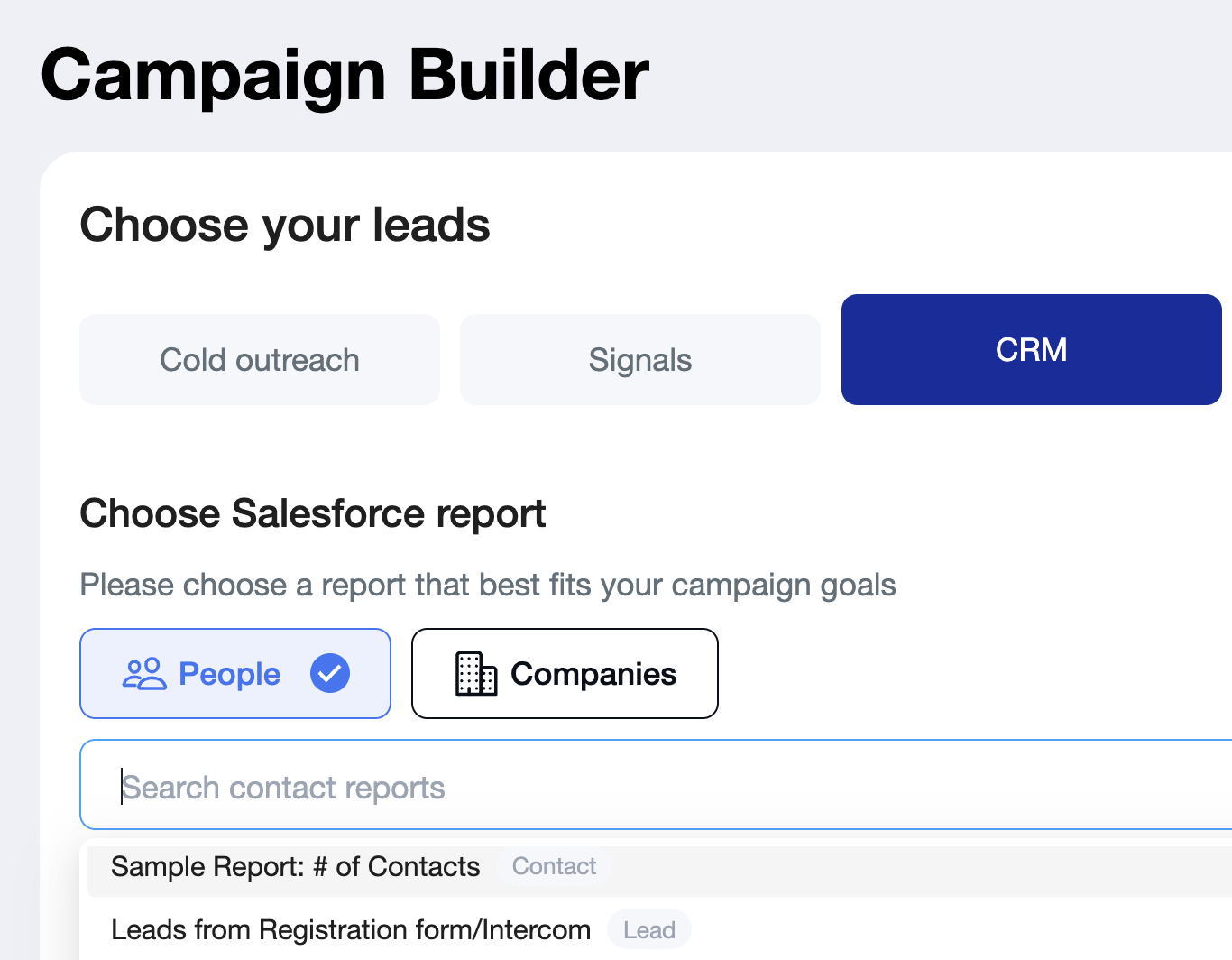
Go to the Campaign Builder. Select CRM
Switch to the Salesforce tab.
Select the Salesforce report (Contact report) you want to use.
Finish setting up the campaign.
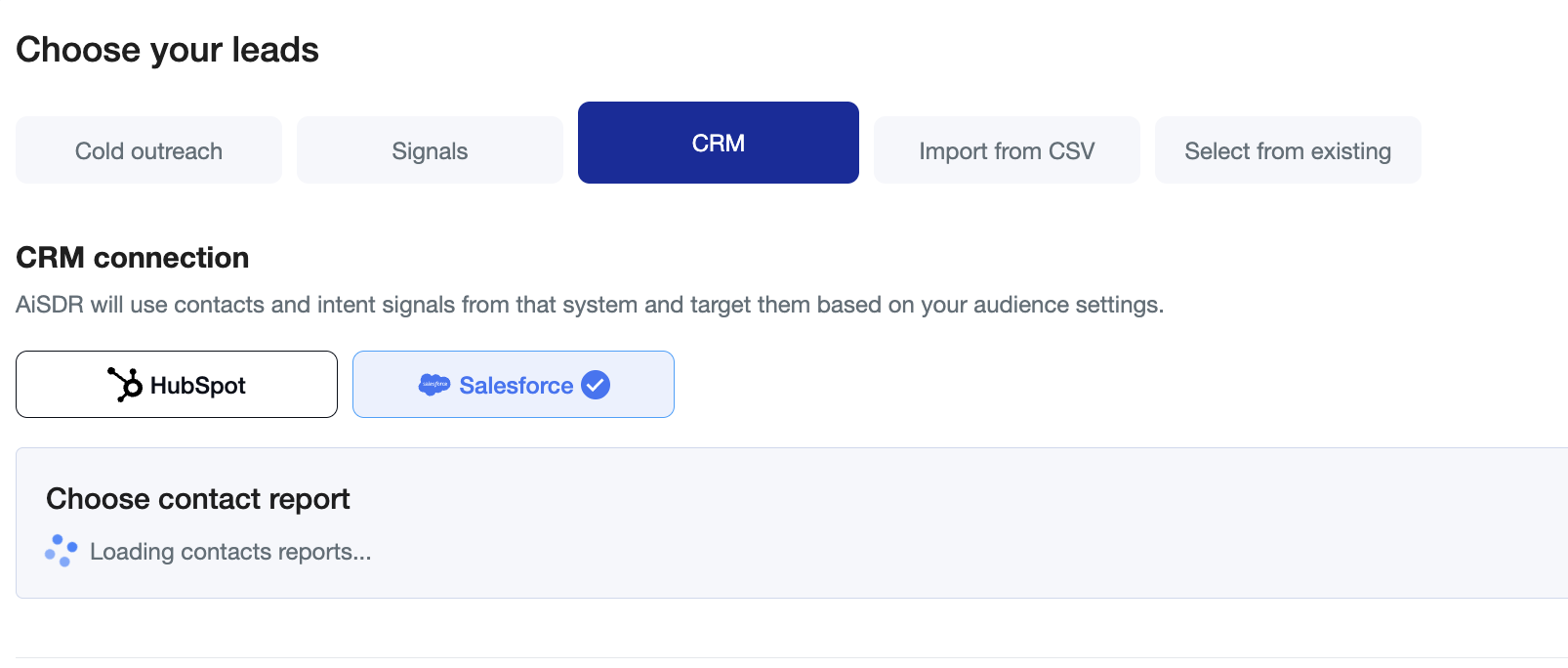
➡ All leads from the chosen report will appear in the campaign automatically.
Continuously Adding New Leads
By default, the option “Sync new contacts from Salesforce” is turned on.
How it works:
AiSDR checks the connected report every 4 hours.
New contacts in that report are added automatically to the campaign.
If you disable this option, no new leads will sync after the campaign is created.
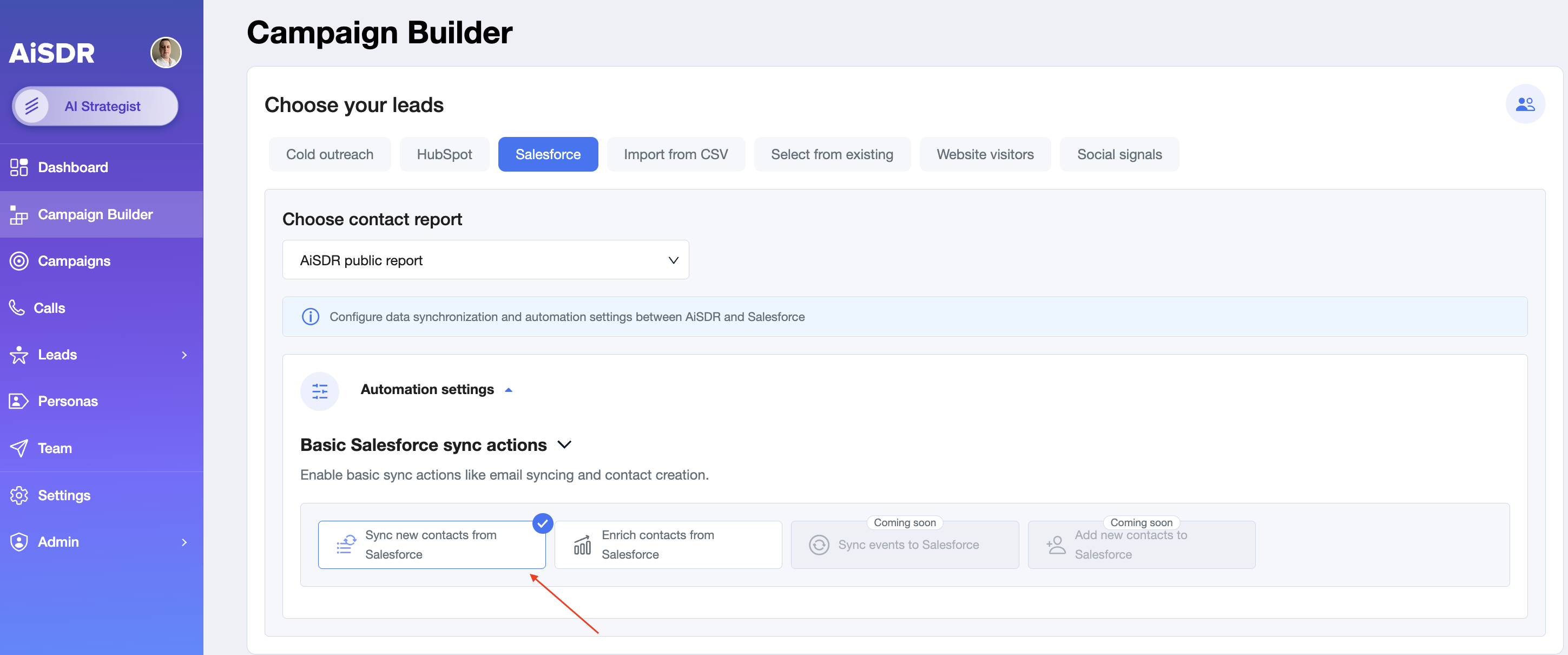
Result: Campaigns stay automatically updated with fresh Salesforce contacts, reducing manual work and ensuring outreach stays current.
🧠 How to create a campaign based on accounts (companies) from Salesforce?
Searching Leads based on Accounts (Companies) at Campaign Creation
Go to the Campaign Builder.
Select CRM (Salesforce tab).
Select the Salesforce report (Account report) you want to use.
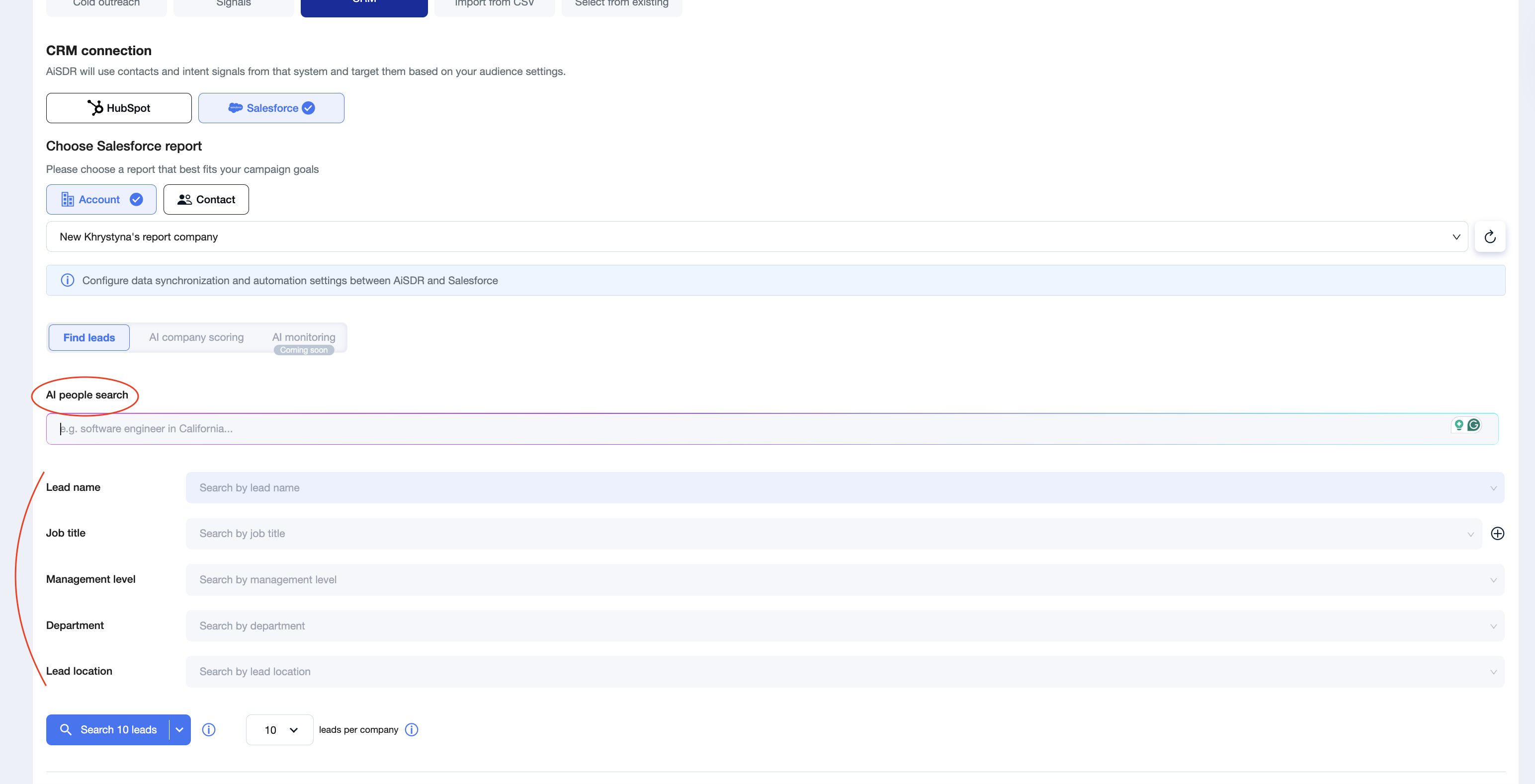
Choose how to find people inside those companies
You have two options:
AI People Search – AI automatically finds relevant contacts based on your targeting criteria.
Standard Search – You manually define filters (job title, seniority, department, etc.).
Both tools will search for leads who work at the companies listed in your selected Salesforce report.
Finish setting up the campaign.
Finish configuring messaging, persona, mailbox, and other campaign settings — and launch 🚀
🔁 Continuously Adding New Leads
If your Salesforce report is dynamic (new companies are regularly added), you can enable automatic lead processing.
Simply select “Yes” next to “Continuously add new.”
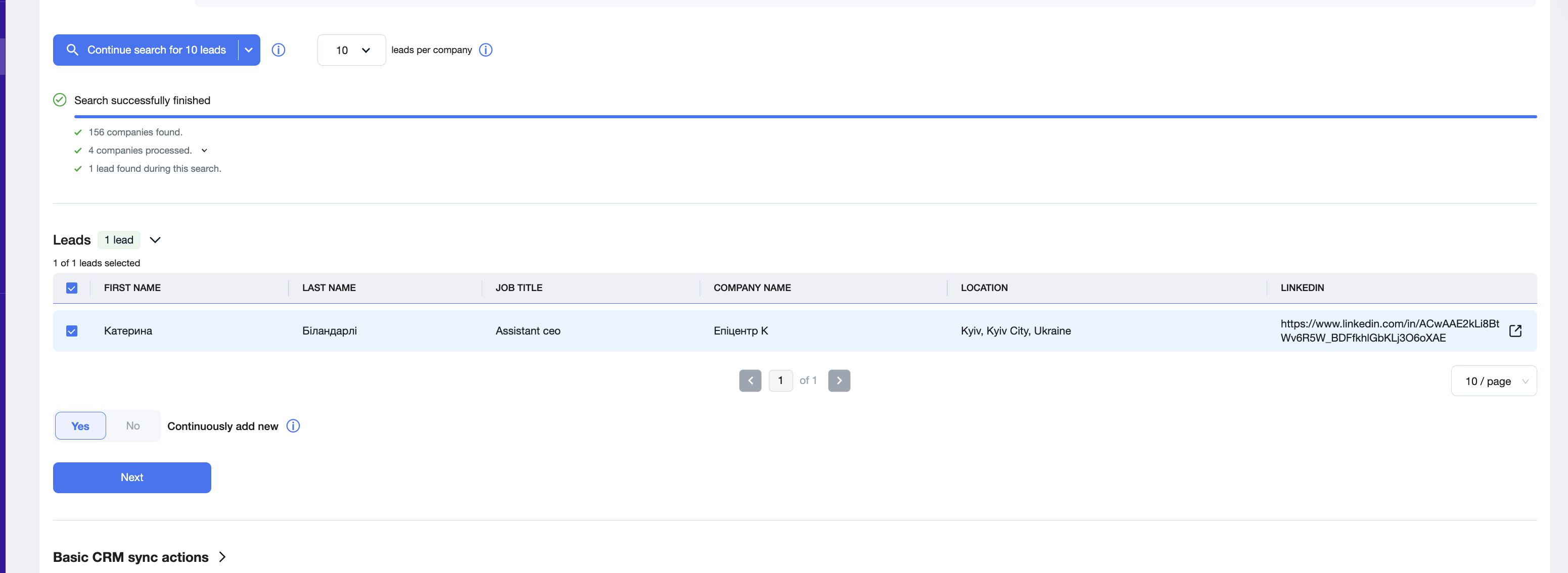
When enabled:
The system will continuously monitor your selected Salesforce report
Newly added companies will be processed automatically
AiSDR will search for relevant contacts inside those companies based on your defined criteria
This ensures your campaign keeps running and scaling without manual updates.
🔍 Contact data sync and enrichment
Default Sync
By default, AiSDR imports the key fields from Salesforce reports: First Name, Last Name, Email, Company Name, and Job Title. These fields provide the essential details needed for managing campaigns and outreach.
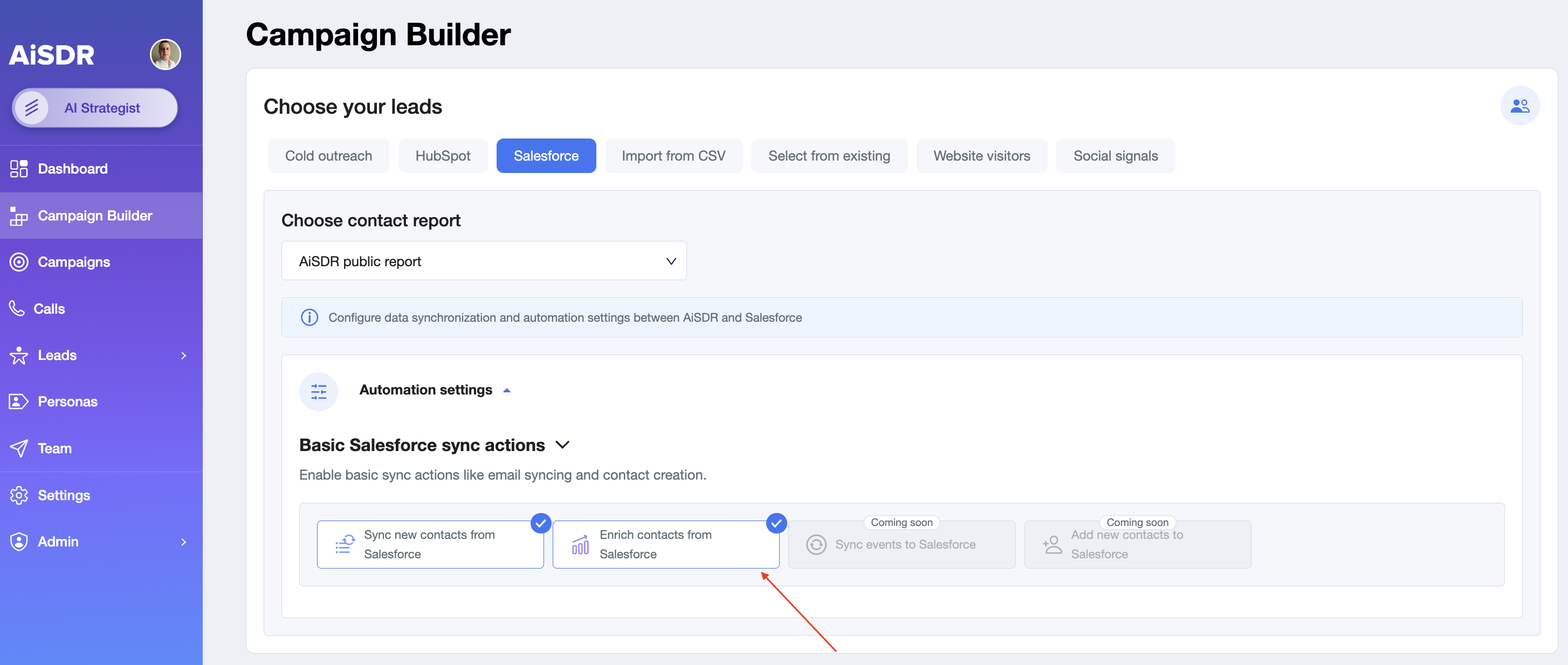
Enrichment Options
During campaign creation, you can enable the “Enrich contacts from Salesforce” option. When this is active, AiSDR enriches leads with additional information such as company website, industry, location, and LinkedIn profile.
Enrichment only applies when leads are first added to a campaign. If a lead is added without enrichment, it will not be enriched later, even if you enable the option afterward.
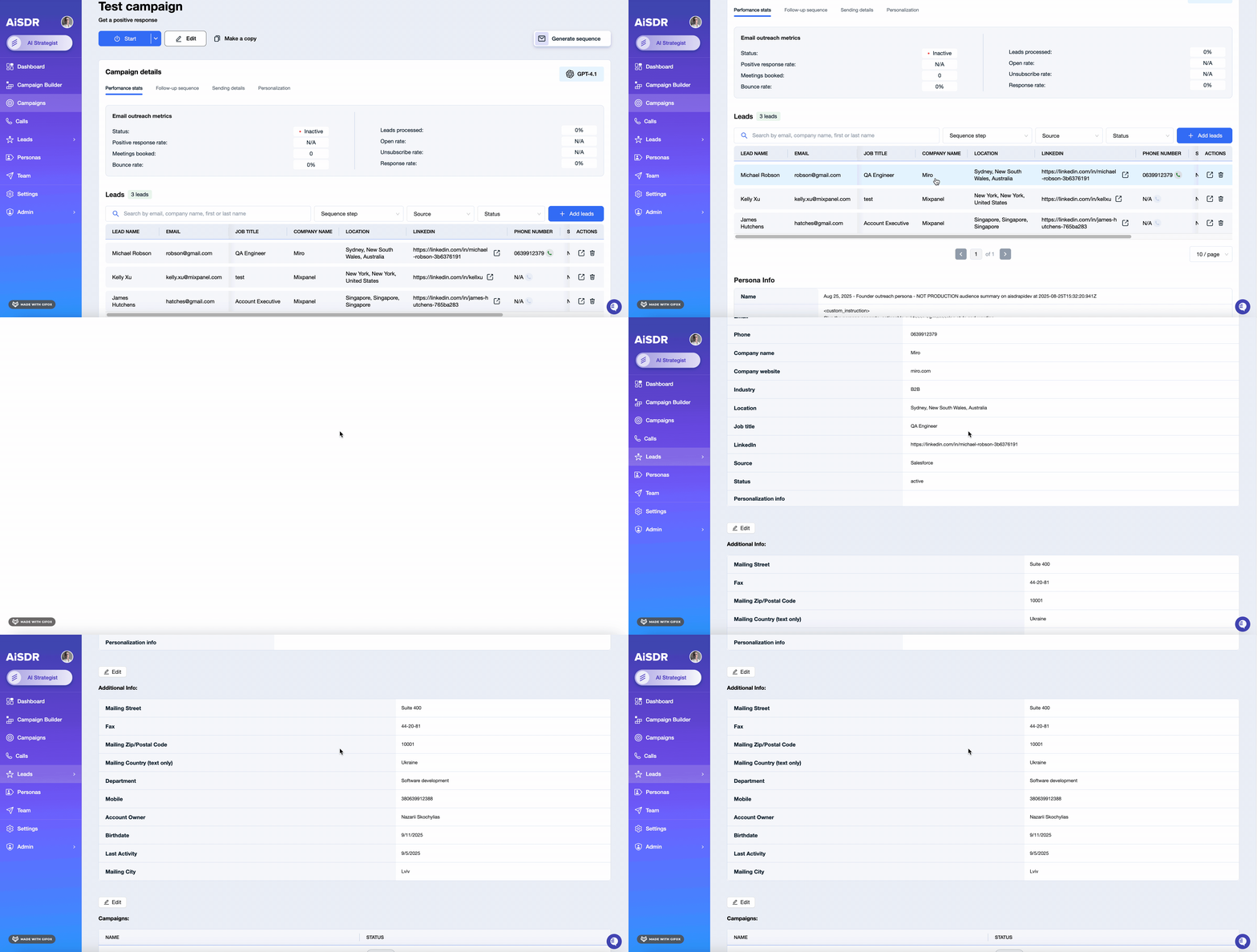
Additional Data Fields
Along with the core details, AiSDR syncs extra fields from Salesforce added to your report.
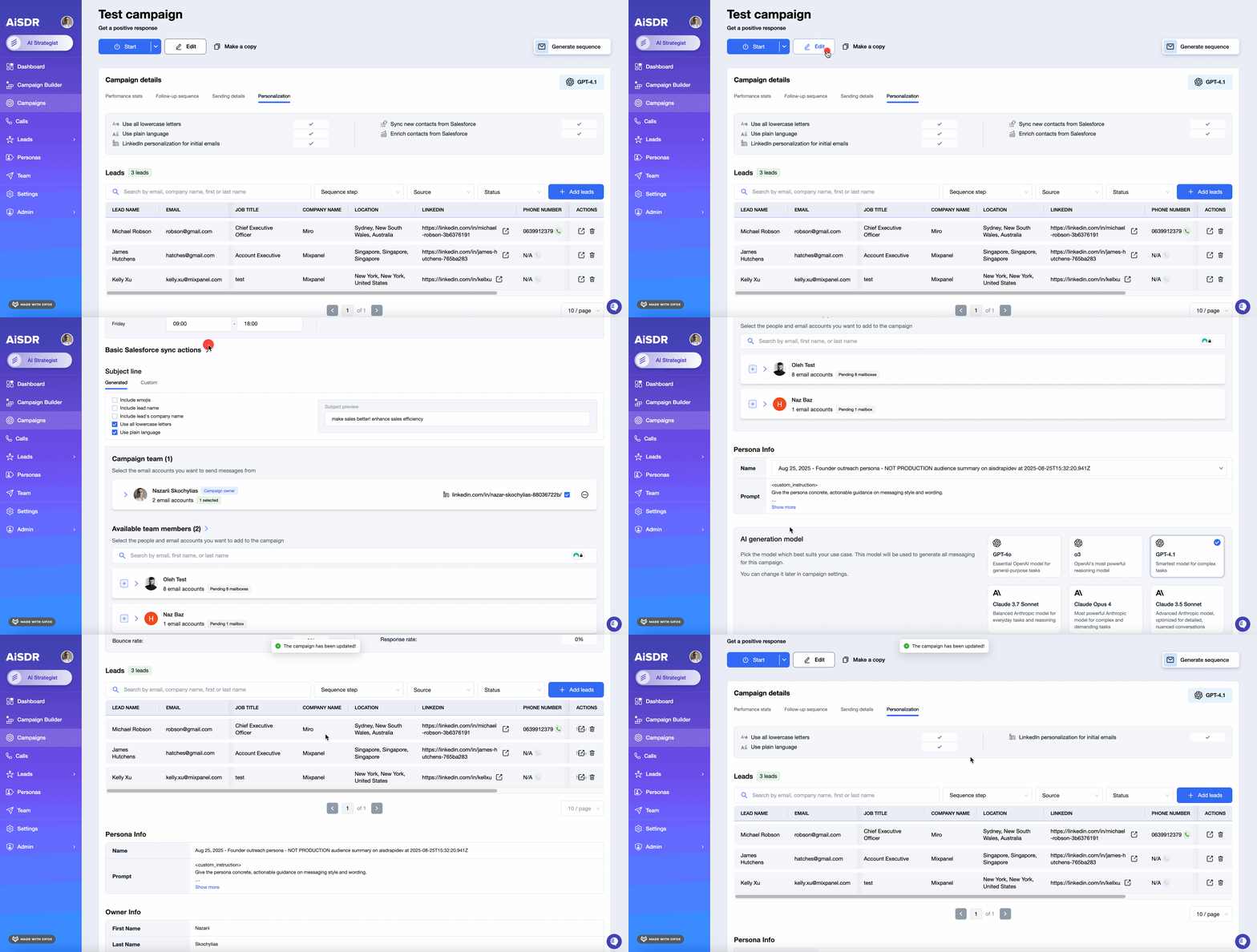
Managing Sync Settings
Both continuous sync and enrichment settings remain visible in the campaign personalization panel. You can adjust them at any time by switching to Edit mode, ensuring that campaigns reflect your current needs without affecting leads that have already been imported.
🔄 Optional: Daily contact data refresh
AiSDR can optionally keep contact/company fields up to date by re-checking the connected report columns on a schedule.
How it works:
AiSDR walks through reports connected to campaigns
If a report changed (e.g., columns updated, report run), AiSDR updates the corresponding lead info in AiSDR based on report columns Salesforce 2-way sync
This logic is controlled by a separate feature toggle and needs to be enabled by a request to your dedicated account manager.
🚫 Managing Salesforce Suppression Lists
Suppression lists help ensure AiSDR doesn’t send emails to specific contacts. With Salesforce integration, suppression lists can be synced directly.
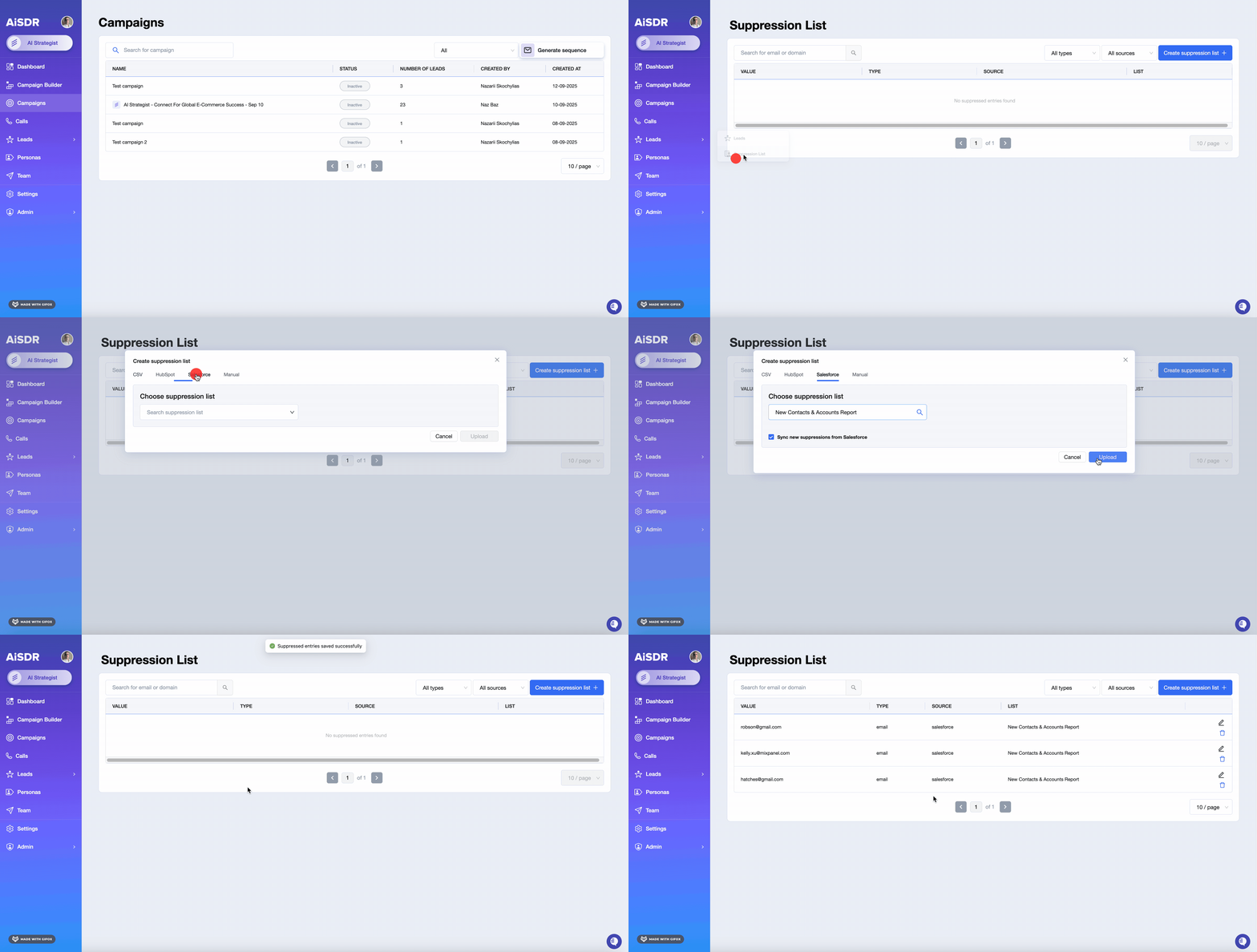
How to Upload a Suppression List
Go to Leads → Suppression List.
Click Create suppression list +.
Switch to the Salesforce tab.
Select the list to upload.
Click Upload.
Active vs. Static Lists
Active Suppression List (default): Automatically adds new contacts if they appear in Salesforce.
Static Suppression List: Only includes contacts available at the time of upload.
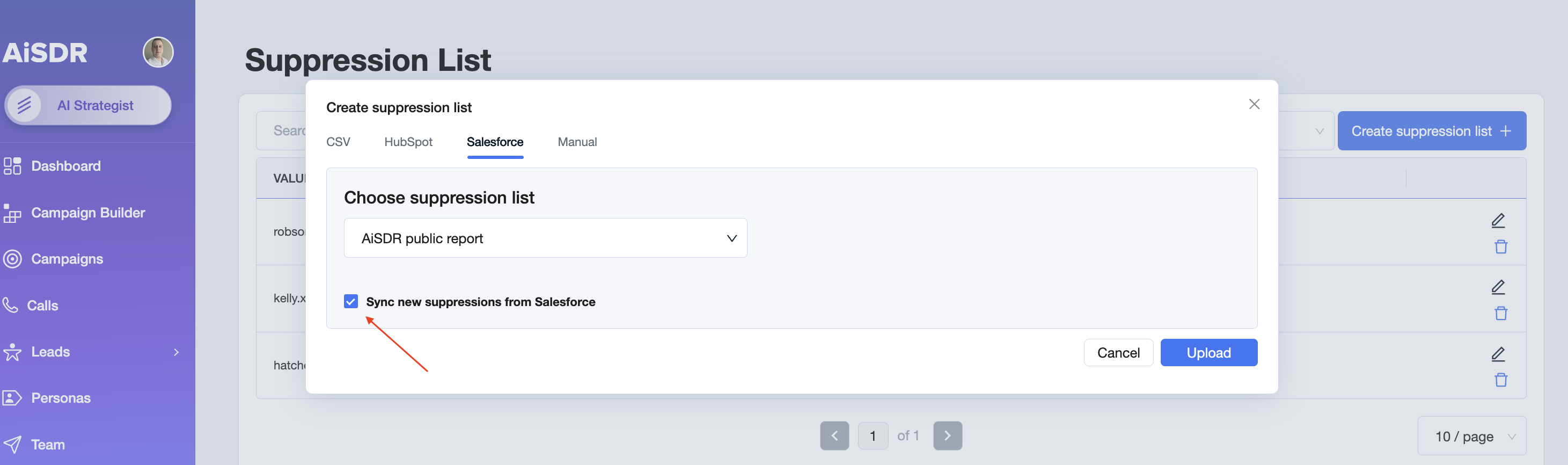
You can also use Salesforce Account reports as suppression sources.
When selected, AiSDR will suppress all contacts associated with the accounts included in that Salesforce Account report.
This is especially useful when you want to exclude specific customer segments, existing clients, partner accounts, or strategic accounts at the company level — without needing individual contact emails.
Important Rules
A Salesforce list can only serve one purpose:
If used in a campaign, it cannot be uploaded as suppression.
If uploaded as suppression, it cannot be linked to a campaign.
Deleting a suppression list removes all related entries in AiSDR.
Notifications
You’ll see confirmation messages when suppression lists or reports are successfully synced.
Extra: Advanced Salesforce features
AiSDR → Salesforce
🆚 What syncs to Salesforce Leads vs Contacts
AiSDR syncs back to both Salesforce Leads and Contacts. Which object a prospect lands on is set in the campaign builder (see the Contact / Lead entity selector under Add new contacts to Salesforce). The items below apply to both Leads and Contacts unless noted.
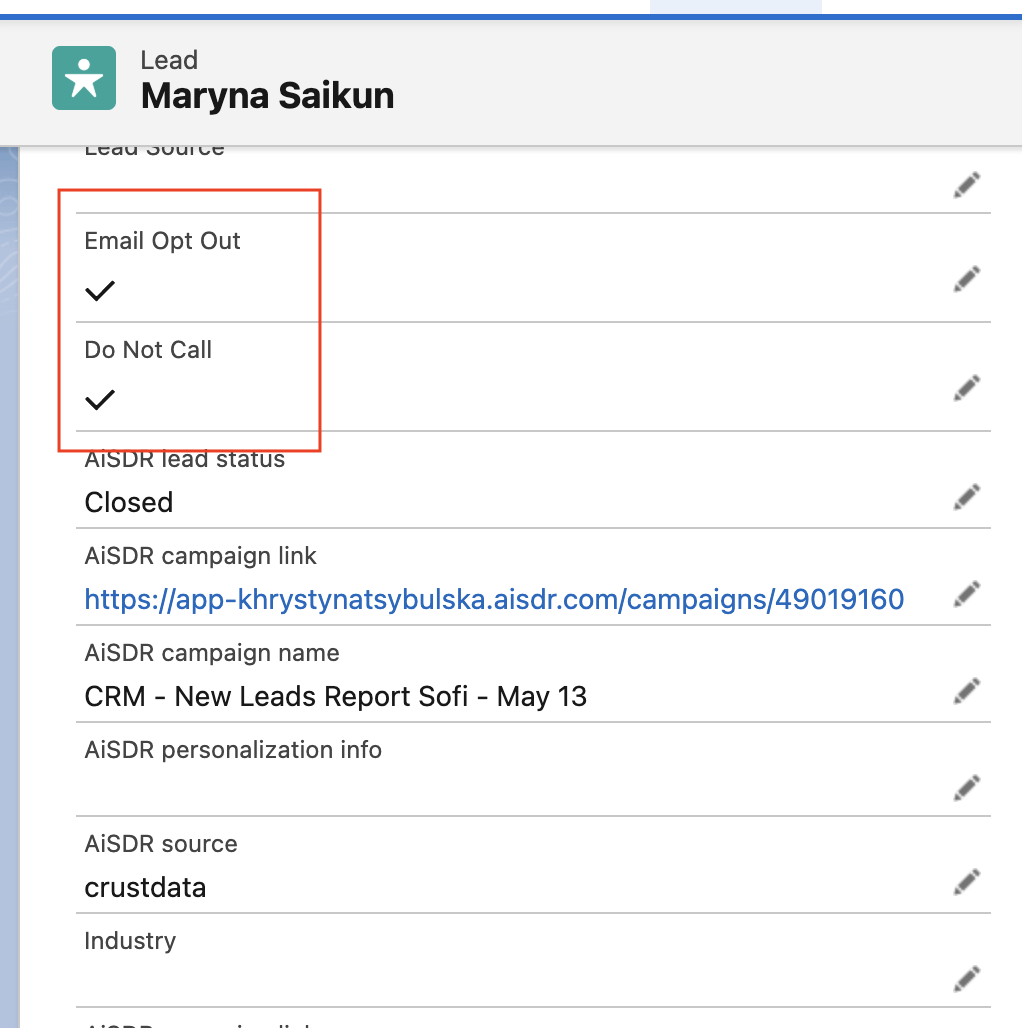
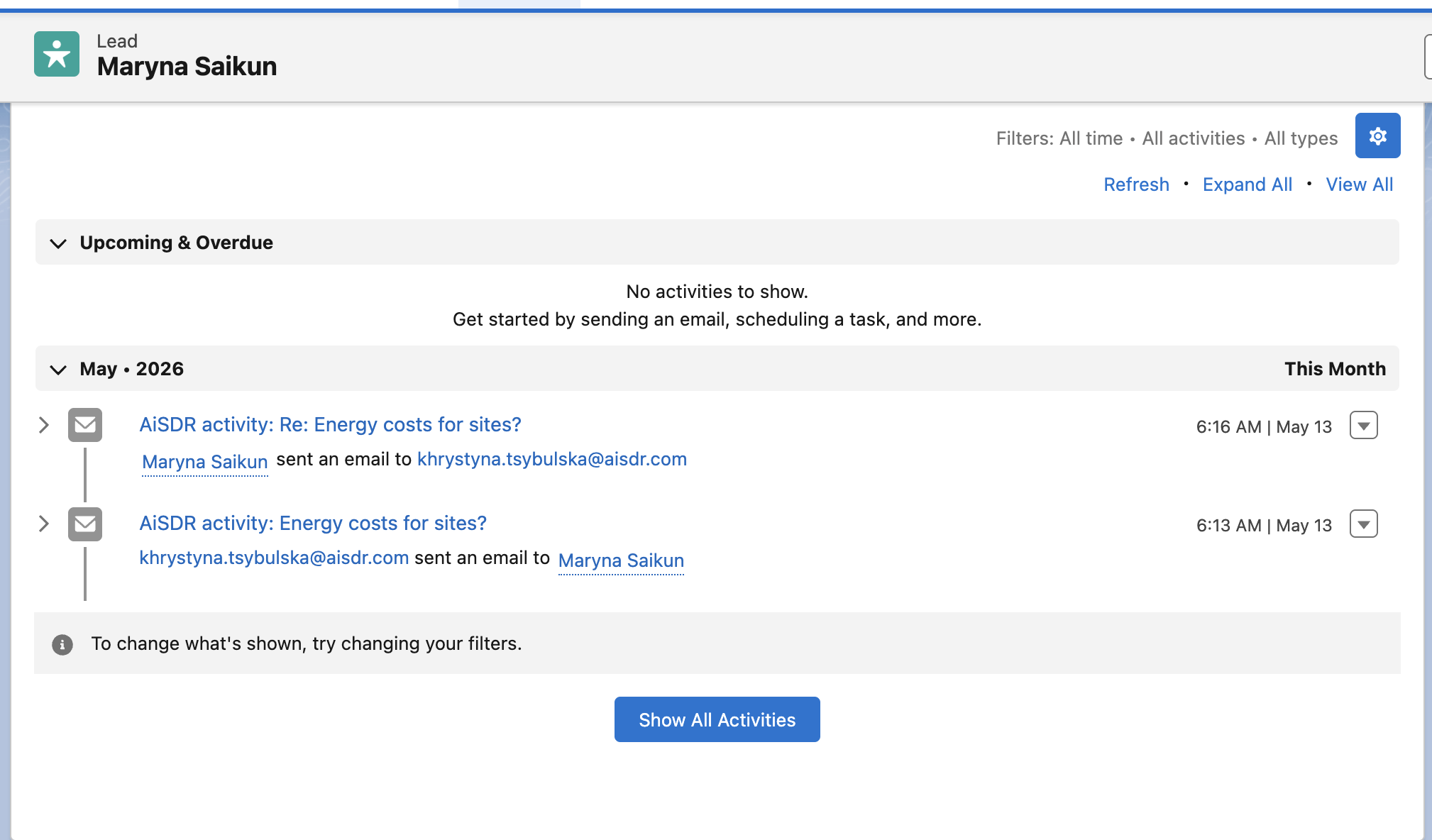
Unsubscribe flags
When a prospect unsubscribes, AiSDR writes HasOptedOutOfEmail = true and DoNotCall = true on the matching Lead or Contact record.
Enrichment back-sync
LinkedIn URL and email discovered or verified by AiSDR enrichment are written back to the matching Lead or Contact.
AiSDR-generated activities
Emails, LinkedIn messages, meetings, and notes are logged against the Lead or Contact. For Contacts they also roll up to the related Account (see Syncing AiSDR events to Salesforce below).
Custom properties
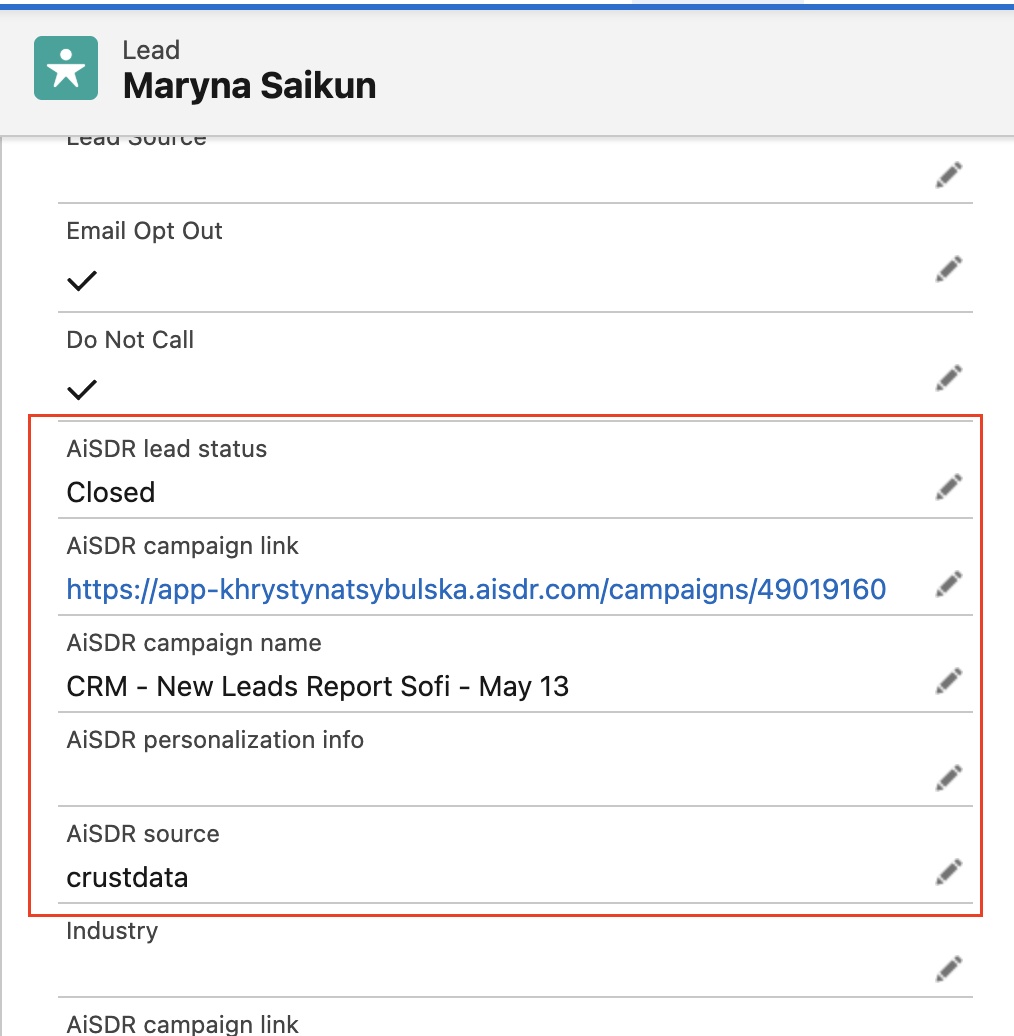
Custom properties now sync for both Leads and Contacts. AiSDR matches by field API name, so the same property maps to either object as long as the field exists on that object. This covers AiSDR Lead Status, AiSDR Lead Source, AiSDR Campaign Name, AiSDR Campaign Link, and AiSDR Personalization Info. The new AiSDR LinkedIn URL property syncs the same way.
🔄 Syncing AiSDR events to Salesforce
When enabled, AiSDR will sync outreach activity into Salesforce as Activities and/or Notes.
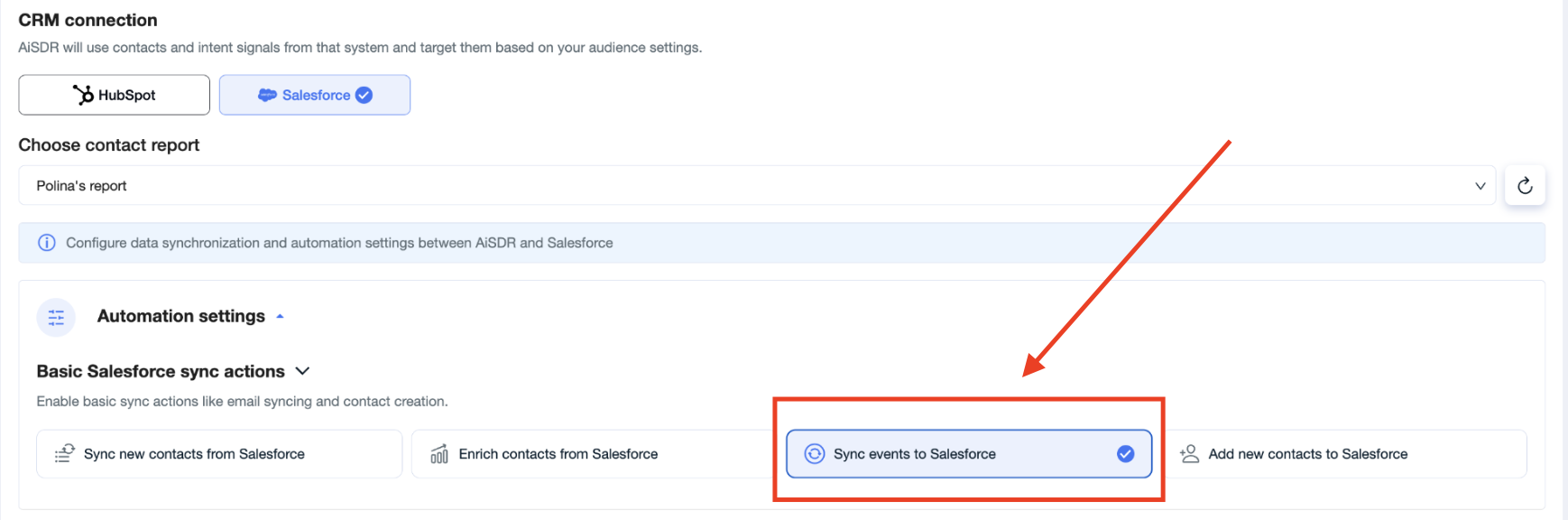
How to enable event sync
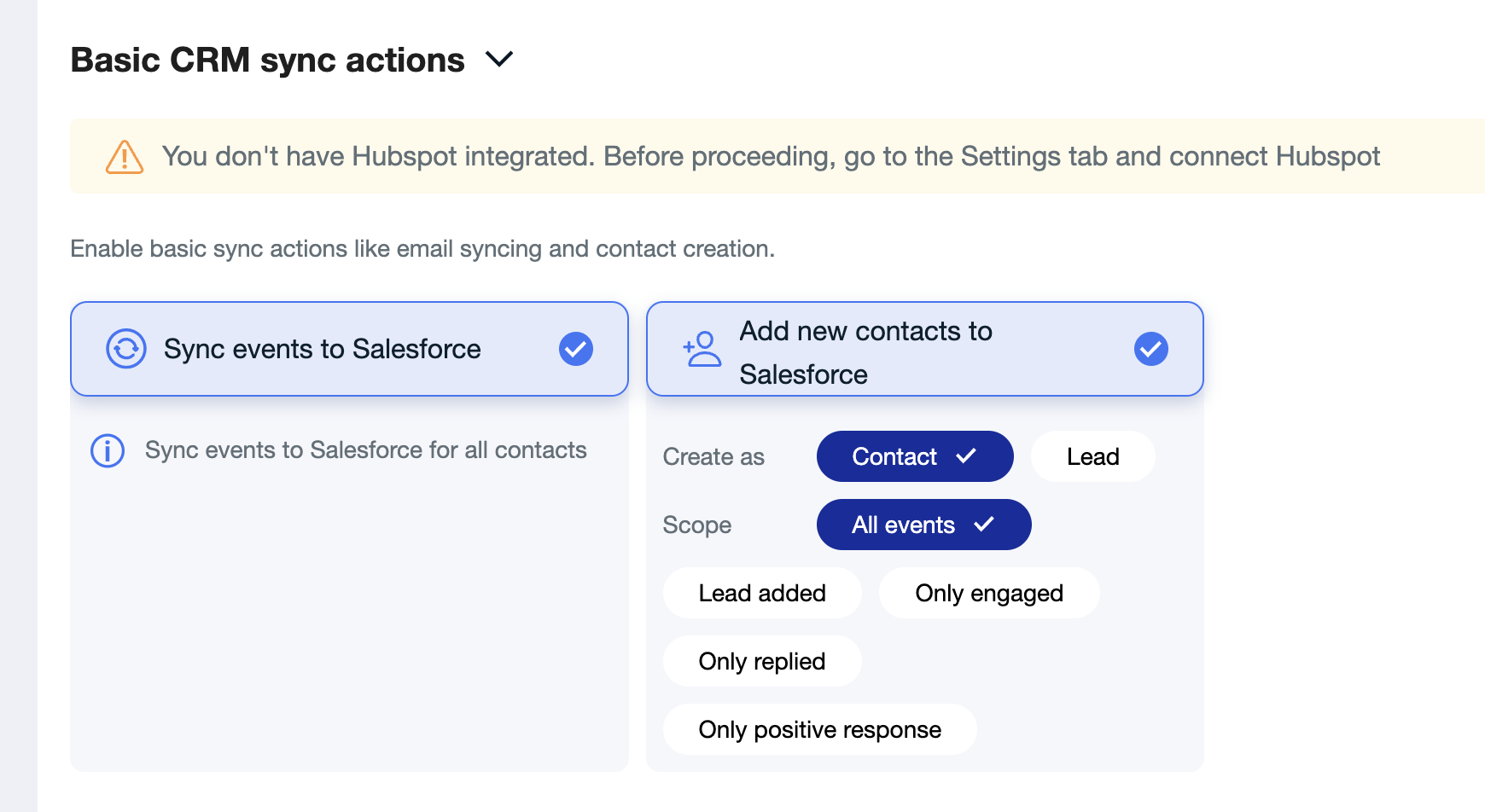
When creating the campaign, enable Sync events to Salesforce in the Basic Salesforce sync actions section:
Where activities appear in Salesforce
Activities/notes are linked to the Contact, and therefore also appear both, on the Contact page, as well as the the Account page:
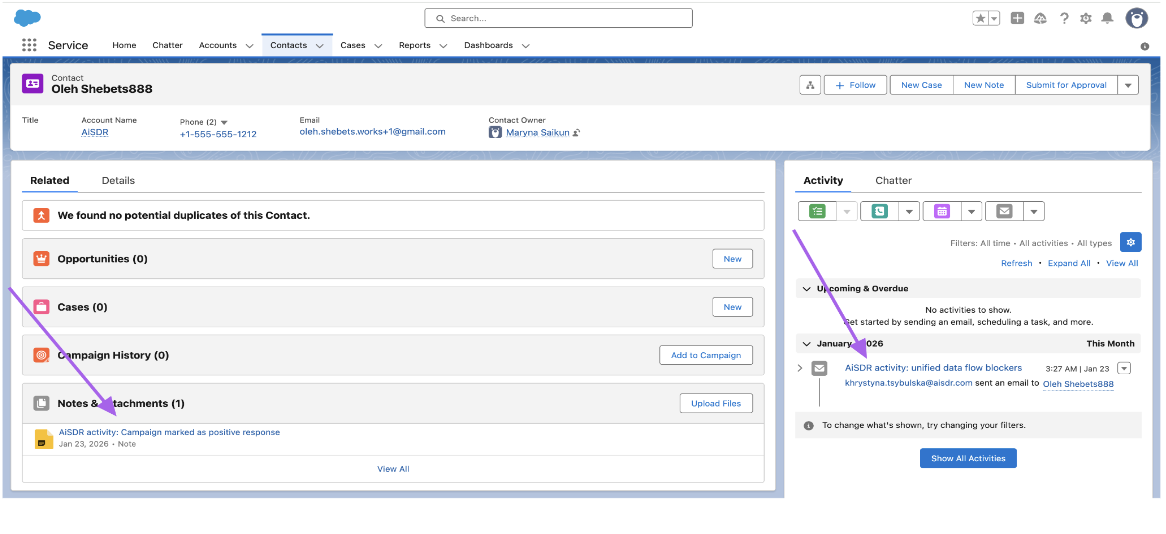
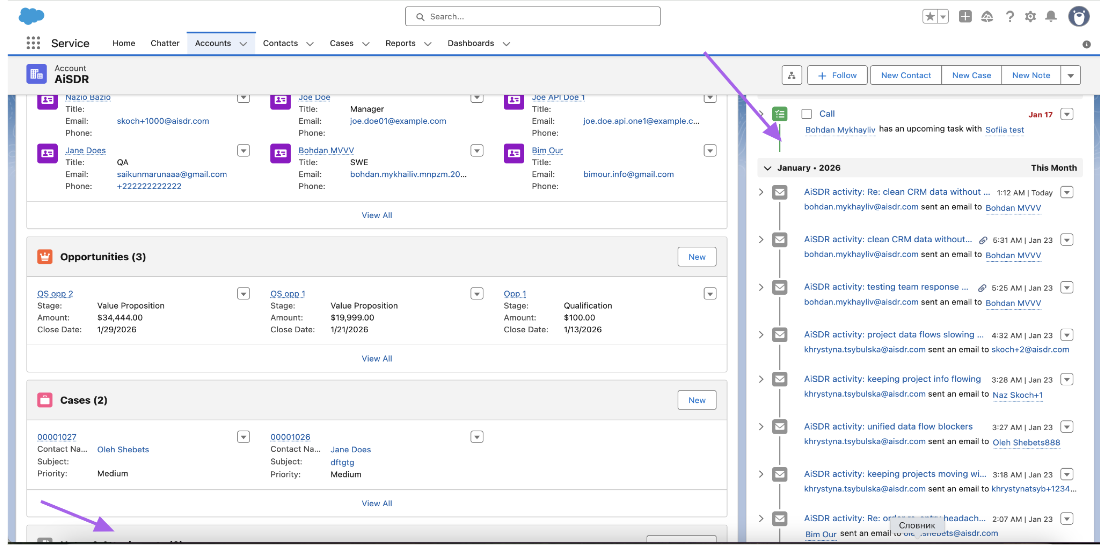
Events that originated from AiSDR are easily identifiable as they always start with “AiSDR activity …”
What events are synced to Salesforce
Email activity: created for outgoing / incoming / reply event types:
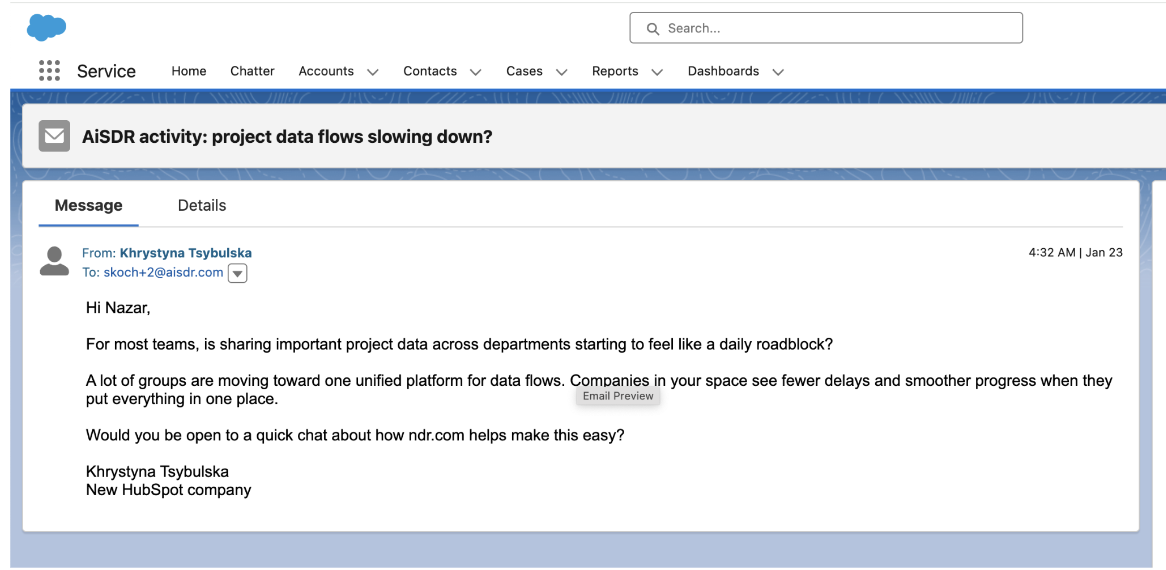
LinkedIn messages: created for outgoing / incoming / reply event types:
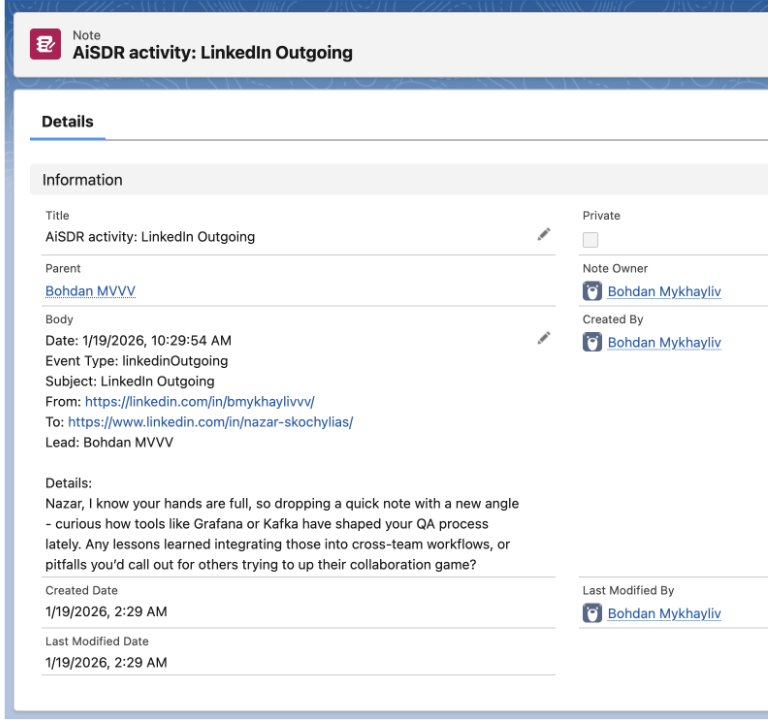
Meeting activity: created for all Meetings Booked:
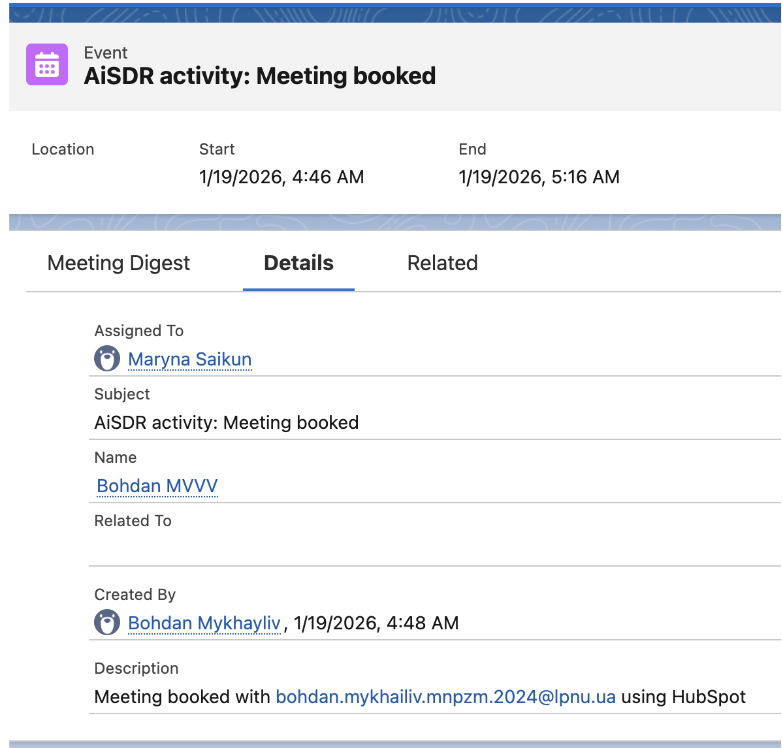
👫 Syncing AiSDR contacts to Salesforce
How to enable contacts sync
When creating the campaign, enable Add new contacts to Salesforce in the Basic Salesforce sync actions section:
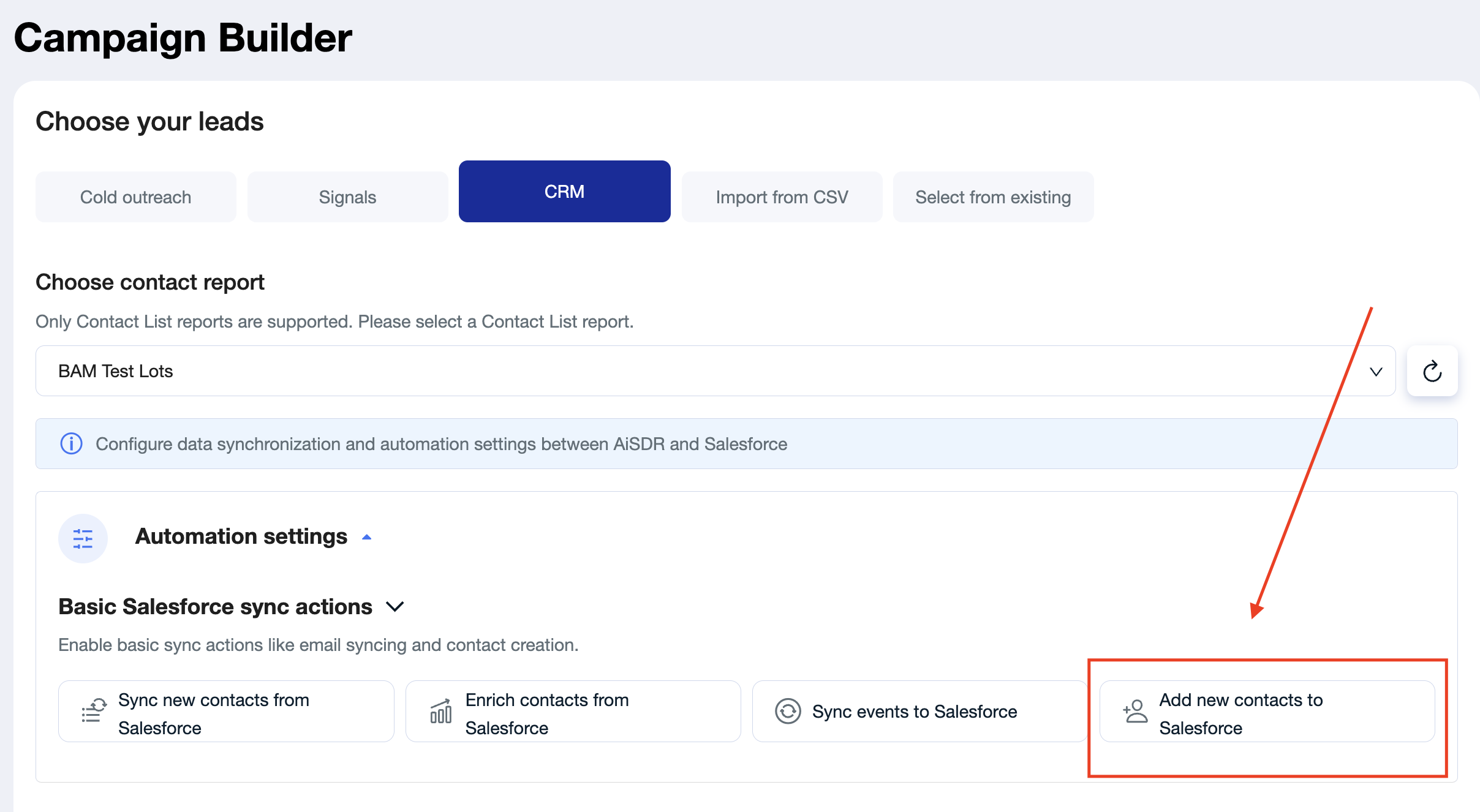
Choose which leads you'd like to be added to your Salesforce:
Leads added: All leads in the campaign will be synced to Salesforce once the campaign is activated.
Only engaged: A lead is synced to Salesforce the moment AiSDR first reaches out to them.
Only replied: A lead is synced to Salesforce after AiSDR receives any incoming event (a reply).
Only positive response: A lead is synced to Salesforce only after they show positive engagement.
Note: you can also choose whether to create the lead as Contact or Lead in your Salesforce entity.
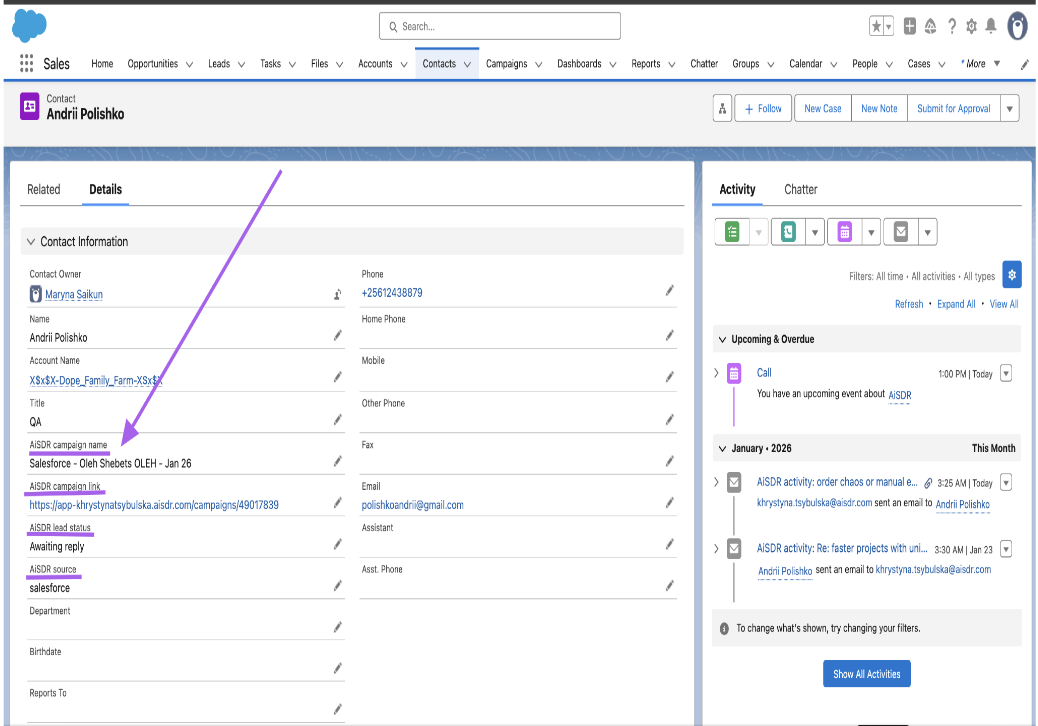
Where to find AiSDR contacts in Salesforce
Since Salesforce reports are dynamic, AiSDR leads will appear in any report where it matches the report filters.
But AiSDR contacts can be easily identified by the custom properties synced from AiSDR:
AiSDR lead status (New/ Awaiting Reply / Closed), which also helps identify contacts that are being actively engaged by AiSDR
AiSDR campaign name, which helps filter contacts by the campaign in AiSDR
AiSDR campaign link
AiSDR personalization info
Note: same settings apply if you choose to sync AiSDR leads as Leads into your Salesforce.
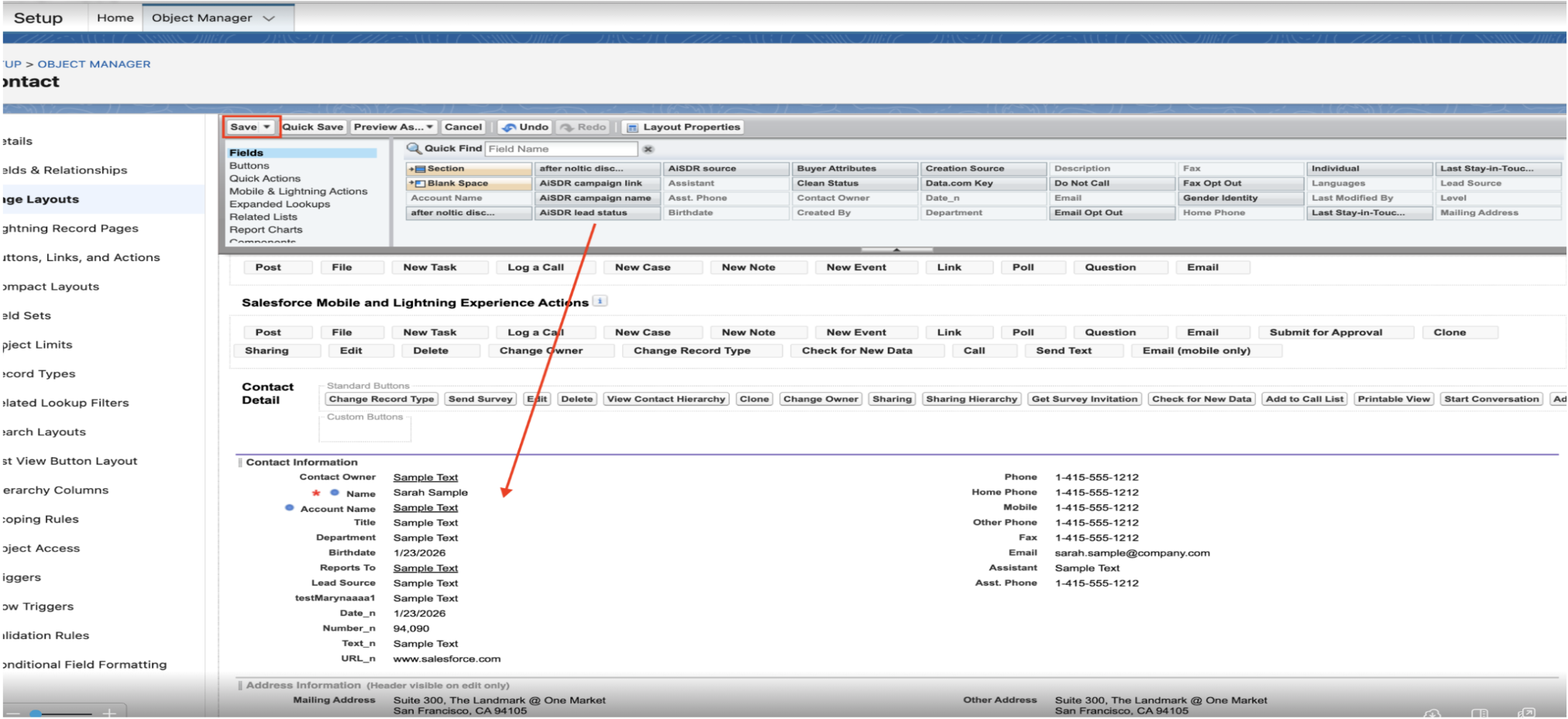
🚩The fields above are hidden by default 🚩.
To see these fields on the contact page go to Setup -> Object Manager -> Contact -> Page and Layouts -> Contact Layout -> update info here:
📝 Syncing AiSDR data fields to Salesforce
AiSDR syncs a limited set of campaign and lead context fields to Salesforce (automatically mapped):
Contact Name
Contact Email
Contact Account
AiSDR Lead Status
AiSDR Lead Source
AiSDR Campaign Name
AiSDR Campaign Link
AiSDR Personalization Info
AiSDR LinkedIn URL
Note: Custom properties now sync for both Leads and Contacts. AiSDR matches by field API name, so the same property maps to either object as long as the field exists on that object.
💰 Syncing Salesforce opportunities (pipeline attribution)
💰 What Salesforce opportunities sync does (and doesn't do)
In Salesforce, an opportunity is a deal in progress tied to an account or a contact — it carries the potential revenue, the expected close date, and the pipeline stage. AiSDR reads your opportunities so it can show you how much pipeline and revenue your campaigns actually influenced.
🚩 This sync is read-only. AiSDR never creates, edits, moves, or closes an opportunity in Salesforce, and it never changes amounts or stages. Your pipeline stays exactly as your reps left it — AiSDR only reads it to calculate your dashboard numbers.
What AiSDR reads from each opportunity:
Amount — used as-is for the pipeline value. AiSDR does not estimate or recalculate it.
Stage — used to separate open pipeline from won deals, and to exclude Closed Lost.
Created date — used to check whether the opportunity appeared after AiSDR's outreach.
Linked contact and account — used to match the opportunity to a lead in your campaigns.
Opportunities also appear as part of a lead's Salesforce history inside AiSDR, alongside tasks, events, and notes, so your reps see deal context on the lead.
How often it runs:
AiSDR pulls opportunity data from Salesforce every 3 days
Metric values are cached for 8 hours, so a fresh deal can take a few hours to appear on the dashboard
The cadence is deliberate — it keeps AiSDR's footprint on your Salesforce API limits low
✅ Once Salesforce is connected, this runs on your whole account — there's nothing to enable per campaign.
Note: AiSDR needs read access to the Opportunity object on the connected Salesforce user. If that permission is missing, everything else keeps working — only the pipeline metrics stay empty.
🎯 How opportunities get attributed to your campaigns
An opportunity counts toward your AiSDR pipeline when all three are true:
A lead on that opportunity was in one of your AiSDR campaigns.
AiSDR sent at least one outgoing touch to that lead (email, LinkedIn message, SMS, or call) before the opportunity was created in Salesforce.
The opportunity is not Closed Lost.
Two attribution types:
Direct — the opportunity's contact is a lead AiSDR reached out to. Example: AiSDR emailed John at Google, and an opportunity is later created with John.
Indirect — the opportunity sits on the same Salesforce account as a lead AiSDR reached out to, even if the contact on the deal is someone else. Example: AiSDR emailed John at Google, and an opportunity is later created with Jane at Google.
Indirect attribution is what covers enterprise deals, where the person who signs is rarely the first person you emailed.
✅ Deals opened by a colleague of the lead AiSDR contacted still count, as long as they sit on the same Salesforce account.
💡 Good to know:
The lead does not need to be new to Salesforce. An existing contact counts as long as AiSDR reached out before the opportunity was created. That's why it's called influenced pipeline, not sourced.
If a lead sits in several campaigns, the opportunity is attributed to one campaign only — the strongest lead state wins (meeting booked beats positive response, which beats awaiting reply).
Indirect deals are deduplicated to one opportunity per company, so a single big account can't inflate the number.
Opportunities without an Amount are skipped entirely.
📈 Where to see the pipeline your campaigns influenced
Go to your Dashboard for the account-level view, or Campaigns → Analytics for the per-campaign view.
You'll see four Salesforce metrics:
Salesforce pipeline generated — open deal value from direct outreach
Salesforce deals won — Closed Won value from direct outreach
Salesforce indirect pipeline generated — open deal value from account-level influence
Salesforce indirect deals won — Closed Won value from account-level influence
Click a metric to open the breakdown — each opportunity with its amount, the lead it's tied to, the campaign it came from, and a link back to the record in Salesforce.
✅ Every number traces back to a specific opportunity in your own Salesforce, with your own Amount values.
💡 Good to know: these metrics are all-time. They are not limited by the date range you pick elsewhere on the dashboard, so don't compare them against a filtered view.
🧮 Why your pipeline number looks lower than expected
Most "missing pipeline" cases come down to one of five things. Work through these in order.
Was the opportunity created before AiSDR's first touch? Then it isn't influenced and won't count. This is the most common one.
Is the opportunity Closed Lost? Closed Lost is always excluded from pipeline metrics.
Does the opportunity have an Amount? Blank amounts are skipped.
Is the lead's email on the Salesforce contact? Matching happens on email, so a contact without one can't be linked to a lead.
Does your team log deals in Salesforce for this segment? If only enterprise deals go into Salesforce, SMB campaign pipeline will read as zero even though outreach is working.
✅ Once you've ruled these five out, the remaining gap is worth reporting — send it to us and we'll check the sync on your account.
💡 Opportunities sync best practices
Give the connected Salesforce user read access to the Opportunity object at setup, not after your first pipeline review.
Always fill the Amount field on opportunities. A blank amount makes the deal invisible to pipeline metrics.
Keep emails on your Salesforce contacts — email is how AiSDR matches an opportunity to a lead.
Link every opportunity to the correct account so indirect attribution can work at company level.
✅ Log deals in Salesforce for every segment you run campaigns for. ❌ Logging only enterprise deals will make campaign pipeline read as zero even when outreach is working.
Read these metrics all-time, not against a filtered date range.
Reconnect Salesforce right away if the connection breaks — pipeline metrics stop updating silently, with no error.
Need help with setting up Salesforce <> AiSDR integration? Contact us at help@aisdr.com