How to Use the Dashboard to Review a Specific Campaign in AiSDR
Last updated: November 14, 2025
The AiSDR dashboard gives you a complete view of your outbound performance — but when you want to focus on just one campaign, you don’t need to open it separately. You can filter and analyze it directly from the main dashboard.
How to Filter by a Specific Campaign:
At the very top of the dashboard, you’ll see a dropdown labeled “All campaigns” (top-left corner). This is your campaign filter.
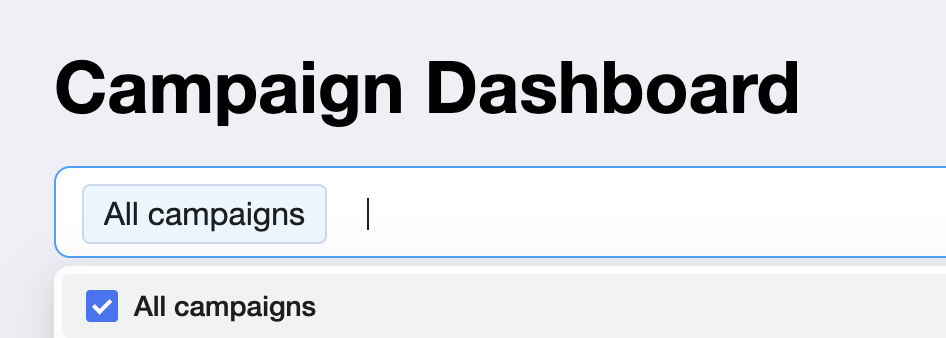
Here’s how to use it:
Click the dropdown under the “Campaign” label.
You’ll see a list of all your existing campaigns.
Select the campaign you want to analyze.
The dashboard will instantly refresh, showing only the data for the selected campaign — including send volume, open/response rates, LinkedIn activity, and meetings booked.
Don’t Forget: Check the Date Range!
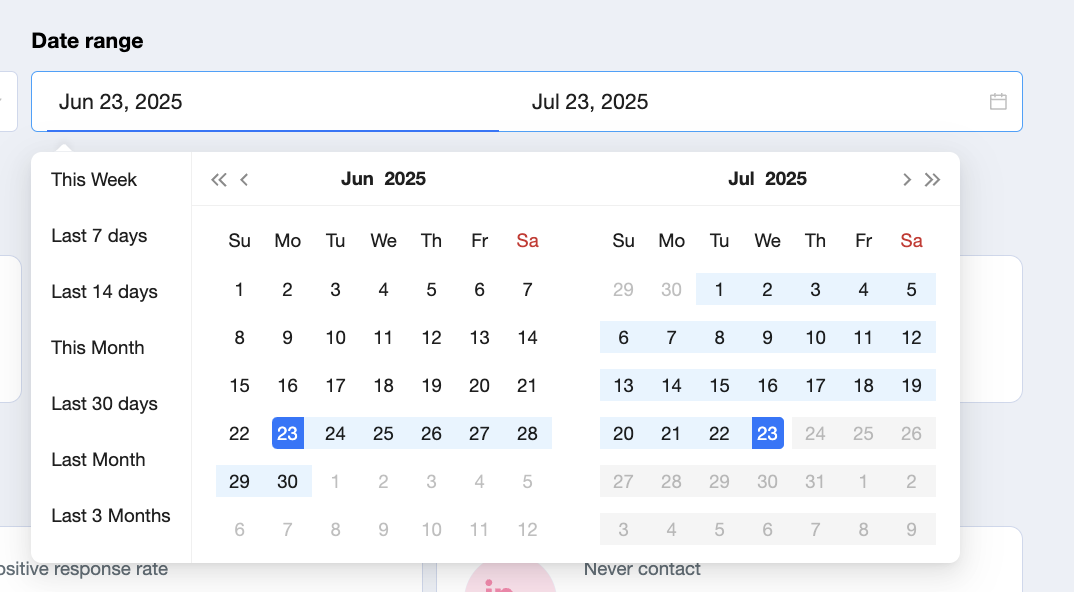
When reviewing a specific campaign, make sure your date range filter (top-right corner) is aligned with your campaign’s active period.
If your campaign launched recently or ran in a specific window, but your date filter is too narrow or too broad, some metrics may appear as 0 or "N/A". Adjusting the range ensures you're seeing accurate and up-to-date results.
Campaign Performance Overview
You can also scroll to the very bottom of your Dashboard and review the Campaign performance section.
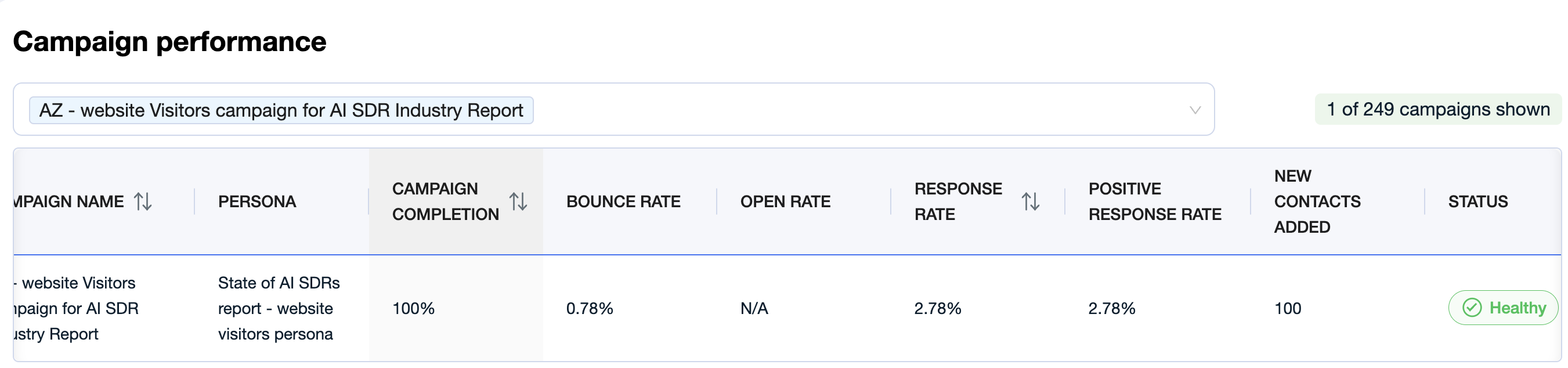
Here, you can:
Check and compare all your campaigns at a glance.
Select a specific campaign to dive into its performance details.
Review campaign completion, status, and New Contacts Added for each campaign.
This makes it easy to track progress, spot trends, and quickly see which campaigns are performing best or need your attention.