Tracking LinkedIn Performance
Last updated: April 24, 2026
This article explains how you can add LinkedIn-related metrics to your dashboard to enhance your analytics and gain deeper insights into your outreach performance. The process is simple and intuitive, and it lets you monitor the full picture across both email and LinkedIn channels.
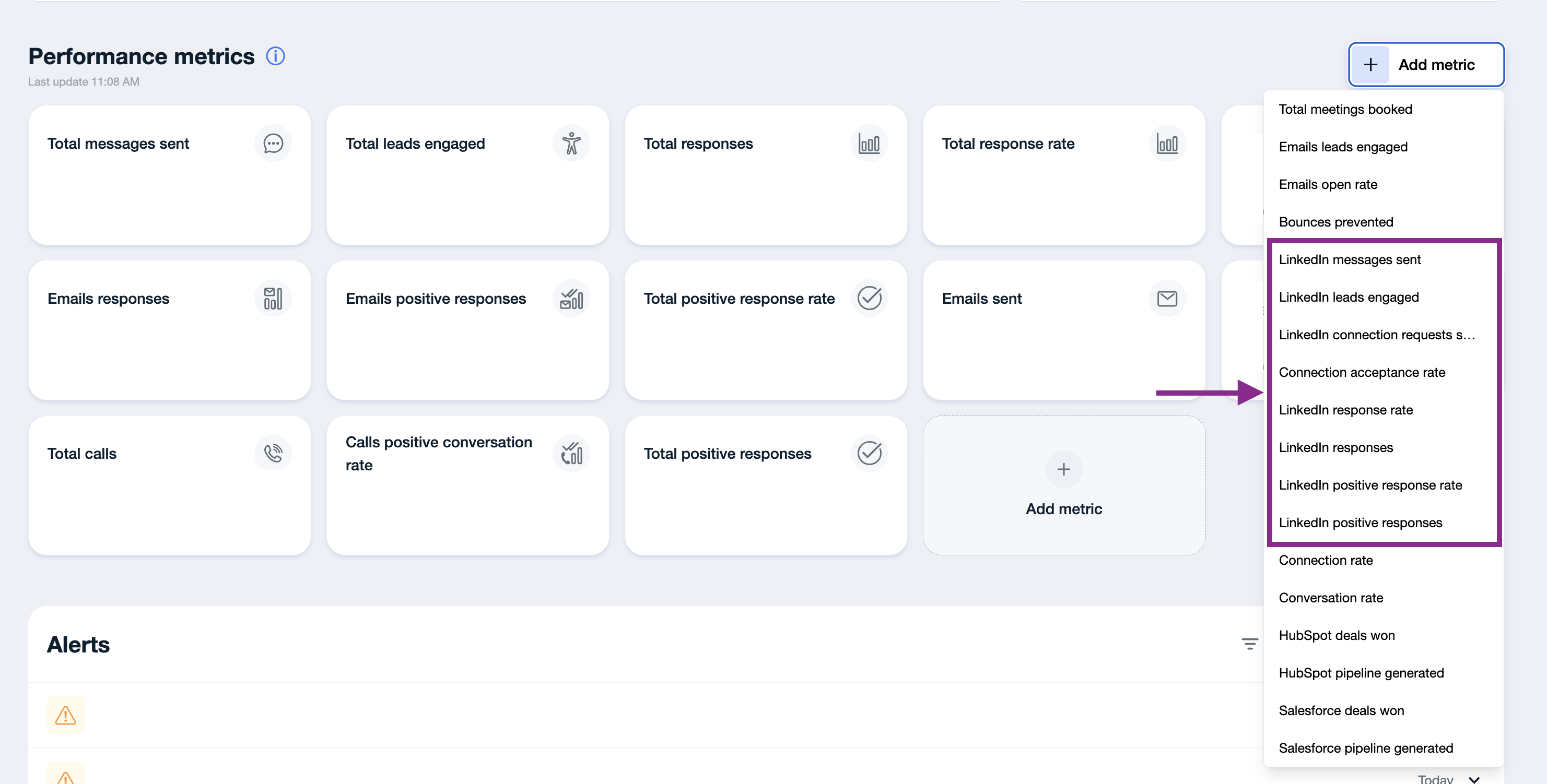
Step 1: Go to Add Metric
Open your Campaign Dashboard. In the upper-right corner, you will find the Add metric button. Click it to open the catalog of available metrics
Step 2: Select LinkedIn-related metrics
In the metrics catalog, locate the category for LinkedIn or LinkedIn-related metrics.
You will see a list of indicators such as:
LinkedIn messages sent
LinkedIn leads engaged
LinkedIn connection requests sent
Connection acceptance rate
LinkedIn response rate
LinkedIn responses
LinkedIn positive response rate
LinkedIn positive responses
Choose the metrics that matter most for your outreach and performance analysis.
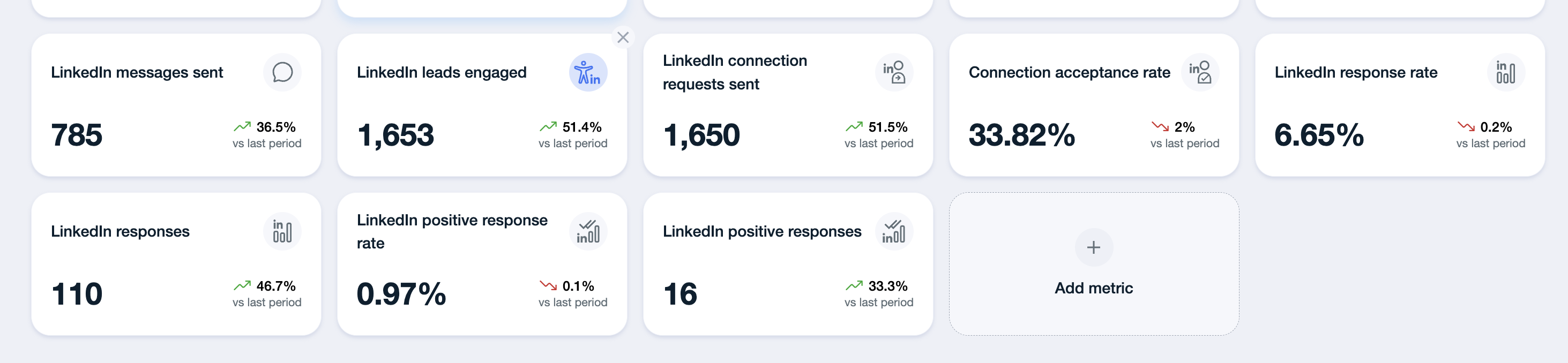
Step 3 (optional): Customize the visualization
Once the metrics are added, you can:
reorder metric cards
apply filters (date range, specific campaigns)
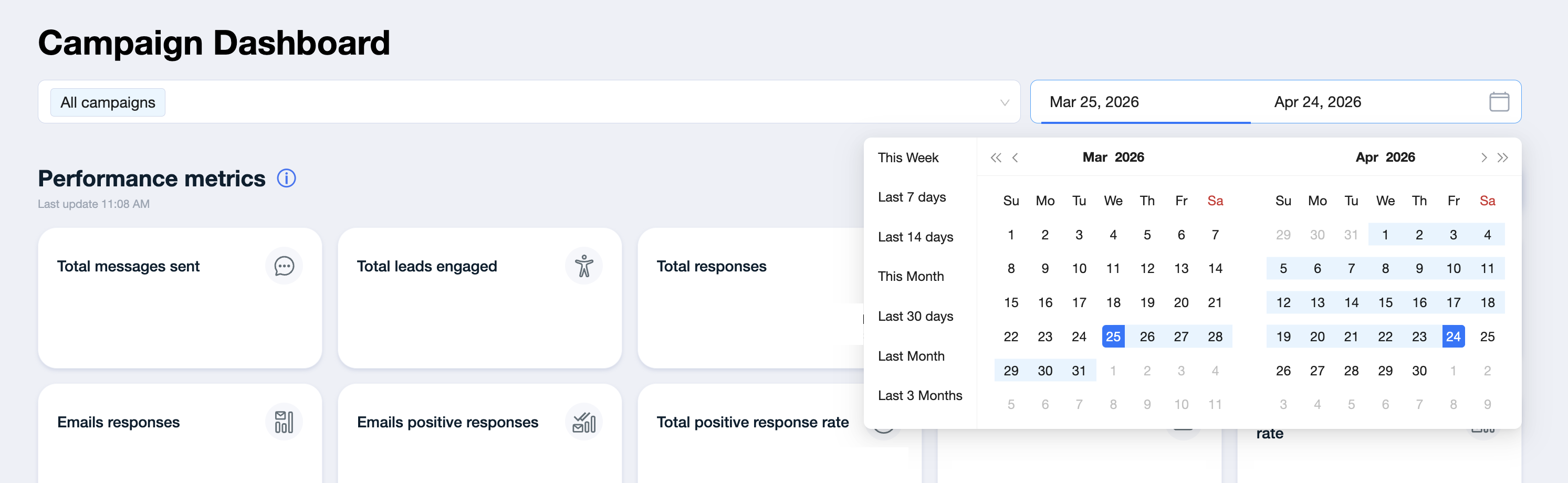
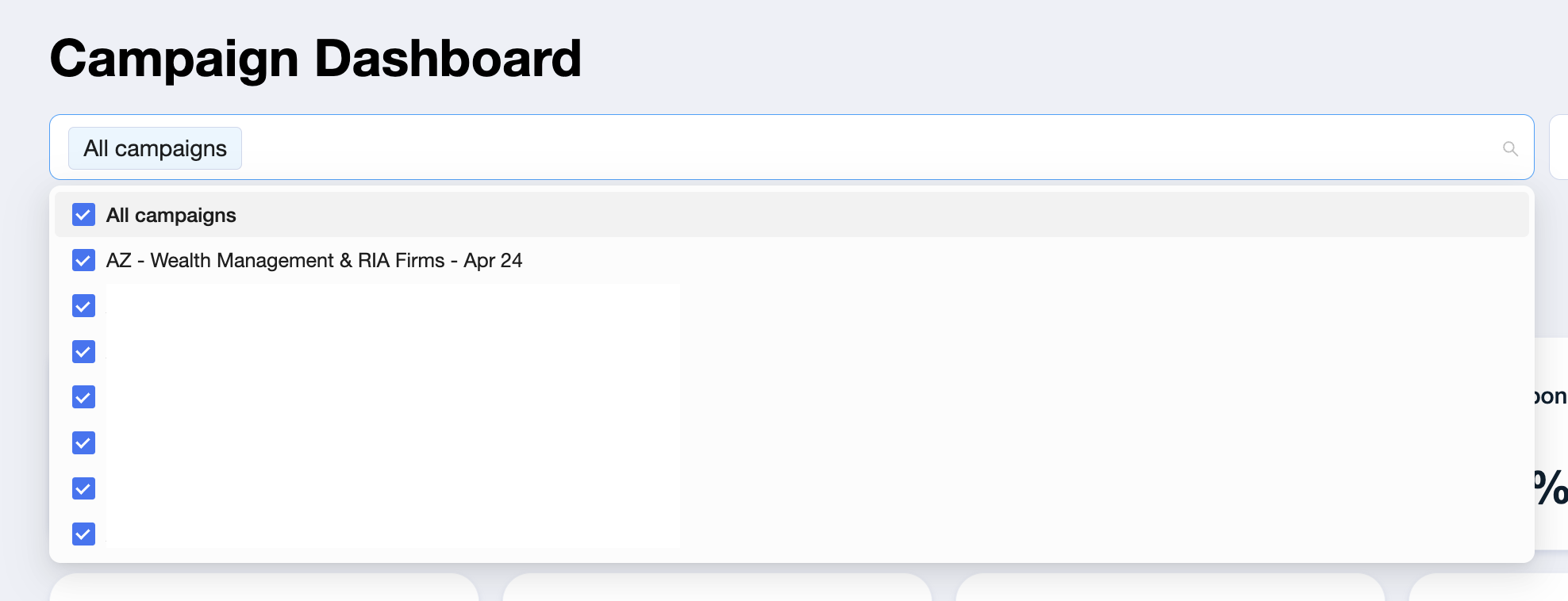
This helps you build a dashboard that is not only informative but also visually clear and aligned with your workflow.
Here’s a breakdown of each metric in the LinkedIn Performance:
LinkedIn Messages Sent
The total number of direct messages (DMs) sent to leads on LinkedIn. This includes only outbound DMs — not likes or connection requests.
This metric helps you understand the volume of message-based outreach happening through LinkedIn.
Leads Engaged
The number of unique leads who received at least one LinkedIn interaction, specifically:
a like
a connection request
This metric does not include DMs.
It shows how many leads were touched through lightweight engagement before or alongside messaging.
LinkedIn Connection Requests Sent
The total number of connection invitations sent to leads on LinkedIn during the selected period.
Watching this number alongside your daily send caps helps you confirm that invites are going out at the pace you expect.
Connection Acceptance Rate
The percentage of connection requests that were accepted by leads.
Formula: (Connections accepted ÷ Connection requests sent) × 100
A higher rate means your profiles and messaging are resonating well. Low acceptance could indicate misalignment in targeting, unclear messaging, or unoptimized LinkedIn profiles.
LinkedIn Response Rate
The percentage of leads who replied to any LinkedIn message (after accepting the connection request).
Formula: (Total LinkedIn replies ÷ Leads engaged on LinkedIn) × 100
This is a key indicator of how engaging your messaging is once the connection is made.
LinkedIn Responses
The absolute count of replies received on LinkedIn during the selected period, regardless of sentiment. Every reply from a lead: positive, neutral, or negative (including "not interested" or "never contact" messages), is counted here once.
Positive Response Rate
The percentage of replies that were positive, meaning the lead expressed interest, agreed to talk, or was open to a meeting.
Formula: (Positive replies ÷ Total LinkedIn replies) × 100
Tracking this helps distinguish between general responses and actual qualified engagement.
LinkedIn Positive Responses
The absolute count of replies classified as positive on LinkedIn: leads who showed interest, asked questions, requested more information, or agreed to a meeting.
This is the metric that most directly maps to pipeline: it tells you how many real opportunities LinkedIn generated in the period, independent of volume.
Latest replies
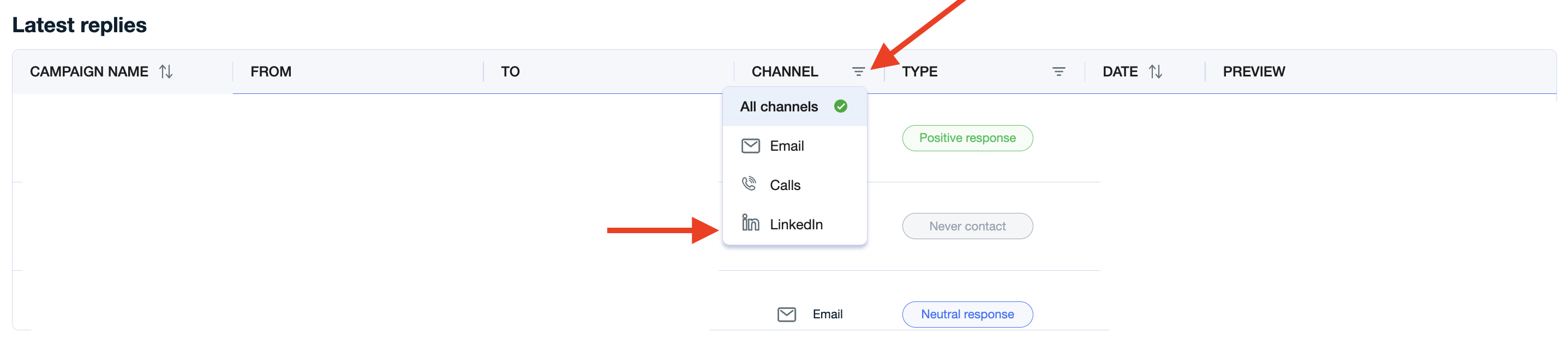
You can also filter the Latest replies table by channel to view only LinkedIn replies.
Simply open the Channel filter and select LinkedIn. This allows you to quickly review all responses that came specifically through LinkedIn -- including positive replies, neutral replies, and “never contact” messages.
This feature helps you analyze LinkedIn engagement in more detail and understand the quality of conversations happening on that channel.
📄 What Happens After You Receive a LinkedIn Response?
Daily performance
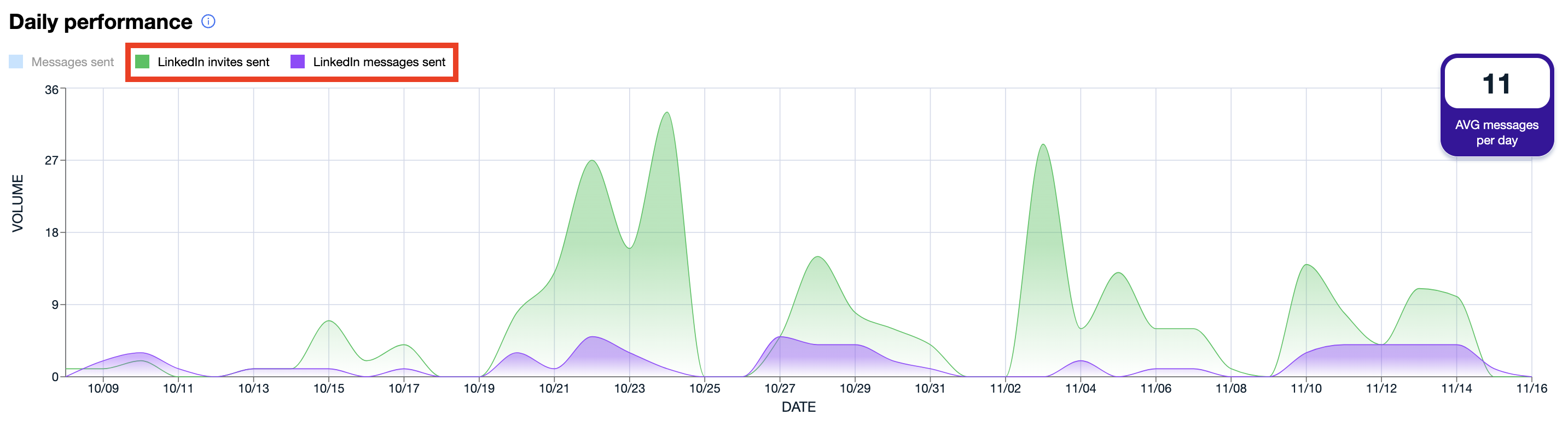
In the Daily performance graph, you can also choose to display only LinkedIn-related actions.
By selecting only the LinkedIn metrics — such as LinkedIn invites sent and LinkedIn messages sent — you can filter the chart to visualize exclusively your LinkedIn activity over time.
This helps you focus on LinkedIn-specific trends, understand engagement spikes, and analyze how your outreach pace changes day by day.
Tips for Interpreting the LinkedIn Metrics
Zeros across the board? Don’t worry — this likely means your campaign hasn’t started sending LinkedIn steps yet, or no leads have reached that part of the sequence.
High acceptance, low response? Your connection request is working — your messaging may need adjustment.
High "Never Contact"? Review your lead quality and make sure your targeting is sharp.