Team Tab: Overview and Walk-Through
Last updated: September 24, 2026
Manage your team’s mailboxes, signature and LinkedIn integrations in one place.
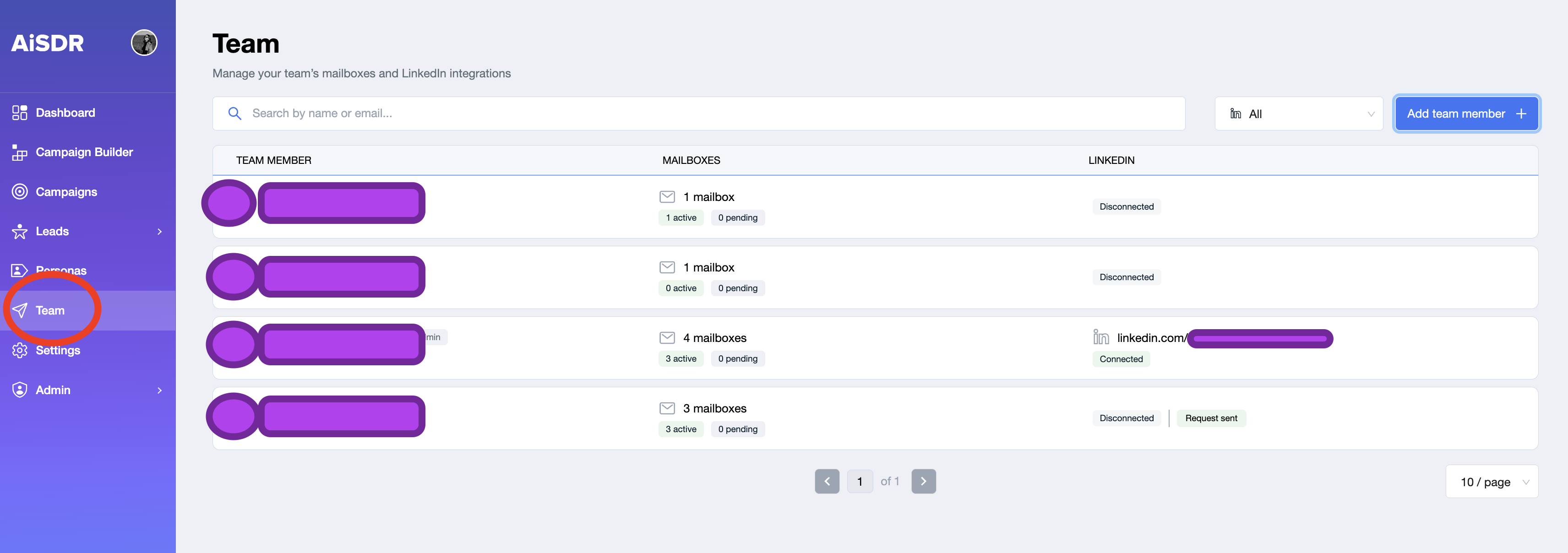
1. Page Overview
Column | What it Shows | Typical Values |
Team Member | User’s name and email. Badges such as You (current user) or Campaign Admin may appear. | Name + role |
Mailboxes | How many mailboxes the user owns, plus status chips: | “1 mailbox – 1 active” |
Connection status:
If connected, the public profile URL is displayed. | "linkedin.com/in/… – Connected” |
Use the search field (top left) to filter by name or email. The dropdown beside it filters by LinkedIn status (All / Connected / Disconnected).
2. Adding a Team Member
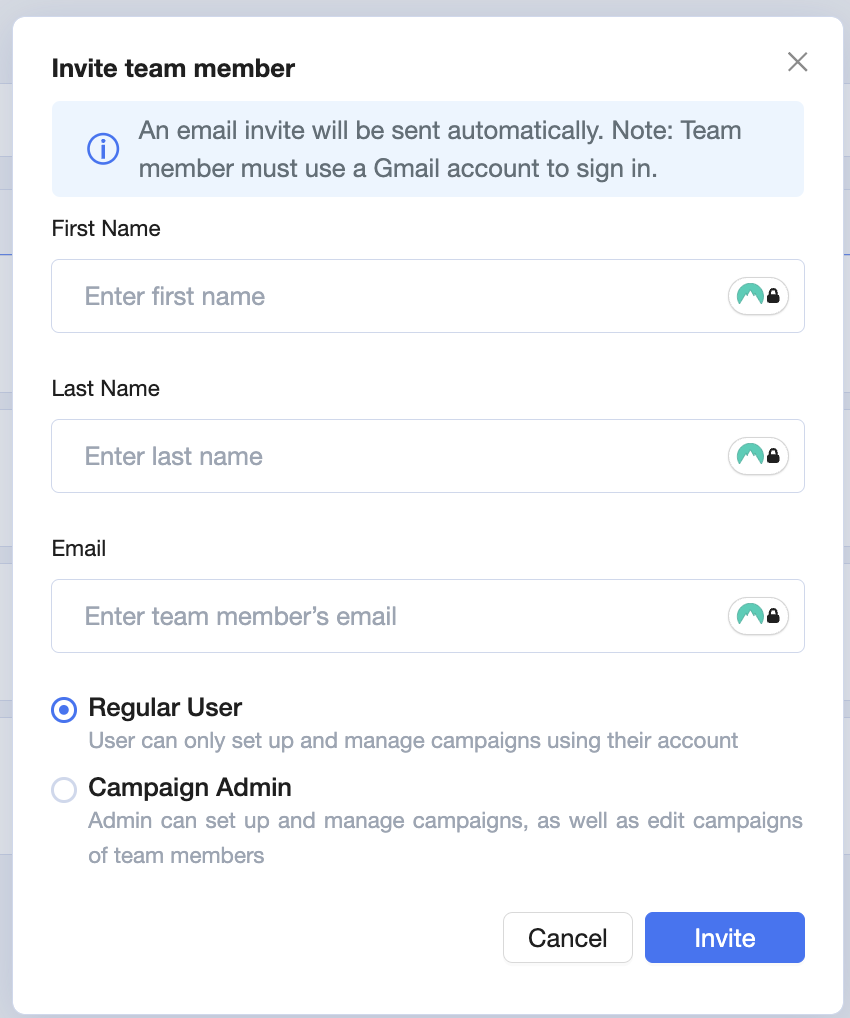
Click Add team member (top-right).
Enter the user’s email and assign a role (Member or Campaign Admin).
The new member receives an invite email to join the workspace, no password needed (Log in with Google or magic link)
How to manage a single team member’s profile, mailboxes, and integrations.
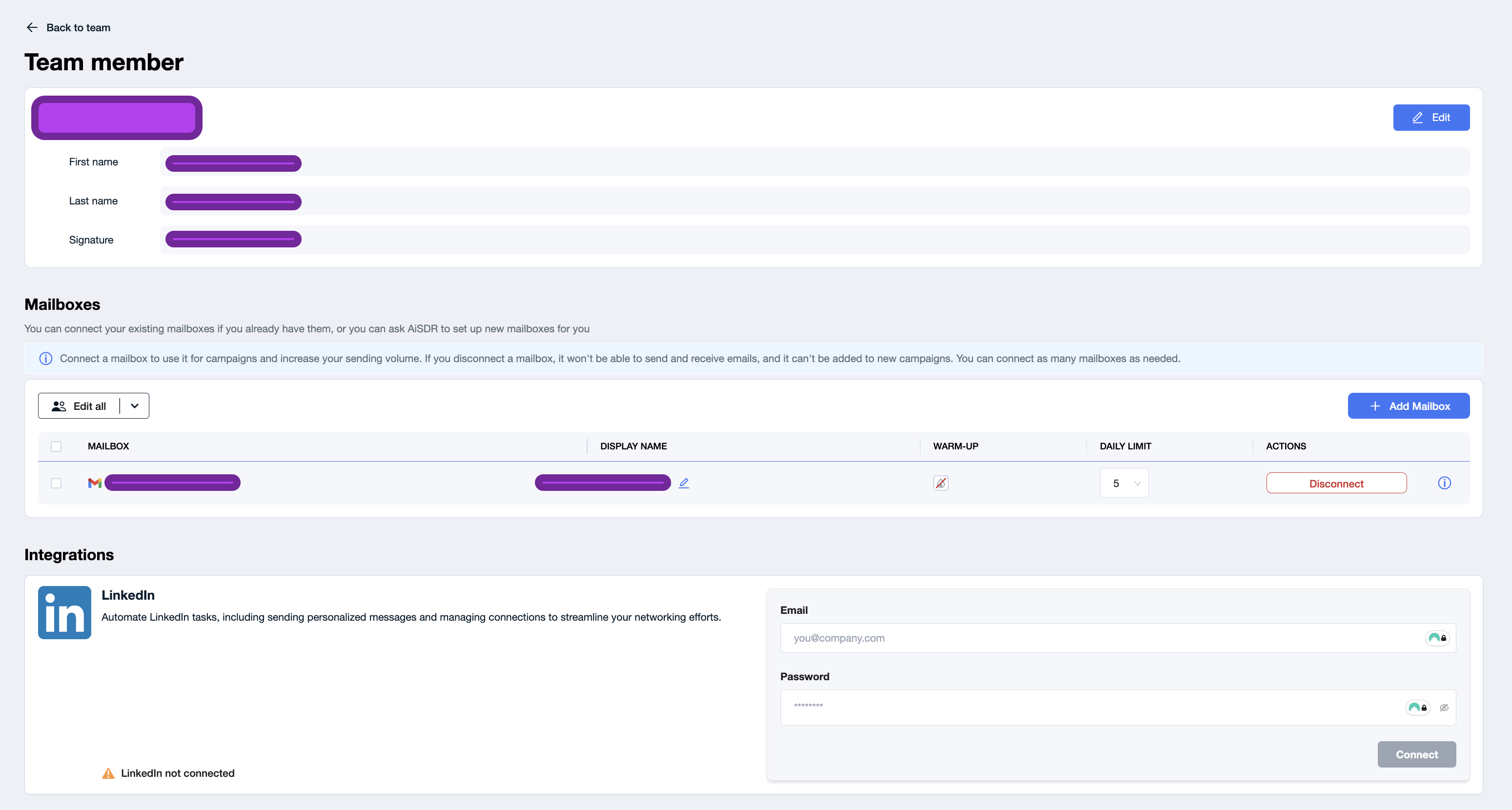
1. Profile Card
Field | Purpose | How to edit |
Avatar, Name, Email | Identifies the user and shows their workspace role (e.g., “Campaign Admin”). | Click Edit (top-right) to change first/last name or upload a new avatar. |
Signature | Email signature used in all campaigns. | Navigate to Team → Sender → Edit and modify the signature field in the modal. Save changes to apply. Note: If no signature is specified, the system generates one automatically. Each sender uses their own signature in multi-sender campaigns. Preview mode shows the current user's signature; actual campaigns use the selected sender's signature. |
2. Mailboxes Section
Mailboxes – Column Reference
Column | What It Shows | Typical Values / Notes |
Mailbox | Email address connected to the sender | e.g. |
Display Name | Sender name that appears in the “From” field | - |
Warm-Up | Status of the mailbox warm-up schedule | - |
Daily Limit | Current send cap for that mailbox | Starts at 5 emails/day and automatically increases weekly (5 → 12 → 17 → 25) |
Actions | Manage connectivity | • Connect |
3. LinkedIn Integration
State | Indicator | Next step |
Not connected | Orange warning + “Connect” button | Click Connect → approve the pop-up → badge changes to Connected. |
Request sent | Grey badge | User must accept the request from LinkedIn’s side. |
Connected | Green badge + public profile URL | Ready for LinkedIn messaging, connection requests, and post-likes. |
If a token expires, the badge flips to Disconnected—click Reconnect.