How to Connect Your LinkedIn to AiSDR
Last updated: February 4, 2026
Before you connect, make sure your LinkedIn account language (not just the interface/page view) is set to English.
Go to Settings → Integrations.
Find the LinkedIn integration.
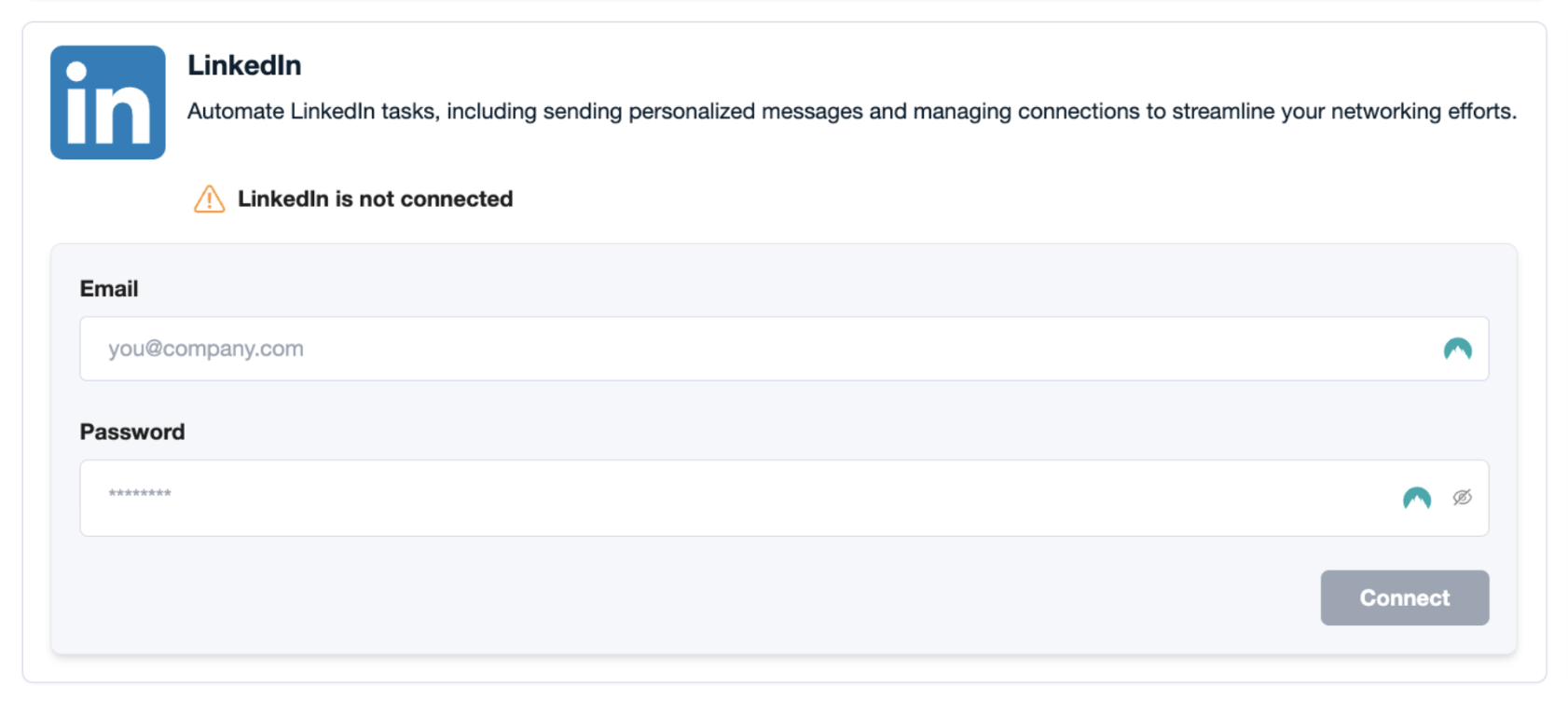
Provide your LinkedIn email and password
Use the credentials for the LinkedIn account you want to connect.
This email may be different from your corporate email or the email you use for AiSDR.
If you’re not sure which email is tied to LinkedIn, check your LinkedIn account settings.
Click Connect
Wait while AiSDR verifies your credentials (this may take 3–5 minutes).

Complete LinkedIn Verification.
If you have two-factor authentication (2FA) enabled on your LinkedIn account, you will be prompted to complete additional verification by entering an SMS code or approving the login via the LinkedIn mobile app.

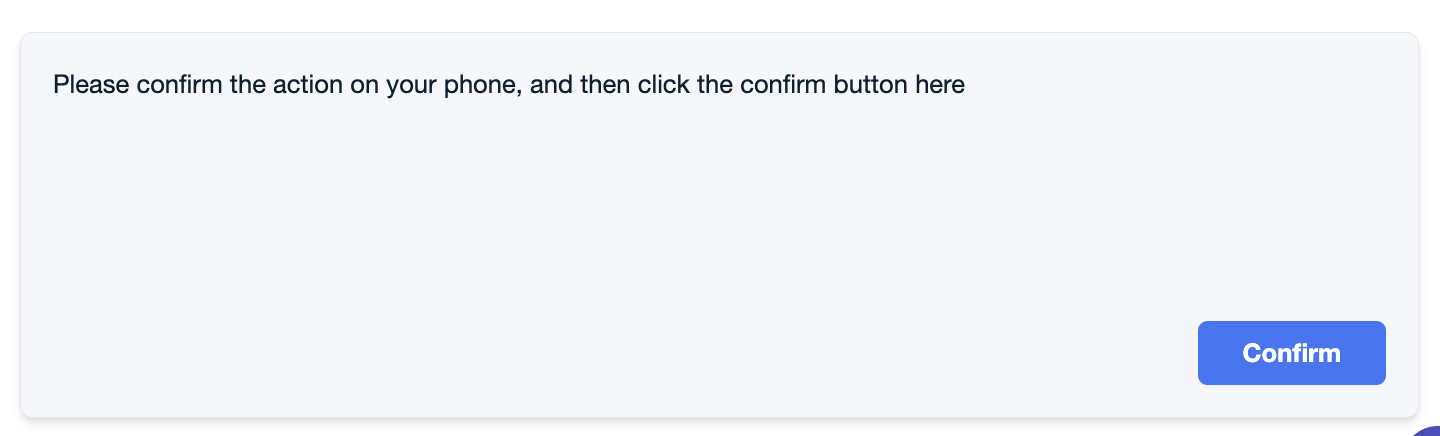
When prompted, click Confirm and wait (up to 300 seconds) for verification to complete.
You're all set! Once the verification is successful, your LinkedIn account will be connected to AiSDR.

🧑🧒🧒 How to Connect a Teammate's LinkedIn to AiSDR
If you'd like to connect a colleague’s LinkedIn account to AiSDR on their behalf, you can do this easily through the Team section within your AiSDR dashboard. Follow the steps below to either request their connection or manually connect it using their login credentials.
🧭 Step-by-Step Guide
1. Log In and Navigate to the Team Tab:
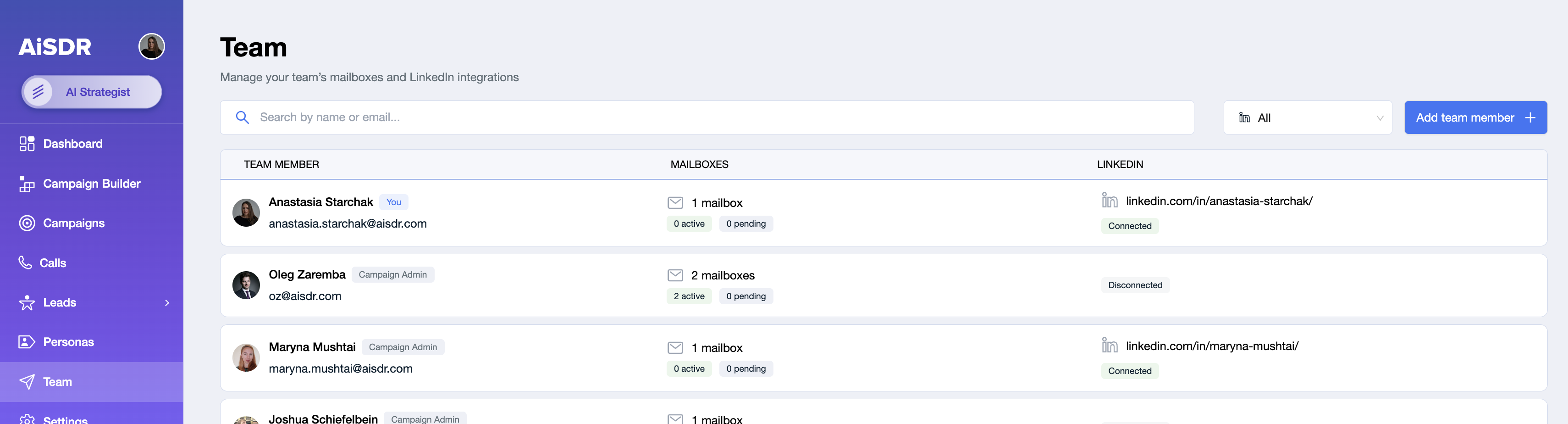
2. Select the Teammate
From your team list, click on the teammate whose LinkedIn account you want to connect.
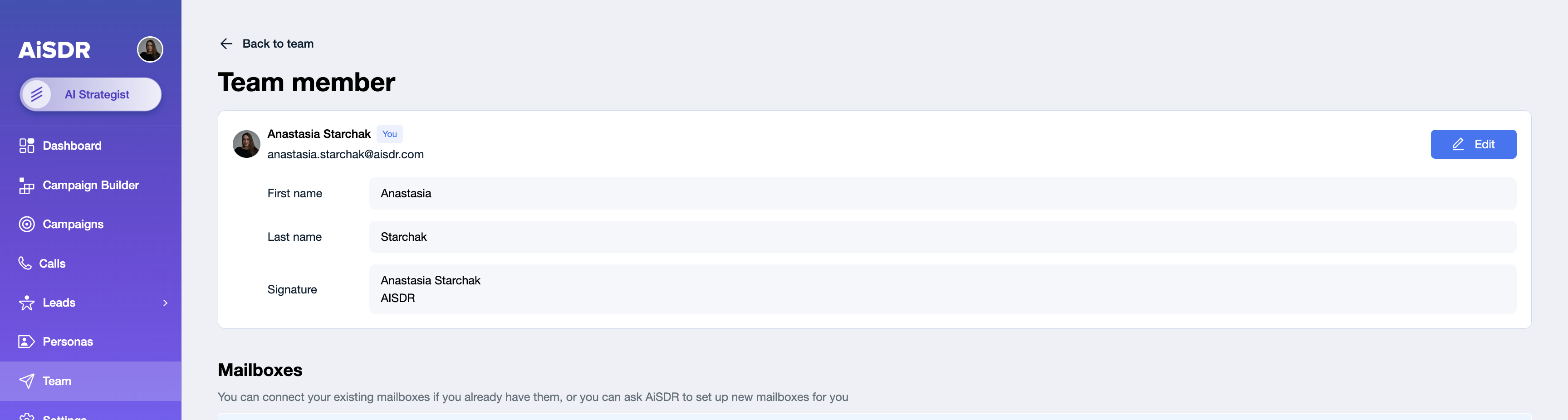
3. Open LinkedIn Integration Settings
Locate the LinkedIn integration options in the section below.

🔄 Connection Methods
You have two options to connect LinkedIn for a teammate:
Option 1: Send Connection Request
Click "Send Request to Connect LinkedIn".
Your teammate will receive a notification and can complete the connection themselves.
✅ Best for when you don’t have access to their login credentials.
Option 2: Connect Manually
If you know your teammate’s LinkedIn login credentials:
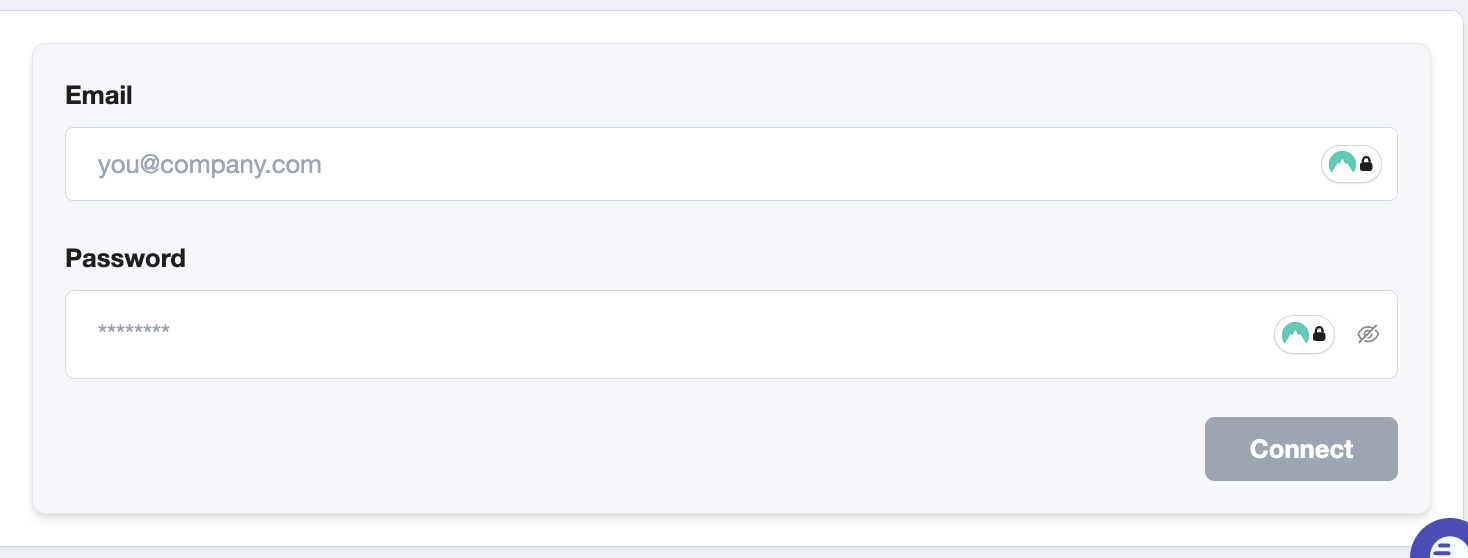
Click "Connect Manually" button.
Enter their LinkedIn email and password -> click "Connect".
If they have Two-Factor Authentication (2FA) enabled:
They’ll need to approve the login via SMS code or the LinkedIn mobile app.
Once the 2fa approval was successful, click "Confirm" in AiSDR. Wait for the connection to complete (this may take up to 300 seconds).
✅ Once the verification process is complete, the LinkedIn account will be successfully connected to AiSDR.
You’ll now see the LinkedIn integration status as "Connected" under the teammate’s profile.

Troubleshooting:📄 Your LinkedIn Isn’t Connecting to AiSDR? Try This