What Happens After You Receive a LinkedIn Response?
Last updated: February 9, 2026
The moment has arrived - your lead replied on LinkedIn! Here’s what happens next and how you can manage the conversation effectively through AiSDR.
🔄 Syncing LinkedIn Replies to AiSDR
To simulate natural human behavior and avoid triggering LinkedIn's automation restrictions, AiSDR syncs LinkedIn replies every 8–12 hours.
⏱ Why the Delay?
This intentional delay helps avoid automation flags.
You can still access incoming LinkedIn responses at any time within AiSDR - even before the sync.
📍 Where You Can Reply to LinkedIn Messages
You have two ways to respond to LinkedIn messages inside AiSDR:
1) From the Dashboard
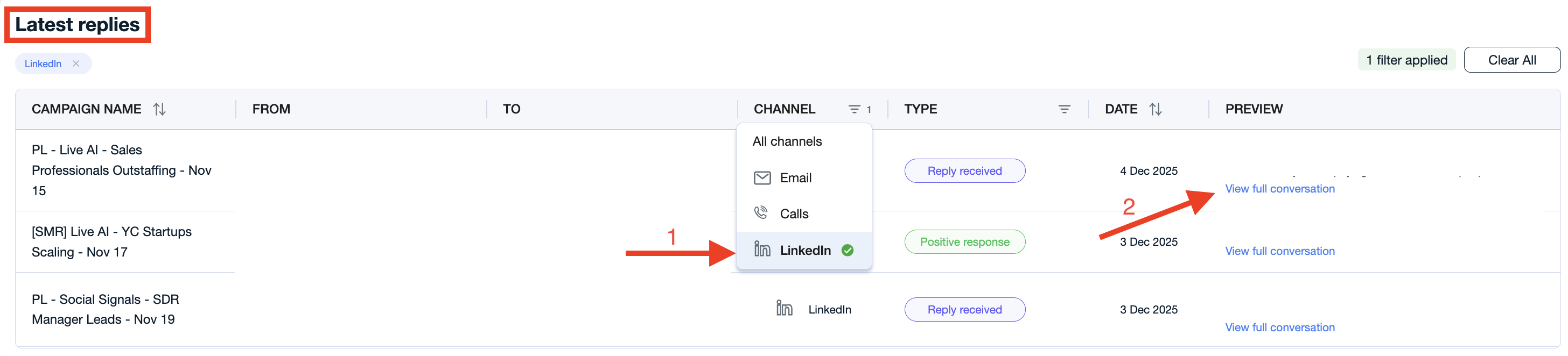
Dashboard → Latest replies → Channel: LinkedIn → View Full Conversation → Manual Reply
Go to your Dashboard and scroll to the Latest Replies section.
Filter by LinkedIn channel, select View Full Conversation
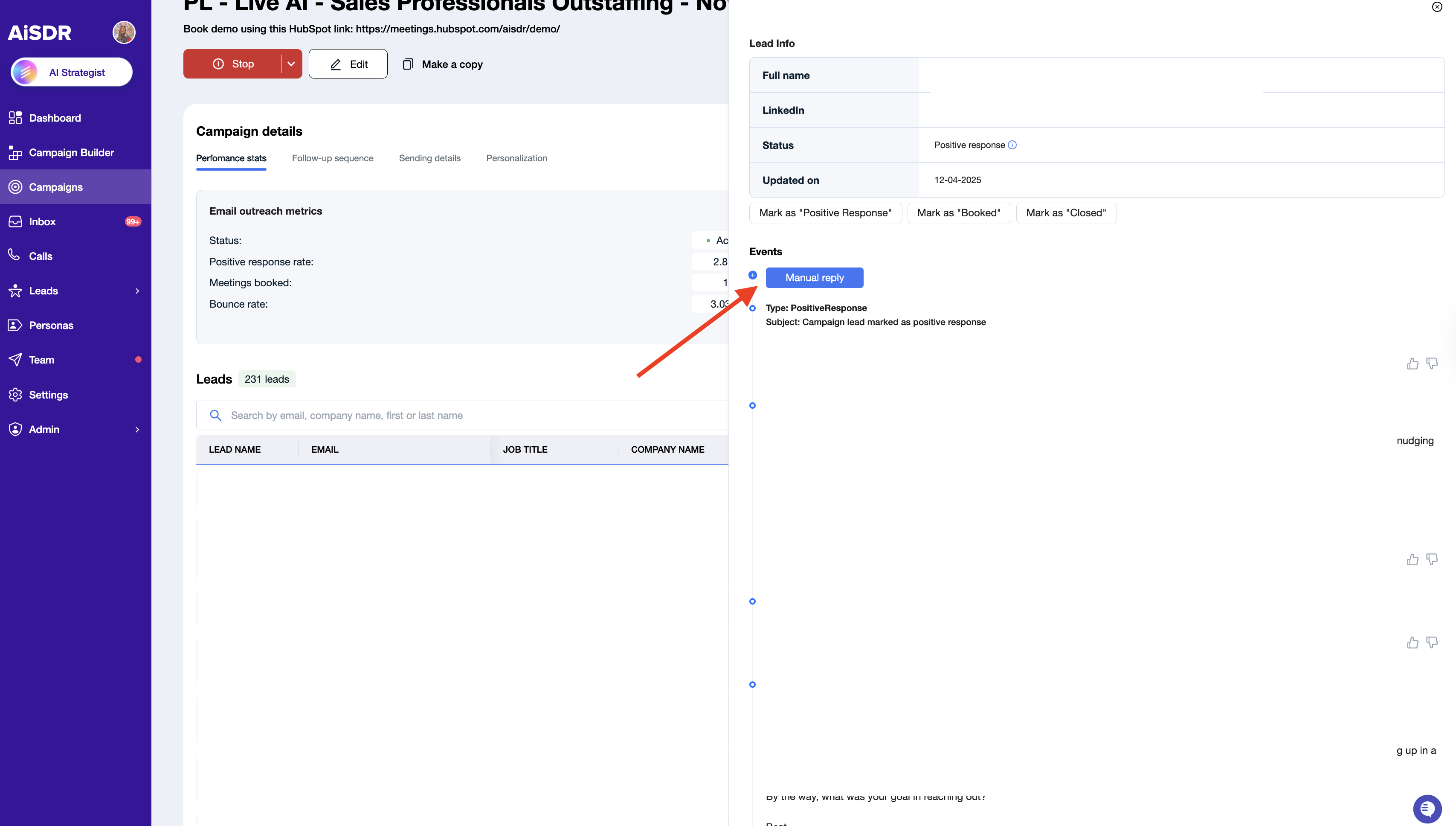
Select Manual Reply
Switch to LinkedIn Message
Write your response → press Send
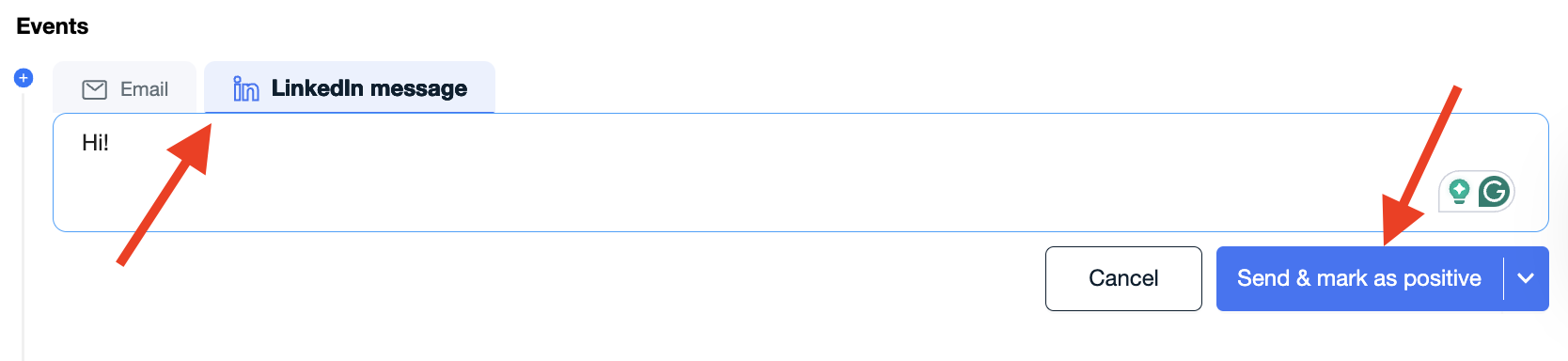
When sending your reply, you have two options:
Send & mark as positive → Sends your reply, and prevents any further AiSDR-generated outreach.
Send & continue sequence → Sends your reply but keeps the lead active in the campaign sequence, so the sequence and additional automated follow-ups will continue.
2) From the Inbox
Inbox → Classification: ReplyReceived → Open Conversation
Go to your Inbox
Choose ReplyReceived
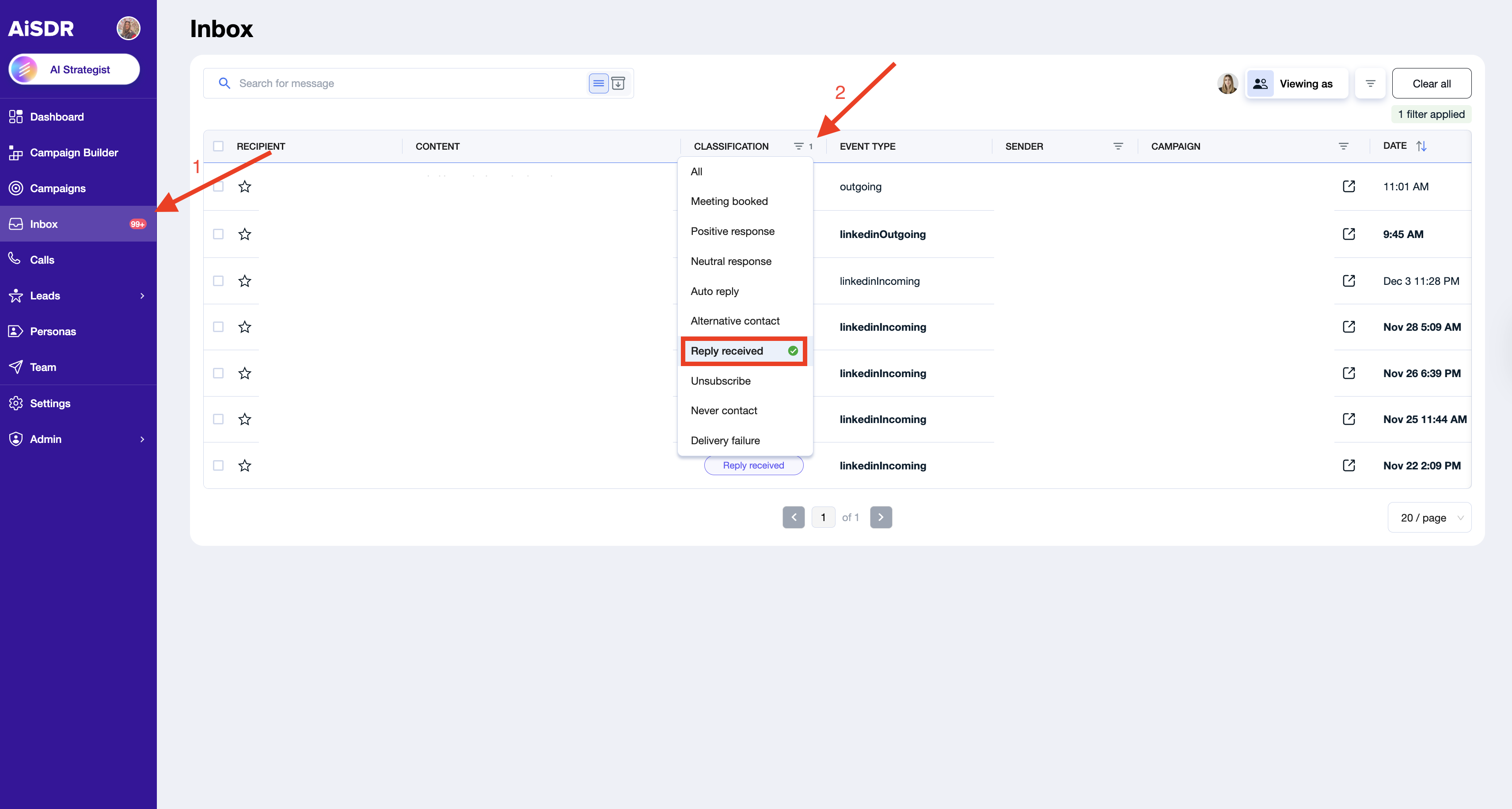
Open the lead’s conversation
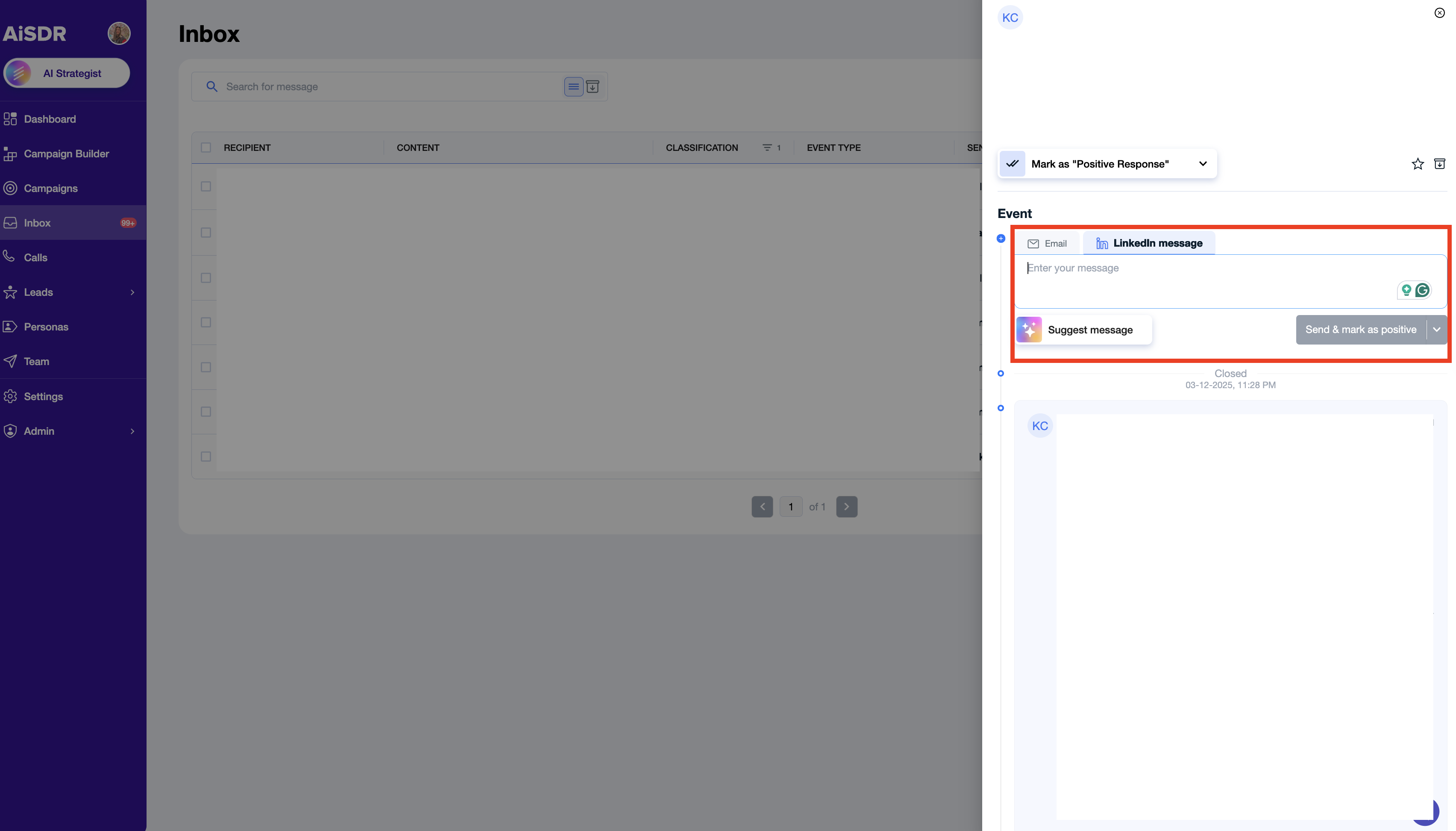
Type your message → press Send
🎁 Bonus: Let Ai Craft Your Replies
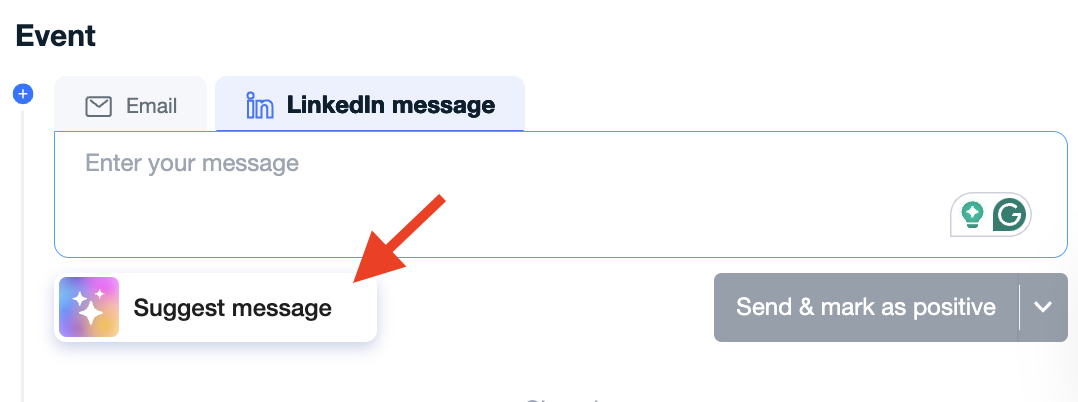
Inside the Inbox, AiSDR can help you respond even faster!
Just click “Suggest message” — Ai analyzes your entire LinkedIn conversation and generates a smart, context-aware reply you can send instantly!