How to Set Up a Campaign that Tracks Post Likes?
Last updated: September 15, 2026
A step-by-step guide to configuring your campaign in AiSDR.
To create a Signals - Post Likes campaign:
1. Go to Campaign Builder
Open AiSDR and navigate to the Campaign Builder;
Select the Signals tab at the lead selection step;
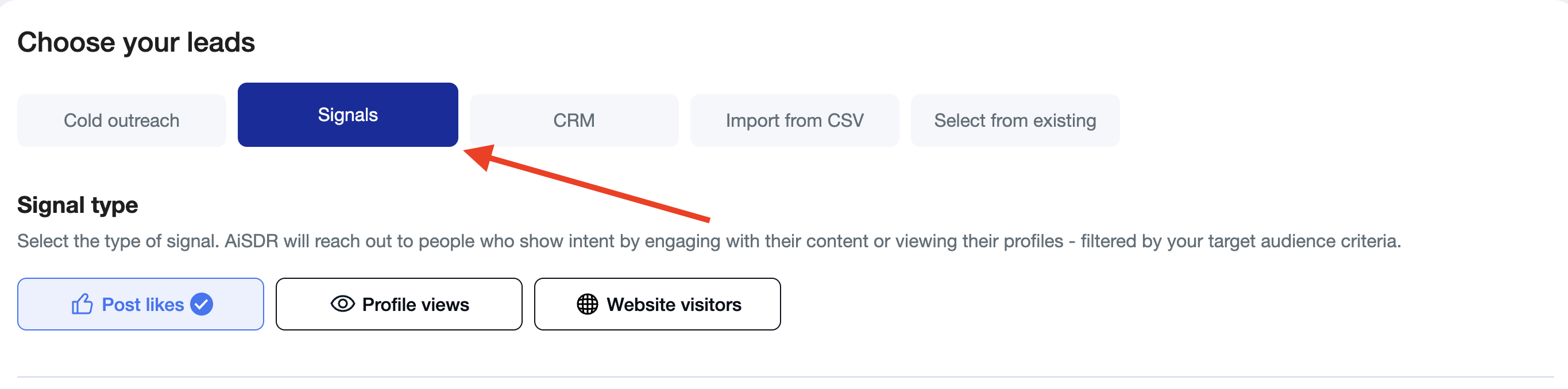
Switch to Post likes:
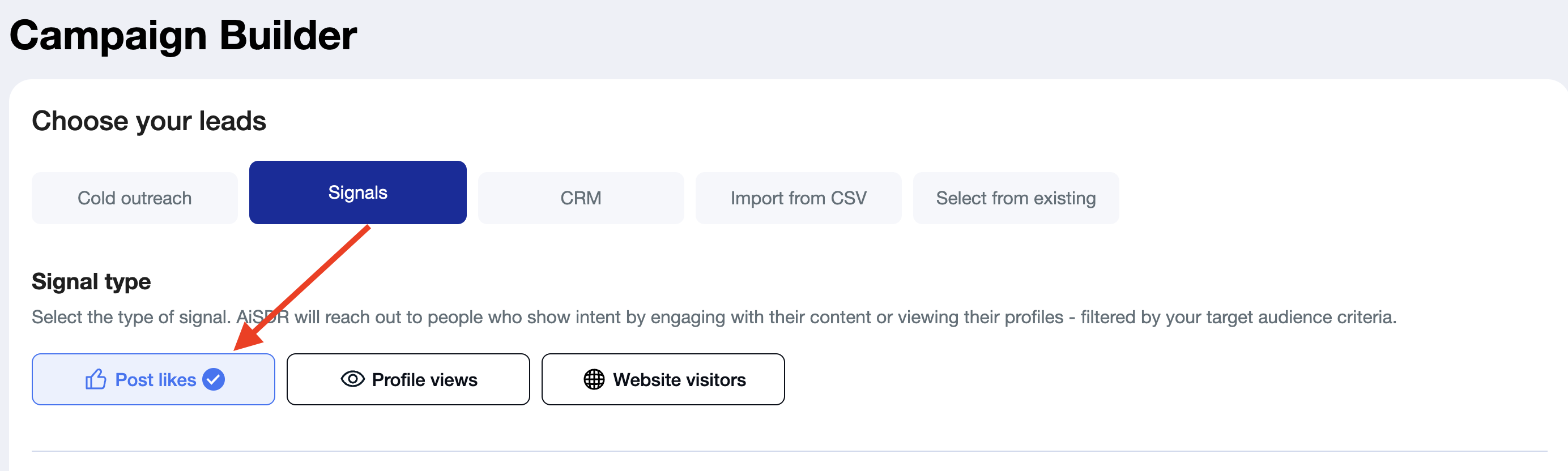
2. Add LinkedIn Profiles to Track
Enter the LinkedIn URLs of personal profiles you want to monitor;

You can track:
Your own LinkedIn profile
Executives (e.g., CEO, CMO, Sales Director)
Competitors
Thought leaders in your industry, etc
It’s recommended to add no more than 5 links for best targeting results
Make sure the link you add points to the LinkedIn profile page, not to an activity feed or post page.
❓ I don't know which profiles to use ❓
If you’re not sure which profiles to use, you can take advantage of the AI-powered influencer search. It will find LinkedIn accounts for you based on your criteria.
Simply type in who you're looking for in the field at the top.

The search might take 5–10 minutes, and once it’s complete, it will automatically populate the LinkedIn profile URL(s) field with relevant accounts.
3. Set Post Type
Decide if you want to track:
Original posts
Reposts
Both
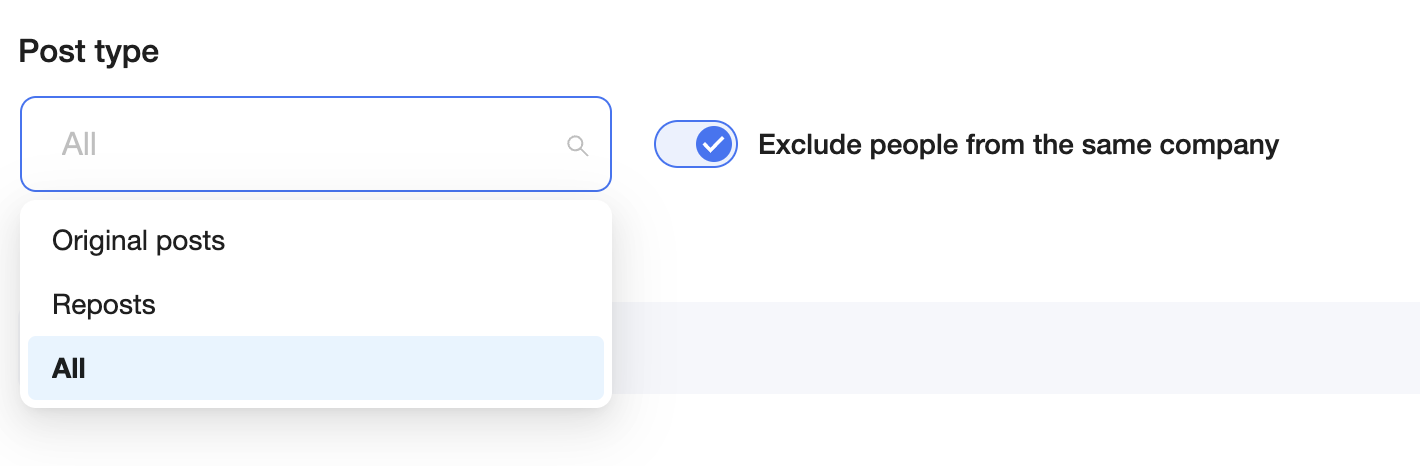
Make sure the “Exclude people from the same company” option is enabled.
4. Apply Filters for Your ICP
Start by adding LinkedIn profile links only, with no filters. Run the initial search and review the leads it brings in. Then, use what you learn to apply light filtering based on actual results.
Narrow your audience based on results. Using filters:
Location
Company size
Industry (include or exclude)
Department (include or exclude)
Job title (include or exclude)
Management level
We recommend not using too many filters in a Social Signals campaign, as engagement is already a strong intent signal.
Apply only 2–3 filters: job title, management level, and location
5. Search and Build Your List
Click Search.
AiSDR will scrape the list with contact data (emails, LinkedIn URLs, company info).
⚠ Note: Social Signals search may take a bit more time to run, but the leads you get from it are highly qualified and well worth the wait.
You don’t need to wait for all 100 profiles to be scraped — finding just 10 relevant ones can already be enough to get your campaign started. Once you have them, just enable “Add fresh leads daily” and AiSDR will keep adding matching profiles over time.
6. Enrich your leads
Click the Next button to enrich lead data before proceeding.
7. Complete the campaign setup flow
Select the persona (messaging) you want to use for this campaign.
Name your campaign and define its goal (e.g., book a call or get a positive reply).
Create your sequence based on your outreach preferences.
Add the sender(s) — select one or multiple people who will send the messages.
‼ Make sure all senders have LinkedIn connected if you selected multi-channel outreach.
8. Set the sending schedule
Stick to one campaign = one time zone.
Avoid selecting countries with different time zones in one campaign to ensure messages are sent during business hours.
9. Modify the subject line
Adjust the subject line to fit your campaign style and persona.
10. Preview the sequence
Click Generate Sequence and review the example messaging flow to confirm everything looks right.
11. Create and save your campaign
⚠ Don’t forget to click Create Campaign to save all your setup and results!
Your campaign will be inactive by default! Please make sure everything is set up correctly, and feel free to activate it when ready.
🔒 12. Don’t forget the Suppression List!
Before launching your campaign, it’s essential to add your competitors to the suppression list. This prevents outreach to the wrong companies and protects your brand reputation — especially when using LinkedIn-based triggers.
📄 How to Add the Suppression List?
📄 How Does the Suppression List Work?
📌 We strongly recommend doing this before activating any Social Signals or high-intent campaign.
Read more about Social Signals campaigns:
📄 What links work best for Social Signals?